テキストヘッダーフッターを追加する Excel 使用 Zapier
PDF4me テキストヘッダーとフッターを追加 は Zapier ブランド化されたヘッダーとフッターのテキストを書き込むアクション Excel ワークシートを自動的に作成します。ヘッダーとフッターの左、中央、右セクションにタイトル、ページ参照、免責事項、会社名などを追加するために使用します。セクションごとに色とフォントサイズを個別に設定できます。新しい Excel 次のZapステップ用のファイル。
このアクションが何をするか
取る Excel 前の Zap ステップからワークブックを取得し、6 つのヘッダー/フッターセクション (各セクションの左、中央、右) にテキストを書き込みます。各セクションには、それぞれ独自の色とフォントサイズが設定されています。名前またはインデックスで特定のワークシートに適用するか、両方のフィールドを空のままにして、ワークブック内のすべてのシートに同じヘッダーとフッターを適用します。ワークフローから自動的に出力されるレポートのブランディング、ページタイトル、機密保持に関する通知、または生成日などに役立ちます。
認証 API リクエスト
アクセスするには PDF4me ウェブ API を通して Zapierすべてのリクエストには適切な認証情報を含める必要があります。認証により安全な通信が保証され、承認されたユーザーとしての身元が検証され、シームレスな統合が可能になります。 Zapier ワークフローと PDF4meの Excel テキストブランディングサービス。
見逃してはならない重要な事実
:::ヒント:前の手順でマップファイルとファイル名を取得してください + 隣のボタン ファイル そして ファイル名 以前の Zap ステップからマッピングするには、たとえば、 Excel Googleドライブから。組み合わせることができます ファイル名 そして ファイル拡張子 前のステップから完全なファイル名を構築します。 Excelファイルには完全なコンテンツを提供する必要があり、「存在するが表示されない」参照は認められません。 :::
:::警告 ファイル: (存在しますが表示されません) ファイルフィールドに「ファイル: (存在しますが表示されません)」と表示され、「ファイルが空です」エラーが発生する場合は、 ファイルの内容全体 代わりに。参照 Zapier & Power Automate ヒント詳細は :::
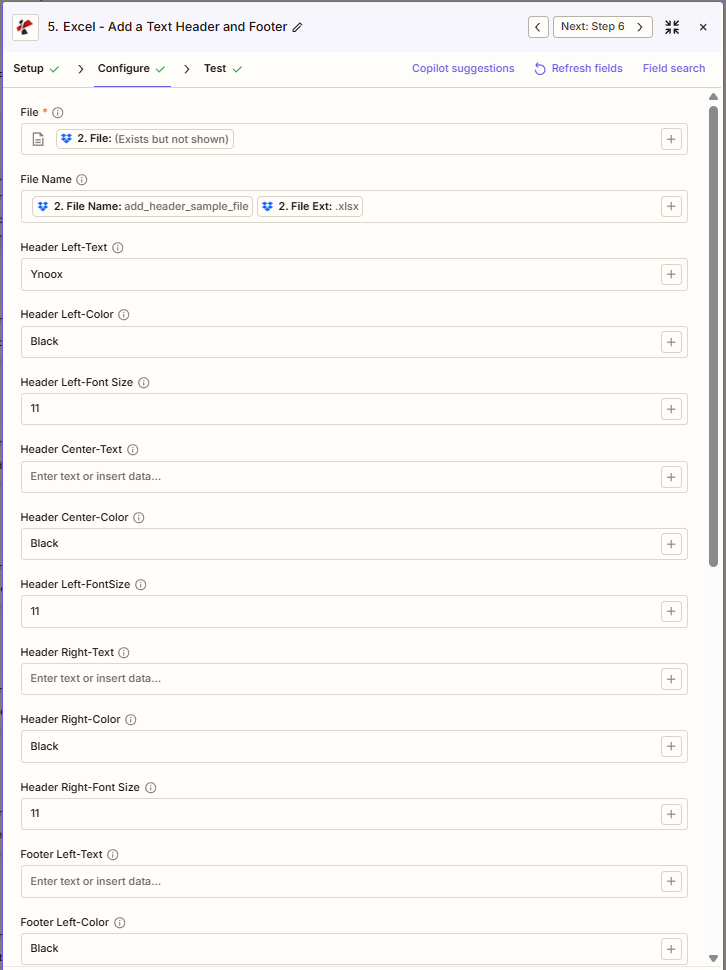
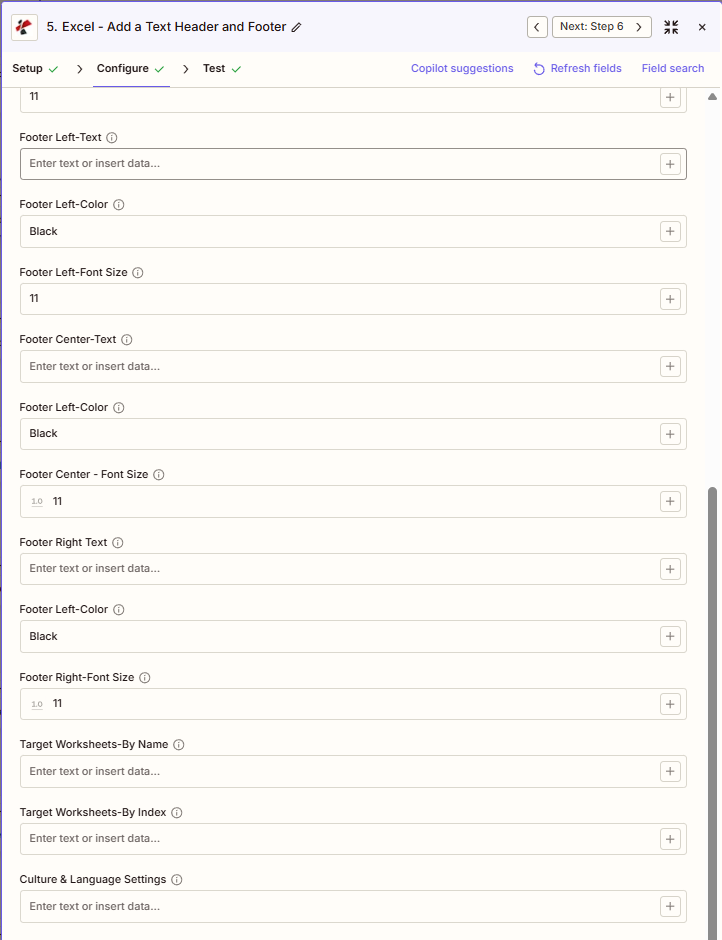
Add Text Header Footerの主な機能は何ですか?
- 6つのテキストセクションヘッダーの左、中央、右、およびフッターの左、中央、右にテキストを追加します。
- セクションごとのスタイリング各セクションごとにテキスト、色、フォントサイズを個別に設定します。
- ワークシートのターゲット設定名前またはインデックスで特定のシートを指定するか、すべて指定する場合は空欄のままにします。
- 文化と言語日付と数値の書式設定のロケールを設定します
パラメータ
「テキストヘッダーフッターの追加」アクションのパラメーターの完全なリスト。パラメーター名は、 Zapier 構成 UI 上記のスクリーンショットに示されています。
- 地図 ファイル (Excelトリガーまたは前のステップから
- オプションでマッピング ファイル名 (例:前の手順で取得したファイル名とファイル拡張子を組み合わせる)
- テキストを入力してください ヘッダー左テキスト、 ヘッダー中央テキスト、 ヘッダー右側テキスト (空欄のままでも構いません)
- テキストを入力してください フッター左テキスト、 フッター中央テキスト、 フッター右側テキスト (空欄のままでも構いません)
- オプションで設定可能 色 そして フォントサイズ 各セクションについて(デフォルト:黒、11)
- 任意で指定 対象ワークシート - 名前別 または 対象ワークシート - 索引別 (または、すべてのシートを空欄のままにしてください)
| パラメータ | 必須 | その機能 | 例 |
|---|---|---|---|
| File | Optional | Excel file to add text headers/footers to. Map from a previous step. Must provide full file content. | [2. File from Step 2] |
| File Name | Optional | Excel filename with .xlsx or .xls extension, used for output file identification. | add_header_sample_file.xlsx |
| Header Left-Text | Optional | Text for the left header section. | Ynoox |
| Header Left-Color | Optional | Color for the left header text. Hex or color name. Defaults to Black. | Black |
| Header Left-Font Size | Optional | Font size in points for the left header. Defaults to 11. | 11 |
| Header Center-Text | Optional | Text for the center header section. | Q4 2024 Report |
| Header Center-Color | Optional | Color for the center header text. Defaults to Black. | Black |
| Header Center-Font Size | Conditional | Font size for the center header. | 11 |
| Header Right-Text | Optional | Text for the right header section. | - |
| Header Right-Color | Optional | Color for the right header text. Defaults to Black. | Black |
| Header Right-Font Size | Optional | Font size for the right header. Defaults to 11. | 11 |
| Footer Left-Text | Optional | Text for the left footer section. | - |
| Footer Left-Color | Optional | Color for the left footer text. Defaults to Black. | Black |
| Footer Left-Font Size | Optional | Font size for the left footer. Defaults to 11. | 11 |
| Footer Center-Text | Optional | Text for the center footer section. | Confidential |
| Footer Center-Color | Conditional | Color for the center footer text. | Black |
| Footer Center - Font Size | Optional | Font size for the center footer. Defaults to 11. | 11 |
| Footer Right Text | Optional | Text for the right footer section. | - |
| Footer Right-Color | Conditional | Color for the right footer text. | Black |
| Footer Right-Font Size | Optional | Font size for the right footer. Defaults to 11. | 11 |
| Target Worksheets-By Name | Optional | Target worksheets by exact name. Empty applies to all sheets. | Sheet1, Sheet2 |
| Target Worksheets-By Index | Optional | Target worksheets by 1-based index. Empty applies to all sheets. | [1, 2] |
| Culture & Language Settings | Optional | Locale for date/number formatting. | en-US |
| File URL (Either provide File or File URL) | Optional | Link to the Excel workbook to add the header and footer to, as an alternative to File. Map a file URL from a previous step. | |
すべてのワークシートに適用する
両方とも残しておく 対象ワークシート - 名前別 そして 対象ワークシート - 索引別 テキストヘッダー/フッターを適用するには空欄にしてください すべてのワークシート ワークブックに記載されています。
重要: のみ ファイル は必須です。ファイル名を含むその他のフィールドはすべて 条件付きつまり、その特定のセクションにスタイルを適用したい場合にのみ重要になります。 + 各フィールドの横にあるボタンをクリックすると、前の手順からデータをマッピングできます。ワークシートのインデックスは1から始まります。色は16進数コード(#RRGGBB)または色名(例:黒、赤)で指定できます。
「テキストヘッダー/フッターを追加」すると何が返されますか?
の PDF4me テキストヘッダーとフッターを追加 アクションは変更されたものを返します Excel 後続の Zap ステップで使用するためのファイル。出力形式はすべて共通です。 PDF4me Excel アクション Zapier。
主要な出力フィールド(次のステップに対応付けてください)
API 処理済みのデータをダウンロードするためのエンドポイント Excel ファイル。これを次のステップのファイル入力にマッピングします。
api.pdf4me.com/Zapier/GetDocument?d=...代替ダウンロード URL パスにファイル名を含めて。
api.pdf4me.com/Zapier/GetAltDocument/.../add_header_sample_file.xlsx| 分野 | タイプ | 内容物 |
|---|---|---|
jobId | Text | ID of the PDF4me job that processed the request. |
traceId | Text | Trace ID of the request, when PDF4me returns one. Give it to PDF4me support when reporting a problem. |
documentId | Text | ID PDF4me gives the resulting document. |
File Name | Text | Name of the resulting file, without extension. |
File Extension | Text | Extension of the resulting file, for example `.pdf`. |
Full File Name | Text | Name of the resulting file, with extension. |
File Url | Text | Download link of the resulting file. Map it into any later step that needs the file, for example an upload to Google Drive, Dropbox or OneDrive. |
Alternate File Url | Text | Alternative download link of the resulting file, with the file name at the end of the URL. |
File Size | Number | Size of the resulting file, as reported by PDF4me. |
- JSON
- Zap Integration
例 JSON 出力 (URL(表示形式のみ、リンクは機能しません):
{
"Job Id": "969f2da3-f10a-49bf-b084-6fc4759991ec",
"File Url": "api.pdf4me.com/Zapier/GetDocument?d=...",
"Alternate File Url": "api.pdf4me.com/Zapier/GetAltDocument/.../add_header_sample_file.xlsx",
"File Name": "add_header_sample_file",
"File Extension": ".xlsx",
"Full File Name": "add_header_sample_file.xlsx",
"Document Id": "07386627-184a-44b2-a040-5ea2712a4bc5",
"File Size": 212764,
"Doc Text": ""
}
使用 + 地図を作成する ファイルURL または 代替ファイルURL 次のステップへ、ドライブ、Dropbox、メール、または別の PDF4me Excel アクション。
この出力構造は、以下の間で共有されます。 テキストヘッダーとフッターを追加、 行を追加する、 行を更新する、 透かしを追加その他 PDF4me Excel アクション Zapier. URLこれらは一時的なものです。期限が切れる前に次のステップで使用してください。
典型的な構成
ワークフローの例Common Zapier workflow patterns using Add Text Header Footer.
- 月次財務ワークブックがGoogleドライブのフォルダに保存されると、トリガーが作動します。
- PDF4me 「テキストヘッダーとフッターの追加」では、ヘッダーの中央テキストをレポートのタイトルに、フッターの中央テキストを「機密 - 社内使用のみ」に設定し、ターゲットワークシートを空のままにして適用することで、すべてのシートに同じ処理が適用されます。
- Driveの手順では、ブランドロゴ入りのワークブックを役員向けフォルダにアップロードします。
- 成果物ワークブックが最終版としてマークされたときに、プロジェクト管理のトリガーが作動します。
- PDF4me 「テキストヘッダーとフッターの追加」では、ヘッダーの左側のテキストをコンサルティング会社の名前に、フッターの右側のテキストを前の手順でマッピングされた日付値に設定し、「名前でワークシートを対象とする」を使用して顧客向けのシートのみを対象とします。
- メール送信の手順で、クライアントにブランドロゴと日付が入ったワークブックが送信されます。
- アクセス制限付きストレージフォルダにワークブックがアップロードされると、トリガーが作動します。
- PDF4me 「テキストヘッダーフッターの追加」では、ヘッダー中央のテキストを「機密」に設定し、ヘッダー中央の色を赤にします。ターゲットワークシートは空のままにしておくため、すべてのシートにマークが表示されます。
- マークされたワークブックは安全なストレージに保存され、その配布状況はログに記録されます。
実践的なヒント
チートシート
| 分野 | 価値 |
|---|---|
| Action | Add Text Header Footer |
| File | [Mapped from previous step] |
| File Name | add_header_sample_file.xlsx |
| Header Center-Text | Q4 2024 Report |
| Footer Center-Text | Confidential |
| Default Color | Black |
| Default Font Size | 11 |
| Target Worksheets-By Name | Sheet1, Sheet2 (or empty for all) |
| Culture & Language Settings | en-US |
よくある質問
関連アクション
他のプラットフォームでの同じタスク
業界におけるユースケースとアプリケーション
- Finance & Accounting
- Sales & Marketing
- Human Resources
- Operations
- 財務諸表のタイトルヘッダーに期間タイトルを追加する(例:「2024年第4四半期キャッシュフロー計算書」)
- 機密保持に関するフッターすべての財務報告書に「機密扱い - 社内使用のみ」というフッターを挿入する
- レポート生成日バージョン管理と追跡のために「生成日時: MM/DD/YYYY」というフッターを追加します。
- 予算報告書の見出し予算と実績の比較レポートに部門と期間のヘッダーを挿入する
- 監査証跡フッター: 準拠のために「作成者: [名前]」と「レビュー日: [日付]」を追加してください
- 売上レポートのタイトル地域ごとに「月間売上実績 - [地域]」というヘッダーを動的に追加する
- キャンペーン報告の日付: 追跡のためにヘッダーにキャンペーン名と日付範囲を挿入してください
- 価格表のフッター見積書に「有効期限:[日付]」と連絡先情報のフッターを追加する
- 提案書の見出し提案書のすべてのワークシートに会社名と提案タイトルを記入してください。
- 地域ヘッダー地域別レポートに販売地域とマネージャー名のヘッダーを追加する
- 給与期間ヘッダー給与計算シートに「給与期間:[開始]~[終了]」という見出しを追加する
- 機密人事フッター機密文書には「人事部機密 - 関係者以外閲覧禁止」と記載してください。
- 業績評価タイトルレビューワークシートに従業員名とレビュー期間のヘッダーを追加する
- 福利厚生登録フッター従業員向けの登録期間と締め切り情報を挿入してください
- 従業員ハンドブックの見出し: 文書バージョンと有効日ヘッダーを追加する
- シフトレポートのヘッダー: 運用レポートにシフト番号、日付、および監督者名のヘッダーを追加する
- 植物の位置識別子複数拠点運営の場合は、ヘッダーに工場/施設名とコードを挿入してください。
- メンテナンスログのフッター機器追跡のために「最終更新日: [日時]」というフッターを追加してください。
- 品質管理ヘッダー: コンプライアンス記録のために検査日と品質管理担当者名を記入してください
- 生産実行時のフッター製造記録にバッチ番号と製造日のフッターを追加する