作物 PDF で Zapier
PDF4me 作物 PDF は Zapier トリミングするアクション PDFは、設定可能な 2 つの方法 (Rectangle または Border) を使用して、ページの端を削除したり、特定の領域を抽出したりします。これを使用して、スキャナーの余白を削除したり、署名ブロックを分離したり、新しいページが挿入されるたびにページサイズを自動的に標準化したりできます。 PDF あなたのZapに届きます。
このアクションが何をするか
PDF4me 作物 PDF トリム PDF ページの端または特定の領域を抽出します Zapier 2つの柔軟な方法を用いたワークフロー: 長方形を使用して切り抜く 正確な領域抽出の場合は、(左下X/Y、幅、高さ) または ボーダーを使用して作物を栽培する (左、右、上、下)で余白を削除。スキャナーの端を自動的に削除し、契約書から署名ブロックを分離し、フォームフィールドを抽出し、ドキュメントバッチ全体でページサイズを標準化し、または準備します。 PDFs 印刷用、すべてDropbox、Google Drive、Gmail、フォーム送信、またはその他によって自動的にトリガーされます Zapier トリガー。
認証 API リクエスト
アクセスするには PDF4me ウェブ API を通して Zapierすべてのアクションは認証される必要があります。クリック 新しいアカウントを接続する 初めて貼り付けて PDF4me API キーにより、後続のZapは接続を自動的に再利用します。
見逃してはならない重要な事実
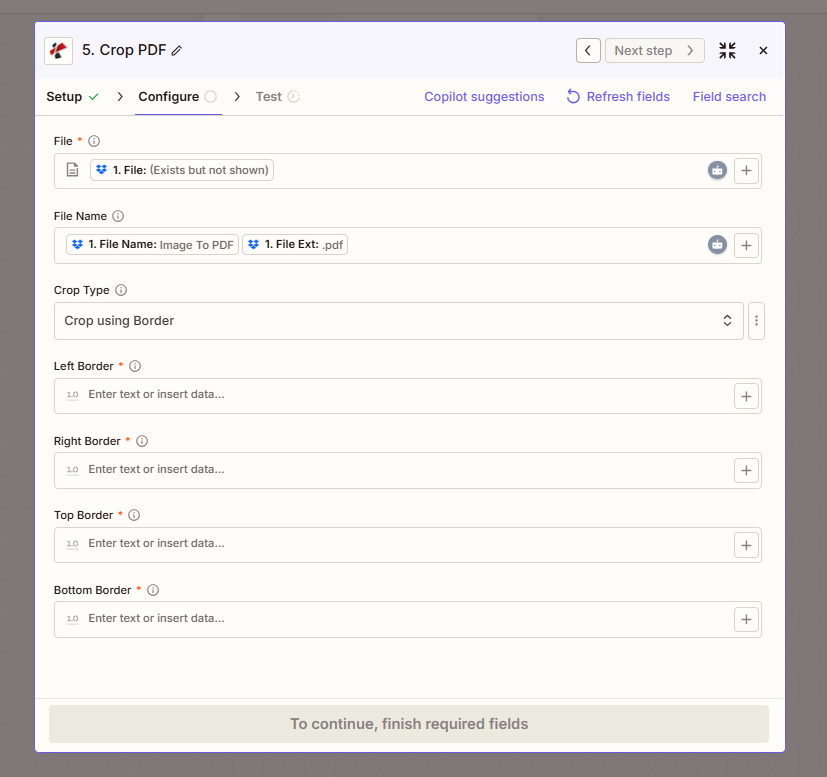
長方形モードでは、左下隅の座標に幅と高さを加えることで、特定のページ領域を抽出できます。
パラメータ:方法1:長方形を使用して切り抜く
左下隅の位置と寸法を指定することで、切り抜き領域を定義します。この方法を使用して、ページ上の特定の領域(署名ブロック、フォームセクション、コンテンツ領域など)を抽出します。
| パラメータ | 必須 | その機能 | 例 |
|---|---|---|---|
| File | Optional | Input PDF from a previous Zap step. Map the file output of Dropbox, Google Drive, Gmail attachment, form trigger, or HTTP webhook. | 1. File: (Exists but not shown) |
| File Name | Optional | Output file name (filename + extension). Map from prior step or hardcode. PDF4me derives a sensible default if omitted. | 1. File Name + 1. File Ext |
| Crop Type | Optional | Select "Crop using Rectangle" from the dropdown to enable Rectangle-mode fields below. | Crop using Rectangle |
| Lower Left X | Required | X-coordinate of the lower-left corner of the crop rectangle (in points). 0 starts at the left edge. | 50 |
| Lower Left Y | Required | Y-coordinate of the lower-left corner of the crop rectangle (in points). 0 starts at the bottom edge. | 100 |
| Width | Required | Width of the crop rectangle in points, extending right from Lower Left X. | 500 |
| Height | Required | Height of the crop rectangle in points, extending up from Lower Left Y. | 600 |
| File URL (Either provide a File or a File URL) | Optional | Link to the PDF to crop, as an alternative to File. Map a file URL from a previous step. | |
| Left Border | Required | Shown when Crop Type is Crop using Border. Distance in millimeters to crop from the left edge of the page. | |
| Right Border | Required | Shown when Crop Type is Crop using Border. Distance in millimeters to crop from the right edge of the page. | |
| Top Border | Required | Shown when Crop Type is Crop using Border. Distance in millimeters to crop from the top edge of the page. | |
| Bottom Border | Required | Shown when Crop Type is Crop using Border. Distance in millimeters to crop from the bottom edge of the page. | |
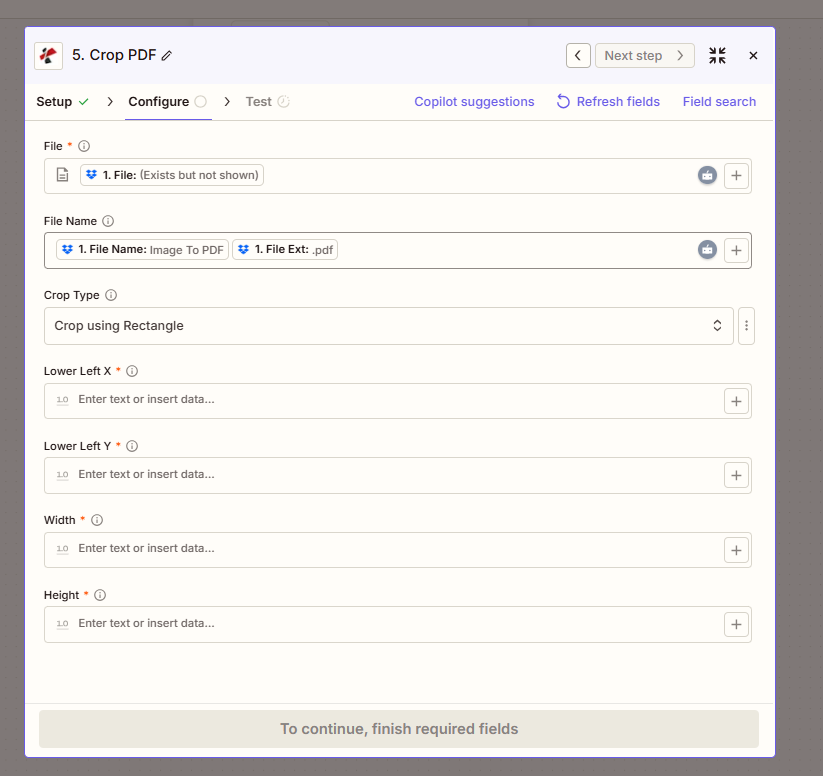
境界モードでは、余白やスキャナー出力の端を削除するために、各端からどれだけトリミングするかを指定します。
パラメータ:方法2:境界線を使用して切り抜き
各端からどれだけトリミングするかを指定することで、余白を削除できます。この方法を使用すると、スキャナーの端をきれいにしたり、ページ番号を削除したり、装飾的な空白を均一に削除したりできます。
| パラメータ | 必須 | その機能 | 例 |
|---|---|---|---|
| File | Optional | Input PDF from a previous Zap step. | 1. File: (Exists but not shown) |
| File Name | Optional | Output file name. PDF4me derives a default if omitted. | 1. File Name + 1. File Ext |
| Crop Type | Optional | Select "Crop using Border" from the dropdown. | Crop using Border |
| Left Border | Conditional | Amount to trim from the left edge in points. | 10 |
| Right Border | Conditional | Amount to trim from the right edge in points. | 10 |
| Top Border | Conditional | Amount to trim from the top edge in points. | 15 |
| Bottom Border | Conditional | Amount to trim from the bottom edge in points. | 15 |
長方形か枠線か:どちらの切り抜きモードを使用すべきですか?
長方形を使用して切り抜く特定の領域を抽出するボーダーを使用して作物を栽培する各端から余白を切り取る出力フィールド
| 分野 | タイプ | 内容物 |
|---|---|---|
jobId | Text | ID of the PDF4me job that processed the request. |
traceId | Text | Trace ID of the request, when PDF4me returns one. Give it to PDF4me support when reporting a problem. |
documentId | Text | ID PDF4me gives the resulting document. |
File Name | Text | Name of the resulting file, without extension. |
File Extension | Text | Extension of the resulting file, for example `.pdf`. |
Full File Name | Text | Name of the resulting file, with extension. |
File Url | Text | Download link of the resulting file. Map it into any later step that needs the file, for example an upload to Google Drive, Dropbox or OneDrive. |
Alternate File Url | Text | Alternative download link of the resulting file, with the file name at the end of the URL. |
File Size | Number | Size of the resulting file, as reported by PDF4me. |
トリミングの設定方法 PDF で Zapier?
- で Zapier、 クリック + 新しいアクションを追加して選択する PDF4me。
- 選ぶ 作物 PDF アクションイベントとして。
- 接続 PDF4me アカウントまたは貼り付け API 指示されたらキーを押します。
- 地図 ファイル 前のステップのバイナリ出力(Dropbox 新規ファイル、Google Drive 新規ファイル、Gmail 添付ファイル、またはフォームトリガー)に渡します。
- 選択 作物の種類 ドロップダウンメニューから: 長方形を使用して切り抜く 領域抽出または ボーダーを使用して作物を栽培する 余白除去のため。
- 長方形モードの場合: 左下 X、 左下 Y、 幅、 そして 身長 ポイント単位(1インチ=72ポイント)。
- ボーダーモードの場合: 左境界線、 右境界線、 上部境界線、 下部境界線 ポイントで。
- オプションで設定可能 ファイル名 前のステップで取得したファイル名と拡張子をマッピングすることによって行います。
- サンプルを使って手順をテストする PDF トリミング後の出力が正しく見えることを確認してください。
- ザップをオンにしてください。 PDF トリガーからの画像が自動的にトリミングされ、出力はアップロード、メール送信、またはさらなる処理に対応できる状態になります。
ワークフローの例
ワークフローの例Common Zapier workflow patterns using Crop PDF.
- ネットワークスキャナは PDFs スキャナーベッドからの不均一な余白と歪み補正を適用して、Dropboxの監視フォルダに保存します。
- Zapier 新しいファイルごとにトリガーが作動します。 PDF4me 作物 PDF トリミングタイプを「境界線を使用してトリミング」に設定し、各エッジから15ポイントを削除します。
- 清掃された PDF ファイル名のパターンは、アーカイブフォルダにGoogleドライブにアップロードされます。 {date}_{document_id}.pdf。
- 後続の Zap (または連鎖ステップ) が実行されます OCR 清掃された PDF、 OCR スキャナ端のアーチファクトがない場合、精度は著しく向上する。
- Airtable ログには、ドキュメント ID、スキャン日、 OCR 記録保持監査証跡のステータス。
- DocuSignまたはAdobe Signは、Webhookを介して署名済みの契約書を配信します。 Zapier。
- PDF4me 作物 PDF トリミングタイプを「長方形を使用してトリミング」に設定し、左下隅のX/Y座標と、ページ上の既知の署名ブロックの位置と一致する幅/高さを設定して実行します。
- 切り取られた PDF (署名領域のみ)はコンプライアンスアーカイブに保存されます。 SharePoint 契約IDをファイル名として使用します。
- コンプライアンス担当者への電子メール通知には、契約書の参照番号とともに、切り取られた署名領域が添付されます。
- 切り取られた署名画像と元の完全な契約書は両方ともリンクされています Salesforce エンドツーエンドの監査のため。
- 様々なチームから送られてくる報告書は、ページサイズや余白がまちまちで、印刷準備を複雑にしている。
- 新しいレポートが作成されるたびに、Googleドライブのフォルダのトリガーが作動します。 PDFGoogle スプレッドシートの検索ステップにより、レポートカテゴリの対象となる作物の寸法を取得します。
- PDF4me 作物 PDF スプレッドシートのルックアップから動的にマッピングされた左下隅のX/Y座標と幅/高さを使用して実行し、すべてのレポートを同じコンテンツ領域に標準化します。
- 標準化された PDF ウェブフックを介してオンデマンド印刷サービスのキューに送信され、すべてのレポートで均一な出力が保証されます。
- 施設管理チームへの報告用に、処理されたすべてのレポート、カテゴリ、および印刷ジョブIDを一覧表示する週次サマリーメールが送信されます。