Word の目次を更新します Power Automate
PDF4me 目次を更新 は Power Automate Word文書の見出しをスキャンし、目次を自動的に生成または更新する機能です。Wordを開かずに、技術マニュアル、学術論文、長文レポートなどに、文書がワークフローに組み込まれた瞬間に、クリック可能なプロフェッショナルなナビゲーションを追加できます。
このアクションが何をするか
PDF4me 目次を更新 設定された範囲内の Word 文書の見出し 1 から見出し 6 までのスタイルを読み取り、既存の目次フィールドを更新するか、文書の先頭に新しい目次フィールドを作成します。ハイパーリンク、タブリーダー、大文字/小文字、およびロケールを制御します。
認証 API リクエスト
アクセスするには PDF4me ウェブ API を通して Power Automateすべてのリクエストには有効な API キー。認証によって本人確認が行われ、コネクタがフローからPDF4meのWord TOCサービスにアクセスできるようになります。
見逃してはならない重要な事実
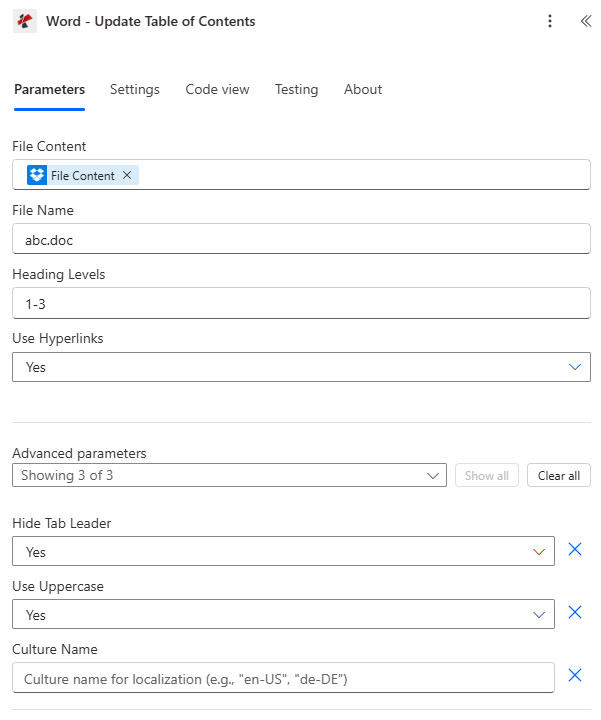
ファイルの内容、ファイル名、見出しレベル、ハイパーリンクの使用はメインフォームに配置されています。タブリーダーの非表示、大文字の使用、カルチャ名は詳細設定パラメータです。
パラメータ
必須: ファイルの内容とファイル名は必ず指定する必要があります。見出しレベルとハイパーリンクの使用にはデフォルト値が設定されており、タブリーダーの非表示、大文字の使用、カルチャ名はオプションの高度なパラメータです。
| パラメータ | 必須 | その機能 | 例 |
|---|---|---|---|
| File Content | Optional | Content of the Word document to process. Map it from the file content returned by a previous action, such as SharePoint or OneDrive Get file content. | @{body('Get_file_content')?['$content']} |
| File Name | Optional | Name of the Word document, including its extension (for example `contract.docx`). | contract.docx |
| Heading Levels | Optional | Heading levels to include (e.g., "1-3", "1-6"). Defaults to `1-3`. | 1-3 |
| Use Hyperlinks | Optional | Include hyperlinks in table of contents. Defaults to `Yes`. | Yes |
| Hide Tab Leader | Optional | Hide tab leader dots in table of contents. Defaults to `Yes`. | Yes |
| Use Uppercase | Optional | Use uppercase for table of contents entries. Defaults to `Yes`. | Yes |
| Culture Name | Optional | Culture name for localization (e.g., "en-US", "de-DE"). | your value |
目次を更新すると何が返されますか?
| 分野 | タイプ | 内容物 |
|---|---|---|
Processed File Content | File content | Content of the Word document with the updated table of contents. Map it into the next action, for example the File Content field of SharePoint or OneDrive Create file. The response contains no file name, so name the file yourself, for example with the input file name. |
Success | Yes/No | Whether the operation completed successfully |
Error Message | Text | Error message if operation failed |
Error Details | Array | List of detailed error messages |
{
  "document": "<file content>",
  "Success": true,
  "ErrorMessage": null,
  "Errors": []
}
よくあるエラーメッセージ
| エラーメッセージ | 原因 | 解決 |
|---|---|---|
Request is empty | Request object is null. | Provide a valid request object. |
Document is empty | Document object is null. | Provide a valid Word document. |
Error loading document from bytes | Invalid or corrupted Word document. | Verify the input document is a valid Word file (.docx). |
No headings found in document | Document has no heading styles applied. | Apply Heading 1 through Heading 6 styles to the sections that should appear in the TOC. |
Invalid heading levels specified | Heading Levels contains an invalid format. | Use a valid format such as "1-3", "1", or "1-2,4-6". |
Invalid culture name provided | Culture Name is not a recognized locale. | Use a valid culture code such as en-US or fr-FR. |
目次を更新するにはどうすればいいですか? Power Automate?
- 追加 PDF4me → 目次を更新 あなたの Power Automate 流れ。
- 地図 ファイルの内容 そして ファイル名 以前のアクションから、例えば SharePoint または OneDrive ファイルの内容を取得します。
- セット 見出しレベル 含める見出しスタイルの範囲、 ハイパーリンクを使用する エントリがクリック可能かどうかを制御する。
- 開ける 詳細パラメータ ドキュメントにデフォルト以外のタブリーダー、文字ケース、または特定の文字が必要な場合 文化名 地元。
- フローを実行する。 PDF4me 目次を更新または作成し、Word 文書を返します。
document。
どの見出しレベル範囲を使用すべきですか?
使用 「1-3」は、ほとんどのビジネス文書やレポートのデフォルトです。これは、細かいサブ見出しを取り込まずにセクションとサブセクションの見出しをキャプチャするためです。 「1-6」のようなより広い範囲 複雑な法律文書や技術文書で、深いネスト構造をナビゲートする必要がある場合に使用します。 「1-2,4-6」のような複合範囲 文書のレベル3の見出しが装飾的または反復的であり、その下のより深い構造を捉えつつもスキップする必要がある場合。
典型的な構成
ワークフローの例Common Power Automate flow patterns using Update Table of Contents.
- 技術マニュアルがアップロードされるとフローがトリガーされます SharePoint 「マニュアル」ライブラリ。
- 「ファイルの取得」は、アップロードされたWord文書を取得します。
- 目次の更新は、見出しレベルを「1~4」に設定し、ハイパーリンクの使用を「はい」に設定した状態で実行されます。
- 索引付きのマニュアルは図書館に保存され、読者はセクション間を簡単に移動できるようになります。
- 研究論文投稿フローに新しい原稿が投稿されました。
- 目次を更新する際は、見出しレベル「1~3」、タブリーダーの非表示、大文字の使用を「はい」に設定して、部門の書式設定基準に合わせます。
- 標準化された論文は、評価のために審査委員会に送付される。
- 国際的な文書の流れでは、翻訳されたWordファイルが地域事務所向けに準備されます。
- 目次の更新は、標準の見出しレベルとハイパーリンクの使用設定に加えて、カルチャ名を対象ロケール(例:「de-DE」)に設定した状態で実行されます。
- 地域に合わせて最適化され、操作しやすいドキュメントが、地域チームに配布されます。
実践的なヒント
チートシート
| 分野 | 価値 |
|---|---|
| Action | Update Table of Contents |
| File Content / File Name | Mapped from a prior action, .docx or .doc |
| Heading Levels | "1-3" default, or "1", or "1-2,4-6" |
| Use Hyperlinks | Yes (default) or No |
| Advanced: Hide Tab Leader | Yes (default) or No |
| Advanced: Use Uppercase | Yes (default) or No |
| Advanced: Culture Name | e.g. en-US, de-DE, blank for none |
| No headings found | Apply Word Heading 1-6 styles first |
| Output | document (Base64 Word), Success, Error Message, Errors |
よくある質問
業界におけるユースケースとアプリケーション
- Legal Industry
- Education
- Healthcare
- Finance & Banking
- Manufacturing
法律業界における活用事例
- 契約ナビゲーション: 複雑な複数セクション契約書の詳細な目次を作成する
- 法律概要: 長文の裁判文書をナビゲートしやすい構造にする
- コンプライアンスマニュアル: 規制要件と手順を索引化
- 事例記録証拠の要約と法的論拠を整理する
教育における活用事例
- 教科書索引教育資料の包括的な目次を作成する
- 研究論文提出前に学術文書の構造を標準化する
- コース教材カリキュラムの内容と参考資料を整理する
- 論文資料: 大学院および博士課程の構成
医療分野における活用事例
- 医学マニュアル: 臨床手順およびプロトコルの索引
- 研究資料臨床試験資料を整理する
- トレーニング資料: 医療教育コンテンツの構成
- コンプライアンスガイド規制要件に迅速に対応する
金融・銀行業務におけるユースケース
- 財務報告書複雑なレポートのためのナビゲーション可能な構造を作成する
- ポリシーマニュアルインデックスバンキングの手続きと規制
- 監査文書コンプライアンスおよび監査関連資料を整理する
- 投資ガイド: 金融教育コンテンツの構成
製造業における活用事例
- 技術マニュアル機器ドキュメントの詳細な目次を作成する
- 品質管理手順: 製造プロセスと規格の索引
- 安全ガイドライン職場の安全情報を整理する
- トレーニング資料: 技術教育内容の構成