安全なドキュメント Power Automate
安全な文書 は Power Automate アクション PDF4me そのパスワードは Word この機能を使うと、既に開いている文書に対して、閲覧のみ、コメントのみ、フォーム入力のみ、または改訂履歴のみといった制限を設定できます。機密性の高い契約書をパスワードなしで配布する場合や、レビューチームが文書の原文を編集せずにコメントできるようにする場合などに便利です。
このアクションが何をするか
PDF4me 安全な文書 2 つの独立したレイヤーを適用します Word 1回の通話でセキュリティ: パスワードを開く ファイルへのアクセスを完全に制限し、 編集制限、読み取り専用、コメント専用、フォームフィールド専用、または改訂専用など、既に開いているドキュメントで許可される内容を制限します。 1 つ、もう 1 つ、または両方を、完全に 内で適用します。 Power Automate 流れ。
認証方法 Power Automate 流れ?
電話するには PDF4me を通して Power Automateフローには有効な PDF4me API 鍵となるのは PDF4me 接続する コネクタ。認証により安全な通信が保証され、正規ユーザーとしての身元が確認されます。
見逃してはならない重要な事実
開くと安全 / パスワードを開く ファイルがそもそも開くかどうかを制御する。 セキュリティオプション 保護タイプ / 保護パスワード 開いている文書が何を許可するかを制限します。どちらか一方だけを設定するか、両方を設定して多層的なセキュリティを構築できます。セキュリティオプション 保護タイプ そして セキュリティオプション 保護パスワード これらは詳細設定項目であり、メインパネルの一部ではありません。詳細設定項目を展開するとアクセスできます。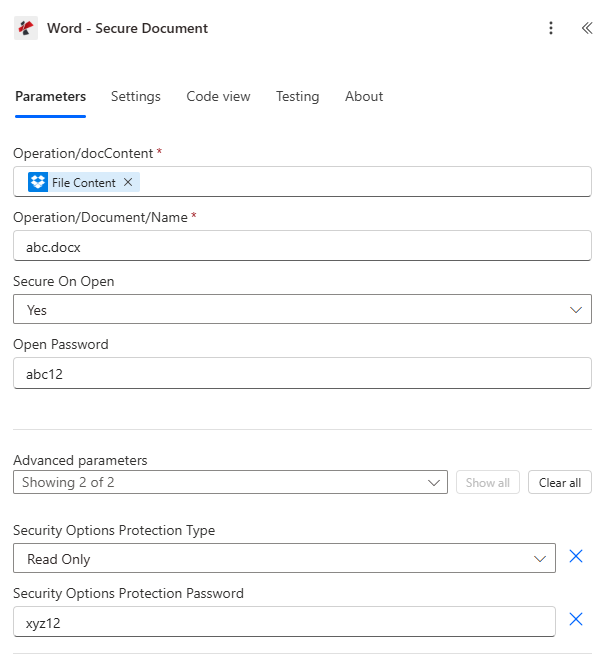
セキュリティオプション 保護タイプ そして セキュリティオプション 保護パスワード 表示 詳細パラメータ上記のオープンパスワード入力欄とは別に。
パラメータ
アクションに必要な要件: 手術/docContent そして 操作/文書/名前。 パスワードを開く 必要となるのは 開くと安全 は はい。 セキュリティオプション 保護パスワード 必要となるのは セキュリティオプション 保護タイプ 以外の値に設定されている 保護なし。
| パラメータ | 必須 | その機能 | 例 |
|---|---|---|---|
| docContent | Required | Content of the Word document to process. Map it from the file content returned by a previous action, such as SharePoint or OneDrive Get file content. | @{body('Get_file_content')?['$content']} |
| Name | Required | Name of the Word document, including its extension (for example `contract.docx`). | contract.docx |
| Secure On Open | Optional | If Yes, a password (Open Password) is needed to open the document. Options: Yes, No. Defaults to `No`. | No |
| Open Password | Optional | Password needed to open the document when Secure On Open is Yes. The field is a plain text field, so the value is visible in the action card and in the run history; store it in Azure Key Vault or a secure environment variable and turn on Secure Inputs for the action. | your-password |
| Protection Type | Optional | Editing restrictions to apply to the document. Options: No Protection, Read Only, Allow Comments, Allow Form Fields, Allow Revisions. Defaults to `No Protection`. | No Protection |
| Protection Password | Optional | Password for the editing restrictions set in Protection Type. The field is a plain text field, so the value is visible in the action card and in the run history; store it in Azure Key Vault or a secure environment variable and turn on Secure Inputs for the action. | your-password |
セキュリティオプションの保護タイプの値
保護なし読み取り専用コメントを許可するフォームフィールドを許可する修正を許可する安全なドキュメントを設定するにはどうすればいいですか Power Automate?
- 追加 安全な文書 あなたの流れに新たな一歩を。
- サインイン PDF4me 接続する あなたの API 鍵。
- 地図 手術/docContent 以前のアクションから設定 操作/文書/名前 と共に
.docx拡大。 - 公開パスワードを追加するには: 開くと安全 に はい そして提供する パスワードを開く。
- 編集を制限するには:展開する 詳細パラメータ、 セット セキュリティオプション 保護タイプ、そして提供する セキュリティオプション 保護パスワード。
- フローを実行し、確認します。 成功返された 書類 に SharePoint、 OneDriveまたは、メールの添付ファイルとして。
出力
| 分野 | タイプ | 説明 |
|---|---|---|
| Processed File Content | File content | Content of the Word document with the security settings applied. Map it into the next action, for example the File Content field of SharePoint or OneDrive Create file. The response contains no file name, so name the file yourself, for example with the input file name. |
| Success | Yes/No | Whether the operation completed successfully |
| Error Message | Text | Error message if operation failed |
| Error Details | Array | List of detailed error messages |
よくあるエラーメッセージ
| エラー message | 原因 | 解決 |
|---|---|---|
Request is empty | Request object is null | Provide a valid request object |
Document is empty | Document object is null | Provide a valid Word document |
Password is required when SecureOnOpen is enabled | Secure On Open is Yes but no Open Password was provided | Provide Open Password when Secure On Open is Yes |
Protection password is required for document protection | Protection Type is set but no Protection Password was provided | Provide Security Options Protection Password when using an editing restriction |
Error loading document from bytes | Invalid or corrupted Word document | Verify the input document is a valid .docx file |
典型的な構成
- 機密文書の準備ができたときにトリガーします SharePoint。
- 生成されたパスワードを使用して、「開く際にセキュリティを確保する」を「はい」に設定します。
- 必要に応じて、保護タイプを「読み取り専用」に設定することもできます。
- セキュリティ保護された文書とそのパスワードを、別々の経路でメールで送信してください。
- 文書がレビューキューに入ったときにトリガーされます。
- セキュリティ設定を「開く」に「いいえ」(レビュー担当者は自由に開くことができます)に設定します。
- 保護タイプを設定する:保護パスワード付きのコメントを許可する。
- 査読者へ送信します。コメントのみ追加可能です。
- フォームテンプレートが公開されたときにトリガーします。
- 保護タイプを設定する:保護パスワード付きのフォームフィールドを許可する。
- 用紙を配布してください。受取人は記入欄のみを記入できます。
- 記入済みのフォームを回収し、作業の流れに戻す。
実践的なヒント
保護された文書とその公開パスワードまたは保護パスワードは、メールとTeamsなど、別々のチャネルを通じて送信してください。そうすることで、どちらか一方が傍受されても、両方が漏洩するのを防ぐことができます。
セキュリティオプションの「保護タイプ」と「保護パスワード」は、デフォルトでは「詳細設定」の下に折りたたまれています。制限が適用されない場合は、そのセクションを展開して両方のフィールドを設定してください。
ドキュメントを保存またはメール送信する前に、成功条件を追加してください。エラーメッセージが入力された状態で成功が偽の場合は、有効なファイルが生成されなかったことを意味します。
これらは異なるレイヤーを保護します。同じパスワードを使い回すと、ファイルを開くことができる人は誰でも編集制限を解除できてしまいます。
パスワードは、アクションに直接入力された文字列ではなく、セキュアな変数、キーコンテナー、または受信者ごとに生成された値から取得することで、同じフローで保護対象のすべてのドキュメントにパスワードが漏洩するのを防ぎます。
チートシート
| ゴール | 開くと安全 | 保護タイプ |
|---|---|---|
| Confidential distribution | Yes | No Protection (or Read Only for extra safety) |
| Team review, comments only | No | Allow Comments |
| Fillable form | No | Allow Form Fields |
| Collaborative editing with audit trail | No | Allow Revisions |
| Maximum lockdown | Yes | Read Only |