テキストを置換 Power Automate
PDF4me テキストを置換 アクションにより、Word 文書内のテキストを検索して置換できます。 Power Automate 高度な書式設定オプションと包括的なテキストスタイル機能を備えています。この強力なテキスト置換機能は、複数の置換フレーズ、大文字小文字を区別するマッチング、単語全体のマッチング、正規表現、およびフォントプロパティ、色、テキスト効果、位置を完全に制御する詳細な書式設定制御をサポートしており、ドキュメントの自動化、テンプレート処理、コンテンツ管理ワークフローに最適です。 Microsoft 365。
認証 API リクエスト
アクセスするには PDF4me ウェブ API を通して Power Automateすべてのリクエストには適切な認証情報を含める必要があります。認証により安全な通信が保証され、承認されたユーザーとしての身元が検証され、シームレスな統合が可能になります。 Power Automate フローとPDF4meの強力なWordテキスト置換サービス。
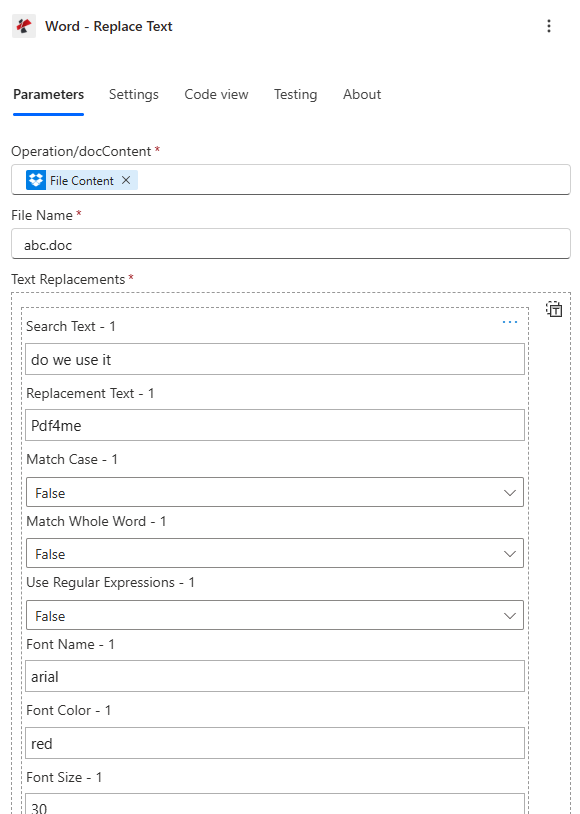
主な機能
- 複数のテキスト置換複数の検索置換操作を1つのアクションで実行する
- 詳細検索オプション大文字小文字を区別するマッチング、単語全体のマッチング、および正規表現
- 包括的な書式設定フォント、サイズ、色、テキスト効果を完全に制御可能
- パターンマッチング: 複雑なテキストパターンを持つ正規表現のサポート
- テキストのスタイル設定: 太字、斜体、下線、取り消し線、下付き文字、上付き文字
- カラーコントロールテキストの色と背景色を複数のカラーフォーマットで設定可能
- 逐次処理: 複数の交換品は指定された順序で処理されます
- 柔軟なマッチング: 完全一致、部分一致、または単語全体の一致
パラメータ
テキスト置換アクションのパラメータ一覧です。これらのパラメータを設定することで、テキスト置換の動作を制御できます。
ドキュメント入力パラメータ
| パラメータ | 必須 | その機能 | 例 |
|---|---|---|---|
| docContent | Required | Content of the Word document to process. Map it from the file content returned by a previous action, such as SharePoint or OneDrive Get file content. | @{body('Get_file_content')?['$content']} |
| File Name | Required | Name of the Word document, including its extension (for example `contract.docx`). | contract.docx |
| Text Replacements | Required | Replacements to perform. Add one item per text to find and replace, or switch to input entire array to pass an array built earlier in the flow. | your value |
| Search Text | Conditional | Text to search for. Shown when Text Replacements is set. | your value |
| Replacement Text | Conditional | Text to replace with. Shown when Text Replacements is set. | your value |
| Match Case | Conditional | Perform case-sensitive search. Defaults to `No`. Shown when Text Replacements is set. | No |
| Match Whole Word | Conditional | Match whole words only. Defaults to `No`. Shown when Text Replacements is set. | No |
| Use Regular Expressions | Conditional | If Yes, Search Text is treated as a regular expression. Defaults to `No`. Shown when Text Replacements is set. | No |
| Font Name | Conditional | Font name for the replacement text. Shown when Text Replacements is set. | your value |
| Font Color | Conditional | Text color in hex format or colour name (e.g., "#FF0000" for red). Shown when Text Replacements is set. | your value |
| Font Size | Conditional | Font size in points. Shown when Text Replacements is set. | 0 |
| Background Color | Conditional | Background color in hex format or colour name (e.g., "#FFFF00" for yellow). Shown when Text Replacements is set. | your value |
| Bold | Conditional | Apply bold formatting to replacement text. Shown when Text Replacements is set. | No |
| Italic | Conditional | Apply italic formatting to replacement text. Shown when Text Replacements is set. | No |
| Underline | Conditional | Apply underline formatting to replacement text. Shown when Text Replacements is set. | No |
| Strikethrough | Conditional | Apply strikethrough formatting to replacement text. Shown when Text Replacements is set. | No |
| Double Strikethrough | Conditional | Apply double strikethrough formatting to replacement text. Shown when Text Replacements is set. | No |
| Subscript | Conditional | Apply subscript formatting to replacement text. Shown when Text Replacements is set. | No |
| Superscript | Conditional | Apply superscript formatting to replacement text. Shown when Text Replacements is set. | No |
| Word Spacing | Conditional | Word spacing in points (space between words). Shown when Text Replacements is set. | 0 |
| Culture Name | Optional | Culture name for localization. | your value |
テキスト置換配列の構造:
- 各交換部品は指定された順序で順次処理されます
- 同じ文書に対して複数の置換を実行できます。
- 各置換項目には異なる書式設定オプションを設定できます
- 検索テキストのすべての出現箇所が置換されます(単語全体一致を使用する場合を除く)。
出力
の PDF4me テキストを置換 アクションは、シームレスな包括的な出力データを返します Power Automate フロー統合:
- Table
- JSON
- Flow Integration
テーブルビュー
構造化された表形式の応答データ:
| 分野 | タイプ | 内容物 |
|---|---|---|
| Processed File Content | File content | Content of the Word document with the text replaced. Map it into the next action, for example the File Content field of SharePoint or OneDrive Create file. The response contains no file name, so name the file yourself, for example with the input file name. |
| Success | Yes/No | Whether the operation completed successfully |
| Error Message | Text | Error message if operation failed |
| Error Details | Array | List of detailed error messages |
JSON 回答形式
アクションが返すフィールドは、動的コンテンツに表示されるとおりです。
{
  "Processed File Content": "<file content>",
  "Error Message": null,
  "Error Details": []
}
エラー応答の例:
{
  "Processed File Content": null,
  "Error Message": "At least one phrase replacement is required",
  "Error Details": [
    {
      "Code": "VALIDATION_ERROR",
      "Message": "Text Replacements array cannot be null or empty"
    }
  ]
}
Power Automate フロー使用状況
置換テキストを含むドキュメントを後続の操作で使用する:
- 文書自動化: プレースホルダーテキストを動的コンテンツに置き換える
- テンプレート処理テンプレート変数を実際の値で更新する
- コンテンツ管理用語と書式を標準化する
- ドキュメントのパーソナライズ: 文書に個人情報を挿入する
- レポート生成レポートデータと書式を更新する
- メール配信: 処理済みの文書を関係者に送信する
よくあるエラーメッセージ
エラーを理解し、トラブルシューティングを行うことで、スムーズなテキスト置換ワークフローを確保できます。
| エラーメッセージ | 原因 | 解決 |
|---|---|---|
| 「リクエストが空です」 | リクエストオブジェクトがnullです | 有効なリクエストオブジェクトを指定してください |
| 「ドキュメントが空です」 | ドキュメントオブジェクトはnullです | 有効なWord文書を提供してください |
| 「少なくとも1つのフレーズ置換が必要です」 | テキスト置換配列がnullまたは空です | 配列内に少なくとも1つの置換フレーズを指定してください |
| 「フレーズ置換では、検索テキストを空にすることはできません」 | 置換後の検索テキストが null または空です | 各置換箇所に検索する有効なテキストを指定してください。 |
| 「テキスト置換エラー」 | テキスト置換時の一般的な例外 | ドキュメントのフォーマットとパラメータを確認してください。エラー配列の例外の詳細を確認してください。 |
| 「バイト列からのドキュメント読み込みエラー」 | 無効または破損したWord文書 | 入力ドキュメントが有効なWordファイル(.docx)であることを確認してください。 |
ワークフローの例
の PDF4me テキストを置換 アクション Power Automate 実際のビジネスシナリオに合わせて設計された包括的なワークフローテンプレートを提供します。
- Template Processing
- Content Standardization
- Report Generation
- Document Personalization
自動テンプレート処理ワークフロー
自動テンプレート処理で文書作成を効率化しましょう。
ワークフローの手順を完了する:
- トリガー: 処理準備完了のドキュメントテンプレート SharePoint
- テンプレートを取得テンプレートライブラリからWordテンプレートを取得します。
- 会社名を置き換えてください: "[COMPANY_NAME]"を"Acme Corporation"に置き換えてください。
- 日付を置き換える: "[DATE]"を現在の日付に置き換えてください
- 連絡先情報を置き換える: "[CONTACT_EMAIL]" を " に置き換えます[email protected]「
- 書式設定会社名に太字、日付に赤色を適用
- メール処理済みドキュメント: 処理済みの文書を関係者に送信する
- アーカイブテンプレート処理済みのドキュメントを「完了したテンプレート」フォルダに保存します。
ビジネス上のメリット:
- 毎月200以上の文書テンプレートを自動的に処理します
- プレースホルダーテキストを実際の会社情報に置き換えます
- 一貫したフォーマットとブランディングを保証します
- 手動テンプレート処理時間を95%削減
自動コンテンツ標準化ワークフロー
自動化されたコンテンツ標準化により、文書の一貫性を向上させましょう。
ワークフローの手順を完了する:
- トリガー: ドキュメントがアップロードされました SharePoint 標準化のため
- ドキュメントを取得するアップロード場所からWord文書を取得する
- 用語の標準化「do we use it」を「Pdf4me」に置き換えてください。
- ブランドイメージの更新古い会社名を現在のブランド名に置き換える
- フォーマットヘッダーヘッダーの書式設定を統一する(Arial、16pt、太字)
- カラーコードセクション重要な部分に赤色を適用する
- メール標準文書: 標準化された文書をチームに送信する
- アーカイブ文書標準化された文書を承認済みのライブラリに保存する
ビジネス上のメリット:
- 毎月300件以上の文書を自動的に標準化します。
- 用語とブランドの一貫性を確保する
- すべての文書に統一された書式を適用します
- 手動によるコンテンツレビュー時間を90%削減します
自動レポート生成ワークフロー
自動レポートデータ置換機能でレポート作成を最適化しましょう。
ワークフローの手順を完了する:
- トリガーデータ入力用のレポートテンプレートが準備できました
- レポートテンプレートを取得するテンプレートライブラリからWordレポートテンプレートを取得します。
- メトリクスの置き換え「[TOTAL_SALES]」を実際の売上データに置き換えてください。
- 日付を置き換える「[REPORT_DATE]」を現在の日付に置き換えてください。
- パフォーマンスを置き換える: "[PERFORMANCE_RATING]"を計算された評価に置き換えてください。
- フォーマットデータ指標には太字の書式を適用し、日付には青色を適用します。
- メールレポート: 入力済みのレポートを経営陣に送信する
- アーカイブレポート最終レポートをレポートライブラリに保存する
ビジネス上のメリット:
- 毎月50件以上のレポートを自動的に生成します
- テンプレートデータを実際のビジネス指標に置き換えます
- レポートの書式設定と表示の一貫性を確保します
- 手動によるレポート作成時間を85%削減します。
自動化された文書パーソナライズワークフロー
自動化されたドキュメントのパーソナライズ機能で、顧客とのコミュニケーションを強化しましょう。
ワークフローの手順を完了する:
- トリガー: パーソナライズ準備完了のクライアント文書
- ドキュメントを取得するクライアントキューからWord文書を取得する
- クライアント名を置き換えてください「[CLIENT_NAME]」を実際のクライアント名に置き換えてください。
- プロジェクト情報を置き換える: "[PROJECT_NAME]" をプロジェクトの詳細に置き換えてください。
- 接点を交換する: "[ACCOUNT_MANAGER]"を割り当てられたマネージャーに置き換えてください
- 個人情報のフォーマットクライアント名には青色を適用し、プロジェクト情報は太字にする。
- メールクライアント: 顧客にパーソナライズされたドキュメントを送信
- 個人用アーカイブ: パーソナライズされたドキュメントをクライアントフォルダに保存します
ビジネス上のメリット:
- 毎月150件以上のクライアント文書を自動的にパーソナライズします
- プレースホルダーテキストをクライアント固有の情報に置き換えます
- プロフェッショナルな文書プレゼンテーションを保証します
- 手作業による文書のパーソナライズ時間を80%削減します
業界におけるユースケースとアプリケーション
- Legal & Professional Services
- Finance & Accounting
- Sales & Marketing
- Human Resources
- Healthcare & Medical
- Education & Research
法律・専門サービスにおけるユースケース
- 契約処理: プレースホルダーテキストをクライアント固有の情報に置き換えてください
- 法律文書の自動化ケース番号、クライアント名、日付を更新する
- テンプレートの標準化法律用語と書式を標準化する
- クライアントとのコミュニケーション特定の顧客向けに法的文書をカスタマイズする
財務・会計におけるユースケース
- 財務報告書の作成テンプレートデータを実際の財務指標に置き換えてください。
- 請求書処理請求書テンプレートに顧客情報と支払い情報を更新する
- 予算文書の自動化予算のプレースホルダーを実際の数値に置き換えてください。
- 監査レポートの生成監査テンプレートに具体的な監査結果を反映させる
営業・マーケティングにおける活用事例
- 提案書の作成提案書テンプレートを顧客固有の情報に置き換える
- マーケティング資料の作成キャンペーンの詳細をマーケティングテンプレートに更新する
- クライアントとのコミュニケーション特定の見込み客向けに販売資料をパーソナライズする
- レポートの標準化販売用語と書式を標準化する
人事関連のユースケース
- 従業員書類処理人事テンプレートを従業員固有の情報に置き換える
- ポリシー文書の更新: 最新のポリシー情報でポリシーテンプレートを更新する
- 研修教材の作成トレーニングテンプレートを具体的なトレーニングコンテンツに置き換える
- コンプライアンス文書: コンプライアンステンプレートを最新の要件に合わせて更新する
ヘルスケアおよび医療分野における活用事例
- 医療レポート作成医療テンプレートを患者固有の情報に置き換える
- 患者とのコミュニケーション特定の患者向けに医療文書をパーソナライズする
- 研究資料研究テンプレートを研究固有のデータで更新する
- コンプライアンス文書医療コンプライアンステンプレートを最新の基準に合わせて更新する
教育・研究における活用事例
- 学術論文の作成研究テンプレートを研究固有の情報に置き換える
- カリキュラム文書の作成カリキュラムテンプレートを具体的なコース内容で更新する
- 学生コミュニケーション特定の生徒向けに教育資料をパーソナライズする
- 研究報告書の作成研究結果に基づいて研究テンプレートを更新する