Word文書を結合する Power Automate
このアクションが何をするか
PDF4meドキュメントの結合 複数の Word ファイルを結合します (DOCX/DOC)を単一の結合ドキュメントに Power Automate 流れを制御する マージ順序とソート位置スタイルがどのように処理されるかを選択します(元の書式設定を保持する、宛先のスタイルを使用する、異なるスタイルを保持する)、そして設定します OOXML コンプライアンスレベル。ドキュメントを取得 SharePoint、 OneDriveDropbox、または電子メールの場合、出力はクリーンな単一の DOCX 配布またはさらなる加工の準備が整いました。
関連ブログ記事
この機能に関するブログ記事はまだありません。近日公開予定です。
その間、PDF4me ブログを閲覧して、あらゆるプラットフォームのチュートリアルやワークフローをご覧ください。
ブログをご覧ください →
認証 API リクエスト
毎 PDF4me アクション Power Automate 有効な 繋がり入力してください PDF4me API キーは、アクションを初めて追加したときに自動的に再利用され、以降のすべてのアクションで再利用されます。 PDF4me 同じ流れの中で行われるアクション。
見逃してはならない重要な事実
SortPosition マージ順序を制御します
配列内の各ドキュメントには SortPosition 値。ドキュメントは昇順でマージされ、位置 0 がベース ドキュメントになります。任意の番号付けスキーム (0、1、2 または 10、20、30) を使用できます。ループからファイルを取得する場合は、動的に割り当てます。 SortPosition 反復インデックスを使用することで、ストレージからファイルを取得する方法に関係なく、常に順序が確定します。
FormatMode スタイルの調整方法を決定する
KeepSourceFormatting (デフォルト)各ドキュメント独自のスタイルを保持します。 UseDestinationStyles 最初のドキュメントのスタイルを結合されたすべてのコンテンツに適用します。統一感のある外観にしたい場合に最適です。 KeepDifferentStyles 異なるスタイルを保持し、同一のスタイルのみをマージします。固定テンプレートを使用したブランドレポートの場合は、 UseDestinationStyles テンプレートを位置0として使用します。
DocContent ファイルバイナリである必要があります。 URL またはパス
の DocContent 各ドキュメントのフィールドは、Word ファイルの生のバイナリ コンテンツを想定しており、 SharePoint URL またはファイルパス。 Power Automate まず各ドキュメントに対して「ファイルコンテンツを取得」アクションを実行し、次にその出力ボディをマッピングします。 DocContent。 のために SharePointパスを使用してファイルコンテンツを取得すると、バイナリが直接返され、追加のエンコード手順は不要です。
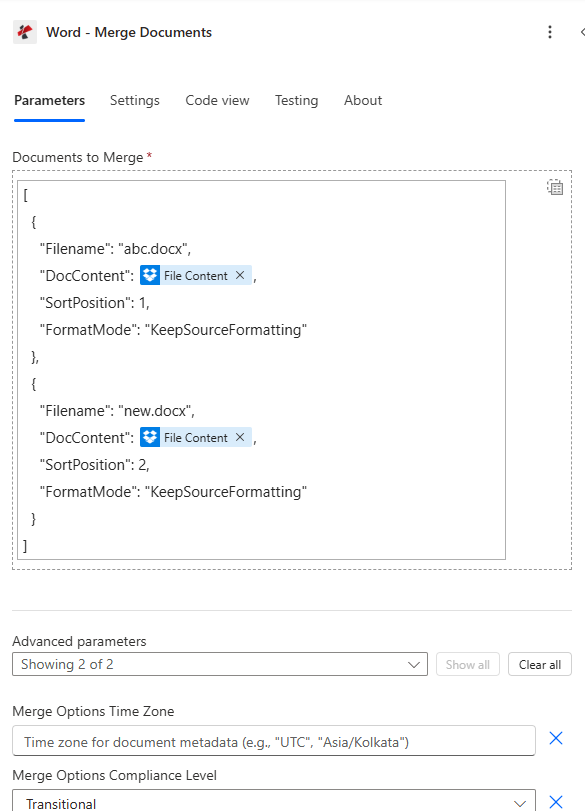
ファイルごとに1つのエントリを持つDocuments配列を作成します。マップ DocContent ファイルコンテンツの取得ステップからではなく、 URL。 SortPosition 0は基本文書であり、その他はすべて順番に追加されます。
パラメータ
必須: 少なくとも 1 つのエントリを含むドキュメント配列。各エントリには、ファイル名、 DocContent (ファイルバイナリ) SortPosition。 FormatMode マージオプションは任意です。
| パラメータ | 必須 | その機能 | 例 |
|---|---|---|---|
| Documents to Merge | Required | Documents to merge. Add one item per document, or switch to input entire array to pass an array built earlier in the flow. | your value |
| File Name | Required | Name of the document, including its extension (for example `part1.docx`). | part1.docx |
| Document Content | Required | Content of the document. Map it from the file content returned by a previous action, such as SharePoint or OneDrive Get file content. | @{body('Get_file_content')?['$content']} |
| Sort Position | Required | Position of this document in the merge order, for example `1` for the first document. | 1 |
| Format Mode | Conditional | Select how to handle merging Microsoft Word document styles. Options: KeepSourceFormatting, KeepDifferentStyles, UseDestinationStyles. Defaults to `KeepSourceFormatting`. Shown when Documents to Merge is set. | KeepSourceFormatting |
| Time Zone | Optional | Time zone for document metadata (e.g., "UTC", "Asia/Kolkata"). | your value |
| Compliance Level | Optional | Document compliance level. Options: ECMA, Transitional, Strict, Custom. Defaults to `Transitional`. | Transitional |
出力フィールド
| 分野 | タイプ | 内容物 |
|---|---|---|
Processed File Content | File content | Content of the merged Word document. Map it into the next action, for example the File Content field of SharePoint or OneDrive Create file. The response contains no file name, so name the file yourself, for example with the input file name. |
Success | Yes/No | Whether the operation completed successfully |
Error Message | Text | Error message if operation failed |
Error Details | Array | List of detailed error messages |
よくあるエラーメッセージ
| エラーメッセージ | 原因 | 修理 |
|---|---|---|
| No documents to merge | Documents array is null or empty | Pass at least one document object in the Documents array with Filename, DocContent, and SortPosition. |
| Error loading document from bytes | Invalid or corrupted Word file in DocContent | Verify DocContent comes from a Get File Content action returning a valid .docx binary: not a URL or path. |
| Unknown FormatMode, defaulting to KeepSourceFormatting | Invalid FormatMode value | Use only: KeepSourceFormatting, KeepDifferentStyles, or UseDestinationStyles. |
| Error merging documents | General exception during merge | Check that all documents are valid Word files (.docx). Review the Errors array for details. |
クイックセットアップ
- あなたの Power Automate フロー、クリック + アクションを追加 そして検索する PDF4me 言葉。
- 選択 ドキュメントを結合する。
- 入力してください PDF4me API 接続ダイアログにキーを入力するか、既存の接続を選択します。
- マージする各ドキュメントに対して、 SharePoint ファイルコンテンツを取得する または OneDrive ファイルコンテンツを取得する このステップより上のアクションを実行してください。
- では 文書 配列、ファイルごとに1つのエントリを追加します。 ファイル名 (と
.docx) DocContent (ファイルコンテンツの取得ステップからのバイナリ)、そして SortPosition (0はベース、1、2…は後続のファイル)。 - セット FormatMode: 使用
UseDestinationStylesベースドキュメント(位置0)がブランドテンプレートである場合。 - セット マージオプションのコンプライアンスレベル に
Transitional幅広い互換性を実現するため。 - 配線 書類 出力先 SharePoint ファイルを作成する または メールを送信する アクションを追加します。 状態 の上 成功 エラー通知によって障害を処理する。
ワークフローの例
ワークフローの例Common Power Automate flow patterns using Merge Documents.
レポートセクションが承認されました → 順番にマージ → 組み立てられたレポートをメールで送信
- A SharePoint 項目の変更は、ステータス列のすべてのレポートセクションが「承認済み」とマークされたときにフローをトリガーします。
- 「ファイルコンテンツの取得」の4つのステップにより、レポートライブラリから表紙(位置0)、要約(1)、本文(2)、および付録(3)が取得されます。
- ドキュメントを結合する 4つすべてを組み合わせる SortPosition 注文する FormatMode 設定 UseDestinationStyles表紙テンプレートのスタイルは全体に均一に適用されます。
- 成功時の条件を設定すると、失敗した場合にレポートの所有者にTeams通知が送信されます。
- メール送信でマージされたファイルを添付します DOCX 経営陣向け配布リストに報告する。 SharePoint ファイルの作成機能は、公開済みレポートライブラリにファイルをアーカイブします。
契約条項確定 → マージ → PDFに変換 → 実行へ送付
- 承認トリガーが発火すると Power Automate 契約承認ワークフローにおいて、法的審査のステップが完了したとき。
- ファイルコンテンツの取得手順では、法務ライブラリから契約書のヘッダー(0)、利用規約(1)、特定条項(2)、および署名ページ(3)を取得します。
- ドキュメントを結合する 完全な契約書を作成する。 FormatMode は KeepSourceFormatting また、法的文書基準に対するコンプライアンスレベルは厳格です。
- A PDF4me 「WordをPDFに変換」アクションは、結合された契約書の印刷可能なPDFファイルを生成します。
- メール送信機能は、番号付きの最終契約書を相手方に送付します。 SharePoint 両方のアーカイブ DOCX そして PDF 「実行済み契約」フォルダ内。
提案セクションの数は可変 → ループ → 収集 → マージ → クライアントに送信
- 提案書が準備できた時点で、手動トリガーが作動します。 SharePoint Get Files はすべて取得します DOCX その取引に関する提案書セクションフォルダ内のセクション。
- Apply to Each ループはファイルリストを反復処理します。各反復処理で Get File Content が実行され、ドキュメントオブジェクト (ファイル名、バイナリ、反復インデックス) が追加されます。 SortPosition) を配列変数に渡します。
- ループの後、 ドキュメントを結合する 配列全体を受け取ります。 FormatMode は UseDestinationStylesフォルダ内の最初のファイル(位置0)は常にブランド化されたカバーテンプレートです。
- 合併した DOCX クライアント成果物へのアップロード SharePoint ライブラリ。メールを送信すると、パーソナライズされたカバーメッセージとともにクライアントの連絡先に送信されます。
よくある質問
関連アクション
複数のものを結合する PDFs
複数の組み合わせ PDF ファイルを1つのドキュメントにまとめる PDF ソースドキュメントが既に存在する場合のこのアクションと同等のもの PDF フォーマット。
Wordを変換 PDF 形状
マージ後の一般的な次のステップは、アセンブルされた DOCX 印刷可能な編集不可 PDF 配布またはアーカイブ用の形式。
ページ番号を追加 PDF
マージされた変換後 DOCX に PDFプロフェッショナルなページ番号をスタンプで刻印できます。レポート、契約書、マニュアルなど、「Yページ中Xページ目」といったフッターが必要な場合に最適です。