AI-結婚証明書パーサー Power Automate
PDF4me AI-結婚証明書解析ツール は Power Automate 結婚証明書を読み取る動作 PDF または画像を入力すると、配偶者の詳細、司式者情報、証明書の識別子など、30を超える構造化されたフィールドが返されます。これを使用すると、手動でデータを入力することなく、重要記録のデジタル化、身分証明書の検証、証明書の不正チェックを行うことができます。
このアクションが何をするか
PDF4me AI-結婚証明書解析ツール 結婚証明書から構造化データを抽出する PDFs そして画像が直接あなたの Power Automate フロー。バイナリコンテンツをフィードします。 SharePoint、 OneDriveメール添付ファイルまたはDropboxで受信 30以上の構造化フィールド 証明書の識別情報、両配偶者の個人データ、執行者と証人の詳細、公式印鑑と署名の有無、およびオプション AI- による不正行為および真正性検出構造化された出力は直接スロットに挿入されます SharePoint リスト、 Dynamics 365件の記録、 Excel ワークブック、 SQL データベース、または下流の Power Automate 手動データ入力なしのステップ。
認証方法 Power Automate 流れ?
毎 PDF4me アクション Power Automate 有効な API キー。 PDF4me 開発者ダッシュボードに入力して、 PDF4me コネクタは初回使用時に認証情報の入力を求めます。
見逃してはならない重要な事実
証明書。pdf または scan.pngこのアクションは、フォーマット検出にこの文字列を使用し、 AI モデル選択。拡張子を省略したり、汎用的なプレースホルダー名を渡すと、抽出精度が低下します。真正性を確認する に はい 不正行為および改ざん検出パイプラインをアクティブ化し、 信憑性の問題、 不正指標、 そして 信頼性に関する推奨事項 レスポンスで。スループットが重要で、認証が下流で検証される大量バッチフローの場合は、そのままにしておきます。 いいえ。警告 配列とセット フォールバック使用済み に 真実このアクションの後に条件ステップを追加して、警告が空でない証明書を、抽出したデータを記録システムにコミットする前に、手動レビュー承認フローにルーティングします。パラメータ
必須項目: 結婚証明書ファイルの内容と結婚証明書の名前は、すべてのリクエストで必須です。Body/verifyAuthenticityとBody/customFieldKeysはオプションです。これらの機能が不要な場合は、完全に省略してください。
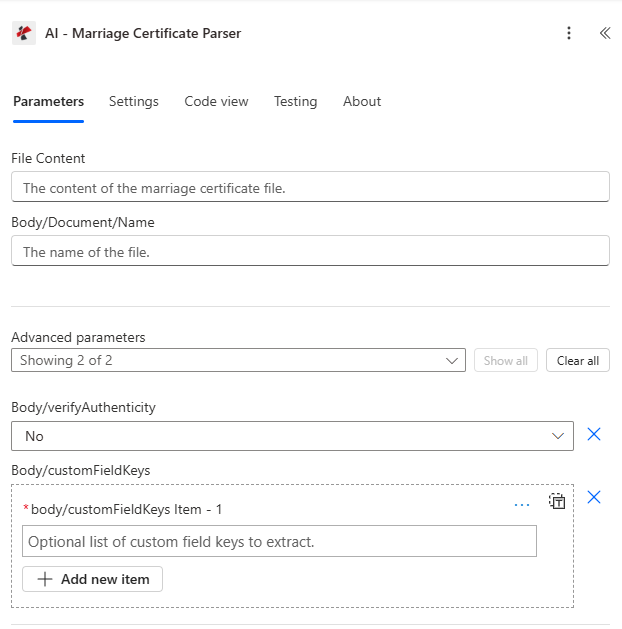
満杯 パラメータ の眺め AI-結婚証明書パーサーアクション Power Automate。
| パラメータ | 必須 | その機能 | 例 |
|---|---|---|---|
| File Content | Optional | Content of the marriage certificate file to process. Map it from the file content returned by a previous action, such as SharePoint or OneDrive Get file content. | @{body('Get_file_content')?['$content']} |
| File Name | Optional | Name of the marriage certificate file, including its extension (for example `certificate.pdf`). Map it from the file name returned by a previous action. | certificate.pdf |
| verifyAuthenticity | Optional | Whether to verify the authenticity of the certificate. Defaults to `No`. | No |
| customFieldKeys | Optional | Optional list of custom field keys to extract. | your value |
| Customisation Note | Optional | Optional customisation note for the extraction. | your value |
真正性確認オプション
アクションを実行するかどうかを制御します AI証明書に対する不正行為および改ざん検出機能を搭載。
いいえデフォルト:認証チェックをスキップはい不正行為および改ざんの検出を有効にする信憑性の問題 (具体的な問題点が見つかりました) 不正指標 (不正行為の兆候を検出)、 信頼性に関する推奨事項 (総合評価)。本人確認、法的文書処理、移民手続き、保険業務など、証明書の正当性を確認する必要がある業務フローに使用します。出力フィールド
| 分野 | タイプ | 内容物 |
|---|---|---|
Certificate Number | Text | Certificate Number as read from the marriage certificate. |
Date Of Marriage | Text | Date Of Marriage as read from the marriage certificate. |
Place Of Marriage | Text | Place Of Marriage as read from the marriage certificate. |
Date Issued | Text | Date Issued as read from the marriage certificate. |
Issuing Authority | Text | Issuing Authority as read from the marriage certificate. |
Spouse1 Full Name | Text | Spouse1 Full Name as read from the marriage certificate. |
Spouse1 Age | Integer | Spouse1 Age as read from the marriage certificate. |
Spouse1 Birth Date | Text | Spouse1 Birth Date as read from the marriage certificate. |
Spouse1 Birth place | Text | Spouse1 Birth place as read from the marriage certificate. |
Spouse1 Residence Before Marriage | Text | Spouse1 Residence Before Marriage as read from the marriage certificate. |
Spouse2 Full Name | Text | Spouse2 Full Name as read from the marriage certificate. |
Spouse2 Age | Integer | Spouse2 Age as read from the marriage certificate. |
Spouse2 Birth Date | Text | Spouse2 Birth Date as read from the marriage certificate. |
Spouse2 Birth Place | Text | Spouse2 Birth Place as read from the marriage certificate. |
Spouse2 Residence Before Marriage | Text | Spouse2 Residence Before Marriage as read from the marriage certificate. |
Officiant Name | Text | Officiant Name as read from the marriage certificate. |
Officiant Title | Text | Officiant Title as read from the marriage certificate. |
Officiant License Number | Text | Officiant License Number as read from the marriage certificate. |
Witnesses | Text | Names of witnesses (comma-separated if multiple) |
Official Seal | Text | Official Seal as read from the marriage certificate. |
Signatures Present | Text | Signatures Present as read from the marriage certificate. |
Authenticity Issues | Array | Authenticity Issues found in the marriage certificate, as a list of text values. |
Fraud Indicators | Array | Fraud Indicators found in the marriage certificate, as a list of text values. |
Authenticity Recommendation | Text | Authenticity Recommendation as read from the marriage certificate. |
Extracted Fields | Object | Extracted fields, as an object. The connector defines no fields for it; use expressions to read its values. |
Raw OCR Text | Text | Raw OCR text extracted from document |
CustomFieldsData | Array | Custom fields returned for the marriage certificate, as key and value pairs. |
CustomFieldsData[].key | Text | Key of the custom field. |
CustomFieldsData[].value | Text | Value of the custom field. |
設定方法は? AI-結婚証明書パーサー Power Automate?
- ログインして Power Automate make.powerautomate.com にアクセスして、新しいフローを作成するか、既存のフローを開きます。
- 証明書ファイルを配信するトリガーを選択してください。 SharePoint (ファイルが作成されたとき)、 Outlook (新しいメールが届いたとき) 愛着に基づく摂取の場合、または OneDrive (ファイルが作成されたとき) フォルダベースの取り込み用。
- 追加する ファイルの内容を取得する ステップ (SharePoint、 OneDrive証明書ファイルのバイナリコンテンツを取得するには、またはDropboxを使用するか、 添付ファイルの内容を取得する メールベースのワークフロー向け。
- クリック 新たな一歩、 検索する PDF4me、そして選択する AI-結婚証明書解析ツール アクションを入力してください。 PDF4me API コネクタが認証情報の入力を求めたときに、キーを入力します。
- セット 結婚証明書ファイルの内容 動的コンテンツピッカーを使用して、前の「ファイルコンテンツを取得」ステップのバイナリ出力に渡します。
- セット 結婚証明書名 証明書ファイル名(拡張子を含む)に、例えば
certificate.pdfまたは、トリガーから動的な式を使用してファイル名を自動的に取得します。 - セット 本文/認証確認 に はい ワークフローで不正行為や改ざんの検出が必要な場合は、そのままにしておいてください。 いいえ 真正性が主要な懸念事項ではない、高スループットのバッチ処理フロー向け。
- 必要に応じて入力する 本文/カスタムフィールドキー 標準の証明書データ以外のフィールドを抽出する必要がある場合は、カスタムフィールド名の配列を使用できます。
- 動的コンテンツを使用して抽出された出力フィールドを利用する下流ステップを追加します。 証明書番号、 配偶者1の氏名、 結婚記念日、 信頼性に関する推奨事項その他、必要に応じて。
- 追加する 状態 チェックするステップ 警告 配列が空でない場合、それらの証明書は記録システムに書き込まれる前に、手動レビュー承認フローに送られます。
- サンプル結婚証明書を使用してフローをテストし、フロー実行履歴で抽出されたフィールドを確認してください。
ワークフローの例
ワークフローの例Common Power Automate flow patterns using AI-Marriage Certificate Parser.
- A SharePoint 新しい証明書が受信証明書ドキュメントライブラリに追加されたときにトリガーが作動します。
- ファイルコンテンツ取得ステップは、証明書バイナリを以下から取得します。 SharePoint。
- AI-結婚証明書パーサーは、verifyAuthenticityがYesに設定されているすべてのフィールドを抽出します。
- 条件ステップでは、警告配列が空かどうかを確認します。警告が空でない場合、承認リクエストがトリガーされ、記録管理者に送信されます。
- 「アイテムの作成」ステップでは、重要記録に新しい行が追加されます。 SharePoint 出力からマッピングされた、証明書番号、配偶者1の氏名、配偶者2の氏名、結婚日、結婚場所、発行機関、および認証推奨事項のリスト。
- ファイル移動ステップでは、元の証明書を処理済み証明書ライブラリにアーカイブし、抽出した証明書番号をメタデータとしてタグ付けします。
- 「メール送信」ステップでは、監査参照用のジョブIDを含む抽出概要を記録管理チームに通知します。
- 1 Outlook 結婚証明書が添付されたメールが確認用メールボックスに届くと、トリガーが作動します。
- 「添付ファイルコンテンツを取得」ステップでは、メールから証明書のバイナリファイルを取得します。
- AI-結婚証明書パーサーは、verifyAuthenticityがYesに設定されている場合、配偶者の名前、生年月日、および証明書の詳細を抽出します。
- 1 HTTP このアクションは、配偶者の氏名(spouse1FullName)と生年月日(spouse1BirthDate)を使用してID管理システムに問い合わせ、一致するIDレコードがあるかどうかを確認します。
- 条件ステップは、認証情報に基づいて分岐します。問題のある証明書は、承認コネクタを介してセキュリティチームの承認リクエストに送られます。
- アイテム作成ステップでは、抽出されたデータとID一致の結果をログに記録します。 SharePoint 検証ログ一覧。
- 「メール送信」ステップでは、検証結果がリクエスト元に返されます。
- 手動またはスケジュールされたトリガーは、証明書のバッチを処理します。 SharePoint キューフォルダ。
- 「各項目に適用」ループは、フォルダ内の各証明書ファイルを反復処理します。
- AI-結婚証明書パーサーは、verifyAuthenticityがYesに設定されている各証明書を処理します。
- 条件ステップでは、fraudIndicators配列の長さを評価します。指標の数が多い場合、リスクティア変数が「高」に設定されます。
- 高リスク層の場合、「メールを送信する」ステップによって、抽出された証明書番号と不正指標リストが不正対策チームに即座に通知されます。
- 「アイテムの作成」ステップでは、不正事件に調査記録が追加されます。 SharePoint 抽出されたすべてのフィールドと計算されたリスクレベルを含むリスト。
- 1 HTTP このアクションは、不正スクリーニングの結果をPower BIストリーミングデータセットに投稿し、リアルタイムの監視ダッシュボードの更新に利用します。
- A SharePoint 証明書が法的文書ライブラリにアップロードされると、トリガーが作動します。
- 「ファイルコンテンツ取得」ステップでは、証明書のバイナリを取得します。
- AI-結婚証明書パーサーは、verifyAuthenticityがYesに設定されているすべてのフィールドを抽出します。
- 条件ステップでは、発行機関、執行官名、執行官免許番号がすべて空でないことを検証します。これらのフィールドに値が入力されていない場合は、法務担当者による手動審査のために処理が実行されます。
- 条件ステップでは、dateOfMarriage が、保存されている管轄区域固有の有効期間内に収まるかどうかを確認します。 SharePoint 設定リスト。
- 「アイテムの作成」ステップでは、証明書を法的文書管理に追加します。 SharePoint 抽出されたすべてのフィールドを含むリスト。
- 「配列変数に追加」ステップでは、コンプライアンス監査証跡のために、ジョブIDと処理結果を含むタイムスタンプ付きの監査ログエントリを追加します。
- ファイル移動ステップでは、抽出された証明書番号と発行日をメタデータタグとして、元の証明書をセキュアアーカイブライブラリに配置します。