画像スタンプを追加する PDF で Power Automate
PDF4me 画像スタンプ このアクションにより、画像に透かしやスタンプを追加できます。 PDF ドキュメント Power Automate 包括的な位置調整とスタイル制御機能を備えています。この多用途なブランディング機能は、ロゴの透かし、セキュリティ画像、ビジュアルスタンプをサポートし、水平/垂直方向の配置、余白調整、不透明度制御(0~100%)、カスタムサイズ調整が可能で、ブランド保護、文書認証、ビジュアルセキュリティマーキングに最適です。 Microsoft 365 ワークフロー。
認証 API リクエスト
アクセスするには PDF4me ウェブ API を通して Power Automateすべてのリクエストには適切な認証情報を含める必要があります。認証により安全な通信が保証され、承認されたユーザーとしての身元が検証され、シームレスな統合が可能になります。 Power Automate 流れと PDF4meの強力な画像スタンプサービス。
主な機能
- ロゴの透かし: 会社のロゴを透かしとして追加します PDFs
- 柔軟な位置決め: 余白を使用して水平方向と垂直方向の配置を制御します
- カスタムサイズ画像の幅と高さをミリメートル単位で設定します。
- 不透明度コントロール透明度を完全透明から完全不透明に調整します。
- ページ選択特定のページまたはすべてのページにスタンプを貼る
パラメータ
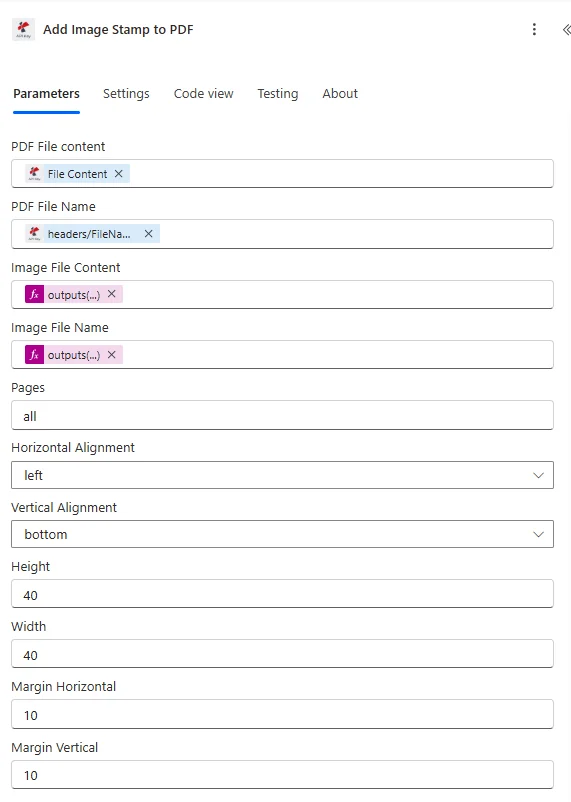
画像スタンプアクションのパラメータ一覧です。これらのパラメータを設定することで、画像スタンプ機能を制御できます。
| パラメータ | 必須 | その機能 | 例 |
|---|---|---|---|
| PDF File content | Required | Content of the PDF to stamp. Map it from the file content returned by a previous action, such as SharePoint or OneDrive Get file content. | @{body('Get_file_content')?['$content']} |
| PDF File Name | Required | Name of the PDF to stamp, including its extension (for example `invoice.pdf`). Map it from the file name returned by a previous action. | invoice.pdf |
| Image File Content | Required | Content of the image to stamp. Map it from the file content returned by a previous action. | @{body('Get_file_content')?['$content']} |
| Image File Name | Required | Name of the image file, including its extension (for example `logo.png`). | logo.png |
| Pages | Required | Pages to add the image to, as a comma-separated list of page numbers (for example `1,2`) or `all`. Defaults to `all`. | 1,2 |
| Horizontal Alignment | Required | Horizontal position of the image on the page. Options: left, center, right. Defaults to `left`. | left |
| Vertical Alignment | Required | Vertical position of the image on the page. Options: top, middle, bottom. Defaults to `top`. | top |
| Height | Required | Height of the image in millimeters; `0` sets it automatically. Defaults to `0`. | 0 |
| Width | Required | Width of the image in millimeters; `0` sets it automatically. Defaults to `0`. | 0 |
| Margin Horizontal | Required | Margin from Left origin of the image in Millimeter. Defaults to `0`. | 0 |
| Margin Vertical | Required | Margin from Top origin of the image in Millimeter. Defaults to `0`. | 0 |
| Transparency | Required | Opacity of the image, from 0 (completely transparent) to 100 (fully opaque), although the field is labelled Transparency. Defaults to `100`. | 100 |
| Print Only | Optional | If Yes, the image is shown only when the PDF is printed. Defaults to `No`. | No |
出力
の PDF4me 画像スタンプ アクションは、シームレスな包括的な出力データを返します Power Automate フロー統合:
- Table
- JSON
- Flow Integration
テーブルビュー
構造化された表形式の応答データ:
| 分野 | タイプ | 内容物 |
|---|---|---|
| File Content | File content | Content of the stamped PDF. Map it into the next action, for example the File Content field of SharePoint or OneDrive Create file. |
| File Name | Text | File name of the stamped PDF, as returned by PDF4me. Use it as the file name when saving the file. |
| Page Count | Text | Page count reported by PDF4me for the processed document. Returned as text; wrap it in int() to use it as a number. |
JSON 回答形式
{
  "File Content": "[Binary Content of PDF with Image Stamp]",
  "File Name": "Report_Watermarked.pdf"
}
Power Automate フロー使用状況
画像スタンプを使用する PDF その後の行動において:
- メール配信ロゴの透かしが入ったブランド文書を送信する
- SharePoint 出版: 透かし入りの文書をライブラリにアップロードする
- クライアントへの提供外部関係者にブランド化された文書を提供する
- 印刷サービス透かし入りの文書を印刷用に送信する
- アーカイブストレージブランドイメージを適用したドキュメントを保存する
- ウェブ出版: ブランドをアップロード PDFs ウェブサイトへ
ワークフローの例
の PDF4me 画像スタンプ アクション Power Automate 実際のビジネスシナリオに合わせて設計された包括的なワークフローテンプレートを提供します。
- Document Branding
- Draft Watermark
- Security Marking
- Copyright Protection
文書へのロゴ透かし挿入を自動化するワークフロー
自動ロゴ透かしアプリケーションでブランドイメージを一新しましょう。
ワークフローの手順を完了する:
- トリガー: クライアントへの成果物 PDF 生成された
- ドキュメントを取得する: 取得 PDF から SharePoint
- 会社のロゴを取得する: 会社のロゴを取得 PNG アセットライブラリから
- ロゴの透かしを追加: 右下隅にロゴを適用
- 透明度を設定する: さりげないブランディングには、透明度30%を使用してください
- セットサイズ: 40mm x 20mmのロゴサイズを適用してください
- メールクライアントブランドロゴ入りの文書をクライアントに送付する
- アーカイブブランド: 透かし入りのバージョンを成果物ライブラリに保存する
ビジネス上のメリット:
- ブランド 100件以上のクライアント文書を毎月自動的に
- すべての外部成果物において一貫したブランディングを確保する
- 目に見えるブランドで知的財産を保護します
- ブランド認知度を45%向上させる
自動ドラフト透かし申請ワークフロー
自動ドラフト透かし機能で文書レビューを効率化:
ワークフローの手順を完了する:
- トリガー: 下書きフォルダに作成されたドキュメント
- ドラフトを取得: 取得 PDF 下書きライブラリより
- 下書き画像を取得「DRAFT」透かし画像を取得します
- 透かしを適用する: ページを斜めに横切るように下書きスタンプを押します
- 透明度を設定する視認性を高めるために、透明度を40%に設定してください。
- すべてに適用文書のすべてのページにスタンプを押す
- メールレビュー担当者: 下書きマーク付きで送信 PDF レビュー用
- トラックバージョン: 透かし入りのログドラフト版
ビジネス上のメリット:
- 毎週150件以上の下書き文書に透かしを入れる
- 下書きと最終版の混同を防ぐ
- 明確な視覚的ドラフト表示を提供します
- ドラフトの誤配布を90%削減
自動セキュリティ分類透かし
自動分類画像スタンプでセキュリティを最適化:
ワークフローの手順を完了する:
- トリガー機密文書が安全なフォルダにアップロードされました
- ドキュメントを取得する: 取得 PDF 安全な場所から
- 分類画像を取得する: 適切なセキュリティバッジ画像を取得する
- セキュリティスタンプを貼付する: 上部中央に分類バッジを追加
- 完全不透明度を設定: 視認性を高めるには、透明度を100%に設定してください。
- すべてのページに追加:すべてのページにスタンプを押す
- 承認済みユーザーへのメール送信: 承認済みの担当者にマークされた文書を送付する
- 監査ログ機密文書の配布記録
ビジネス上のメリット:
- マークス社は毎月200件以上の機密文書を扱っています。
- すべてのページでセキュリティ分類が視覚的に確認できるようにします
- 明確な表示により、不正な配布を防止します。
- セキュリティポリシーへの準拠を維持する
自動著作権画像透かし
著作権透かしで知的財産権の保護を強化しましょう:
ワークフローの手順を完了する:
- トリガー出版準備完了文書が完成しました
- ドキュメントを取得する: 最終結果を取得する PDF 出版用
- 著作権画像を取得する: 著作権シンボルの透かしを取得
- 透かしを適用する: 下部中央に著作権画像を追加
- 微妙な不透明度を設定する: 透明度を60%に設定する
- 会社名を追加: 著作権表示付き会社名を重ねて表示する
- ドキュメントを公開する: ウォーターマーク付きでアップロード PDF ウェブサイトへ
- アーカイブ保護済み: 著作権保護版を保存
ビジネス上のメリット:
- 毎月75件以上の公開文書を保護
- 不正な複製や配布を抑止します
- すべてのページに著作権表示を維持する
- 公開されたコンテンツに法的保護を提供する
業界におけるユースケースとアプリケーション
- Corporate & Business
- Legal & Professional Services
- Marketing & Communications
- Healthcare & Medical
企業およびビジネスにおける活用事例
- 企業ブランディング: すべての外部文書にロゴの透かしを追加する
- ドラフトマーキングレビュー文書に下書きの透かしを適用する
- 著作権保護出版物に著作権画像を追加する
- 部門別切手: 文書に部門のロゴを適用する
法律・専門サービスにおけるユースケース
- 企業ブランディング: すべてのクライアント文書に法律事務所のロゴを追加する
- 機密画像機密印とバッジを貼付する
- セキュリティ分類分類レベルバッジを追加する
- 文書認証: 真正性証明シールを貼付する
マーケティングおよびコミュニケーションにおける活用事例
- ブランド透かしマーケティング資料にブランドロゴを追加する
- 著作権保護: 著作権のある画像をコンテンツに適用する
- 透かしの証明下書きに「PROOF」の透かしを追加する
- セキュリティマーキング制限付きコンテンツにセキュリティバッジを適用する
ヘルスケアおよび医療分野における活用事例
- 施設ブランディング: 医療文書に病院のロゴを追加する
- HIPAAバッジHIPAA準拠スタンプを貼付する
- 機密画像患者の機密保持バッジを追加する
- 部門ロゴ医療部門のロゴを適用する