画像をトリミング Power Automate
PDF4me 画像の切り抜き アクションにより、画像をトリミングおよび切り抜くことができます。 Power Automate 境界線と長方形の切り抜き方法に対応。この必須の画像編集機能は、不要な画像領域を削除し、重要なコンテンツに焦点を当て、構図を調整し、特定の寸法に合わせて画像を最適化します。商品写真、プロフィール写真、ソーシャルメディアのフォーマット、コンテンツの最適化に最適です。 Microsoft 365 ワークフロー。
認証 API リクエスト
アクセスするには PDF4me ウェブ API を通して Power Automateすべてのリクエストには適切な認証情報を含める必要があります。認証により安全な通信が保証され、承認されたユーザーとしての身元が検証され、シームレスな統合が可能になります。 Power Automate 流れと PDF4meの強力な画像切り抜きサービス。
主な機能
- 複数作物栽培方法境界線または長方形の指定で切り抜きます
- 精密制御作物の正確な寸法と座標を定義する
- アスペクト比画像の縦横比を維持または変更する
- バッチ処理自動化されたワークフローで複数の画像をトリミングする
- 品質維持トリミング中も画像品質を維持する
パラメータ
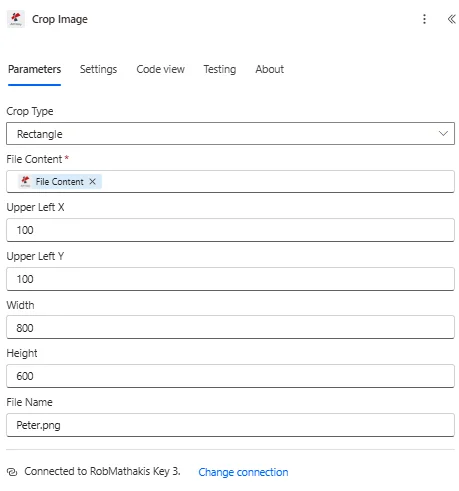
画像切り抜きアクションのパラメータ一覧です。これらのパラメータを設定することで、画像の切り抜きを制御できます。
| パラメータ | 必須 | その機能 | 例 |
|---|---|---|---|
| Crop Type | Optional | How to crop the image - by border or by rectangle. After you choose it, the fields for that crop type are loaded into the action card. Options: Border, Rectangle. Defaults to `Border`. | Border |
| Left Border | Conditional | Set the pixel adjustment for the left border's position. Defaults to `0`. Shown when Crop Type is Border. | 0 |
| Right Border | Conditional | Set the pixel adjustment for the right border's position. Defaults to `0`. Shown when Crop Type is Border. | 0 |
| Top Border | Conditional | Set the pixel adjustment for the top border's position. Defaults to `0`. Shown when Crop Type is Border. | 0 |
| Bottom Border | Conditional | Set the pixel adjustment for the bottom border's position. Defaults to `0`. Shown when Crop Type is Border. | 0 |
| File Content | Required | Content of the image to crop. Map it from the file content returned by a previous action, such as SharePoint or OneDrive Get file content. | @{body('Get_file_content')?['$content']} |
| File Name | Optional | Name of the image to crop, including its extension (for example `photo.jpg`). Map it from the file name returned by a previous action. | photo.jpg |
| Upper Left X | Conditional | Set the upper left X coordinate of the crop area (in pixels). Defaults to `0`. Shown when Crop Type is Rectangle. | 0 |
| Upper Left Y | Conditional | Set the upper left Y coordinate of the crop area (in pixels). Defaults to `0`. Shown when Crop Type is Rectangle. | 0 |
| Width | Conditional | Set the width of the crop area (in pixels). Defaults to `0`. Shown when Crop Type is Rectangle. | 0 |
| Height | Conditional | Set the height of the crop area (in pixels). Defaults to `0`. Shown when Crop Type is Rectangle. | 0 |
出力
の PDF4me 画像の切り抜き アクションは、シームレスな包括的な出力データを返します Power Automate フロー統合:
- Table
- JSON
- Flow Integration
テーブルビュー
構造化された表形式の応答データ:
| 分野 | タイプ | 内容物 |
|---|---|---|
| File Content | File content | Content of the cropped image. Map it into the next action, for example the File Content field of SharePoint or OneDrive Create file. |
| File Name | Text | File name of the cropped image, as returned by PDF4me. Use it as the file name when saving the file. |
| Page Count | Text | Page count reported by PDF4me for the processed document. Returned as text; wrap it in int() to use it as a number. |
JSON 回答形式
{
  "File Content": "[Binary Content of Cropped Image]"
}
Power Automate フロー使用状況
トリミングした画像を後続の操作で使用する:
- SharePoint アップロードトリミングした画像をライブラリに保存する
- プロフィール写真ユーザープロフィールにはトリミングした画像を使用する
- 商品写真: 切り抜いた商品画像を保存する
- メール添付ファイル: 最適なトリミング画像を送信します
- ウェブ出版トリミングした画像をウェブサイトにアップロードする
- さらなる処理: 追加の画像処理を適用する
ワークフローの例
の PDF4me 画像の切り抜き アクション Power Automate 実際のビジネスシナリオに合わせて設計された包括的なワークフローテンプレートを提供します。
- Product Photo Optimization
- Profile Pictures
- Social Media Formatting
- Document Scanning
自動商品写真トリミングワークフロー
自動画像トリミングで商品写真のクオリティを一新:
ワークフローの手順を完了する:
- トリガー商品写真が写真フォルダにアップロードされました
- 写真を入手: 商品画像を取得する SharePoint
- 製品を検出AIビジョンを使用して製品の境界を識別する
- 作物の計算最適な作物区画を決定する
- 画像の切り抜き背景を削除して製品に焦点を当てる
- トリミング後のサイズ変更: 標準の商品写真サイズに調整します
- カタログにアップロードトリミングした画像を製品カタログに保存する
- 製品のアップデート:切り抜いた画像を商品レコードにリンクする
ビジネス上のメリット:
- 毎月200枚以上の商品写真を自動的にトリミングします
- 製品写真の構図の一貫性を確保します
- 手作業による写真編集時間を90%削減します
- 商品ページの見た目とコンバージョン率が向上します。
プロフィール写真の自動トリミングワークフロー
プロフィール画像の自動トリミング機能でユーザー管理を効率化:
ワークフローの手順を完了する:
- トリガー新入社員の写真が人事システムにアップロードされました
- 写真を入手従業員の写真を取得する
- 顔検出: 顔検出にはAIビジョンを使用する
- 作物の計算: 顔の周りの正方形の切り抜きを決定します
- 画像の切り抜き適切な余白を設けて顔領域を抽出する
- 標準サイズにリサイズ: 400x400ピクセルに調整してください
- プロフィールの更新従業員のプロフィール写真として設定する
- Azure AD と同期するActive Directory でユーザー写真を更新する
ビジネス上のメリット:
- 毎月50枚以上のプロフィール写真を切り抜く
- プロフィール写真のフォーマットを統一します
- 人事担当者による写真の手動編集を不要にします
- ディレクトリ写真の品質と一貫性を向上させます
ソーシャルメディア画像の自動トリミング
プラットフォーム固有の画像切り抜き機能でソーシャルコンテンツを最適化:
ワークフローの手順を完了する:
- トリガーソーシャルメディア投稿用のマーケティング画像
- オリジナルを入手: フルサイズの画像を取得します
- Instagram用にトリミング: 1080x1080の正方形に切り抜く
- Twitter用にトリミング: 1200x675の横長の切り抜きを作成
- LinkedIn向けにトリミング: 1200x627のトリミングを作成
- 透かしを追加する各トリミング版にロゴを適用する
- プラットフォームに投稿するトリミングした各バージョンを適切に共有する
- アーカイブ版トリミングされたバリエーションをすべて保存する
ビジネス上のメリット:
- 毎週60以上のプラットフォーム固有の画像を作成
- すべてのソーシャルプラットフォームで最適な表示を保証します
- 手動による画像調整を不要にします
- ソーシャルメディアへの投稿を80%加速
自動スキャン文書トリミングワークフロー
自動エッジ切り抜き機能で文書スキャンを強化:
ワークフローの手順を完了する:
- トリガー: 文書をスキャンして画像として保存しました
- スキャンを取得スキャンした画像ファイルを取得する
- エッジ検出スキャン画像内の文書の端を識別する
- 作物の計算スキャナーの端を除去するためにトリミングを決定します。
- 画像の切り抜き黒い縁を取り除き、文書に焦点を合わせます
- 品質向上明るさ/コントラスト調整を適用する
- 変換する PDF: 切り抜いた画像を変換して PDF
- アーカイブクリーン: クリーンアップされたドキュメントバージョンを保存します
ビジネス上のメリット:
- 毎月150件以上のスキャン済み文書をクリーニングします
- スキャナーのアーティファクトやエッジを自動的に除去します
- スキャンした文書の見栄えを向上させます
- 手作業による写真編集を95%削減
業界におけるユースケースとアプリケーション
- E-commerce & Retail
- Marketing & Advertising
- Real Estate & Property
- Healthcare & Medical
Eコマースおよび小売業における活用事例
- 商品写真商品写真の背景をトリミングする
- カタログ画像カタログ画像の寸法を標準化する
- サムネイル作成サムネイル生成用に画像を切り抜く
- ソーシャルメディアへの投稿プラットフォーム固有の寸法に合わせてトリミングします
マーケティングおよび広告の活用事例
- キャンペーン用アセットマルチチャネルキャンペーン用に画像をトリミングする
- ソーシャルメディアコンテンツ: 画像をプラットフォームの要件に合わせて調整する
- メールマーケティングメール用に画像をトリミングする
- 広告クリエイティブ広告プラットフォーム用の画像を準備する
不動産および物件の活用事例
- 掲載写真物件写真をトリミングして特徴を強調する
- フロアプランの最適化: 関連するエリアに間取り図を切り抜く
- 注目エリア: 主要な物件の特徴に焦点を当てる
- ソーシャルメディアでの共有InstagramとFacebook用にトリミング
ヘルスケアおよび医療分野における活用事例
- 医用画像処理診断画像を関心領域に切り抜く
- 患者の写真患者の識別写真をトリミングして標準化する
- 研究画像分析対象として、関連する画像領域に焦点を当てる。
- 文書医療記録用の画像を切り抜く