Google Docs テンプレート Power Automate
の Google Docs 家族 は Power Automate ドキュメントを生成する単一のオプションは、設計されたテンプレートを使用します Google Docs そして輸出された .docxそのファイルをGenerate Document Singleにマッピングし、それをマージします。 JSON または XML データを取得し、パーソナライズされた PDF または Word ファイルに戻る。チームがテンプレートを作成するときにこれを選択します。 Google Docs それよりも Microsoft Word。
始める前に
google-docs-template.docx 既にエクスポート済みで準備完了です。google-docs-data.json (推奨)、 test.xml、 または テスト.csvテンプレート内のプレースホルダー名はデータキーと一致しています。サンプルファイルパック
以下のファイルをダウンロードしてください。 Google Docs テンプレートと一致するデータ JSON、 XML、 そして CSV. 地図 .docx から SharePoint、 OneDrive、 または Dropbox ドキュメントを1つ生成します。
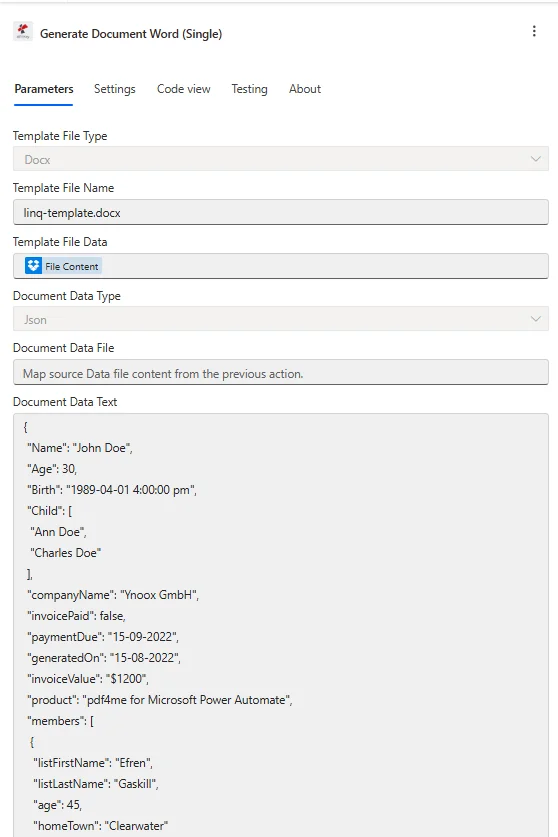
ターゲット構成 Google Docs エクスポート: マップ .docx 下 テンプレートファイルデータ、 セット テンプレートファイルの種類 に Docx貼り付け JSON の中へ Document Data 文章。
何が Google Docs テンプレート Power Automate?
の Google Docs family を使用すると、テンプレートを作成できます Google Docsエクスポートして .docxそれをデータとマージします Power Automate フロー。エクスポートされたファイルは .docxそれは、 Word テンプレートエンジンで、次のような口ひげスタイルのプレースホルダーをサポートしています。 {{名前}}これは、以下のことを好むチームにとって最もシンプルな選択肢です。 Google Workspace 以上 Microsoft Word テンプレートデザイン用。
設定方法は? Google Docs テンプレート Power Automate?
アクションフィールドを以下のように設定します。 ドキュメントを生成 単一マップはエクスポートされます .docx 前の「ファイルの取得」ステップから。 PDF4me アカウントを使用する テンプレートを使用してドキュメントを生成する その代わり。
| パラメータ | 必須 | その機能 | 例 |
|---|---|---|---|
| Connection | Required | PDF4me connection for the flow. Create one with your API key, then reuse it across every PDF4me action. | My PDF4me connection |
| Template File Type | Required | Format of the template file. A Google Docs export is a .docx, so choose PDF4me Word Template (Docx). | PDF4me Word Template |
| Output Type | Required | Format of the generated document. PDF for a locked layout, or Word for an editable .docx. | PDF |
| Template Name | Required | Filename of the exported template including the .docx extension. Map from the prior Get file step. | google-docs-template.docx |
| Template | Required | Binary content of the Google Docs export. Map File Content from SharePoint, OneDrive, or Dropbox Get file content. | File Content |
| Document DataType | Required | Format of the data payload. Json maps cleanly from SharePoint columns and Forms. Xml is for XML source systems. | Json |
| Document Data Text | Conditional | Inline data payload built from dynamic content. Required when Document Data File is empty. | [{ "name": "Alice Johnson" }] |
| Document Data File | Conditional | A JSON or XML data file mapped from a prior step. Required when Document Data Text is empty. | 1. Data |
| Meta Data Json | Optional | Document metadata for fields in JSON format. Leave empty for most certificate and letter templates. | {"title":"Certificate"} |
以下のサンプルデータは、プレースホルダーと一致します。 google-docs-template.docx. 貼り付けて Document Data テキスト、またはファイルとしてアップロード Document Data ファイル。
[
  {
    "name": "Alice Johnson",
    "course": "Intro to Automation",
    "date": "2026-03-10",
    "instructor": "Mr. Smith"
  }
]
出力
このアクションは、生成されたドキュメントを動的コンテンツとして返します。ファイルコンテンツを受け入れる下流のステップにマッピングしてください。
| 分野 | タイプ | 内容物 |
|---|---|---|
Doc Data | Binary | The merged document produced from the Google Docs export and your data. Map it into File Content of Create file (Dropbox, OneDrive, SharePoint) or into an Outlook attachment. |
File Name | String | Output filename derived from Template Name. Combine it with an expression such as guid() when you want unique filenames per run. |
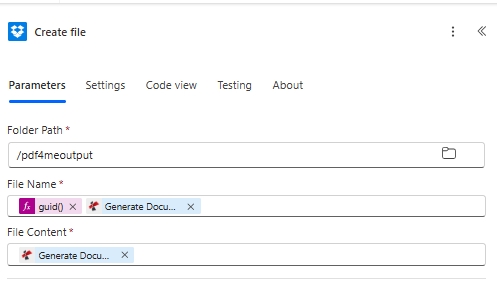
結果の保存: 生成されたドキュメントをマッピングします File Content、そして使用する guid() で File Name 一意の出力名を指定するため。
生産パターン
Googleドキュメントテンプレートでよく使われるPower AutomateのパターンReplace the manual test with these once the sample works.
- Microsoft フォーム 新しい回答が送信されると、トリガーが作動します。
- ドキュメントを生成する シングルマップ Google Docs 証明書 .docx ファイルコンテンツを取得する。
- レスポンスフィールドは次のように渡されます JSON で Document Data 文章。
- ファイルを作成すると証明書が保存され、 Outlook メールを送れば届きます。
- SharePoint アイテムが作成されると、リスト上でトリガーが発動します。
- 「ドキュメントを1つ生成」機能は、リストの列をテンプレートにマージします。
- 生成されたドキュメントは動的コンテンツとして返されます。
- SharePoint ファイルを作成すると、ドキュメントライブラリに保存されます。
- フローを手動でトリガーすると、実行が開始されます。
- インラインマップを含むドキュメント単一マップを生成する google-docs-template.docx JSON。
- GUID() ファイル名を使用して /pdf4meoutput にファイルを作成します。
- 確認が取れたら、手動トリガーを実銃トリガーに交換してください。
よくある質問
関連ガイド
基盤となるテンプレートエンジンについては、以下を参照してください。 仮定する Words のために .NET ドキュメント そして Power Automate 式のリファレンス。