行を更新 Excel で Power Automate
PDF4me Excel - 行を更新する は Power Automate ワークブック内の既存のセルをその場で変更するアクション。 JSON プロパティ名を列ヘッダーに表示します。データベースの変更を同期したり、更新したりするのに使用します。 CRM レコード、またはステータス列の更新 Excel 行の挿入や削除を行わずにレポートを作成します。
このアクションが何をするか
PDF4me Excel - 行を更新する 書く JSON オブジェクトの配列を、開始行から始まる既存の行に挿入し、各プロパティ名を列ヘッダーに一致させます。数値と日付の変換、日付形式、数値形式、およびカルチャ名は、値の型と書式設定方法を制御します。行の挿入や削除は行われず、一致したセルのみが変更されます。
関連ブログ記事
この機能に関するブログ記事はまだありません。近日公開予定です。
その間、PDF4me ブログを閲覧して、あらゆるプラットフォームのチュートリアルやワークフローをご覧ください。
ブログをご覧ください →
認証方法 Power Automate 流れ?
毎 PDF4me アクション Power Automate 有効な接続が必要です。 PDF4me API フローが認証できるようにするためのキー Excel 行更新リクエストを安全に処理します。
見逃してはならない重要な事実
これは行を更新するものであり、挿入するものではありません。
JSON更新データ内のオブジェクトは、開始行から始まる既存の行に順次適用されます。キーによる検索は行われません。行がまだ存在しない場合は、まず「行の追加」を使用してください。
データフィールドにはラベルが付けられています JSON データの更新
それは常に JSON 配列は、たとえ1行であっても必要です。配列の括弧がないオブジェクトは、「JsonData は配列である必要があります」というエラーを返します。
型変換にはトグルをオンにする必要があります
日付形式、数値形式、および文化名は、「数値と日付の変換」が有効になっている場合にのみ有効になります。無効にした場合、すべての値はプレーンテキストとして書き込まれます。
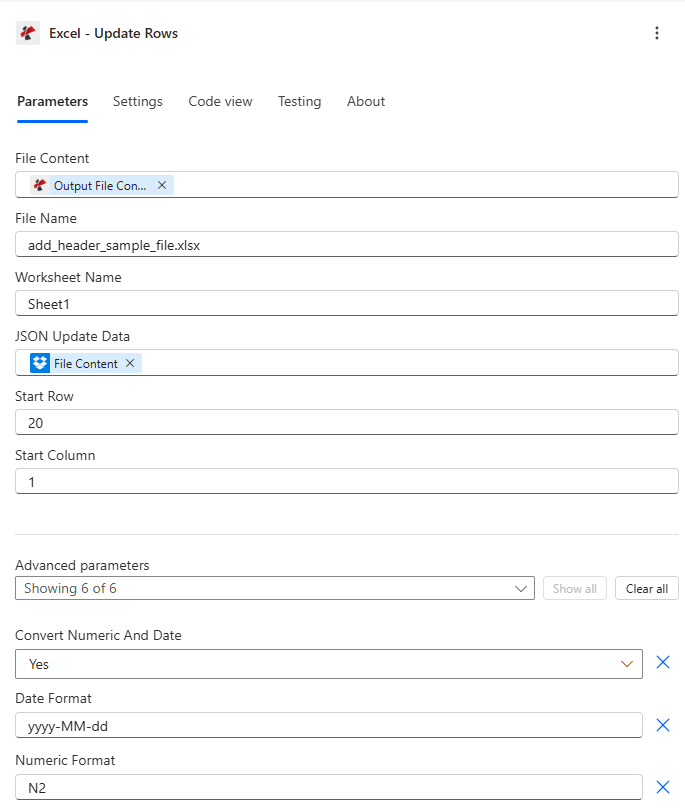
マップファイルの内容とファイル名を設定し、 JSON 「データの更新」と「開始行」を行い、次に「詳細パラメーター」を展開して、型の変換と書式設定を行います。
パラメータ
必須: ファイルの内容、ファイル名、 JSON 更新データは必ず提供する必要があります。 JSON 更新データは JSON 配列の場合、裸のオブジェクトは拒否されます。
| パラメータ | 必須 | その機能 | 例 |
|---|---|---|---|
| File Content | Optional | Content of the Excel file to process. Map it from the file content returned by a previous action, such as SharePoint or OneDrive Get file content. | @{body('Get_file_content')?['$content']} |
| File Name | Optional | Name of the Excel file, including its extension (for example `report.xlsx`). Map it from the file name returned by a previous action. Defaults to `UpdateRows.xlsx`. | report.xlsx |
| Worksheet Name | Optional | Name of the worksheet to update. | your value |
| JSON Update Data | Optional | New row values, as JSON text. Written to the worksheet starting at Start Row and Start Column. | your value |
| Start Row | Optional | Starting row number for updates (1-based). Defaults to `1`. | 1 |
| Start Column | Optional | Starting column number for updates (1-based). Defaults to `1`. | 1 |
| Convert Numeric And Date | Optional | Automatically convert numeric and date values. Defaults to `Yes`. | Yes |
| Date Format | Optional | Format pattern for date values. Defaults to `yyyy-MM-dd`. | yyyy-MM-dd |
| Numeric Format | Optional | Format pattern for numeric values. Defaults to `N2`. | N2 |
| Ignore Null Values | Optional | Skip null values when updating. Defaults to `No`. | No |
| Ignore Attribute Titles | Optional | If Yes, the JSON property names are not written; only the values are updated. Defaults to `No`. | No |
| Culture Name | Optional | Culture name for data formatting. | your value |
出力フィールド
| 分野 | タイプ | 内容物 |
|---|---|---|
Output File Content | File content | Content of the Excel file with the rows updated. Map it into the next action, for example the File Content field of SharePoint or OneDrive Create file. |
Success | Yes/No | Whether the operation completed successfully |
Error Message | Text | Error message if operation failed |
Error Details | Array | List of detailed error messages |
よくあるエラーメッセージの意味とは?
| エラーメッセージ | 原因 | 解決 |
|---|---|---|
| Request is empty | The request object is null. | Provide a valid request object. |
| Document is empty | File Content is null or empty. | Map a valid Excel document into File Content. |
| Invalid worksheet selection | The named worksheet does not exist. | Use an existing worksheet name or leave it blank for the first sheet. |
| No headers found in worksheet | The target row (or Start Row minus one) has no headers. | Ensure the header row exists directly above the rows you are updating. |
| JsonData must be an array | A bare single object was provided instead of an array. | Wrap the object in array brackets, for example [{"Name":"John"}]. |
更新行を設定するにはどうすればいいですか Power Automate?
- 追加 PDF4me → Excel - 行を更新する あなたの Power Automate 流れ。
- 地図 ファイルの内容 そして ファイル名 以前のアクションから(SharePoint、 OneDrive(またはデータベースコネクタ)。
- セット JSON更新データ へ JSON 更新するオブジェクトの配列。各行に1つずつ指定する。
- セット 開始行 更新する最初の行まで(ヘッダー行はスキップ) 開始列 ヘッダーオフセットの場合。
- 拡大する 詳細パラメータ 有効にする 数値と日付の変換 そして書式を設定します。フローを実行すると、更新されたワークブックが返されます。 書類。
典型的な構成
ワークフローの例Common Power Automate flow patterns using Update Rows.
日々の在庫同期
- スケジュールされたトリガーがデータベースに問い合わせを行い、最新の在庫レベルを取得します。
- 結果は JSON 在庫シートの列ヘッダーに一致する配列。
- ファイルコンテンツを取得すると、マスターインベントリワークブックが取得されます。 SharePoint。
- 「行の更新」は、開始行2から始まる配列を適用し、整数値の在庫数に対して「数値と日付の変換」を有効にします。
- 更新された在庫ワークブックは、 SharePoint。
注文状況の更新
- 注文管理システムで注文ステータスが変更されると、フローがトリガーされます。
- このシナリオは JSON 影響を受ける行の更新されたステータスフィールドを含む配列。
- ファイルコンテンツを取得すると、注文追跡ログが取得されます。
- 「行の更新」では、「NULL値を無視する」を有効にして変更を適用するため、他の順序列は変更されません。
- 更新されたログは保存されます SharePoint。
CRM連絡先情報の更新
- 毎週のトリガークエリ Dynamics 過去7日間に変更された連絡先については365件。
- レコードは JSON 連絡先と最終更新日時のフィールドを含む配列。
- 「行の更新」では、大文字小文字を区別しないヘッダーマッチングのために「属性タイトルを無視」が有効になっている状態で変更が適用されます。
- 更新された連絡先リストはタイムスタンプ付きでアーカイブされます。
実践的なヒント
This is not a lookup-and-match update
Rows are updated sequentially from Start Row, there is no key column matching. Sort or filter your JSON array to match the row order in the workbook before calling this action.
JSON Update Data must be an array, always
Even a single-row update needs array brackets: [{"Name":"John"}], not {"Name":"John"}. Omitting the brackets returns a JsonData must be an array error.
Start Row usually skips the header
Row 1 typically holds column headers, so most flows set Start Row to 2 or higher to begin updating actual data rows.
Culture Name affects parsing, not just display
Set Culture Name to match how your source data formats dates and decimals (for example de-DE for comma decimals), otherwise conversion can misread values.
Ignore Attribute Titles solves case-mismatch headaches
If your JSON property names differ in case from the Excel column headers, enable Ignore Attribute Titles instead of renaming every header or every JSON key.
チートシート
| 分野 | 価値 |
|---|---|
| Action | Excel - Update Rows |
| Required fields | File Content, File Name, JSON Update Data (array) |
| Default start row | 1 (set to 2+ to skip headers) |
| Default start column | 1 (column A) |
| Type conversion toggle | Convert Numeric And Date = true (default) |
| Default date/numeric format | yyyy-MM-dd / N2 |
| Output | Processed File Content + Success + Error Message + Error Details |
よくある質問
業界におけるユースケースとアプリケーション
- Sales & Marketing
- Finance & Accounting
- Human Resources
- Operations & Manufacturing
- Retail & E-Commerce
- Project Management
- リード状況の更新Excelトラッキングシートでリードの適格性ステータスを更新します。
- キャンペーン指標分析プラットフォームからキャンペーンのパフォーマンス指標を更新する
- 顧客記録CRMからExcelへ顧客連絡先情報を同期する
- 販売ノルマExcelダッシュボードで月間売上目標と実績を更新する
- 口座残高: 会計システムから顧客口座残高を更新する
- 予算と実績の比較予算追跡用Excelの実際の支出データを更新する
- 請求書のステータスExcelログ内の請求書の支払い状況を更新する
- 為替レート: 財務テンプレートの通貨換算レートを更新します
- 従業員ステータスExcelで雇用状況(有効、休職中、解雇)を更新する
- 給与に関する最新情報年次評価後に給与情報を更新する
- 研修修了トレーニングの進捗状況と完了日を更新します。
- 有給休暇残高人事システムから休暇と病気休暇の残高を同期する
- 生産状況Excel生産スケジュールで作業指示のステータスを更新する
- 機器の状態機器の状態とメンテナンス日を更新する
- 品質指標: 品質管理システムから不良率と品質スコアを更新する
- サプライヤーのステータスベンダーの承認状況と評価を更新します
- 在庫水準Excel在庫シートの製品在庫状況を更新する
- 価格改定のお知らせ価格管理システムから製品価格を更新する
- 注文処理注文の配送状況と追跡番号を更新します
- 製品情報製品の説明と仕様を同期する
- タスクステータスタスクの完了状況と進捗率を更新する
- マイルストーンとなる日付プロジェクトシステムからプロジェクトのマイルストーンの日付を更新する
- リソース割り当てチームメンバーの割り当てと活用状況を更新する
- 予算管理プロジェクトの支出と予算の利用状況を同期する
関連アクション
行を追加する
データがシートにまだ存在しない場合は、まず新しい行を挿入してください。行の更新ではなく、こちらを使用してください。
行を削除する
ワークシートから不要な行を削除し、行のライフサイクル全体を管理するために「行の更新」機能と組み合わせます。
CSVを解析する
変換する CSV エクスポート先 JSON まず、その結果を直接 Update Rows に渡します。
他のプラットフォームでの同じタスク
Make行を更新する
同じ場所で Excel 行修飾子 Make シナリオ。
n8n行を更新する
同じ場所で Excel 行修飾子ノード n8n ワークフローは、自社ホスト型またはクラウド型で利用可能です。
Zapier行を更新する
同じ場所で Excel 行修飾子ステップ ZapierそれをデータベースまたはZapに既に設定されているフォームトリガーに接続します。
PDF4me API行を更新する
同じ行更新エンドポイントを直接呼び出す REST カスタム統合の場合 Power Automate。