ロック解除 Excel ファイル Power Automate
PDF4me ロック解除 Excel は Power Automate 最大 3 つの独立したレイヤー、ファイル暗号化、ワークブック構造、およびワークシートコンテンツからパスワード保護を解除するアクション。これを使用して、ワークブックを開いたり、編集したり、再保護したりできます。 Excel デスクトップアプリでパスワードを手動で入力することなくファイルを開く。
このアクションが何をするか
PDF4me ロック解除 Excel ファイルパスワード、ブックパスワード、ワークシートパスワードをそれぞれ独立した入力として受け取り、実際にファイルに存在する保護レイヤーのみを削除します。入力するパスワードは、ご自身が知っているもののみにしてください。ワークシートのターゲット設定とカルチャは、オプションの高度なパラメーターです。
関連ブログ記事
この機能に関するブログ記事はまだありません。近日公開予定です。
その間、PDF4me ブログを閲覧して、あらゆるプラットフォームのチュートリアルやワークフローをご覧ください。
ブログをご覧ください →
認証方法 Power Automate 流れ?
毎 PDF4me アクション Power Automate 有効な接続が必要です。 PDF4me API フローが認証できるようにするためのキー Excel ロック解除リクエストを安全に処理します。
見逃してはならない重要な事実
3つの独立したパスワードレイヤー
ファイルパスワードはファイルを開く際の暗号化を解除し、ワークブックパスワードは構造保護を解除し、ワークシートパスワードはシートレベルのコンテンツ保護を解除します。ファイルで実際に使用されているパスワードのみを指定してください。
ワークシートのターゲティングは1ベースです
詳細パラメーターには、「3件中3件を表示」として、ワークシート名、ワークシートインデックス(1から始まるため、1が最初のシート)、およびカルチャー名が表示されます。すべてのシートのロックを解除するには、ワークシートフィールドを空欄のままにしてください。
パスワードが間違っていると、実行全体が失敗します。
指定されたパスワードがレイヤーと一致しない場合、Successはfalseを返し、エラーメッセージにはどのレイヤーでエラーが発生したかを示します。部分的なロック解除は返されません。
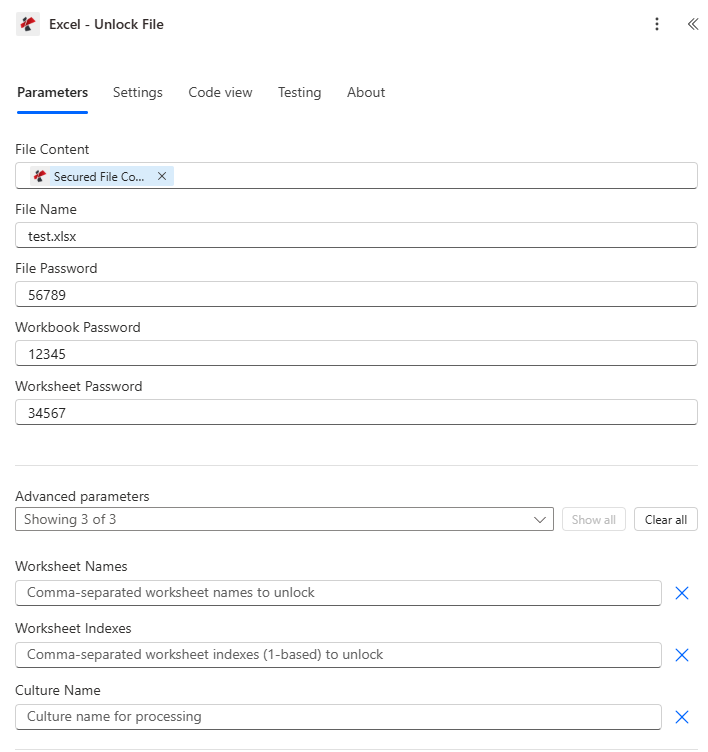
マップファイルコンテンツを設定し、ファイル名を設定した後、ファイルが実際に使用するファイルパスワード、ワークブックパスワード、またはワークシートパスワードのレイヤーのみを入力します。
パラメータ
必須: ファイルの内容は必ず指定する必要があります。ファイル名と3つのパスワードフィールドはオプションです。ファイルの実際の保護レイヤーに一致するパスワードのみが必要です。ワークシート名、ワークシートインデックス、およびカルチャ名は、条件付きの詳細パラメーターです。
| パラメータ | 必須 | その機能 | 例 |
|---|---|---|---|
| File Content | Optional | Content of the Excel file to process. Map it from the file content returned by a previous action, such as SharePoint or OneDrive Get file content. | @{body('Get_file_content')?['$content']} |
| File Name | Optional | Name of the Excel file, including its extension (for example `report.xlsx`). Map it from the file name returned by a previous action. Defaults to `UnlockExcel.xlsx`. | report.xlsx |
| File Password | Optional | Password that is needed to open the file; the file encryption is removed. The field is a plain text field, so the value is visible in the action card and in the run history; store it in Azure Key Vault or a secure environment variable and turn on Secure Inputs for the action. | your-password |
| Workbook Password | Optional | Password of the workbook protection to remove. The field is a plain text field, so the value is visible in the action card and in the run history; store it in Azure Key Vault or a secure environment variable and turn on Secure Inputs for the action. | your-password |
| Worksheet Password | Optional | Password of the worksheet protection to remove. The field is a plain text field, so the value is visible in the action card and in the run history; store it in Azure Key Vault or a secure environment variable and turn on Secure Inputs for the action. | your-password |
| Worksheet Names | Optional | Comma-separated worksheet names to unlock ( e.g. Sheet1,Sheet3 ). | your value |
| Worksheet Indexes | Optional | Comma-separated worksheet indexes (1-based) to unlock ( 1,2,3). | your value |
| Culture Name | Optional | Culture name for processing. | your value |
出力フィールド
| 分野 | タイプ | 内容物 |
|---|---|---|
Unlocked File Content | File content | Content of the unlocked Excel file. Map it into the next action, for example the File Content field of SharePoint or OneDrive Create file. |
Success | Yes/No | Whether the operation completed successfully |
Error Message | Text | Error message if operation failed |
Error Details | Array | List of detailed error messages |
よくあるエラーメッセージの意味とは?
| エラーメッセージ | 原因 | 解決 |
|---|---|---|
| Request is empty | The request object is null. | Provide a valid request object. |
| Document is empty | File Content is null or empty. | Provide a valid Excel document in File Content. |
| The workbook is password-protected. Please provide File Password to open the file. | The file is encrypted but no File Password was provided. | Provide the correct File Password. |
| Could not open the workbook with File Password: incorrect password | The provided File Password does not match. | Verify and provide the correct File Password. |
| Workbook is protected. Please provide Workbook Password. | The workbook has structure protection but no valid password. | Provide the correct Workbook Password. |
| Worksheet '{name}' is protected. Please provide a valid password. | The named worksheet has content protection but no valid password. | Provide the correct Worksheet Password. |
| Invalid worksheet selection | A worksheet name or index does not exist in the workbook. | Use existing worksheet names or valid 1-based indexes. |
| Available worksheets in workbook (X total) | Informational message shown when worksheet selection fails. | Use worksheet indexes from 1 to X. |
ロック解除の設定方法 Excel で Power Automate?
- 追加 PDF4me → Excel - ファイルのロックを解除 あなたの Power Automate 流れ。
- 地図 ファイルの内容 以前のアクションから(SharePoint、 OneDrive、またはファイルコンテンツを取得して設定します ファイル名。
- 埋める ファイルパスワード ファイルを開くのにパスワードが必要な場合。
- 埋める ワークブックのパスワード シートの追加/削除/名前変更がブロックされている場合、 ワークシートのパスワード 特定のシートでセルの編集がブロックされている場合。
- 拡大する 詳細パラメータ 特定の対象をターゲットにする ワークシート名 または ワークシート索引 (1ベース)または両方を空のままにしてすべてのシートのロックを解除します。フローを実行すると、ロック解除されたワークブックが返されます。 書類。
典型的な構成
ワークフローの例Common Power Automate flow patterns using Unlock Excel.
保護されたテンプレートの更新サイクル
- スケジュールされたトリガーは、四半期ごとのテンプレート更新サイクルの開始時に実行されます。
- ファイルコンテンツを取得すると、パスワードで保護された Excel ライブラリのテンプレート。
- ロック解除 Excel 既知のファイルパスワードとワークブックパスワードを使用して保護を解除します。
- 行の更新または同様のアクションはロック解除されたテンプレートを変更し、その後、 Excel 再配布前に保護を再適用します。
保護されたデータ同期
- スケジュールされた夜間処理によって、パスワードで保護されたマスターデータワークブックが取得されます。
- ロック解除 Excel ワークブックを保護しているファイルパスワードを削除します。
- 行の更新と行の追加は、接続されているデータベースからデータを更新します。
- 安全な Excel ファイルを保存し直す前に同じパスワードを再適用します SharePoint。
ワークシートへの選択的アクセス
- 管理者が特定のワークシートへの編集アクセスを要求すると、フローがトリガーされます。
- ファイルコンテンツを取得する機能は、個別に保護された複数のワークシートを含むワークブックを取得します。
- ロック解除 Excel ワークシート名で指定されたシートのみを対象とし、ワークシートパスワードを使用してコンテンツ保護を解除し、他のシートはロックされたままにします。
- 部分的にロック解除されたファイルは、依頼元の管理者にメールで送信されます。
実践的なヒント
Only fill the passwords you need
File Password, Workbook Password, and Worksheet Password are all independent and optional. A file protected only at the worksheet level needs just Worksheet Password.
Worksheet indexes are 1-based here
Unlike some other PDF4me Excel actions that use 0-based indexes, Worksheet Indexes on this action starts at 1 for the first sheet. Double-check which convention the connected action expects.
A wrong password fails the whole run
There is no partial unlock. If any password you supplied does not match its layer, Success returns false and no document is produced.
Re-lock with Secure Excel after editing
If the workflow needs to preserve protection, pair this action with Secure Excel at the end of the flow to reapply passwords after edits are complete.
Store passwords in a secure vault, not the flow
Reference File Password, Workbook Password, and Worksheet Password from Azure Key Vault or a secure connector variable rather than hardcoding them in the flow definition.
チートシート
| 分野 | 価値 |
|---|---|
| Action | Excel - Unlock File |
| Required fields | File Content |
| Password layers | File Password, Workbook Password, Worksheet Password (each optional/conditional) |
| Advanced parameters | 3 total: Worksheet Names, Worksheet Indexes (1-based), Culture Name |
| Output | Processed File Content + Success + Error Message + Error Details |
よくある質問
業界におけるユースケースとアプリケーション
- Finance & Accounting
- Legal & Professional Services
- Human Resources
- Healthcare & Medical
- Sales & Marketing
- Operations & Manufacturing
- 期間終了締め切り前に最終調整を行うため、財務報告書のロックを解除してください。
- テンプレートの更新: 更新用の会計テンプレートの保護を解除します
- 監査準備監査担当者がアクセスしてレビューできるようにファイルをロック解除します。
- データ統合: 保護されたファイルのロックを解除して、データの自動同期を有効にする
- 文書編集承認された変更のためにクライアント文書のロックを解除する
- テンプレートのメンテナンス: 更新用の法的テンプレートから保護を解除します
- 事件ファイル更新情報追加情報を見るには、事件ファイルのロックを解除してください。
- アーカイブ処理長期保存前にパスワードを削除してください
- テンプレートの更新: 年次ポリシー更新用の人事テンプレートをアンロックする
- データ処理給与データ統合の保護を解除する
- 記録の変更承認された更新のために従業員記録のロックを解除します
- 給付金管理: 福利厚生チームによる編集のために登録ファイルのロックを解除します
- 記録更新情報承認された医療スタッフによる編集のために患者記録のロックを解除する
- テンプレートのメンテナンス: 医療フォームテンプレートの保護を解除する
- データ統合EMRシステムとの同期のために保護されたファイルのロックを解除します
- 研究アクセス承認されたアナリストがアクセスできる研究データのロックを解除します
- 価格表の更新四半期ごとの更新に関する価格設定ファイルのロックを解除する
- テンプレート編集提案テンプレートの変更に対する保護を解除する
- データ更新CRMデータ統合のための販売レポートを有効にする
- キャンペーン最新情報指標更新のためにキャンペーン追跡ファイルのロックを解除する
- SOPの更新改訂版の標準操作手順を解除する
- 在庫管理: 自動在庫更新の保護を解除します
- 品質文書標準アップデート用の高品質テンプレートをアンロック
- 生産データ: 制作スケジュールを解禁して、プランニングチームの編集作業を開始する
関連アクション
安全な Excel
ロック解除済みのワークブックを編集した後は、パスワード保護を再度適用してください。
行を更新する
ワークブックのロックを解除した直後に、ワークブックのデータを変更してください。
ヘッダーとフッターを削除
ワークブックの編集ロックが解除されたら、ヘッダーとフッターの内容を整理してください。
他のプラットフォームでの同じタスク
Make: ロック解除 Excel
同じ Excel パスワード削除モジュール Make シナリオ。
n8n: ロック解除 Excel
同じ Excel パスワード削除ノード n8n ワークフローは、自社ホスト型またはクラウド型で利用可能です。
Zapier: ロック解除 Excel
同じ Excel パスワード削除手順 ZapierZapのファイルストレージトリガーに接続されています。
PDF4me API: ロック解除 Excel
同じパスワード削除エンドポイントを直接呼び出します REST カスタム統合の場合 Power Automate。