Excel 別々のワークシート Power Automate
PDF4me Excel - 別紙のワークシート 複数シートのXLSXワークブックを、個々の単一シートのワークブックに分割します。 Power Automate フロー。ソースファイルをマッピングします SharePoint、 OneDriveDropbox、Dataverse、または Outlook 添付ファイル、アクションは 出力ドキュメント シートごとに 1 つのファイル (シート自体と同じ名前) を含む配列。 それぞれに適用する 周囲に書き込みを分散させ、指定した宛先に書き込みます。この動作は動的で、ワークブックにシートが2枚であろうと200枚であろうと関係ありません。
認証 API リクエスト
の PDF4me コネクタを接続します Power Automate 有効な 繋がり あなたの PDF4me API キー。フロー設計時に一度接続を作成し、その後は PDF4me テナント内のアクションがそれを再利用します。
見逃してはならない重要な事実
出力ドキュメント 各要素は独自の配列を持っています。 ファイル名 そして ファイルの内容常に結果をループします それぞれに適用するファイルの数は動的であるため、単一のファイルを直接参照しようとしないでください。.xlsx 拡大。 シート5 になる Sheet5.xlsx.カスタム名 2025年第1四半期 なる Q1 2025.xlsx.それを使って直接ファイルを作成するか、まずコンポーズステップで変換してください。=シート2!A1 Sheet1からの参照は対象を失います。シート内の数式(同じシート上にあるすべての数式)は保持されます。ワークブックで複数のシートにまたがる値を連結する場合は、事前に計画を立ててください。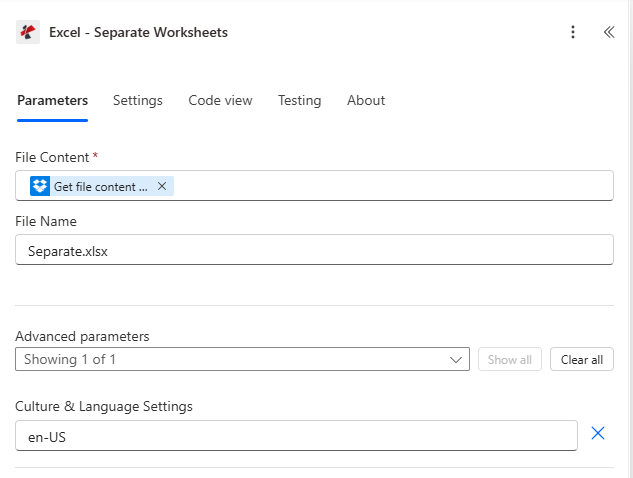
アクション構成。Dropbox からマッピングされたファイルコンテンツ取得ステップ、ファイル名別.xlsx、カルチャと言語設定 en-US。
パラメータ
必須: ファイルの内容。 推奨: ファイル名。 高度な: 文化と言語の設定(デフォルトは en-US)
| パラメータ | 必須 | その機能 | 例 |
|---|---|---|---|
| File Content | Required | Content of the Excel file to process. Map it from the file content returned by a previous action, such as SharePoint or OneDrive Get file content. | @{body('Get_file_content')?['$content']} |
| File Name | Optional | Name of the Excel file, including its extension (for example `report.xlsx`). Map it from the file name returned by a previous action. Defaults to `Separate.xlsx`. | report.xlsx |
| Culture & Language Settings | Optional | Culture name for formatting (e.g., en-US, fr-FR, de-DE). | your value |
出力
このアクションは、ファイルの配列とエラーフィールドを返します。 Power Automate dynamic-content picker は、以下の名前を公開します。
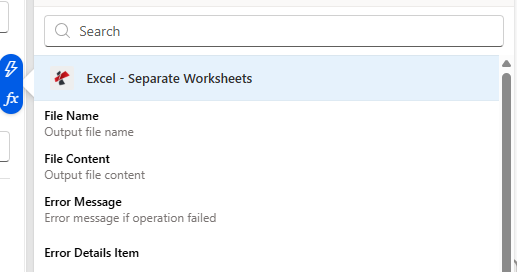
動的コンテンツピッカーは、outputDocuments内の各項目についてファイル名とファイルコンテンツを表示するほか、エラーが発生した場合はエラーメッセージとエラーの詳細を表示します。
| 動的コンテンツフィールド | タイプ | 内容物 |
|---|---|---|
outputDocuments | Array | Separated excel files |
outputDocuments[].File Name | Text | Output file name |
outputDocuments[].File Content | File content | Output file content |
Error Message | Text | Error message if operation failed |
Error Details | Array | List of detailed error messages |
生の応答形状
参考のために (または基となるものを呼び出すとき) REST エンドポイントを直接指定すると、5シート分割の場合、次のようなボディが返されます。
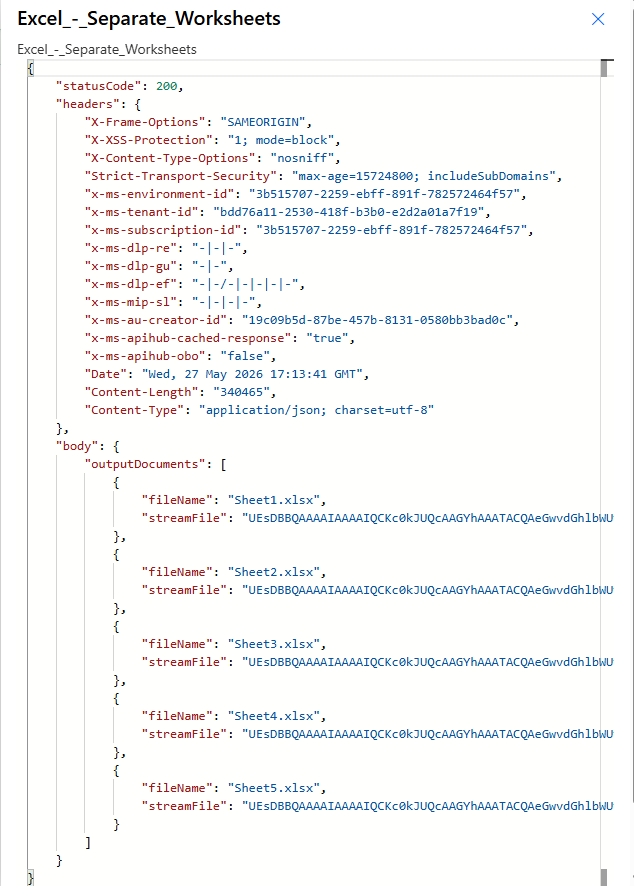
ステータスコード200、コンテンツタイプ アプリケーション/json。 出力ドキュメント 1つ持ち運ぶ {ファイル名、ストリームファイル} 1枚のシートにオブジェクトを1つずつ配置します。
サンプルファイル
フローの例
Power Automateの一般的なワークフローパターンTypical ways to chain Excel - Separate Worksheets into a flow.
- SharePoint ファイルが作成されると トリガーは /Documents/InboundWorkbooks で発火します。
- SharePoint ファイルコンテンツを取得すると、XLSXバイナリが読み込まれます。
- Excel - ワークシートを分けると、シートごとに1つのファイルに分割されます。
- 各出力ドキュメントに適用する → SharePoint ファイル名とファイル内容を指定して、/Documents/ByDepartment ディレクトリにファイルを作成します。
- Outlook 新しいメールが届いたとき .xlsx ファイルが添付されたルーティング受信トレイでトリガーが作動します。
- 各添付ファイルに適用する → Excel - ワークシートを分割すると、ワークブックが分割されます。
- 各出力ドキュメントに内部適用 → Outlook 各シートを個別の添付ファイルとしてメールで送信してください。
- 再発トリガーは毎週月曜日の午前6時に作動します。
- Dataverseは、統合レポートを単一のワークブックとして生成します。
- Excel - ワークシートを分けると、地域別または部門別に分割されます。
- それぞれに適用する → OneDrive /Reports/Weekly/[YYYY-MM-DD]/ の下にファイルを作成します。