安全な Excel で Power Automate
安全な Excel は Power Automate アクション PDF4me パスワード保護を適用する Excel ファイルは3つの独立したレベルで保護されます。ファイル暗号化(ファイルを開くためのパスワード)、ワークブック構造保護(シートの追加、削除、名前変更、移動をロック)、ワークシートコンテンツ保護(選択したシートのセル編集をロック)です。機密性の高い財務データの配布、入力セルを編集可能にしたままテンプレートの構造をロック、読み取り専用の週次レポートの送信などに使用できます。
このアクションが何をするか
PDF4me 安全な Excel 最大 3つの独立した保護レベル に Excel 1回の呼び出しでファイルを処理: 保護パスワード ファイル暗号化の場合、 ワークブックのパスワード 構造物の保護のため、そして ワークシートのパスワード プラス 保護タイプ 選択したシートのセル内容を保護します。レベル固有のパスワードは、空欄の場合は保護パスワードに切り替わるため、必要に応じて1つのパスワードで3つのレイヤーすべてを保護できます。
認証方法 Power Automate 流れ?
電話するには PDF4me を通して Power Automateフローには有効な PDF4me API 鍵となるのは PDF4me 接続する コネクタ。認証により安全な通信が保証され、正規ユーザーとしての身元が確認されます。
見逃してはならない重要な事実
保護パスワード (「パスワード」ではありません) ワークブックのパスワード (「ワークブックのパスワードを保護する」ではありません) ワークシートのパスワード (「ワークシート保護パスワード」ではなく)、 保護タイプ (「ワークシート保護の種類」ではありません)。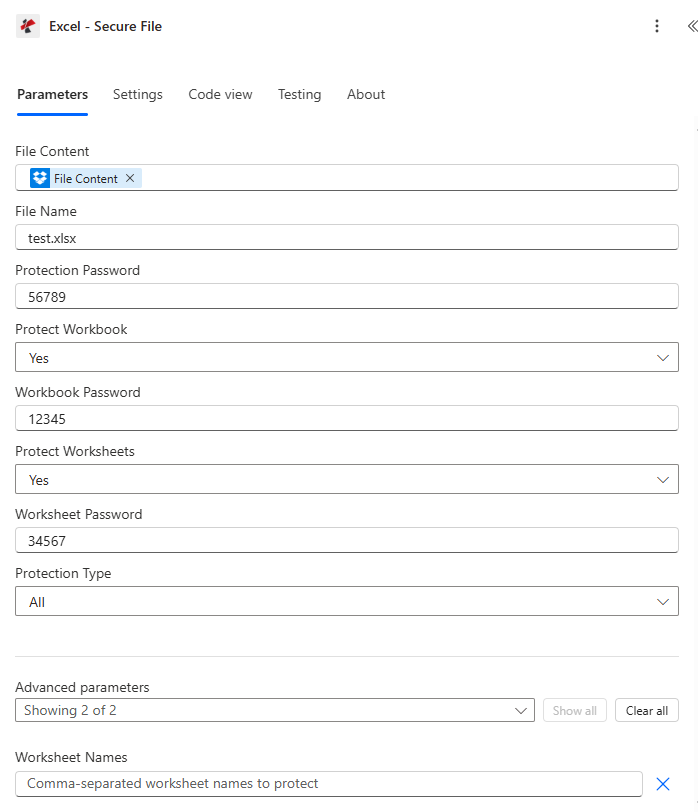
3 つのパスワードフィールド (保護パスワード、 ワークブックのパスワード、 ワークシートのパスワードメインパネルに座る。 ワークシート名 そして ワークシート索引 詳細設定項目にあります。
パラメータ
アクションに必要な要件: ファイルの内容 そして ファイル名保護トグルが「はい」に設定されている場合、レベル固有のパスワードまたはフォールバックとしての保護パスワードのいずれか、少なくとも1つのパスワードが必要です。
| パラメータ | 必須 | その機能 | 例 |
|---|---|---|---|
| File Content | Optional | Content of the Excel file to process. Map it from the file content returned by a previous action, such as SharePoint or OneDrive Get file content. | @{body('Get_file_content')?['$content']} |
| File Name | Optional | Name of the Excel file, including its extension (for example `report.xlsx`). Map it from the file name returned by a previous action. Defaults to `SecureExcel.xlsx`. | report.xlsx |
| Protection Password | Optional | Password to protect the Excel file with. The field is a plain text field, so the value is visible in the action card and in the run history; store it in Azure Key Vault or a secure environment variable and turn on Secure Inputs for the action. | your-password |
| Protect Workbook | Optional | Enable workbook structure protection. Defaults to `Yes`. | Yes |
| Workbook Password | Optional | Separate password for protecting the workbook structure, used when Protect Workbook is Yes. The field is a plain text field, so the value is visible in the action card and in the run history; store it in Azure Key Vault or a secure environment variable and turn on Secure Inputs for the action. | your-password |
| Protect Worksheets | Optional | Enable worksheet content protection. Defaults to `Yes`. | Yes |
| Worksheet Password | Optional | Separate password for protecting the worksheets, used when Protect Worksheets is Yes. The field is a plain text field, so the value is visible in the action card and in the run history; store it in Azure Key Vault or a secure environment variable and turn on Secure Inputs for the action. | your-password |
| Protection Type | Optional | Type of worksheet protection to apply. Options: Contents, Objects, Scenarios, All. Defaults to `All`. | All |
| Worksheet Names | Optional | Comma-separated worksheet names to protect ( e.g. Sheet1,Sheet3 ). | your value |
| Worksheet Indexes | Optional | Comma-separated worksheet indexes (1-based) to protect ( 1,2,3). | your value |
保護タイプの値
コンテンツオブジェクトシナリオ全てセキュリティ設定の方法 Excel で Power Automate?
- 追加 安全な Excel あなたの流れに新たな一歩を。
- サインイン PDF4me 接続する あなたの API 鍵。
- 地図 ファイルの内容 以前のアクションから設定 ファイル名 と共に
.xlsx拡大。 - ファイルを暗号化するには: 保護パスワード。
- 構造をロックするには: ワークブックを保護する に はい そして提供する ワークブックのパスワード (または空欄のままにすると、保護パスワードに切り替わります。)
- セルの内容をロックするには: ワークシートを保護する に はい、 提供する ワークシートのパスワード、そして 保護タイプ。
- 下 詳細パラメータ(オプションで設定可能) ワークシート名 または ワークシート索引 特定のシートを対象とする。
- フローを実行し、確認します。 成功返された 書類 に SharePoint、 OneDriveまたは、メールの添付ファイルとして。
出力
| 分野 | タイプ | 説明 |
|---|---|---|
| Secured File Content | File content | Content of the protected Excel file. Map it into the next action, for example the File Content field of SharePoint or OneDrive Create file. |
| Success | Yes/No | Whether the operation completed successfully |
| Error Message | Text | Error message if operation failed |
| Error Details | Array | List of detailed error messages |
よくあるエラーメッセージ
| エラー message | 原因 | 解決 |
|---|---|---|
Request is empty | Request object is null | Provide a valid request object |
Document is empty | Document object is null | Provide a valid Excel document |
Password is required for workbook protection | Protect Workbook is Yes but both Workbook Password and Protection Password are empty | Provide Workbook Password or Protection Password |
Password is required for worksheet protection | Protect Worksheets is Yes but both Worksheet Password and Protection Password are empty | Provide Worksheet Password or Protection Password |
Invalid worksheet selection | A worksheet name does not exist or an index is out of range | Use valid worksheet names or 0-based indexes |
典型的な構成
- 財務報告書が確定したときにトリガーする SharePoint。
- ファイルを暗号化するために、保護パスワードを設定してください。
- ブックの保護を「はい」に設定し、ワークシートの保護も「はい」に設定して、保護の種類を「すべて」に設定します。
- ファイルとそのパスワードを別々の方法でメールで送信してください。
- 新入社員の入社手続き時にトリガーする。
- 保護パスワードは空欄のままにしてください(自由に開けられます)。
- ワークブックの保護を「はい」に設定し、ワークブックにパスワードを設定します。
- 「計算」シートのみを「ワークシート名」で「ワークシートの保護」を「はい」に設定し、「入力」シートは編集可能にします。
- レポート生成後、週次スケジュールでトリガーを実行する。
- 「ワークシートの保護」を「はい」に設定し、保護の種類を「すべて」に設定します。「ワークシートのパスワード」を空欄にすると、保護パスワードが使用されます。
- 読み取り専用のレポートをチームに配布してください。
実践的なヒント
安全な配送 Excel ファイルとそのパスワードは別々のチャネルで送信されるため、一方を傍受しても両方が漏洩することはありません。
ワークブックパスワードまたはワークシートパスワードを空欄にした場合、それ自体はエラーではなく、保護パスワードに自動的に切り替わります。有効なパスワードがまったくないリクエストのみが失敗します。
最初のワークシートのインデックスは0です。動的リストからワークシートインデックスをスクリプト化する際は、オフバイワンエラーを必ず確認してください。
保護パスワードをすべてのレベルで使い回すのは便利ですが、ファイルを開くことができるレビュー担当者は、構造やコンテンツの保護も解除できてしまいます。異なるアクセス権限が必要なユーザーには、それぞれ独立したパスワードを使用してください。
ワークシート名またはワークシートインデックスを使用して、参照シートと数式シートをロックし、編集が必要なチームのために入力シートを開いたままにすることができます。
チートシート
| ゴール | 保護パスワード | ワークブックを保護する | ワークシートを保護する |
|---|---|---|---|
| Maximum lockdown | Set | Yes | Yes (Protection Type All) |
| Template structure only | Empty | Yes | No |
| Read-only content, open access | Empty | No | Yes (Protection Type All) |
| Selective reference-sheet lock | Empty | No | Yes (target via Worksheet Names) |