ヘッダーとフッターを削除 Excel で Power Automate
PDF4me ヘッダーとフッターを削除 Excel は Power Automate ワークブックのリブランディングやアーカイブを行う前に、選択したヘッダーとフッター部分を削除するアクションです。特定のシートまたはファイル全体から、古いロゴ、クォーターラベル、機密マークなどを左、中央、右の領域から削除する場合に使用できます。
このアクションが何をするか
PDF4me ヘッダーとフッターを削除 Excel 既存のワークブック上の、ヘッダー左、ヘッダー中央、ヘッダー右、フッター左、フッター中央、フッター右の6つの独立した領域をクリアします。ワークシート名またはインデックスを指定して特定のワークシートを対象とするか、両方を空欄にしてすべてのシートを一度にクリアすることもできます。
関連ブログ記事
この機能に関するブログ記事はまだありません。近日公開予定です。
その間、PDF4me ブログを閲覧して、あらゆるプラットフォームのチュートリアルやワークフローをご覧ください。
ブログをご覧ください →
認証方法 Power Automate 流れ?
毎 PDF4me アクション Power Automate 有効な接続が必要です。 PDF4me API フローが認証できるようにするためのキー Excel ヘッダー/フッターのリクエストを安全に処理します。
見逃してはならない重要な事実
6つの独立したイエス/ノーゾーン
ヘッダーの左、中央、右を削除するオプションと、フッターの左、中央、右を削除するオプションは、それぞれ個別の「はい/いいえ」ドロップダウンメニューで、デフォルトは「いいえ」です。削除したいゾーンのみを選択してください。
ワークシートターゲティングのための3つの高度なパラメータ
詳細パラメーターパネルには、「3件中1件目を表示」として、「ワークシート名」、「ワークシートインデックス」、「カルチャー名」が表示されます。ワークブック内のすべてのシートを処理するには、「ワークシート名」と「ワークシートインデックス」を空欄のままにしてください。
ファイルの内容のみが本当に必要です
コネクタパネルでは、ファイルコンテンツに必須項目としてアスタリスクが表示されます。ファイル名とすべての削除フラグはオプションです。すべてのフラグを「いいえ」に設定して実行すると、正常に完了しますが、ワークブックは変更されません。
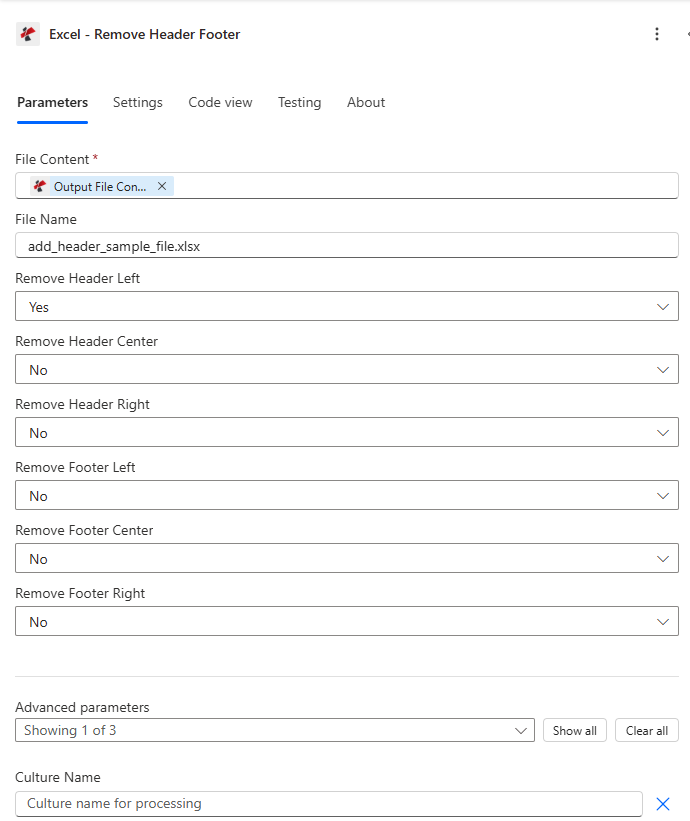
マップファイルコンテンツを設定し、ファイル名を設定した後、削除したいヘッダー/フッターゾーンのみを「はい」に切り替えます。
パラメータ
必須: ファイルコンテンツのみを指定する必要があります。ファイル名と6つの削除フラグはすべてオプションです。ワークシート名、ワークシートインデックス、およびカルチャ名は、デフォルト設定を超えるターゲティングやローカライズが必要な場合にのみ適用される条件付き詳細パラメーターです。
| パラメータ | 必須 | その機能 | 例 |
|---|---|---|---|
| File Content | Required | Content of the Excel file to process. Map it from the file content returned by a previous action, such as SharePoint or OneDrive Get file content. | @{body('Get_file_content')?['$content']} |
| File Name | Optional | Name of the Excel file, including its extension (for example `report.xlsx`). Map it from the file name returned by a previous action. Defaults to `RemoveHeaderFooter.xlsx`. | report.xlsx |
| Remove Header Left | Optional | Remove left section of header. Defaults to `No`. | No |
| Remove Header Center | Optional | Remove center section of header. Defaults to `No`. | No |
| Remove Header Right | Optional | Remove right section of header. Defaults to `No`. | No |
| Remove Footer Left | Optional | Remove left section of footer. Defaults to `No`. | No |
| Remove Footer Center | Optional | Remove center section of footer. Defaults to `No`. | No |
| Remove Footer Right | Optional | Remove right section of footer. Defaults to `No`. | No |
| Worksheet Names | Optional | Names of worksheets to remove headers/footers from. | your value |
| Worksheet Indexes | Optional | Indexes of worksheets to remove headers/footers from. | your value |
| Culture Name | Optional | Culture name for processing. | your value |
出力フィールド
| 分野 | タイプ | 内容物 |
|---|---|---|
Processed File Content | File content | Content of the Excel file with the selected header and footer sections removed. Map it into the next action, for example the File Content field of SharePoint or OneDrive Create file. |
Success | Yes/No | Whether the operation completed successfully |
Error Message | Text | Error message if operation failed |
Error Details | Array | List of detailed error messages |
よくあるエラーメッセージの意味とは?
| エラーメッセージ | 原因 | 解決 |
|---|---|---|
| Request is empty | The request object is null. | Provide a valid request object. |
| Document is empty | File Content is null or empty. | Provide a valid Excel document in File Content. |
| Invalid worksheet selection | Worksheet names don't exist or indexes are out of range. | Use existing worksheet names or valid 0-based indexes. |
| Available worksheets in workbook (X total) | Informational message shown when worksheet selection fails. | Review worksheet names/indexes and use a valid value from the X available worksheets. |
ヘッダーとフッターを削除するにはどうすればいいですか? Power Automate?
- 追加 PDF4me → Excel - ヘッダーとフッターの削除 あなたの Power Automate 流れ。
- 地図 ファイルの内容 以前のアクションから(SharePoint、 OneDrive、またはファイルコンテンツを取得して設定します ファイル名。
- セット ヘッダー左側を削除、 ヘッダー中央を削除、 または ヘッダー右側を削除 に はい クリアしたいヘッダーゾーンごとに設定してください。
- セット フッターを左に削除、 フッター中央を削除、 または フッター右側を削除 に はい クリアしたいフッターゾーンごとに設定してください。
- 拡大する 詳細パラメータ 特定の対象をターゲットにする ワークシート名 または ワークシート索引または、両方を空のままにしてすべてのシートを処理します。フローを実行すると、クリーンアップされたワークブックが次のように返されます。 書類。
典型的な構成
ワークフローの例Common Power Automate flow patterns using Remove Header Footer.
リブランディングの準備
- リブランディングイニシアチブの流れは、 SharePoint テンプレートライブラリ。
- ファイルコンテンツを取得すると、各 Excel テンプレート。
- 「ヘッダー/フッターを削除」では、6 つの削除フラグすべてが「はい」に設定され、「ワークシート名」と「ワークシートインデックス」は空欄のままになり、すべてのシートがクリアされます。
- 「テキストヘッダーとフッターの追加」機能は、クリーンアップされたワークブックに新しいブランドロゴを刻印します。
四半期ごとのテンプレートの整理
- 定期的な処理は各四半期の開始時に実行されます。
- ファイルコンテンツを取得すると、四半期報告書のテンプレートが取得されます。
- ヘッダー フッターを削除すると、ヘッダー中央の削除とフッター左の削除が「はい」に設定され、ページ番号を保持するためにヘッダー右の削除は「いいえ」のままになり、ワークシート名 ["Summary", "Financial Data"] が対象となります。
- 後続の処理により、新しい四半期ラベルがクリア済みヘッダーに挿入されます。
クライアントへの納品物のサニタイズ
- 内部レポートが顧客への配信対象としてマークされた時点で、フローがトリガーされます。
- ファイルコンテンツを取得すると内部 Excel 報告。
- ヘッダーフッターを削除すると、すべてのフッターフラグとヘッダー左の削除、ヘッダー中央の削除が「はい」に設定され、ページネーションを維持するためにヘッダー右の削除は「いいえ」のままになり、メインセクションにはワークシートインデックス [0、1、2] が使用されます。
- 内容が修正されたワークブックは、クライアントの担当者にメールで送信されます。
実践的なヒント
Each zone is independent
You do not need to clear all six zones. Set only the specific Header/Footer Left, Center, or Right flags to Yes for the sections you actually want removed.
Empty worksheet selectors mean all sheets
If both Worksheet Names and Worksheet Indexes are left empty, the action processes every worksheet in the workbook, not just the first one.
Worksheet Names and Indexes combine, not replace
If you set values in both Worksheet Names and Worksheet Indexes, the action processes the union of both lists, so a name typo will not silently exclude a sheet if its index is also listed.
This does not touch worksheet data
Only the header and footer margins are affected. Cell values, formulas, and body formatting are left exactly as they were.
Branch on Success before continuing
Add a Condition on Success after this action so a failed run does not pass a partially cleaned workbook further down the flow.
チートシート
| 分野 | 価値 |
|---|---|
| Action | Excel - Remove Header Footer |
| Required fields | File Content |
| Header removal flags | Remove Header Left, Center, Right (each Yes/No, default No) |
| Footer removal flags | Remove Footer Left, Center, Right (each Yes/No, default No) |
| Advanced parameters | 3 total: Worksheet Names, Worksheet Indexes, Culture Name |
| Output | Processed File Content + Success + Error Message + Error Details |
よくある質問
業界におけるユースケースとアプリケーション
- Corporate Rebranding
- Finance & Accounting
- Human Resources
- Sales & Marketing
- Legal & Compliance
- Operations & Manufacturing
- 企業ブランド再構築すべてのExcelテンプレートから古い会社のロゴと名前を削除します。
- 合併統合統合エンティティのブランディングを適用する前に、ヘッダー/フッターを整理してください。
- 事業部再編部門テンプレートから古い部門ヘッダーを削除する
- 製品ラインの変更: 販売およびマーケティングテンプレートからクリーンな製品ブランディング
- 四半期末の片付け: 財務テンプレートから前四半期の情報を削除する
- 年末標準化: 新会計年度開始前に年度固有のヘッダーを整理する
- 監査準備監査成果物から内部レビューのコメントを削除する
- 顧客レポート顧客向け財務報告書から内部ヘッダー/フッターをサニタイズする
- テンプレートの更新: 従業員テンプレートから古い人事ポリシーのヘッダーを削除する
- 福利厚生の登録: 前年度の登録ヘッダーを新しいテンプレートから削除する
- 業績評価評価テンプレートから古いレビュー期間のヘッダーを削除します。
- オンボーディング後の整理: 古いヘッダーを削除して、新入社員用テンプレートを標準化する
- キャンペーンの整理再利用可能な販売テンプレートから古いキャンペーンヘッダーを削除する
- 価格改定のお知らせ: 料金表から古い料金期間ヘッダーを削除する
- 顧客提案書クライアントへの成果物から内部レビューのヘッダーを削除する
- 領土変更: 販売地域ヘッダーを更新し、古い割り当てを削除します。
- 契約書テンプレート: 法務テンプレートから古いバージョンのヘッダーを削除する
- ポリシーの更新コンプライアンス文書から古いポリシー日付を削除する
- 規制変更古い引用を削除して、規制関連の参照ヘッダーを更新します。
- 監査クリーンアップ最終コンプライアンスレポートから内部監査メモを削除する
- SOPの更新: 標準作業手順書から古い改訂版ヘッダーを削除する
- 品質基準: 品質テンプレートから古い ISO バージョン ヘッダーを削除します
- 安全に関する最新情報: トレーニング資料から古い安全規制の見出しを削除する
- ベンダーの変更調達テンプレートから古いベンダーロゴを削除する
関連アクション
テキストヘッダーとフッターを追加
この操作で古いコンテンツを削除した後、同じ6つの領域に新しいテキストをスタンプします。
画像ヘッダー/フッターを追加
プレーンテキストの代わりに、ロゴや画像を、整理されたヘッダー/フッター領域に配置してください。
テキスト透かしを追加
この操作でクリアされるヘッダー/フッターの余白ではなく、シート本文全体に斜めの透かしテキストを重ねて表示します。
他のプラットフォームでの同じタスク
Makeヘッダーとフッターを削除
同じ Excel ヘッダー/フッター削除モジュール Make シナリオ。
n8nヘッダーとフッターを削除
同じ Excel ヘッダー/フッター削除ノード n8n ワークフローは、自社ホスト型またはクラウド型で利用可能です。
Zapierヘッダーとフッターを削除
同じ Excel ヘッダー/フッター削除手順 ZapierZapのファイルストレージトリガーに接続されています。
PDF4me APIヘッダーとフッターを削除
同じヘッダー/フッター削除エンドポイントを直接呼び出す REST カスタム統合の場合 Power Automate。