解析 CSV に JSON で Power Automate と PDF4me
PDF4me CSV - JSONへのパース は Power Automate 変換するアクション CSV ファイルを構造化 JSON 3段階のヘッダー優先度システムと設定可能な区切り文字を備えた配列。これを使用してフィードします。 CSV データベースへのエクスポート、 REST APIフロー内でカスタムパーサーを作成せずに、s または Excel を使用できます。
このアクションが何をするか
PDF4me CSV - JSONへのパース 読む CSV ファイルと返します Base64-エンコード JSON 列ヘッダー、最初の行のスキップ、カルチャ名によって行とヘッダーの解釈方法を制御するオブジェクトの配列です。任意の区切り文字が使用可能で、形式が正しくない行も処理フローを中断することなく適切に処理されます。
関連ブログ記事
この機能に関するブログ記事はまだありません。近日公開予定です。
その間、PDF4me ブログを閲覧して、あらゆるプラットフォームのチュートリアルやワークフローをご覧ください。
ブログをご覧ください →
認証方法 Power Automate 流れ?
毎 PDF4me アクション Power Automate 有効な接続が必要です。 PDF4me API フローが認証できるようにするためのキー CSV リクエストを安全に解析する。
見逃してはならない重要な事実
ヘッダー処理には厳格な3段階の優先順位があります
列ヘッダーが指定されている場合は優先されます(すべての列ヘッダーが指定されている場合)。 CSV 行がデータになります)。そうでない場合は、Skip First Line が true に設定されていると、最初の行が使用されます。 CSV 行をヘッダーとして指定します。両方とも空の場合は、Column1、Column2、…のようにヘッダーが自動的に生成されます。
カルチャー名は、見落としやすい高度なパラメーターです。
詳細パラメーターの下に隠されている「列ヘッダー」と「最初の行をスキップ」では、地域固有の数値と日付の形式を解釈するために使用されるロケールを設定します。 CSV。
構文解析は厳密ではなく、寛容である。
ヘッダーよりも値が少ない行には空の文字列が返され、値が多い行では余分な文字列は無視され、不正なデータの場合はエラーを発生させる代わりに空の配列が返されます。
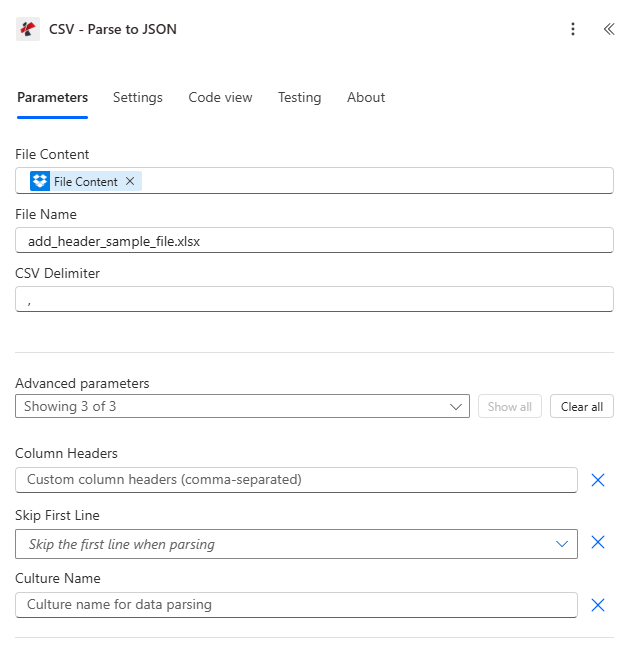
マップファイルの内容とファイル名を設定し、 CSV 区切り文字を選択し、次に「列ヘッダー」、「最初の行をスキップ」、「カルチャ名」の詳細パラメーターを展開します。
パラメータ
必須: ファイルの内容、ファイル名、 CSV 区切り文字は必須です。列ヘッダー、最初の行をスキップ、カルチャ名はオプションの高度なパラメータです。
| パラメータ | 必須 | その機能 | 例 |
|---|---|---|---|
| File Content | Optional | Content of the CSV file to parse. Map it from the file content returned by a previous action, such as SharePoint or OneDrive Get file content. | @{body('Get_file_content')?['$content']} |
| File Name | Optional | Name of the CSV file, including its extension (for example `data.csv`). Map it from the file name returned by a previous action. Defaults to `ParseCsv.csv`. | data.csv |
| CSV Delimiter | Optional | Character used to separate values in the CSV. Defaults to `,`. | , |
| Column Headers | Optional | Column headers to use instead of those in the file, as a comma-separated list. | your value |
| Skip First Line | Optional | Skip the first line when parsing. | No |
| Culture Name | Optional | Culture name for data parsing. | your value |
出力フィールド
| 分野 | タイプ | 内容物 |
|---|---|---|
Parsed Content | File content | The parsed CSV data. The connector describes it as JSON or Excel file content and declares it as file content (format byte). |
Success | Yes/No | Whether the operation completed successfully |
Error Message | Text | Error message if operation failed |
Error Details | Array | List of detailed error messages |
よくあるエラーメッセージの意味とは?
| エラーメッセージ | 原因 | 解決 |
|---|---|---|
| Request is empty | Request object is null. | Provide a valid request object. |
| Document is empty | Document object is null or CSV content is null. | Provide valid CSV file content. |
| Encoding exceptions | CSV content is not UTF-8 encoded. | Re-save or export the CSV file as UTF-8. |
| Empty array output | CSV content is empty or contains only a header row. | Provide a CSV file with at least one data row. |
Parseの設定方法を教えてください CSV で Power Automate?
- 追加 PDF4me → CSV - JSONへのパース あなたの Power Automate 流れ。
- 地図 ファイルの内容 そして ファイル名 以前のアクションから(SharePoint、 OneDrive(またはメール添付ファイル)。
- セット CSV区切り文字 ソースファイルに合わせて(カンマ、セミコロン、タブ、またはパイプ)。
- 拡大する 詳細パラメータ そして設定する 列ヘッダー カスタム名の場合、または 最初の行をスキップ ファイル自身のヘッダー行を使用する。
- フローを実行し、デコードします 書類 Base64 出力し、結果として得られたものをループ処理します。 JSON 配列 それぞれに適用する。
典型的な構成
ワークフローの例Common Power Automate flow patterns using Parse CSV.
CSVからデータベースへのインポート
- A CSV ファイルは SharePoint 「Imports」フォルダがフローをトリガーします。
- CSV を解析して、 JSON と CSV 区切り文字をカンマに設定し、「最初の行をスキップ」を有効にしました。
- ドキュメント出力はデコードされ、個々の JSON オブジェクト。
- Apply to each ループはレコードを順に処理し、SQL コネクタを介してレコードを挿入します。
- 処理された CSV 「アーカイブ」フォルダに移動されます。
欧州からのREST APIへのエクスポート
- ソースシステムはセミコロン区切りの電子メールを送信します CSV 輸出。
- CSV解析は以下で実行されます CSV 区切り文字をセミコロンに設定し、「最初の行をスキップ」を有効にしました。
- 解析された各レコードは、 REST API エンドポイント HTTP。
- 応答コードは、失敗したレコードを特定するために収集されます。
- ループが完了すると、概要がメールで送信されます。
カスタムヘッダー付きCSVからExcelへの変換
- レガシーレポートはタブ区切り形式で届きます CSV ヘッダー行なし。
- CSV解析は以下で実行されます CSV 区切り文字はタブに設定され、列ヘッダーは明示的に設定されています。
- 結果として JSON 配列は PDF4me Excelテンプレートにデータを入力するには、「行の追加」アクションを使用します。
- 書式設定済みのExcelワークブックは、関係者にメールで送信されます。
実践的なヒント
Column Headers overrides Skip First Line completely
If you set Column Headers, Skip First Line is ignored and every CSV row, including what looks like a header row, is treated as data. Do not set both expecting them to combine.
Match the delimiter exactly to the export locale
European CSV exports commonly use a semicolon instead of a comma, especially when the source system uses comma as the decimal separator. Check a sample row before hardcoding the delimiter.
Decode document before parsing further
The document output is Base64-encoded JSON text, not a ready-to-use object. Decode it first, then use Parse JSON to expose individual fields for Apply to each.
Set Culture Name for non-US number formats
If the CSV uses comma as a decimal separator or day-first dates, set Culture Name to match (for example de-DE or en-GB) so downstream conversions do not misread values.
Treat empty output as a signal, not a crash
An empty array back from Parse CSV usually means the file only had a header row or was empty, not that the flow failed. Check Success and Errors before assuming the source file is fine.
チートシート
| 分野 | 価値 |
|---|---|
| Action | CSV - Parse to JSON |
| Header priority | Column Headers > Skip First Line > auto-generated |
| Common delimiters | , (comma) / ; (semicolon) / \t (tab) / | (pipe) |
| Output filename | parsed_data.json (fixed) |
| Output format | document (Base64 JSON array) |
| Malformed data behavior | Returns empty array, does not error |
よくある質問
業界におけるユースケースとアプリケーション
- IT & System Integration
- Finance & Accounting
- Sales & Marketing
- Human Resources
- Operations & Supply Chain
- レガシーシステム統合レガシーシステムからのCSVエクスポートをJSONに解析する
- APIデータフィードCSVデータをREST APIで使用できるJSON形式に変換する。
- データベース移行データベースインポート操作のためにCSVファイルを解析する
- ログファイル処理: 分析のためにCSV形式のログファイルを解析する
- 銀行取引明細書のインポートCSV形式の銀行取引明細書をJSON形式に解析して処理する
- トランザクション処理CSVトランザクションエクスポートを構造化JSONに変換する
- GLデータインポート: ERPインポート用の勘定科目表CSVエクスポートを解析する
- 請求書処理CSV形式の請求書データをJSON形式に変換して自動化する
- リードインポートマーケティングプラットフォームからCSV形式のリードリストを解析する
- キャンペーンデータ: 分析のために、CSV形式のキャンペーン結果をJSON形式に変換します。
- お問い合わせ先:輸入: さまざまなソースからのCSV連絡先エクスポートを解析する
- 販売データ統合CSV形式の売上レポートをJSON形式に変換してCRMにインポートする
- 給与データ: 給与計算システムへのインポート用にCSVタイムシートを解析する
- 従業員インポート: 人事情報システム用にCSV従業員データをJSON形式に変換する
- 福利厚生の登録: 処理のためにCSV登録データを解析する
- 出席記録CSV形式の出席記録を構造化JSON形式に変換する
- 在庫輸入: CSV形式の在庫エクスポートを解析してJSON形式に変換し、システムにインポートする
- 注文処理: 処理のためにCSV注文データをJSONに変換します。
- 配送データ物流システム向けにCSV形式の出荷マニフェストを解析する
- サプライヤーデータ調達のためにCSV形式のベンダーリストをJSON形式に変換する
関連アクション
行を追加する
解析された内容を書き込む JSON CSV解析の次の自然なステップとして、配列を新しいExcelワークシートに直接挿入します。
行を抽出する
既存の Excel 行を読み込む JSONCSV解析の逆方向。
ファイルの結合
複数の解析済みデータを組み合わせる CSV 単一のExcelワークブックにエクスポートします。
他のプラットフォームでの同じタスク
MakeCSVを解析する
同じ CSV-に-JSON 変換モジュール Make シナリオ。
n8nCSVを解析する
同じ CSV-に-JSON 変換ノード n8n ワークフローを自己ホスト型またはクラウドに接続します n8n 実例。
ZapierCSVを解析する
同じ CSV-に-JSON 変換ステップ Zapierそれを、すでにZapに組み込まれているGoogleスプレッドシートまたはデータベーストリガーに接続します。
PDF4me APICSVを解析する
同じことを呼ぶ CSV-に-JSON エンドポイントに直接 REST カスタム統合の場合 Power Automate。