行を結合する Excel で Power Automate
PDF4me 行を結合する は Power Automate グループが複製するアクション Excel 1つ以上のキー列に基づいて行を分割し、残りの値を1つの統合行に結合します。この機能を使用すると、重複する顧客、カテゴリ、またはトランザクションのエントリをキーごとに1行にまとめたり、キー列を空白のままにして完全に重複する行を削除したりできます。
このアクションが何をするか
PDF4me 行を結合する 読む Excel ファイルとキー列番号のセットを指定すると、同じキー値を持つ行がグループ化され、各グループ内の重複値を削除した後、各グループの非キー値がセミコロン区切りで結合されます。キー列が指定されていない場合、すべての列値を共有する行は完全に重複しているものとして扱われます。
認証 API リクエスト
アクセスするには PDF4me ウェブ API を通して Power Automateすべてのリクエストには有効な API キー。認証はあなたの身元を検証し、コネクタがアクセスできるようにします。 PDF4meの Excel フローからの行マージサービス。
見逃してはならない重要な事実
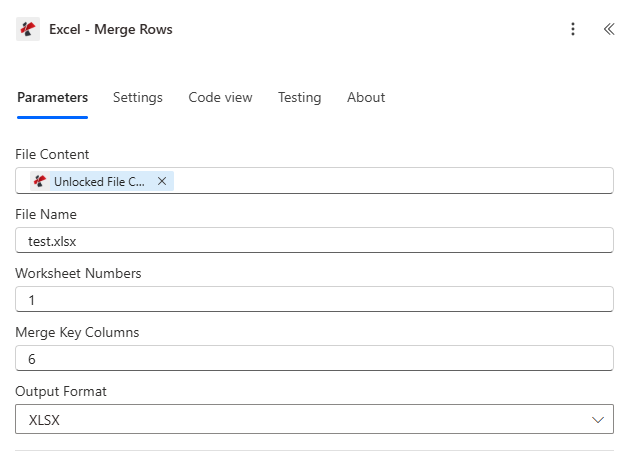
前の操作からファイルの内容とファイル名をマッピングし、ワークシート番号と結合キー列を設定してから、出力形式を選択します。
パラメータ
必須: ファイルの内容、ファイル名、およびワークシート番号は必ず指定する必要があります。結合キー列と出力形式は条件付きであり、それぞれ空白の場合の代替動作が定義されています。
| パラメータ | 必須 | その機能 | 例 |
|---|---|---|---|
| File Content | Optional | Content of the Excel file to process. Map it from the file content returned by a previous action, such as SharePoint or OneDrive Get file content. | @{body('Get_file_content')?['$content']} |
| File Name | Optional | Name of the Excel file, including its extension (for example `report.xlsx`). Map it from the file name returned by a previous action. Defaults to `MergeRows.xlsx`. | report.xlsx |
| Worksheet Numbers | Optional | Worksheets whose rows are merged, as a comma-separated list of positions counting from 1, for example `1,2`. | 1,2 |
| Merge Key Columns | Optional | Columns used to match rows between the worksheets, as a comma-separated list of column numbers counting from 1, for example `1` or `1,3`. | 1 |
| Output Format | Optional | Format for the merged output. Options: XLSX, XLSB, XLS, CSV. Defaults to `XLSX`. | XLSX |
行の結合はどのような結果を返しますか?
| 分野 | タイプ | 内容物 |
|---|---|---|
Merged Rows Content | File content | Content of the file with the merged rows, in the chosen Output Format. Map it into the next action, for example the File Content field of SharePoint or OneDrive Create file. |
Success | Yes/No | Whether the operation completed successfully |
Error Message | Text | Error message if operation failed |
Error Details | Array | List of detailed error messages |
よくあるエラーメッセージ
| エラーメッセージ | 原因 | 解決 |
|---|---|---|
Request is empty | Request object is null. | Provide a valid request object. |
Document is empty | Document object is null. | Provide a valid Excel document. |
Invalid worksheet selection | Worksheet number is out of range or in an invalid format. | Use valid 1-based worksheet numbers within the workbook. |
Available worksheets in workbook ({X} total) | Informational detail returned alongside a worksheet validation failure. | Use worksheet numbers from 1 to the reported total. |
Worksheet {number} not found | Worksheet number exceeds the workbook's total worksheet count. | Use a valid worksheet number from 1 to the total count. |
Error processing file: {message} | Generic processing error during the merge operation. | Check file integrity, data structure, and parameter values. |
行の結合を設定するにはどうすればいいですか Power Automate?
- 追加 PDF4me → 行を結合する あなたの Power Automate 流れ。
- 地図 ファイルの内容 そして ファイル名 以前のアクションから、例えば SharePoint または OneDrive ファイルの内容を取得します。
- 入力 ワークシート番号 例えば、1から始まるワークシートインデックスのカンマ区切りリストとして。
1または1,3。 - 入力 キー列を結合する グループ化の基準となる1ベースの列番号として、例えば
6または、完全に重複する行のみを削除する場合は、空欄のままにしてください。 - セット 出力形式 XLSX、XLS、XLSB、または CSVまたは、XLSXのデフォルト設定のままにしてください。
- フローを実行します。重複する行はグループ化され、マージされ、統合されたファイルは次のように返されます。
document。
マージキー列を空白にしておくべきなのはどのような場合ですか?
離れる キー列を結合する 完全に同一の行のみを削除することが目的の場合、例えば同じレコードが2回取り込まれたインポートをクリーンアップする場合などは、空白のままにします。このモードではすべての列がキーの一部として扱われるため、マージするキー以外の列は残らず、値統合ではなく、単純な完全重複削除として動作します。
典型的な構成
ワークフローの例Common Power Automate flow patterns using Merge Rows.
- 毎日の注文エクスポートが完了すると、繰り返しトリガーが実行されます。
- Get File Content は、その日の注文ワークブックを取得します。 SharePoint。
- 行の結合は、結合キー列がCustomerID列に設定され、ワークシート番号が「1」に設定された状態で実行されます。
- 顧客ごとに1行ずつ、注文詳細が統合されたファイルは、営業チームにメールで送信されます。
- 新しいファイルが「クリーンアップ」フォルダに移動すると、フローが開始されます。 SharePoint フォルダ。
- ファイルコンテンツを取得すると、アップロードされたファイルを取得します。 Excel 重複行が含まれる可能性のあるファイル。
- 「行の結合」機能は「結合キー列」を空欄のまま実行するため、すべての列で同一の行のみが結合されます。
- クリーニングされたファイルは「クリーニング済みデータ」フォルダに保存されます。
- 週ごとの繰り返しトリガーによって在庫レポートが開始されます。
- 「ファイルコンテンツ取得」は、記録システムから詳細な在庫ワークブックを取得します。
- 行の結合は、結合キー列がカテゴリ列とサブカテゴリ列の番号に設定された状態で実行されます。
- 一致する行の製品IDと数量は、カテゴリごとに1つの行に統合され、週次サマリーライブラリにアーカイブされます。
実践的なヒント
チートシート
| 分野 | 価値 |
|---|---|
| Action | Merge Rows |
| File Content | Mapped from a prior file-retrieval action |
| File Name | e.g. test.xlsx |
| Worksheet Numbers | 1-based, comma-separated: "1" or "1,3,5" |
| Merge Key Columns | 1-based column numbers to group on, e.g. "6"; blank = exact duplicates only |
| Value merge separator | "; " between deduplicated non-key values |
| Output Format | XLSX (default), XLS, XLSB, or CSV |
| Output | document (Base64), FileName, Success, Error Message, Errors |
よくある質問
業界におけるユースケースとアプリケーション
- Sales & E-Commerce
- Finance & Accounting
- Human Resources
- Operations & Supply Chain
- Customer Service & Support
- Healthcare & Medical
販売およびEコマースのユースケース
- 顧客注文の統合顧客ごとに複数の注文を1つの行にまとめる
- 製品販売集計複数の取引にわたる製品別の売上を統合する
- テリトリーロールアップ地域またはエリア別に販売データを統合する
- 重複リードの削除マーケティングリストから完全に重複するリードを削除する
財務・会計におけるユースケース
- 取引統合アカウントまたはベンダーごとに取引を統合する
- GLエントリ集計: 勘定科目コード別に総勘定元帳のエントリを統合する
- 経費集計従業員または部署ごとに経費エントリを統合する
- 重複請求書の削除: 完全に重複する請求書エントリを削除します
人事関連のユースケース
- タイムシートの統合従業員と給与期間ごとにタイムシートのエントリを統合する
- トレーニング記録の集約従業員ごとの研修完了状況を集計する
- 福利厚生の登録従業員IDによる登録選択の統合
- 重複従業員のクリーンアップ重複する従業員記録を削除する
オペレーションおよびサプライチェーンのユースケース
- 在庫統合場所と製品ごとに在庫記録を統合する
- サプライヤー注文集約サプライヤーごとに発注書を統合する
- 配送状況の追跡追跡番号による出荷エントリの統合
- 品質管理ロールアップバッチ番号またはロット番号ごとに集計された品質管理結果
カスタマーサービスおよびサポートのユースケース
- チケット統合顧客と問題カテゴリ別にサポートチケットを統合する
- フィードバック集約製品別に顧客からのフィードバックを集約する
- 連絡先重複排除重複する連絡先エントリを削除します
- 操作履歴顧客IDに基づいて顧客とのやり取りを統合する
ヘルスケアおよび医療分野における活用事例
- 患者受診の統合患者IDと日付に基づいて患者の受診記録を統合する
- 検査結果の集計患者別および検査の種類別に検査結果を統合する
- 予約一覧患者と医療提供者による予約の統合
- 処方履歴患者IDに基づいて処方箋を統合する