ワークシートを抽出する Excel で Power Automate
PDF4me ワークシートを抽出する は Power Automate 1 つ、複数、またはすべてのワークシートを変換するアクション Excel ワークブックを構造化 JSON各シートの最初の行を列ヘッダーとして使用します。これを使用してワークシートデータを APIデータベースのインポート、または JSON 解析コードを一切書かずにアーカイブを作成する。
このアクションが何をするか
PDF4me ワークシートを抽出する 取る Excel ファイルとオプションのワークシート選択、そして JSON 抽出されたワークシート名ごとに1つのキーを持つオブジェクト。各キーには、そのシートのヘッダー行とデータ行から構築された行オブジェクトの配列が格納され、数値、日付、ブール値、テキストは元の形式で保持されます。 JSON 種類。
認証 API リクエスト
アクセスするには PDF4me ウェブ API を通して Power Automateすべてのリクエストには有効な API キー。認証はあなたの身元を検証し、コネクタがアクセスできるようにします。 PDF4meの Excel ワークフローからワークシートを抽出するサービス。
見逃してはならない重要な事実
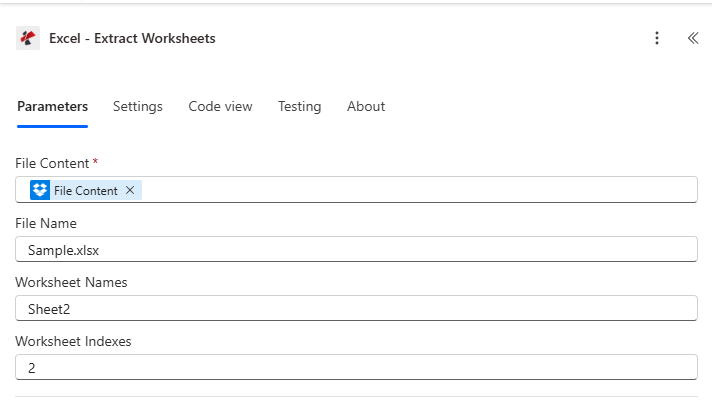
前の操作からファイルの内容とファイル名をマッピングし、ワークシート名やワークシートインデックスを設定するか、両方を空白のままにしてすべてのシートを抽出します。
パラメータ
必須: ファイルの内容とファイル名は必ず指定してください。ワークシート名とワークシートインデックスはどちらも任意です。空欄のままにすると、すべてのワークシートが抽出されます。
| パラメータ | 必須 | その機能 | 例 |
|---|---|---|---|
| File Content | Required | Content of the Excel file to process. Map it from the file content returned by a previous action, such as SharePoint or OneDrive Get file content. | @{body('Get_file_content')?['$content']} |
| File Name | Optional | Name of the Excel file, including its extension (for example `report.xlsx`). Map it from the file name returned by a previous action. Defaults to `ExtractWorksheets.xlsx`. | report.xlsx |
| Worksheet Names | Optional | Comma-separated list of worksheet names to extract ( e.g. Sheet1,Sheet3 ). | your value |
| Worksheet Indexes | Optional | Comma-separated list of worksheet indexes (1-based) to extract ( 1,2,3). | your value |
「ワークシートの抽出」機能は何を返しますか?
| 分野 | タイプ | 内容物 |
|---|---|---|
Excel file with extracted sheets | File content | Content of an Excel file that contains only the extracted worksheets. Map it into the next action, for example the File Content field of SharePoint or OneDrive Create file. |
Success | Yes/No | Whether the operation completed successfully |
Error Message | Text | Error message if operation failed |
Error Details | Array | List of detailed error messages |
- JSON Response
- Error Response
{
  "document": "<file content>",
  "FileName": "report.txt",
  "Success": true,
  "ErrorMessage": null,
  "Errors": []
}
デコードされた文書コンテンツの例:
{
  "Employees": [
    {"Name": "John Doe", "Age": 30, "Department": "IT"},
    {"Name": "Jane Smith", "Age": 28, "Department": "HR"}
  ],
  "Sales": [
    {"Product": "Widget", "Units": 100, "Revenue": 2500.00},
    {"Product": "Gadget", "Units": 75, "Revenue": 1875.00}
  ]
}
{
  "document": null,
  "FileName": null,
  "Success": false,
  "ErrorMessage": "Invalid worksheet selection",
  "Errors": [
    {
      "Code": "WORKSHEET_ERROR",
      "Message": "Worksheet 'NonExistent' not found. Available worksheets in workbook (3 total)"
    }
  ]
}
よくあるエラーメッセージ
| エラーメッセージ | 原因 | 解決 |
|---|---|---|
Request is empty | Request object is null. | Provide a valid request object. |
Document is empty | Document object is null or DocData is null. | Provide a valid Excel document. |
Workbook contains no worksheets | Excel file has 0 worksheets. | Provide a valid Excel file with at least one worksheet. |
Invalid worksheet selection | Worksheet name does not exist or index is out of range. | Use valid worksheet names or 0-based indexes. |
Available worksheets in workbook (X total) | Informational message appended when worksheet selection validation fails. | Review worksheet names or indexes and use valid values from the X available worksheets listed. |
抽出ワークシートの設定方法 Power Automate?
- 追加 PDF4me → ワークシートを抽出する あなたの Power Automate 流れ。
- 地図 ファイルの内容 そして ファイル名 以前のアクションから、例えば SharePoint または OneDrive ファイルの内容を取得します。
- セット ワークシート名、 ワークシート索引両方を選択するか、両方を空白のままにしてすべてのワークシートを抽出します。
- フローを実行します。選択した各ワークシートの最初の行は JSON キー、そして結果は次のように返されます
documentBase64エンコードされた JSON ワークシート名をキーとするオブジェクト。
ワークシート名とワークシートインデックスは、それぞれどのような場合に使い分けるべきでしょうか?
使用 ワークシート名 対象シートに「Summary」や「ClientData」などの安定した既知の名前が付いている場合、シートの順序が変わっても選択が正しく維持されるため、これを使用します。 ワークシート索引 フローがシートの順序は予測可能だが名前が可変なワークブックを生成する場合。両方を設定すると、2つの選択範囲の和集合が抽出されるため、両者が重複しても出力にワークシートが重複して表示されません。
典型的な構成
ワークフローの例Common Power Automate flow patterns using Extract Worksheets from Excel.
- 複数シートがトリガーされるとフローが起動します Excel ワークブックがアップロードされます SharePoint 「データエクスポート」フォルダ。
- ファイルコンテンツの取得はワークブックを取得します。
- 「ワークシート抽出」機能は、ワークシート名とワークシートインデックスの両方を空白のままにして実行し、すべてのシートを変換します。
- 解析 JSON 結果を処理し、Apply to each ループが各ワークシートのデータを独自の API 終点。
- 繰り返しトリガーは、毎月のアーカイブフローを実行します。
- ファイルコンテンツを取得すると、完了したプロジェクトが取得されます。 Excel ファイルから SharePoint。
- Extract Worksheets は各ワークブックを JSON 全てのシートが含まれています。
- の JSON 出力はAzure Blob Storageに保存されます。 SharePoint 元のアーカイブファイルと並行して。
- Microsoft Formsの送信により、クライアント固有のデータのエクスポートが要求されます。
- ファイルコンテンツの取得は、安全な場所からマスターワークブックを取得します。 SharePoint 図書館。
- 「ワークシートの抽出」は、クライアントが閲覧を許可されているシートのみをワークシート名として設定して実行されます。たとえば、「Summary,ClientData」などです。
- 結果として JSON リクエスト者にメールで送信され、関係のない内部シートはエクスポートから完全に除外されます。
実践的なヒント
チートシート
| 分野 | 価値 |
|---|---|
| Action | Extract Worksheets |
| File Content | Mapped from a prior file-retrieval action |
| File Name | e.g. data.xlsx |
| Worksheet Names | Comma-separated, case-sensitive, or blank |
| Worksheet Indexes | 0-based, comma-separated, or blank |
| Blank + blank | Extracts all worksheets |
| Both filled | Union of name matches and index matches |
| Output | document (Base64 JSON, .txt), FileName, Success, Error Message, Errors |
よくある質問
業界におけるユースケースとアプリケーション
- IT & System Integration
- Finance & Accounting
- Sales & Marketing
- Human Resources
- Operations & Supply Chain
- Education & Research
ITおよびシステム統合のユースケース
- システム移行システム移行のためにExcelワークブック全体をJSON形式でエクスポートする
- マルチAPI統合異なるワークシートを異なるAPIエンドポイントに送信する
- データバックアップ複数シートのExcelファイルのJSONバックアップを作成する
- クラウド移行ExcelワークブックをJSON形式に変換してクラウドストレージに保存する
財務・会計におけるユースケース
- 複数期間輸出すべてのワークシートタブ(月別期間)をJSON形式で抽出します。
- GL移行複数シートのExcelファイルから勘定科目表と取引をエクスポートする
- 財務統合複数のワークシートタブのデータを結合する
- 監査エクスポート監査レビューのためにワークブック全体を抽出します。
営業・マーケティングにおける活用事例
- 複数地域データ:異なるワークシートタブから地域別の売上データを抽出する
- キャンペーン分析複数シートのレポートからキャンペーン結果をエクスポートする
- リードデータベースのエクスポートリードトラッキングワークシートをJSON形式に変換する
- 地域データワークシートのタブから地域固有のデータを抽出する
人事関連のユースケース
- 従業員データのエクスポート: 人事関連のワークシート(従業員、福利厚生、給与)をすべて抽出します。
- 複数部門レポート部門別データを個別のワークシートからエクスポートする
- 給与計算移行: 給与計算ワークシートを新しいシステム用にJSON形式に変換する
- 福利厚生の登録複数のワークシートタブから登録データを抽出する
オペレーションおよびサプライチェーンのユースケース
- 在庫輸出複数のワークシートタブから倉庫在庫を抽出する
- 複数拠点データワークシートから場所固有のデータをエクスポートする
- サプライチェーン移行サプライヤーおよび製品ワークシートをJSON形式に変換する
- 生産報告複数シフトのワークシートから生産データを抽出する
教育・研究における活用事例
- 複数コースデータ:異なるワークシートタブからコースデータを抽出する
- 学生記録のエクスポート複数のワークシートから生徒の記録を変換する
- 研究データ複数タブのワークシートから実験データをエクスポートする
- 成績表複数のクラスのワークシートから成績データを抽出する