テキスト透かしを追加する Excel で Power Automate
PDF4me テキスト透かしを追加する Excel は Power Automate 「機密」、「下書き」、または任意のカスタムテキストラベルをスタンプするアクション Excel ワークシートをワードアートオブジェクトとして使用できます。機密性の高い財務データに印を付けたり、予算案にフラグを付けたり、エクスポートしたレポートに著作権表示を追加したりする際に、サイズ、色、回転、位置を完全に制御できます。
このアクションが何をするか
PDF4me - テキスト透かしを追加 Excel カスタマイズ可能なテキストラベル(機密、下書き、承認済み、著作権表示、または任意の文字列)を直接スタンプします。 Excel ワークシートをワードアートオブジェクトとして扱います。テキスト、サイズプリセット(50pt、150pt)、色、フォント、太字/斜体スタイル、透明度、回転角度、および9つのグリッド位置のいずれかを制御できます。すべてのワークシートに適用するか、名前またはインデックスで特定のシートを対象にすることができます。このアクションは任意のワークシート内で実行されます。 Power Automate クラウドフローで透かし入りの Excel バイナリとして保存準備完了 SharePoint、 OneDriveDropbox、またはメール。
認証方法 Power Automate 流れ?
毎 PDF4me アクション Power Automate 必要とする 繋がり あなたの API キー。アクションを初めて追加する際に、キーを作成または選択します。
見逃してはならない重要な事実
透かしは、ワークシートの描画レイヤーにワードアート図形として埋め込まれています。シートビューと印刷出力の両方で表示されますが、 Excel印刷時にのみ表示される、ネイティブのヘッダー/フッターテキスト。
ワークシートセレクターを空欄にすると、ワークブック全体に透かしが入ります。シート名または0ベースのインデックスを指定すると、特定のタブのみを対象にできます。これは、ワークブックに公開サマリーシートと制限付きデータシートが混在している場合に便利です。
1 つのアクションで 1 つの透かしスタイルが適用されます。異なるシートに異なるテキストをスタンプするには、2 つ以上のテキスト透かしを追加して連結します。 Excel 最終ファイルを保存する前に、それぞれ異なるシートを対象とした一連の操作を順番に実行します。
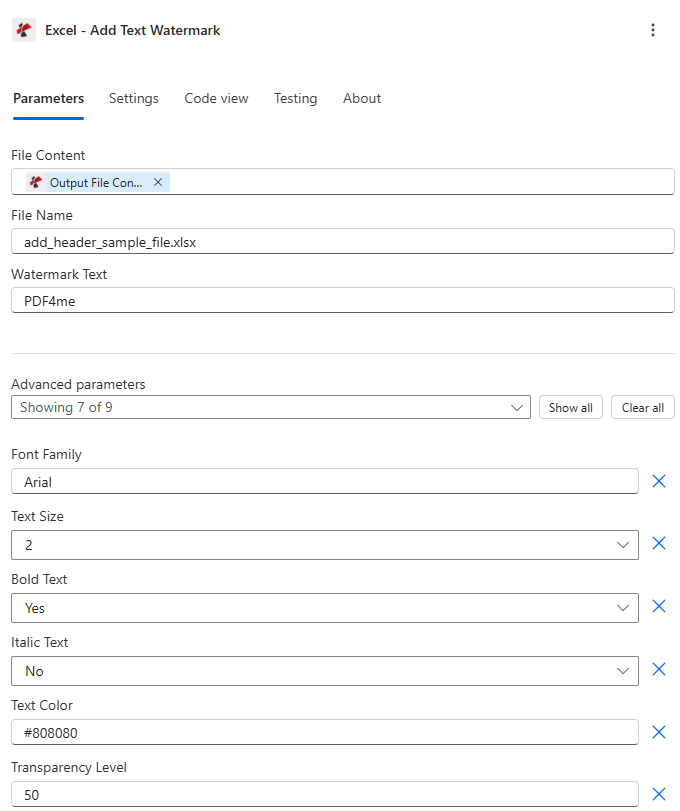
地図 ファイルの内容 ストレージステップから、 透かし文字サイズ、色、位置を選択してください。
パラメータ
必須: ファイルの内容、 ファイル名、 そして 透かし文字その他のパラメータには適切なデフォルト値が設定されています。ワークシートのインデックスは 0ベース 番号付け(インデックス0=最初のシート)。
| パラメータ | 必須 | その機能 | 例 |
|---|---|---|---|
| File Content | Optional | Content of the Excel file to process. Map it from the file content returned by a previous action, such as SharePoint or OneDrive Get file content. | @{body('Get_file_content')?['$content']} |
| File Name | Optional | Name of the Excel file, including its extension (for example `report.xlsx`). Map it from the file name returned by a previous action. Defaults to `AddWatermark.xlsx`. | report.xlsx |
| Watermark Text | Optional | Text content for the watermark. | your value |
| Font Family | Optional | Font family for the watermark text. Defaults to `Arial`. | Arial |
| Text Size | Optional | Text size (1=Small, 2=Medium, 3=Large, 4=Extra Large). Options: 1, 2, 3, 4. Defaults to `2`. | 2 |
| Bold Text | Optional | Make watermark text bold. Defaults to `Yes`. | Yes |
| Italic Text | Optional | Make watermark text italic. Defaults to `No`. | No |
| Text Color | Optional | Color for watermark text (hex code or color name). Defaults to `#808080`. | #808080 |
| Transparency Level | Optional | Transparency level of the watermark, from 0 to 100. The connector describes 0 as fully transparent. Defaults to `50`. | 50 |
| Rotation Angle | Optional | Rotation angle in degrees (-180 to 180). Defaults to `-45`. | -45 |
| Worksheet Names List | Optional | Names of the worksheets to add the watermark to. | your value |
| Worksheet Index List | Optional | Positions of the worksheets to add the watermark to. | your value |
出力フィールド
| 分野 | タイプ | 内容物 |
|---|---|---|
Watermarked File Content | File content | Content of the Excel file with the watermark added. Map it into the next action, for example the File Content field of SharePoint or OneDrive Create file. |
Success | Yes/No | Whether the operation completed successfully |
Error Message | Text | Error message if operation failed |
Error Details | Array | List of detailed error messages |
テキスト透かしを追加するにはどうすればいいですか? Power Automate?
- フローでクリックします + 新しいステップ → 検索 PDF4me →選択 テキスト透かしを追加する Excel。
- 接続する 使用 PDF4me API キー(または既存の接続を選択)。
- 地図 ファイルの内容 ストレージ手順から(SharePoint ファイルの内容を取得する、 OneDrive ファイルの内容を取得する(またはDropbox相当のサービス)。
- セット ファイル名 へ
.xlsxファイル名(動的または静的)。 - 入力 透かし文字 - 例
CONFIDENTIAL、DRAFT、 または© 2025 Acme Corp。 - 調整する テキストサイズ、 テキストの色、 透明性、 回転角度、 そして 位置 貴社のブランドイメージに合わせるため。
- (オプション)入力する 選択されたワークシート名 または 選択されたワークシートのインデックス 特定のシートのみを対象とする。
- 追加する ファイルを作成する または 更新ファイル このステップの後のアクションとマップ 書類 保存するファイルの内容として出力します。
ワークフローの例
フローの例Common Power Automate scenarios that use Add Text Watermark to Excel for security marking, draft management, and compliance.
- 新しいレポートが到着すると、月末にスケジュールされたフローが実行されます。 SharePoint 図書館。
- ファイルの内容を取得する 取得する Excel ワークブック。
- テキスト透かしを追加する Excel 「機密」切手 - 文字サイズ 4、色 #CC0000、回転 -45、透明度 40、全シート。
- ファイルを作成する 透かし入りのコピーを制限付きで保存します SharePoint フォルダ。
- A Outlook このステップでは、ダウンロードリンクを承認された受信者のみにメールで送信します。
- 予算スプレッドシートは、Power Appsフォームを介して審査のために提出されます。
- このフローでは、灰色の斜めの「DRAFT」透かし(透明度60、回転-45)を追加し、レビュー担当者にメールを送信します。
- 承認されると、2番目のフロー分岐が実行されます テキスト透かしを追加する Excel 再び「承認済み」と緑色で表示されます(色番号008000、透明度40)。
- 承認されたファイルは、 SharePoint そしてTeams通知がトリガーされます。
- 自動化されたフローは、データベースから月次分析データをエクスポートします。 Excel。
- テキスト透かしを追加する Excel 「データ」シートと「チャート」シートのみに、右下(位置8)に「© 2025 Acme Corp - Internal Use Only」という小さな文字(サイズ1)のスタンプを押します。
- 選択されたワークシート名 表紙がきれいなままになるように、["データ","チャート"] に設定されています。
- 透かし入りのワークブックがクライアントにアップロードされます SharePoint ポータル経由でリンクが送信されます Outlook。
実践的なヒント
チートシート
| 分野 | 価値 |
|---|---|
| Action | Excel - Add Text Watermark |
| Required fields | File Content, File Name, Watermark Text |
| Style fields | Text Size (1-4), Text Color, Font Family, Is Bold, Is Italic, Transparency, Rotation Angle, Position (0-8 grid) |
| Targeting fields | Selected Worksheet Names, Selected Worksheet Indexes (0-based, combine not replace) |
| Output | Processed File Content + Success + Error Message + Error Details |