テキストヘッダーフッターを追加する Excel で Power Automate
PDF4me テキストヘッダーフッターを追加する Excel は Power Automate ワークブックのヘッダーとフッターの6つのゾーン(ヘッダーとフッターの両方の左、中央、右)にカスタムテキストをスタンプするアクションです。これを使用して、レポートにタイトルを付けたり、フッターを機密情報としてマークしたり、ファイルを開かずに生成日をスタンプしたりできます。 Excel 手動で。
このアクションが何をするか
PDF4me テキストヘッダーフッターを追加する Excel 既存のワークブック上の 6 つの独立したゾーン (ヘッダー左、ヘッダー中央、ヘッダー右、フッター左、フッター中央、フッター右) のいずれかにテキストを書き込みます。ゾーンを空白のままにすると、そのゾーンはスキップされます。高度なパラメーターを使用すると、テキストの色など、ゾーンごとのスタイルを設定できます。これらのスタイルは、対応するゾーンにテキストが書き込まれた後にのみ適用されます。
関連ブログ記事
この機能に関するブログ記事はまだありません。近日公開予定です。
その間、PDF4me ブログを閲覧して、あらゆるプラットフォームのチュートリアルやワークフローをご覧ください。
ブログをご覧ください →
認証方法 Power Automate 流れ?
毎 PDF4me アクション Power Automate 有効な接続が必要です。 PDF4me API フローが認証できるようにするためのキー Excel ヘッダー/フッターのリクエストを安全に処理します。
見逃してはならない重要な事実
透かし領域は1つではなく、6つの独立した領域です。
ヘッダー左テキスト、ヘッダー中央テキスト、ヘッダー右テキスト、フッター左テキスト、フッター中央テキスト、フッター右テキストはそれぞれ任意です。必要な領域のみに入力してください。空欄はそのまま残ります。
高度なパラメータースタイル固有のゾーン
確認済みの例は「ヘッダー左 - 色」です。このパネルには、ゾーンごとの書式設定に関する合計15個の高度なパラメータが表示され、スタイル設定は、対応するテキストゾーンに値が設定された場合にのみレンダリングされます。
ファイルの内容とファイル名のみが必須です。
ヘッダー/フッターのテキストゾーンと高度なスタイルパラメータはすべてオプションです。6つのゾーンすべてを空白のままにした場合でもアクションは正常に実行され、ワークブックは変更されずに返されます。
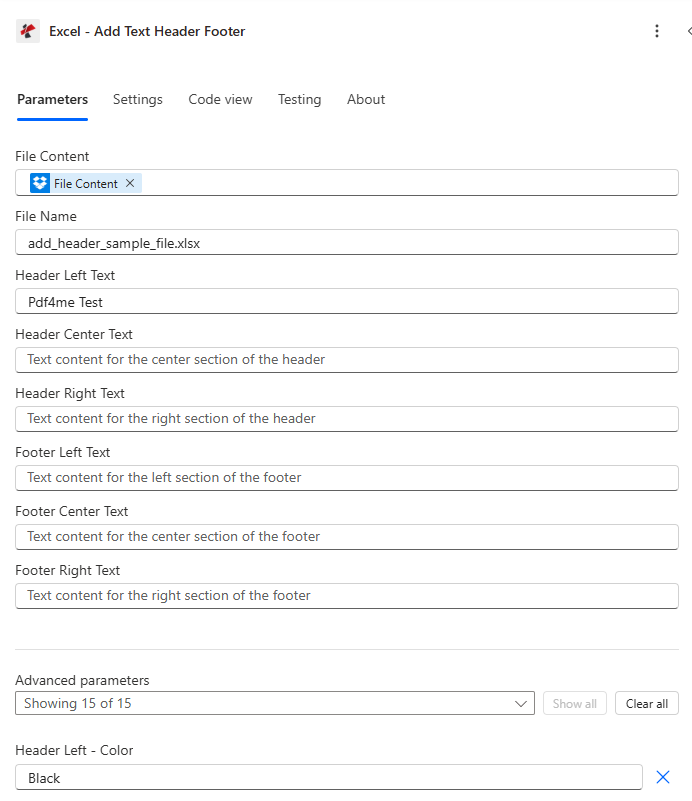
ファイルの内容とファイル名をマッピングし、必要なヘッダー/フッターのテキストゾーンを入力したら、詳細パラメーターを展開してゾーンごとのスタイルを設定します。
パラメータ
必須: ファイルの内容とファイル名は必ず入力してください。ヘッダー/フッターの6つのテキストゾーンはすべて任意入力です。必要なゾーンのみ入力してください。高度なスタイルパラメータは条件付きで、対応するテキストゾーンに値が入力されている場合にのみ有効になります。
| パラメータ | 必須 | その機能 | 例 |
|---|---|---|---|
| File Content | Optional | Content of the Excel file to process. Map it from the file content returned by a previous action, such as SharePoint or OneDrive Get file content. | @{body('Get_file_content')?['$content']} |
| File Name | Optional | Name of the Excel file, including its extension (for example `report.xlsx`). Map it from the file name returned by a previous action. Defaults to `TextHeaderFooter.xlsx`. | report.xlsx |
| Header Left Text | Optional | Text content for the left section of the header. | your value |
| Header Center Text | Optional | Text content for the center section of the header. | your value |
| Header Right Text | Optional | Text content for the right section of the header. | your value |
| Footer Left Text | Optional | Text content for the left section of the footer. | your value |
| Footer Center Text | Optional | Text content for the center section of the footer. | your value |
| Footer Right Text | Optional | Text content for the right section of the footer. | your value |
| Header Left - Color | Optional | Color for the left header text (hex code or color name). Defaults to `Black`. | Black |
| Header Left - Font Size | Optional | Font size for the left header text. Defaults to `11`. | 11 |
| Header Center - Color | Optional | Color for the center header text (hex code or color name). Defaults to `Black`. | Black |
| Header Center - Font Size | Optional | Font size for the center header text. Defaults to `11`. | 11 |
| Header Right - Color | Optional | Color for the right header text (hex code or color name). Defaults to `Black`. | Black |
| Header Right - Font Size | Optional | Font size for the right header text. Defaults to `11`. | 11 |
| Footer Left - Color | Optional | Color for the left footer text (hex code or color name). Defaults to `Black`. | Black |
| Footer Left - Font Size | Optional | Font size for the left footer text. Defaults to `11`. | 11 |
| Footer Center - Color | Optional | Color for the center footer text (hex code or color name). Defaults to `Black`. | Black |
| Footer Center - Font Size | Optional | Font size for the center footer text. Defaults to `11`. | 11 |
| Footer Right - Color | Optional | Color for the right footer text (hex code or color name). Defaults to `Black`. | Black |
| Footer Right - Font Size | Optional | Font size for the right footer text. Defaults to `11`. | 11 |
| Target Worksheets - By Name | Optional | Comma-separated list of worksheet names to apply headers/footers to (leave empty for all) ( e.g. Sheet1,Sheet3 ). | your value |
| Target Worksheets - By Index | Optional | Comma-separated list of worksheet indexes (1-based) to apply headers/footers to (leave empty for all) ( 1,2,3). | your value |
| Culture & Language Settings | Optional | Culture name for formatting (e.g., en-US, fr-FR, de-DE). | your value |
出力フィールド
| 分野 | タイプ | 内容物 |
|---|---|---|
Output File Content | File content | Content of the Excel file with the header and footer text added. Map it into the next action, for example the File Content field of SharePoint or OneDrive Create file. |
Success | Yes/No | Whether the operation completed successfully |
Error Message | Text | Error message if operation failed |
Error Details | Array | List of detailed error messages |
よくあるエラーメッセージの意味とは?
| エラーメッセージ | 原因 | 解決 |
|---|---|---|
| Request is empty | The request object is null. | Provide a valid request object. |
| Document is empty | File Content is null or empty. | Map a valid Excel document into File Content. |
| Invalid file format | The mapped file is not a valid Excel document. | Confirm the source file is a genuine .xlsx or .xls workbook. |
| Invalid color format | A color parameter has an invalid hex code or color name. | Use a valid hex format such as #FF0000 or a standard color name. |
ヘッダーとフッターにテキストを追加するにはどうすればいいですか? Power Automate?
- 追加 PDF4me → Excel - テキストヘッダー/フッターを追加 あなたの Power Automate 流れ。
- 地図 ファイルの内容 そして ファイル名 以前のアクションから(SharePoint、 OneDrive(またはファイルコンテンツを取得)。
- いずれか1つを記入してください ヘッダー左側のテキスト、 ヘッダー中央テキスト、 または ヘッダー右側のテキスト 必要なヘッダーゾーンについて。
- いずれか1つを記入してください フッター左側テキスト、 フッター中央テキスト、 または フッター右側のテキスト 必要なフッターゾーンについて。
- 拡大する 詳細パラメータ 塗りつぶされた領域にスタイルを適用するには、例えば ヘッダー左 - 色フローを実行すると、ブランド化されたワークブックが返されます。 書類。
典型的な構成
ワークフローの例Common Power Automate flow patterns using Add Text Header Footer.
月次報告書タイトルのスタンプ
- 月次レポート生成日に、スケジュールされたトリガーが実行されます。
- ファイルコンテンツを取得すると、完成したレポートワークブックが取得されます。 SharePoint。
- 「テキストヘッダー/フッターを追加」では、ヘッダー中央のテキストをレポートタイトルに、フッター左のテキストを生成時のメモに設定します。
- ブランドロゴ入りのワークブックは、レポート文書ライブラリにアップロードされます。
機密性表示
- 敏感な Excel ファイルは制限付きフォルダにアップロードされました。
- ファイルコンテンツを取得すると、そのフォルダーからワークブックが取得されます。
- 「テキストヘッダー/フッターを追加」は、フッター中央テキストを機密保持に関する通知に設定します。
- マークされたワークブックは、同じ制限付きライブラリに保存されます。
クライアント向け成果物としてのブランディング
- プロジェクト管理コネクタで成果物が「最終」とマークされると、フローがトリガーされます。
- ファイルコンテンツを取得すると、最終的な Excel 成果物。
- 「テキストヘッダー/フッターを追加」では、ヘッダー左側のテキストを会社名に、フッター右側のテキストをformatDateTime式に設定します。
- ブランドロゴ入りのファイルは、クライアントの担当者にメールで送信されます。
実践的なヒント
Leave a zone blank to skip it
You do not need to fill all six text zones. An empty Header Right Text or Footer Left Text simply leaves that section unchanged.
Styling only applies to filled zones
Setting Header Left - Color has no visible effect unless Header Left Text also has a value. Fill the text first, then style it.
File Name needs the extension
Always include .xlsx or .xls in File Name. Omitting the extension can prevent the output from opening correctly in Excel.
Use expressions for auto-updating footers
Map Power Automate's formatDateTime() expression into a footer Text field for a footer that always shows the current date without manual edits.
Branch on Success before continuing
Add a Condition on Success after this action so a failed run does not pass an unbranded or unchanged workbook further down the flow.
チートシート
| 分野 | 価値 |
|---|---|
| Action | Excel - Add Text Header Footer |
| Required fields | File Content, File Name |
| Header zones | Header Left Text, Header Center Text, Header Right Text (each optional) |
| Footer zones | Footer Left Text, Footer Center Text, Footer Right Text (each optional) |
| Advanced parameters | 15 total, confirmed example Header Left - Color (conditional on matching text zone) |
| Output | Processed File Content + Success + Error Message + Error Details |
よくある質問
業界におけるユースケースとアプリケーション
- Finance & Accounting
- Sales & Marketing
- Human Resources
- Operations & Manufacturing
- 財務諸表: 会社名と報告期間のヘッダーを追加する
- 予算報告書予算文書に機密保持に関する注記を挿入する
- 監査文書: 監査日とバージョン情報をヘッダーに適用する
- 経費報告書: フッターに提出日と承認状況を追加する
- 売上レポートレポートタイトルヘッダーと生成日フッターを追加する
- 価格表料金表に機密性の高い料金ヘッダーを挿入する
- 顧客データ: フッターにデータ保護に関する通知を適用する
- マーケティング分析分析レポートにブランドヘッダーを追加する
- 給与計算レポート給与書類に機密保持に関する見出しを挿入する
- 従業員記録人事ファイルに日付とバージョンのフッターを追加する
- 福利厚生の登録: オープン登録期間のヘッダーを適用する
- 業績評価レビュー期間と機密保持に関する通知を挿入してください。
- 在庫レポート倉庫の場所と日付のヘッダーを追加します。
- 生産報告シフト情報と日付のフッターを挿入します
- 品質レポートヘッダーに品質基準参照を適用する
- サプライチェーンデータ: サプライヤーの機密保持に関する通知をフッターに追加する
関連アクション
画像ヘッダー/フッターを追加
ヘッダー/フッター領域に、プレーンテキストの代わりにロゴや画像を挿入してください。
ヘッダーとフッターを削除
新しいブランディングを適用する前に、ワークブックから既存のヘッダー/フッターコンテンツを削除してください。
テキスト透かしを追加
ヘッダーやフッターの余白ではなく、シート本文全体に斜めの透かし文字を重ねて表示する。
他のプラットフォームでの同じタスク
Make: テキストヘッダーとフッターを追加
同じ Excel テキストブランディングモジュール Make シナリオ。
n8nテキストヘッダー/フッターを追加
同じ Excel テキストブランディングノード n8n ワークフローを自己ホスト型またはクラウドに接続します n8n 実例。
Zapier: テキストヘッダーとフッターを追加
同じ Excel テキストブランディングの手順 Zapierそれを、既にZapに登録されているファイルストレージトリガーに接続します。
PDF4me API: テキストヘッダーとフッターを追加
同じヘッダー/フッターテキストエンドポイントを直接呼び出すには、 REST カスタム統合の場合 Power Automate。