行を追加する Excel で Power Automate: JSON に Excel と PDF4me
PDF4me Excel - 行を追加 は Power Automate 挿入するアクション JSON オブジェクトまたは配列を新しい行として Excel ワークブックは、自動ヘッダーマッチングのテーブルベースモードまたは正確なセル位置決めの座標ベースモードのいずれかで使用できます。データベースクエリの結果、フォーム送信、または API 応答は直接 Excel 報告。
このアクションが何をするか
PDF4me Excel - 行を追加 書く JSON 行データを既存のワークブックに挿入します。テーブル名が設定されている場合はプロパティをヘッダーに一致させ、空欄の場合は正確な座標にデータを配置します。数値と日付の変換、日付書式パターン、数値書式パターン、およびカルチャ名は、挿入される値の型と書式を制御します。
関連ブログ記事
この機能に関するブログ記事はまだありません。近日公開予定です。
その間、PDF4me ブログを閲覧して、あらゆるプラットフォームのチュートリアルやワークフローをご覧ください。
ブログをご覧ください →
認証方法 Power Automate 流れ?
毎 PDF4me アクション Power Automate 有効な接続が必要です。 PDF4me API フローが認証できるようにするためのキー Excel 行挿入リクエストを安全に処理します。
見逃してはならない重要な事実
テーブル名はモードスイッチです
テーブル名に空でない値を指定すると、ヘッダーの一致と位置指定のためのExcel行番号を使用したテーブルベースの挿入が有効になります。空のままにすると、代わりに「行から挿入」と「列から挿入」を使用した座標ベースの挿入が行われます。両方のパラメータセットを1つの呼び出しで混在させるとエラーが発生します。
データフィールドにはラベルが付けられています JSON 行データ
シングルを受け入れる JSON 1行を挿入するためのオブジェクト、または1回の呼び出しで複数の行を挿入するためのオブジェクトの配列を指定します。プロパティ名は、テーブルモードでのヘッダーのマッチングを制御します。
型変換にはトグルをオンにする必要があります
日付書式パターン、数値書式パターン、およびカルチャ名は、「数値と日付の変換」が有効になっている場合にのみ有効になります。無効にした場合、すべての値はプレーンテキストとして書き込まれます。
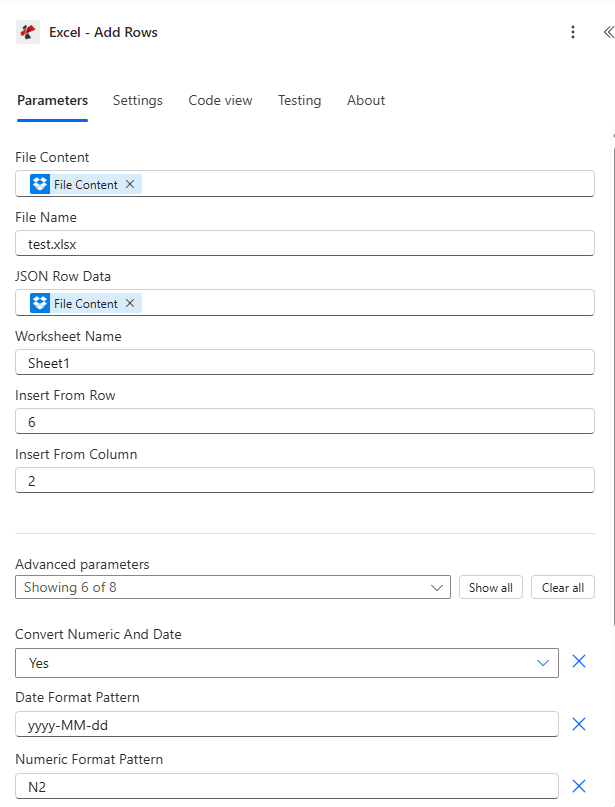
ファイルの内容とファイル名をマッピングし、JSON行データを設定し、テーブル名を選択するか、行/列から挿入し、型変換と書式設定のための詳細パラメーターを展開します。
パラメータ
必須: ファイルの内容、ファイル名、およびJSON行データは必ず指定する必要があります。テーブル名とExcel行番号は、テーブルベースの挿入にのみ適用されます。行からの挿入と列からの挿入は、座標ベースの挿入にのみ適用され、テーブル名も設定されている場合は拒否されます。
| パラメータ | 必須 | その機能 | 例 |
|---|---|---|---|
| File Content | Optional | Content of the Excel file to process. Map it from the file content returned by a previous action, such as SharePoint or OneDrive Get file content. | @{body('Get_file_content')?['$content']} |
| File Name | Optional | Name of the Excel file, including its extension (for example `report.xlsx`). Map it from the file name returned by a previous action. Defaults to `AddRows.xlsx`. | report.xlsx |
| JSON Row Data | Optional | Rows to add, as Base64-encoded JSON. The JSON is an array of objects; each object is one row, for example `[{"Column1": "Value1", "Column2": "Value2"}, {"Column1": "Value3", "Column2": "Value4"}]`. Encode it with the base64() expression. | [{"Column1": "Value1", "Column2": "Value2"}, {"Column1": "Value3", "Column2": "Value4"}] |
| Worksheet Name | Optional | Name of the worksheet to add rows to. Defaults to `Sheet1`. | Sheet1 |
| Insert From Row | Optional | Row number where to start inserting data (1-based). | 0 |
| Insert From Column | Optional | Column number where to start inserting data (1-based). | 0 |
| Target Excel Table | Optional | Name of Excel table to add rows to (if applicable). | your value |
| Excel Row Number | Optional | Row number within the table named in Target Excel Table. Used only when a table name is given. | 0 |
| Convert Numeric And Date | Optional | Automatically convert numeric and date values to proper Excel data types. Defaults to `Yes`. | Yes |
| Date Format Pattern | Optional | Format pattern for date values (e.g., yyyy-MM-dd, dd/MM/yyyy). Defaults to `yyyy-MM-dd`. | yyyy-MM-dd |
| Numeric Format Pattern | Optional | Format pattern for numeric values (e.g., N2, C, P). Defaults to `N2`. | N2 |
| Skip JSON Property Names | Optional | If Yes, the JSON property names are not inserted; only the values are added. Defaults to `No`. | No |
| Skip Null Values | Optional | Skip null values from JSON data. Defaults to `No`. | No |
| Culture & Language Settings | Optional | Culture name for data formatting (e.g., en-US, fr-FR, de-DE). Defaults to `en-US`. | en-US |
出力フィールド
| 分野 | タイプ | 内容物 |
|---|---|---|
Output File Content | File content | Content of the Excel file with the rows added. Map it into the next action, for example the File Content field of SharePoint or OneDrive Create file. |
Success | Yes/No | Whether the operation completed successfully |
Error Message | Text | Error message if operation failed |
Error Details | Array | List of detailed error messages |
よくあるエラーメッセージの意味とは?
| エラーメッセージ | 原因 | 解決 |
|---|---|---|
| JSON input is required | JSON Row Data is null or empty. | Provide a valid JSON object or array. |
| Invalid JSON structure | Malformed JSON syntax. | Fix the JSON formatting before mapping it in. |
| Worksheet not found | The named worksheet does not exist in the workbook. | Use an existing worksheet name or leave it blank for the first sheet. |
| Table not found | The named table does not exist, table mode only. | Use an existing Excel table name. |
| ExcelRowNumber must be greater than 0 | Excel Row Number is less than 1 in table mode. | Set Excel Row Number to 1 or higher. |
| InsertFromRow and InsertFromColumn are ignored when TableName is specified | Coordinate parameters were set alongside Table Name. | Clear Table Name for coordinate mode, or clear the coordinate fields for table mode. |
| No valid data found in JSON input | JSON Row Data was an empty array or had no parseable objects. | Provide at least one valid object in the JSON payload. |
行を追加するにはどうすればいいですか Power Automate?
- 追加 PDF4me → Excel - 行を追加 あなたの Power Automate 流れ。
- 地図 ファイルの内容 そして ファイル名 以前のアクションから(SharePoint、 OneDrive(またはデータベースコネクタ)。
- セット JSON 行データ オブジェクトまたはオブジェクトの配列へ。
- セット テーブル名 テーブルベースの挿入の場合は、空白のままにして設定します。 行から挿入 / 列から挿入 座標に基づいた挿入の場合。
- 拡大する 詳細パラメータ 有効にする 数値と日付の変換 そして書式を設定します。フローを実行すると、更新されたワークブックが返されます。 書類。
典型的な構成
ワークフローの例Common Power Automate flow patterns using Add Rows.
日々の売上データインポート(表形式)
- スケジュールされたトリガーがSQLクエリを実行し、その日の売上記録を取得します。
- 結果は、売上テーブルの列ヘッダーに一致するJSON配列に変換されます。
- Get Fileは、テーブル名が「DailySales」である売上レポートテンプレートを取得します。
- 「行の追加」では、数値と日付の変換が有効になっており、通貨に対して数値フォーマットパターンが設定されている状態で配列が挿入されます。
- 更新されたレポートは営業マネージャーにメールで送信されます。
フォーム応答ログ記録(座標モード)
- Microsoft Formsからの送信がフローのトリガーとなります。
- このシナリオでは、送信された回答からJSONオブジェクトを作成します。
- Get Fileは応答ログワークブックを取得します。
- 「行の追加」では、「行からの挿入」と「列からの挿入」を使用して、次の空いている行に挿入します。「テーブル名」は空白のままにします。
- 更新されたログは保存されます SharePoint。
CRM機会のエクスポート
- 毎週のトリガーは、新しい機会を問い合わせます CRM コネクタ。
- レコードは、柔軟なフィールド名を持つJSON配列に変換されます。
- 「行の追加」機能は、「属性タイトルの無視」を有効にして、大文字小文字を区別しないヘッダーマッチングを行うように設定し、「Opportunities」テーブルに挿入します。
- データが入力されたレポートは営業チームに配布されます。
実践的なヒント
Never set Table Name and Insert From Row together
The two parameter sets belong to different insertion modes. Setting both returns an error, clear one set before running.
JSON Row Data accepts a single object or an array
A bare object inserts one row, an array inserts one row per object. Choose the shape that matches how many rows you are writing.
Excel Row Number is 1-based within the table
Row 1 in table mode is the first data row after the header, not the header itself. Set it accordingly when targeting a specific position.
Culture Name affects parsing, not just display
Set Culture Name to match how your source data formats dates and decimals (for example de-DE for comma decimals), otherwise conversion can misread values.
Ignore Attribute Titles solves case-mismatch headaches
If your JSON property names differ in case from the Excel table headers, enable Ignore Attribute Titles instead of renaming every header or every JSON key.
チートシート
| 分野 | 価値 |
|---|---|
| Action | Excel - Add Rows |
| Mode switch | Table Name set = table mode, empty = coordinate mode |
| JSON Row Data shape | Single object or array of objects |
| Default worksheet | Sheet1 |
| Type conversion toggle | Convert Numeric And Date = true (default) |
| Default date/numeric format | yyyy-MM-dd / N2 |
| Default culture | en-US |
| Output | Processed File Content + Success + Error Message + Error Details |
よくある質問
業界におけるユースケースとアプリケーション
- Sales & Marketing
- Finance & Accounting
- Human Resources
- Operations & Manufacturing
- 販売パイプラインレポートCRMの商談データをExcelの営業パイプラインに挿入する
- リードトラッキングフォームから新しいリードをExcelトラッキングシートに追加する
- キャンペーン分析分析APIからマーケティングキャンペーンの結果を取得する
- 顧客リスト: データベースから顧客データをExcelの顧客リストにエクスポートする
- トランザクションログ日々の財務取引をExcelの元帳に挿入する
- 経費報告書従業員の経費提出をExcel経費報告書に追加する
- 予算管理実際の支出データを予算と実績のテンプレートに入力する
- 請求書作成Excel請求書テンプレートに請求書明細項目を挿入する
- 従業員記録: 新規採用者の情報をExcel従業員データベースに追加する
- 出席状況の追跡: 毎日の出勤データをExcelのタイムシートに挿入する
- 給与処理: 勤務時間をExcel給与計算テンプレートに入力する
- パフォーマンスデータレビュー評価と指標をExcelパフォーマンス追跡ツールに追加する
- 在庫状況の更新在庫レベルの変更をExcelの在庫シートに挿入する
- 生産ログ: 製造実行データをExcel製造ログに追加します
- 品質指標品質管理結果をExcel品質管理レポートに入力する
- メンテナンス記録機器のメンテナンスデータをExcelサービスログに挿入する
関連アクション
行を更新する
既存の行をその場で変更します。シートにデータが既に存在する場合は、「行の追加」の代わりにこれを使用してください。
行を削除する
ワークシートから不要な行を削除し、行の追加機能と組み合わせることで、行のライフサイクル全体を管理できます。
解析 CSV
変換する CSV エクスポート先 JSON まず、その結果をそのまま「行の追加」に渡します。
他のプラットフォームでの同じタスク
Make行を追加する
同じ JSON-に-Excel 挿入モジュール Make シナリオ。
n8n行を追加する
同じ JSON-に-Excel 挿入ノード n8n ワークフローを自己ホスト型またはクラウドに接続します n8n 実例。
Zapier行を追加する
同じ JSON-に-Excel 挿入ステップ ZapierそれをデータベースまたはZapに既に設定されているフォームトリガーに接続します。
PDF4me API行を追加する
同じ行挿入エンドポイントを直接呼び出す REST カスタム統合の場合 Power Automate。