画像ヘッダーフッターを追加する Excel で Power Automate
PDF4me 画像ヘッダーフッターを追加する Excel は Power Automate ロゴ、透かし、またはブランドイメージを挿入するアクション Excel ワークシートのヘッダーまたはフッターセクション。週次レポートに会社のロゴをスタンプしたり、機密ファイルにセキュリティ画像を付けたり、クライアントの成果物に共同ブランドを付けたりするのに使用できます。 Excel 手動で。
このアクションが何をするか
PDF4me 画像ヘッダーフッターを追加する Excel 画像ファイルをワークブックのヘッダーまたはフッターにマッピングし、特定のワークシートまたはファイル全体に対して、左揃え、中央揃え、右揃えのいずれかで配置します。画像の周囲のページ余白は、詳細設定でセンチメートル単位で設定できます。
関連ブログ記事
この機能に関するブログ記事はまだありません。近日公開予定です。
その間、PDF4me ブログを閲覧して、あらゆるプラットフォームのチュートリアルやワークフローをご覧ください。
ブログをご覧ください →
認証方法 Power Automate 流れ?
毎 PDF4me アクション Power Automate 有効な接続が必要です。 PDF4me API フローが認証できるようにするためのキー Excel 画像フォーマット要求を安全に処理します。
見逃してはならない重要な事実
IsHeaderははい/いいえのドロップダウンリストであり、自由入力ではありません。
コネクタパネルでは、IsHeader を Yes/No ドロップダウン (デフォルトは Yes) として、Image Position を Left/Center/Right ドロップダウン (デフォルトは Center) として表示します。どちらもライブ画面でドロップダウン選択できます。 UIブール値フィールドや自由記述フィールドではありません。
マージンとターゲティングに関する7つの高度なパラメータ
詳細パラメーターパネルには「7件中5件を表示」と表示され、上余白、下余白、左余白、右余白(それぞれセンチメートル単位)が、このコネクタに共通するワークシート名、ワークシートインデックス、カルチャー名の対象フィールドとともに表示されていることが確認できます。 Excel 行動。
空のワークシートセレクタは、すべてのシートを意味します。
ワークシート名とワークシートインデックスの両方が空欄の場合、画像はブック内のすべてのワークシートに一度に適用されます。
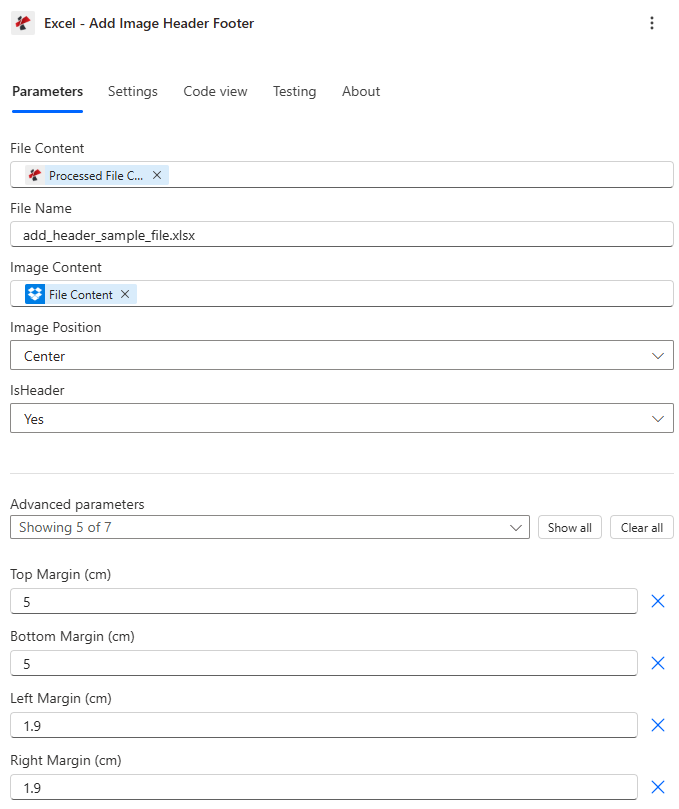
ファイルの内容、ファイル名、画像の内容を配置し、次に画像の位置とIsHeaderの配置を選択します。
パラメータ
必須: ファイルの内容、ファイル名、画像の内容。画像の位置とIsHeaderには、動作するデフォルト値があります。余白とワークシートのターゲット設定は、条件付きの詳細パラメーターです。
| パラメータ | 必須 | その機能 | 例 |
|---|---|---|---|
| File Content | Optional | Content of the Excel file to process. Map it from the file content returned by a previous action, such as SharePoint or OneDrive Get file content. | @{body('Get_file_content')?['$content']} |
| File Name | Optional | Name of the Excel file, including its extension (for example `report.xlsx`). Map it from the file name returned by a previous action. Defaults to `ImageHeaderFooter.xlsx`. | report.xlsx |
| Image Content | Optional | Content of the image to add. Map it from the file content returned by a previous action, such as SharePoint or OneDrive Get file content. | @{body('Get_file_content')?['$content']} |
| Image Position | Optional | Position of the image in the header footer. Options: Left, Center, Right. Defaults to `Center`. | Center |
| IsHeader | Optional | If Yes, the image is added to the header; if No, to the footer. Defaults to `Yes`. | Yes |
| Target Worksheets - By Name | Optional | Names of the worksheets to add the image to. Leave empty to apply it to all worksheets. | your value |
| Target Worksheets - By Index | Optional | Positions of the worksheets to add the image to, counting from 1. Leave empty to apply it to all worksheets. | your value |
| Top Margin (cm) | Optional | Top margin value in centimeters. Defaults to `1.9`. | 1.9 |
| Bottom Margin (cm) | Optional | Bottom margin value in centimeters. Defaults to `1.9`. | 1.9 |
| Left Margin (cm) | Optional | Left margin value in centimeters. Defaults to `1.9`. | 1.9 |
| Right Margin (cm) | Optional | Right margin value in centimeters. Defaults to `1.9`. | 1.9 |
| Culture & Language Settings | Optional | Culture name for formatting (e.g., en-US, fr-FR, de-DE). Defaults to `en-US`. | en-US |
注記: ワークシート名とワークシートインデックスの両方が空またはnullの場合、画像はブック内のすべてのワークシートに適用されます。
出力フィールド
| 分野 | タイプ | 内容物 |
|---|---|---|
Output File Content | File content | Content of the Excel file with the header or footer image added. Map it into the next action, for example the File Content field of SharePoint or OneDrive Create file. |
Success | Yes/No | Whether the operation completed successfully |
Error Message | Text | Error message if operation failed |
Error Details | Array | List of detailed error messages |
よくあるエラーメッセージの意味とは?
| エラーメッセージ | 原因 | 解決 |
|---|---|---|
| Request is empty | The request object is null. | Provide a valid request object. |
| Document is empty | File Content is null or empty. | Provide a valid Excel document in File Content. |
| Image content is empty | Image Content is null or empty. | Provide valid image content from a prior action. |
| Invalid worksheet selection | Worksheet names or indexes don't exist or are out of range. | Use existing worksheet names or valid 1-based indexes. |
| Available worksheets in workbook (X total) | Informational message shown when worksheet selection validation fails. | Review worksheet names/indexes and use a valid value from the X available worksheets. |
画像ヘッダーフッターの設定方法 Power Automate?
- 追加 PDF4me → Excel - 画像ヘッダー/フッターを追加 あなたの Power Automate 流れ。
- 地図 ファイルの内容 そして ファイル名 以前のアクションから(SharePoint、 OneDrive(またはファイルコンテンツを取得)。
- 地図 画像コンテンツ ロゴ、透かし、またはブランドイメージファイルから。
- セット IsHeader に はい ヘッダーまたは いいえ フッターの場合は、 画像の位置: 左、 中心、 または 右。
- 拡大する 詳細パラメータ 設定する トップ、 底、 左、 そして 右余白または特定のターゲット ワークシート名/ワークシート索引フローを実行すると、ブランド化されたワークブックが返されます。 書類。
典型的な構成
ワークフローの例Common Power Automate flow patterns using Add Image Header Footer.
週報ロゴのブランディング
- スケジュールされた処理は毎週月曜日の朝に実行されます。
- ファイルコンテンツを取得すると、週次パフォーマンスレポートが取得されます。 SharePoint。
- 画像ヘッダーフッターを追加すると、会社のロゴが挿入されます。IsHeaderは「はい」、画像の位置は中央、ワークシート名とワークシートインデックスはすべてのシートをカバーするために空欄のままになっています。
- ブランドロゴ入りのレポートは経営陣にメールで送信され、アーカイブに保存されます。
機密情報を示す透かしフッター
- 感度が高い場合にフローがトリガーされます Excel ファイルは制限された場所に移動します SharePoint フォルダ。
- ファイルコンテンツを取得するとワークブックが取得され、アセットから「機密」スタンプ画像が取得されます。
- 画像ヘッダーフッターを追加すると、IsHeader No、画像の位置を中央に設定し、ワークシート名 ["Sheet1", "Summary"] のみを対象とします。
- スタンプが押されたファイルは、承認された審査担当者のみにメールで送信されます。
クライアントとの共同ブランド成果物
- プロジェクトの成果物が「最終」とマークされたときに、フローがトリガーされます。
- 画像ヘッダーフッターを追加すると、社内ロゴが挿入されます。画像の位置は右、ヘッダーかどうかは「はい」です。
- 2回目の「画像ヘッダー/フッターの追加」呼び出しにより、クライアントのロゴが左揃えで同じワークシートに挿入されます。
- 両社のブランド名が入ったワークブックは、クライアントの担当者に送付されます。
実践的なヒント
IsHeader and footer share the same margin controls
Top and Bottom Margin affect header and footer placement respectively regardless of the IsHeader setting, so adjust both if you plan to add separate header and footer images in sequence.
Chain two calls for both header and footer
One action call places the image in either the header or the footer, not both. Chain two Add Image Header Footer actions, one with IsHeader Yes and one with IsHeader No, to brand both zones in a single flow.
Worksheet Names and Indexes combine, not replace
If you set values in both Worksheet Names and Worksheet Indexes, the action processes the union of both lists, so a name typo will not silently exclude a sheet if its index is also listed.
Test margin values on a copy first
Margins that are too small can cause the image to overlap the first row of data. Test with representative worksheet content before deploying to a production report.
Branch on Success before continuing
Add a Condition on Success after this action so a failed image insertion does not pass a partially branded workbook further down the flow.
チートシート
| 分野 | 価値 |
|---|---|
| Action | Excel - Add Image Header Footer |
| Required fields | File Content, File Name, Image Content |
| Placement fields | Image Position (Left/Center/Right, default Center), IsHeader (Yes/No, default Yes) |
| Advanced parameters | 7 total: Top/Bottom/Left/Right Margin (cm), Worksheet Names, Worksheet Indexes, Culture Name |
| Output | Processed File Content + Success + Error Message + Error Details |
よくある質問
業界におけるユースケースとアプリケーション
- Finance & Accounting
- Sales & Marketing
- Operations & Manufacturing
- Legal & Professional Services
- 財務諸表四半期報告書に会社ロゴのヘッダーを追加する
- 監査文書監査法人のロゴ透かしをフッターに適用する
- 経費報告書経費精算申請書に企業ロゴのヘッダーを追加する
- 売上レポート週次売上レポートに会社のブランドロゴを挿入する
- 顧客向けプレゼンテーション成果物にクライアントの共同ブランドロゴを追加する
- 在庫レポート在庫シートに倉庫の所在地ロゴを挿入する
- 品質レポートヘッダーに品質認証ロゴを適用する
- 顧客レポートクライアントへの成果物に法律事務所のロゴ入りヘッダーを挿入する
- 請求書: 法務請求レポートに会社のロゴを挿入する
関連アクション
テキストヘッダーとフッターを追加
画像の代わりに、同じヘッダー/フッター領域にテキストを挿入してください。
ヘッダーとフッターを削除
新しいブランディングを適用する前に、既存のヘッダー/フッターの画像またはテキストを削除してください。
テキスト透かしを追加
ヘッダー/フッターの余白にロゴ画像を配置するのではなく、シート本文全体に斜めの透かし文字を重ねて表示する。
他のプラットフォームでの同じタスク
Make画像ヘッダー/フッターを追加
同じ Excel 画像ヘッダー/フッターモジュール Make シナリオ。
n8n画像ヘッダー/フッターを追加
同じ Excel 画像ヘッダー/フッターノード n8n ワークフローは、自社ホスト型またはクラウド型で利用可能です。
Zapier画像ヘッダー/フッターを追加
同じ Excel 画像ヘッダー/フッターの手順 ZapierZapのファイルストレージトリガーに接続されています。
PDF4me API画像ヘッダー/フッターを追加
同じ画像ヘッダー/フッターエンドポイントを直接呼び出す REST カスタム統合の場合 Power Automate。