サイン PDF で Power Automate
PDF4me サイン PDF アクションにより署名画像を追加できます PDF ドキュメント Power Automate 正確な位置決めと視覚的な制御が可能。この柔軟な署名機能は、スキャンされた署名、デジタル署名グラフィック、署名スタンプをサポートし、水平/垂直方向の配置、余白制御、サイズ調整、透明度設定をカスタマイズできます。自動文書署名、承認マーク、署名アプリケーションに最適です。 Microsoft 365 ワークフロー。
認証 API リクエスト
アクセスするには PDF4me ウェブ API を通して Power Automateすべてのリクエストには適切な認証情報を含める必要があります。認証により安全な通信が保証され、承認されたユーザーとしての身元が検証され、シームレスな統合が可能になります。 Power Automate 流れと PDF4meの強力な PDF 署名配置サービス。
主な機能
- 画像署名の配置スキャンした署名またはグラフィック署名を追加する PDFs
- 複数の画像フォーマット: サポート JPEG、 PNGGIF、BMP、および TIFF 署名
- 精密な位置決め位置合わせと余白をミリメートル単位の精度で制御します。
- カスタムサイズ署名の幅と高さを個別に設定します。
- 透明性管理署名の不透明度を0~100%の間で調整します。
パラメータ
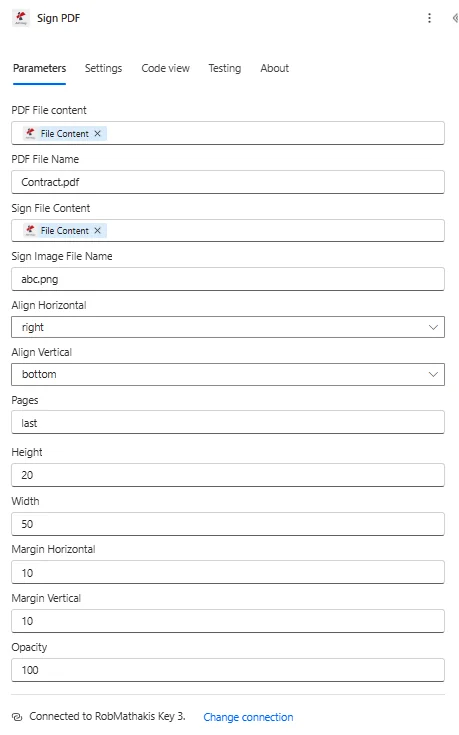
サインのパラメータの完全なリスト PDF アクション。これらのパラメータを設定して、署名の配置を制御します。
| パラメータ | 必須 | その機能 | 例 |
|---|---|---|---|
| PDF File content | Required | Content of the PDF to sign. Map it from the file content returned by a previous action, such as SharePoint or OneDrive Get file content. | @{body('Get_file_content')?['$content']} |
| PDF File Name | Required | Name of the PDF to sign, including its extension (for example `invoice.pdf`). Map it from the file name returned by a previous action. | invoice.pdf |
| Sign File Content | Required | Content of the signature image. Map it from the file content returned by a previous action. | @{body('Get_file_content')?['$content']} |
| Sign Image File Name | Required | Name of the signature image file, including its extension (for example `signature.png`). | signature.png |
| Align Horizontal | Required | Horizontal position of the signature on the page. Options: left, center, right. Defaults to `left`. | left |
| Align Vertical | Required | Vertical position of the signature on the page. Options: top, middle, bottom. Defaults to `top`. | top |
| Pages | Required | Pages to add the signature to, as a comma-separated list of page numbers, for example `1,2`. Defaults to `1`. | 1,2 |
| Height | Optional | Height of the signature image in millimeters; `0` sets it automatically. | your value |
| Width | Optional | Width of the signature image in millimeters; `0` sets it automatically. | your value |
| Margin Horizontal | Required | Margin from Left origin of the image in Millimeter. | your value |
| Margin Vertical | Required | Margin from Top origin of the image in Millimeter. | your value |
| Opacity | Required | Opacity of the signature, from 0 (completely transparent) to 100 (fully opaque). Defaults to `100`. | 100 |
出力
の PDF4me サイン PDF アクションは、シームレスな包括的な出力データを返します Power Automate フロー統合:
- Table
- JSON
- Flow Integration
テーブルビュー
構造化された表形式の応答データ:
| 分野 | タイプ | 内容物 |
|---|---|---|
| File Content | File content | Content of the signed PDF. Map it into the next action, for example the File Content field of SharePoint or OneDrive Create file. |
| File Name | Text | File name of the signed PDF, as returned by PDF4me. Use it as the file name when saving the file. |
| Page Count | Text | Page count reported by PDF4me for the processed document. Returned as text; wrap it in int() to use it as a number. |
JSON 回答形式
{
  "File Content": "[Binary Content of Signed PDF]",
  "File Name": "Contract_Signed.pdf"
}
Power Automate フロー使用状況
署名を使用する PDF その後の行動において:
- メール配信署名済みの書類を受取人に送付する
- SharePoint アーカイブ署名済みの契約書は図書館に保管する
- OneDrive ストレージ署名済みの書類は記録のために保管してください。
- クライアントへの提供署名済みの書類を外部に提供する
- 承認ワークフロー署名による承認申請を完了する
- コンプライアンスストレージ監査のために署名済み文書を保管する
ワークフローの例
の PDF4me サイン PDF アクション Power Automate 実際のビジネスシナリオに合わせて設計された包括的なワークフローテンプレートを提供します。
- Automated Signing
- Manager Approval
- Bulk Signing
- Certificate Signing
自動文書署名アプリケーションのワークフロー
署名画像の自動配置で、署名プロセスを刷新しましょう。
ワークフローの手順を完了する:
- トリガー承認ワークフローで文書が承認されました
- ドキュメントを取得する承認済みを取得する PDF から SharePoint
- 署名者を取得するメタデータから承認された署名者を特定する
- 署名を取得する: ライブラリから署名者の署名画像を取得します
- 署名を適用する最終ページの右下に署名を追加してください
- セットサイズ署名サイズは50mm x 20mmとしてください。
- メール署名署名済みの書類を依頼者に送付する
- アーカイブ署名済み署名済み文書ライブラリに保存する
ビジネス上のメリット:
- 毎月100件以上の文書に自動的に署名します
- 物理的な署名収集の遅延を解消します
- 署名にかかる時間を3日から3分に短縮
- 一貫した特徴的な外観を維持する
自動化された管理者承認署名ワークフロー
管理者の署名を自動化することで、承認プロセスを効率化します。
ワークフローの手順を完了する:
- トリガー経費報告書が承認のために提出されました
- レポートを取得経費報告書を取得する PDF
- マネージャーの承認承認決定のため、マネージャーへのルート
- 承認された場合マネージャーの署名画像を取得する
- 署名を適用する下部に「承認済み」のスタンプとともに署名を追加してください。
- 透明度を設定する: 視認性を高めるために、透明度を100%に設定してください。
- 従業員にメールを送信承認済みの署名入りレポートを従業員に送付する
- 会計部門に転記する署名済みの報告書を会計システムに提出する
ビジネス上のメリット:
- 毎月200件以上の経費承認を処理する
- 署名による視覚的な承認確認を提供します
- 承認処理時間を70%短縮します
- 管理者の署名入りで明確な監査証跡を作成します
自動一括文書署名ワークフロー
複数の文書への自動署名適用により、一括署名を最適化します。
ワークフローの手順を完了する:
- トリガー署名準備完了の書類一式
- ドキュメントリストを取得する保留中の署名書類をすべて取得する
- 権限署名を取得する: 承認された署名者の画像を取得します
- 各項目に適用各ドキュメントを反復処理する
- 署名を追加指定された位置に署名を適用する
- 日付スタンプを追加署名の近くに署名日を記載してください
- メール受信者署名済みの各文書を受取人に送付する
- アーカイブバッチ署名済みの書類はすべてまとめて保管してください。
ビジネス上のメリット:
- 毎日50件以上の文書に自動バッチ処理で署名する
- 繰り返し行う手動署名作業を不要にします
- 大量署名にかかる時間を2時間から10分に短縮
- すべての文書において署名の位置が一貫していることを保証します。
自動認証局署名
認証局の自動署名機能で証明書発行プロセスを強化する:
ワークフローの手順を完了する:
- トリガーコース修了証明書が発行されました
- 証明書を取得する生成された証明書を取得します PDF
- 権限署名を取得する: トレーニングディレクターの署名画像を取得します
- 署名を適用する指定された署名欄に署名してください。
- 寸法を設定署名サイズは40mm x 15mmです。
- 日付を追加署名の近くに発行日を記載してください
- 学生にメールを送信する署名済みの証明書を受取人に送付する
- アーカイブ署名済み発行済み証明書ライブラリに保存します
ビジネス上のメリット:
- 毎月200件以上の証明書に自動的に署名します
- 権威ある署名入りの本格的な外観を提供します
- 物理的な証明書署名ワークフローを排除します
- 完了後すぐに証明書を発行できます
業界におけるユースケースとアプリケーション
- Legal & Professional Services
- Finance & Banking
- Healthcare & Medical
- Education & Training
法律・専門サービスにおけるユースケース
- 契約締結最終契約書に署名画像を追加する
- 署名入り書簡公式文書に署名する
- 文書認証法的文書に権限者の署名を追加する
- 承認マーク: 審査済みの文書に承認署名を記入する
金融・銀行業務におけるユースケース
- 小切手署名画像を確認するために承認済みの署名を追加する
- 文書承認財務書類に管理者の署名を追加する
- 手紙の認証: 銀行の公式文書に署名する
- フォーム承認記入済みのフォームに承認署名を追加する
ヘルスケアおよび医療分野における活用事例
- 処方箋への署名処方箋に医師の署名を追加する
- レポート認証医療報告書や書類に署名する
- 承認フォーム承認フォームに署名する
- 証明書の署名医療証明書および健康診断書に署名する
教育・研修における活用事例
- 証明書の署名証明書に認証局の署名を追加する
- 署名入り書簡: 公式の学校からの手紙に署名する
- 文書認証: 成績証明書に署名する
- 承認フォーム学生の承認書類に署名する