テキストスタンプを追加する PDF で Power Automate
PDF4me テキストスタンプを追加する PDF このアクションにより、カスタマイズ可能なテキスト透かしとスタンプを追加できます。 PDF ドキュメント Power Automate 包括的な書式設定制御機能を備えています。この多機能な機能は、セキュリティラベル、機密通知、下書きマーカー、ブランディングをサポートし、テキストコンテンツ、配置(水平/垂直方向の配置)、フォントスタイル(サイズ、太字、斜体、下線)、余白、透明度レベルを完全に制御できるため、文書のセキュリティとブランド保護に最適です。 Microsoft 365 ワークフロー。
認証 API リクエスト
アクセスするには PDF4me ウェブ API を通して Power Automateすべてのリクエストには適切な認証情報を含める必要があります。認証により安全な通信が保証され、承認されたユーザーとしての身元が検証され、シームレスな統合が可能になります。 Power Automate 流れと PDF4meの強力なテキストスタンプサービス。
主な機能
- カスタムテキストコンテンツ: 透かしやスタンプとして任意のテキストを追加 PDFs
- 柔軟な位置決め: 余白調整で水平方向と垂直方向の配置を制御します
- フォントスタイルフォントサイズ、太字、斜体、下線などの属性をカスタマイズします。
- 不透明度コントロール: 透明度を完全に不透明から完全に透明まで設定します
- ページ選択特定のページまたはすべてのページにスタンプを貼る
パラメータ
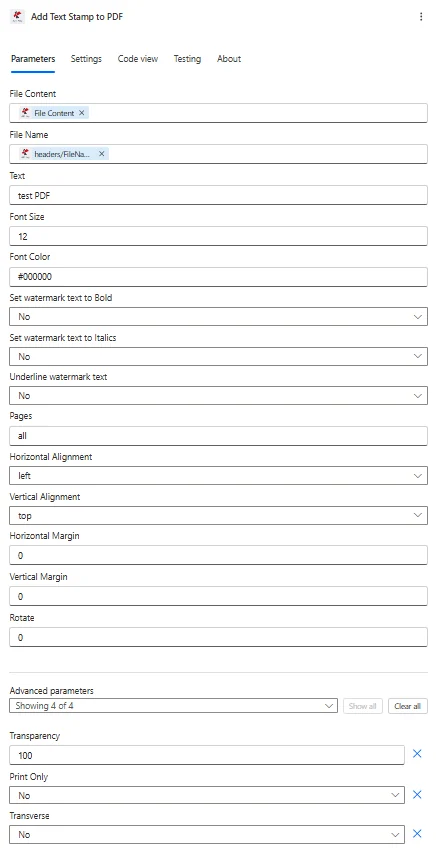
テキストスタンプの追加に関するパラメータの完全なリスト PDF アクション。これらのパラメータを設定して、テキストスタンプを制御します。
| パラメータ | 必須 | その機能 | 例 |
|---|---|---|---|
| File Content | Required | Content of the PDF to add the watermark to. Map it from the file content returned by a previous action, such as SharePoint or OneDrive Get file content. | @{body('Get_file_content')?['$content']} |
| File Name | Required | Name of the PDF to add the watermark to, including its extension (for example `invoice.pdf`). Map it from the file name returned by a previous action. | invoice.pdf |
| Text | Required | Text to be added as Watermark. | your value |
| Font Size | Optional | Font size of the watermark text. Defaults to `12`. | 12 |
| Font Color | Optional | Color of the watermark text as a hex color code, for example `#000000` (black). Defaults to `#000000`. | #000000 |
| Set watermark text to Bold | Optional | If Yes, the watermark text is bold. Defaults to `No`. | No |
| Set watermark text to Italics | Optional | If Yes, the watermark text is italic. Defaults to `No`. | No |
| Underline watermark text | Optional | If Yes, the watermark text is underlined. Defaults to `No`. | No |
| Pages | Required | Pages to add the watermark to, as a comma-separated list of page numbers (for example `1,2`) or `all`. Defaults to `all`. | 1,2 |
| Horizontal Alignment | Required | Horizontal position of the watermark on the page. Options: left, center, right. Defaults to `left`. | left |
| Vertical Alignment | Required | Vertical position of the watermark on the page. Options: top, middle, bottom. Defaults to `top`. | top |
| Horizontal Margin | Optional | Horizontal margin of the watermark from the left or right edge (depending on Horizontal Alignment), in millimeters. Defaults to `0`. | 0 |
| Vertical Margin | Optional | Vertical margin of the watermark from the top or bottom edge (depending on Vertical Alignment), in millimeters. Defaults to `0`. | 0 |
| Transparency | Optional | Opacity of the watermark, from 0 (completely transparent) to 100 (fully opaque), although the field is labelled Transparency. Defaults to `100`. | 100 |
| Rotate | Optional | Rotation angle of the watermark in degrees, from 0 to 360. Defaults to `0`. | 0 |
| Print Only | Optional | If Yes, the watermark is shown only when the PDF is printed. Defaults to `No`. | No |
| Transverse | Optional | If Yes, the watermark text is placed diagonally. Defaults to `No`. | No |
| Fit Text Over Page | Optional | If Yes, the watermark text is fitted over the whole page. Defaults to `No`. | No |
出力
の PDF4me テキストスタンプを追加する PDF アクションは、シームレスな包括的な出力データを返します Power Automate フロー統合:
- Table
- JSON
- Flow Integration
テーブルビュー
構造化された表形式の応答データ:
| 分野 | タイプ | 内容物 |
|---|---|---|
| File Content | File content | Content of the watermarked PDF. Map it into the next action, for example the File Content field of SharePoint or OneDrive Create file. |
| File Name | Text | File name of the watermarked PDF, as returned by PDF4me. Use it as the file name when saving the file. |
| Page Count | Text | Page count reported by PDF4me for the processed document. Returned as text; wrap it in int() to use it as a number. |
JSON 回答形式
{
  "File Content": "[Binary Content of PDF with Text Stamp]",
  "File Name": "Document_Stamped.pdf"
}
Power Automate フロー使用状況
スタンプを使用する PDF その後の行動において:
- セキュリティ配布セキュリティラベル付きの書類を送付する
- SharePoint 出版ブランドロゴ入りのドキュメントをライブラリにアップロードする
- クライアントへの提供: 透かし入りの文書を外部に提供する
- メール配信: 機密マーク付きで送信 PDFs
- アーカイブストレージ: ステータスインジケーター付きのドキュメントを保存する
- 印刷サービス透かし入りの文書を印刷用に送信する
ワークフローの例
の PDF4me テキストスタンプを追加する PDF アクション Power Automate 実際のビジネスシナリオに合わせて設計された包括的なワークフローテンプレートを提供します。
- Confidential Marking
- Draft Watermark
- Document Branding
- Status Marking
機密文書の自動マーキングワークフロー
自動化された機密性スタンプで文書セキュリティを刷新しましょう。
ワークフローの手順を完了する:
- トリガー: 機密文書が安全な場所にアップロードされました SharePoint フォルダ
- ドキュメントを取得する: 取得 PDF 機密フォルダより
- 切手を追加上部中央に「機密」のテキストスタンプを挿入する
- セットスタイリング: 48ptの太字の赤色フォントを70%の不透明度で適用します
- 余白を設定する上端から15mmの位置
- フッタースタンプを追加下部に「社内使用のみ」と追加してください
- 関係者へのメール送信: マークされた文書を承認されたユーザーに送信する
- アーカイブマーク付き押印済みの文書は安全な図書館に保管してください。
ビジネス上のメリット:
- 毎月200件以上の機密文書を自動的にマークします
- 目に見えるセキュリティラベルにより、不正な配布を防止します。
- データ保護ポリシーへの準拠を確保する
- 手作業による刻印時間を95%削減
自動ドラフト透かしワークフロー
自動ドラフトマーク機能で文書レビューを効率化しましょう。
ワークフローの手順を完了する:
- トリガーレビュー用の文書が下書きフォルダに作成されました
- ドラフトを取得: 取得 PDF 下書きライブラリより
- 透かしを追加ページ全体に「DRAFT」という斜めのテキストを挿入
- 透明度を設定する: 自然な仕上がりにするには、不透明度を30%に設定してください。
- すべてに適用文書のすべてのページにスタンプを押す
- スタイルを設定視認性を高めるため、72ptのイタリック体フォントを使用してください。
- メールレビュー担当者: 下書きマークの付いた文書をレビューのために送付する
- トラックバージョン: 文書管理システムに下書きバージョンを記録する
ビジネス上のメリット:
- 毎週150件以上の下書き文書に自動的に透かしを入れる
- 下書きと最終版の混同を防ぐ
- レビュー担当者が視覚的に明確に区別できるようにします
- 草稿文書の誤配布を90%削減
自動化された文書ブランディングワークフロー
自動文書スタンプでブランドプレゼンスを最適化しましょう。
ワークフローの手順を完了する:
- トリガー外部配信用のレポート生成が完了しました
- レポートを取得生成されたレポートを取得する PDF
- 会社名を追加: 上部に会社名スタンプを挿入
- 著作権を追加下部に「© 2024 会社名」を挿入してください
- ブランディングスタイルを設定するブランドカラーとフォントを適用する
- 不透明度を設定プロフェッショナルな仕上がりには、不透明度80%を使用してください。
- メールクライアントブランドロゴ入りのレポートをクライアント配信リストに送信
- アーカイブブランドブランド版をマーケティングライブラリに保存する
ビジネス上のメリット:
- ブランド100社以上のクライアントレポートを毎月自動的に配信
- すべての外部文書において、一貫した企業ブランディングを確保する。
- 著作権表示によって知的財産を保護する
- ブランド認知度を40%向上させる
文書ステータスマーキングの自動化ワークフロー
自動ステータススタンプで文書管理を強化しましょう。
ワークフローの手順を完了する:
- トリガー: ワークフローにおける文書承認ステータスの変更
- ドキュメントを取得する: 取得 PDF 承認システムから
- ステータスを確認する承認決定を評価する
- 承認印を追加する承認された場合は、「承認済み」の緑色のスタンプを押してください。
- 拒否されたスタンプを追加する却下された場合は、「却下」の赤いスタンプを押してください。
- 位置決めの設定切手を右上隅に貼ってください
- メールリクエスト者ステータスマーク付きドキュメントを提出者に送信する
- アーカイブ最終版スタンプを押した書類は最終フォルダに保管してください。
ビジネス上のメリット:
- マークは毎月250件以上の承認文書を自動的に処理します
- 文書の状態を即座に視覚的に表示します
- 手作業によるスタンプ申請が不要になり、毎月20時間の時間を節約できます。
- ステータスインジケーター付きの明確な監査証跡を維持します
業界におけるユースケースとアプリケーション
- Legal & Professional Services
- Finance & Banking
- Healthcare & Medical
- Corporate & Business
法律・専門サービスにおけるユースケース
- 機密ラベル法的文書に機密印を付ける
- 草案指標: 契約書案および概要書に透かしを入れる
- 特権切手弁護士・依頼者間の秘匿特権に関する通知を追加する
- ステータスマーカー承認または審査ステータスを文書に押印する
金融・銀行業務におけるユースケース
- セキュリティラベル財務書類にセキュリティ分類を付与する
- 適合性スタンプ規制遵守に関する通知を追加する
- 透かしの草案財務報告書に下書きの状態を示す
- 著作権表示: 独自の財務分析を保護する
ヘルスケアおよび医療分野における活用事例
- HIPAAに関する通知: HIPAA準拠ラベルを文書に押印する
- 機密マーク患者のプライバシーに関する通知を追加する
- 草案指標: 医療プロトコルの草案に印をつける
- 分類ラベル: 感度分類スタンプを追加する
企業およびビジネスにおける活用事例
- 刻印スタンプ会社名と著作権表示を追加する
- 機密保持ラベル: 内部文書を機密文書としてマークする
- 透かしの草案: 文書のドラフト状態を示す
- 分布マーク配布制限通知を追加する