ページ番号を追加 PDF で Power Automate
このアクションが何をするか
PDF4meページ番号を追加 PDF スタンプにプロフェッショナルなページ番号を PDF ドキュメントを直接 Power Automate フローを選択します。 フォーマット (ページ X、Y 中の X、番号のみ、Y 中の X ページ)、制御 水平位置と垂直位置、 セット フォントサイズ、太字、斜体また、オプションで表紙ページの最初のページをスキップすることもできます。これらすべてをAcrobatを開かずに実行できます。 SharePoint、 OneDrive、そしてどんな Microsoft 365 ファイルソース。
関連ブログ記事
この機能に関するブログ記事はまだありません。近日公開予定です。
その間、PDF4me ブログを閲覧して、あらゆるプラットフォームのチュートリアルやワークフローをご覧ください。
ブログをご覧ください →
認証 API リクエスト
毎 PDF4me アクション Power Automate 有効な 繋がり入力してください PDF4me API キーは、アクションを初めて追加したときに自動的に再利用され、以降のすべてのアクションで再利用されます。 PDF4me 同じ流れの中で行われるアクション。
見逃してはならない重要な事実
ページフォーマットは、数値の表示方法を制御します。
ページフォーマットフィールドでは、以下から選択できます。 ページX (例:「3ページ目」) X (数字のみ) YのX (例:「10件中3件目」) Yページ中Xページ目顧客向けレポートや法的文書では、「Yページ中Xページ」という形式が最も一般的です。省略した場合、デフォルトで「Xページ」となります。
「最初のページをスキップ」をクリックすると、表紙のページ番号が削除されます。
セット 最初のページをスキップ: true ページ番号は2ページ目から始まり、表紙またはタイトルページには番号は付きません。これは、報告書、提案書、マニュアルなどの標準的な書式です。ページ番号は実際のページ数を反映しているため、「ページX/Y」形式を使用した場合、2ページ目には「10ページ中2ページ目」と表示されます。
余白は、配置端からのミリメートル単位です。
水平マージンと垂直マージンでは、選択した配置端から数値をミリメートル単位でずらします。下中央配置(最も一般的なフッター)の場合、垂直配置:下、水平配置:中央、垂直マージン:10 に設定すると、数値が下端から 10 mm の位置に配置されます。既存のフッターコンテンツが邪魔にならないように調整してください。
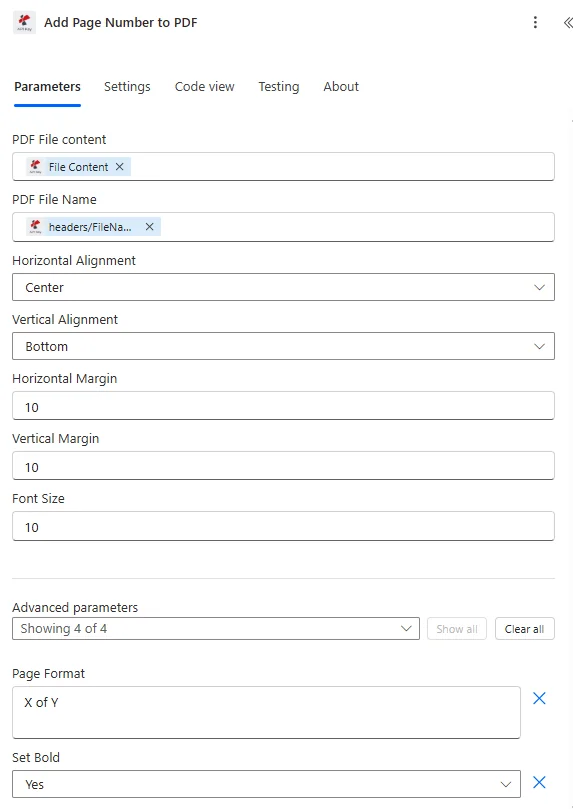
地図 PDF ファイルの内容と PDF ファイル名 SharePoint または OneDrive ステップ。フローを保存する前に、ページ形式、配置、フォントサイズ、および最初のページをスキップする設定を行います。
パラメータ
必須: PDF ファイルの内容、 PDF ファイル名、水平方向の配置、垂直方向の配置、フォントサイズ。ページ形式は省略した場合、「ページX」がデフォルトになります。余白はデフォルトで0、太字/斜体はデフォルトでfalseです。
| パラメータ | 必須 | その機能 | 例 |
|---|---|---|---|
| PDF File content | Required | Content of the PDF to number. Map it from the file content returned by a previous action, such as SharePoint or OneDrive Get file content. | @{body('Get_file_content')?['$content']} |
| PDF File Name | Required | Name of the PDF to number, including its extension (for example `invoice.pdf`). Map it from the file name returned by a previous action. | invoice.pdf |
| Page Format | Optional | Format of the page number text. The default `# of {totalPages}` shows the page number followed by the total number of pages. Defaults to `# of {totalPages}`. | # of {totalPages} |
| Horizontal Alignment | Required | Horizontal position of the page numbers on the page. Options: Left, Center, Right. Defaults to `Left`. | Left |
| Vertical Alignment | Required | Vertical position of the page numbers on the page. Options: Top, Middle, Bottom. Defaults to `Top`. | Top |
| Horizontal Margin | Optional | Horizontal Margin in Millimeter. Defaults to `0`. | 0 |
| Vertical Margin | Optional | Vertical Margin in Millimeter. Defaults to `0`. | 0 |
| Font Size | Required | Font Size for the page numbering. Defaults to `12`. | 12 |
| Set Bold | Optional | Set Bold font for page numbers. Options: True, False. Defaults to `No`. | True |
| Set Italic | Optional | Set Italic font for page numbers. Options: True, False. Defaults to `No`. | True |
| Skip First Page | Optional | Skip numbering in the first page of the document. Options: True, False. Defaults to `No`. | True |
出力フィールド
| 分野 | タイプ | 内容物 |
|---|---|---|
File Content | File content | Content of the PDF with page numbers. Map it into the next action, for example the File Content field of SharePoint or OneDrive Create file. |
File Name | Text | File name of the PDF with page numbers, as returned by PDF4me. Use it as the file name when saving the file. |
Page Count | Text | Page count reported by PDF4me for the processed document. Returned as text; wrap it in int() to use it as a number. |
クイックセットアップ
- あなたの Power Automate フロー、クリック + アクションを追加 そして検索する PDF4me。
- 選択 ページ番号を追加 PDF。
- 入力してください PDF4me API 接続ダイアログにキーを入力するか、既存の接続を選択します。
- 地図 PDF ファイルの内容 バイナリから SharePoint、 OneDriveまたは、メールの手順。
- 地図 PDF ファイル名 ファイル名に含めて
.pdf拡大。 - セット ページフォーマット: 使用
Page X of Y報告書、契約書、提案書など。 - セット 水平方向の配置 そして 垂直方向の配置:
Center+Bottomこれは標準のフッター位置です。 - 入力 フォントサイズ (10:12推奨)オプションで有効化 太字に設定。
- セット 最初のページをスキップする に
true文書に表紙がある場合。 - セット 垂直マージン に
10底面オフセットを10mmとします。保存して流量をテストしてください。
ワークフローの例
ワークフローの例Common Power Automate flow patterns using Add Page Number to PDF.
月次レポート作成 → ページ番号の追加 → 関係者へのメール送信
- 毎月1日に、スケジュールされたトリガーが作動します。
- SharePoint コンパイル済みの月次レポートを取得します PDF レポートライブラリから。
- ページ番号を追加 PDF 下部中央に「Page X of Y」というスタンプを10ptの太字フォントで押し、「Skip First Page」をtrueに設定します(表紙ページは除く)。
- 番号付き PDF 「分散レポート」に保存されます SharePoint フォルダ。
- 番号付きのメールを送信してください PDF 添付ファイルは、午前9時のスタンドアップミーティングの前に、管理部門のメーリングリストに自動的に配信されます。
ポリシー更新 → セクションの統合 → ページ番号の追加 → イントラネットへの公開
- A SharePoint 項目変更は、ポリシー文書の承認欄に「最終」とマークされたときにフローをトリガーします。
- ファイルコンテンツを取得すると、ポリシーセクションがすべて取得されます。 PDFポリシーセクションライブラリからのs。
- A PDF4me マージ PDFこのアクションは、すべてのセクションを1つの完全なマニュアルに統合します。
- ページ番号を追加 PDF 右下に「Yページ中Xページ目」という文字を太字12ポイントで追加します。「最初のページをスキップ」を選択すると、タイトルページがスキップされます。
- SharePoint 「ファイルの作成」機能は、完成した番号付きマニュアルを従業員ポータルライブラリに公開し、以前のバージョンを上書きします。
契約締結 → ページ番号を追加 → 実行のためのメール → アーカイブ
- 法的審査ワークフローにおいて契約が承認されると、承認トリガーが作動します。
- SharePoint 承認済みの契約書を取得します PDF 法学評論ライブラリーより。
- ページ番号を追加 PDF 右下隅に9ポイントの太字フォントで「Yページ中Xページ目」とスタンプが押印されている。これは法的文書の標準的な表記である。契約書には表紙がないため、「最初のページをスキップ」は誤りである。
- 番号付き契約書を添付したメールを送信すると、相手方に送付され、DocuSignまたは手動署名によって署名が行われます。
- SharePoint ファイルの作成機能は、実行済み契約ライブラリに、契約参照番号をファイル名に含んだ番号付きバージョンをアーカイブします。
よくある質問
関連アクション
テキストスタンプを追加する PDF
「下書き」、「機密」、または任意のカスタムテキストをスタンプします。 PDF ページとページ番号を組み合わせることで、完全にブランド化されたドキュメント出力が可能になります。
複数のものを結合する PDFs
複数の組み合わせ PDFページ番号を追加する前に、複数の文書を1つの文書にまとめます。これは、ポリシーマニュアル、レポートパッケージ、および複数セクションの契約書にとって不可欠です。
追加 HTML ヘッダー フッター PDF
フル追加 HTML カスタムコンテンツを含むヘッダーとフッターは、文書のヘッダーに会社名、日付、または文書IDが必要な場合に、ページ番号と併用して使用します。