変換する PDF ワードに Power Automate
このアクションが何をするか
PDF4me 変換する PDF ワード 変換する PDF 文書を 完全に編集可能なMicrosoft Wordファイル(.docx形式) ファイルは Power Automate フロー。レイアウト、テーブル、画像、フォント、ハイパーリンクを保持します。選択 ドラフトモード 高速ネイティブ-PDF 変換(1) API ファイルごとの呼び出し)または ハイモード AIを搭載 OCR 8 つ以上の言語のスキャン文書の場合 (2 API ページあたりの呼び出し回数)。手動での SmallPDF、iLovePDF、または Adobe Acrobat のアップロードを、直接チェーンする単一の自動アクションに置き換えます。 SharePoint、 Outlookチーム、 Dynamics 365、そしてどんな Microsoft 365 ワークフロー。
関連ブログ記事
この機能に関するブログ記事はまだありません。近日公開予定です。
その間、PDF4me ブログを閲覧して、あらゆるプラットフォームのチュートリアルやワークフローをご覧ください。
ブログをご覧ください →
認証 API リクエスト
毎 PDF4me アクション Power Automate 有効な PDF4me 繋がりあなたと一緒に作成してください API 初回キーと Power Automate すべてにおいて再利用します PDF4me フロー内のアクション。
見逃してはならない重要な事実
ドラフトモードとハイモード、コストと精度を考慮して最適なモードを選択
ドラフトでは1回使用 API ファイルごとに呼び出し、ネイティブに最適 PDFs 選択可能なテキスト付き(規模に応じて5~10倍安価)。高使用量2 API ページあたりの呼び出し回数(フル) OCR スキャンされたレイアウトの再構築に必要な PDFs複数列レイアウトや画像が多いドキュメントなど、ソースに合わせてモードを選択してください。
出力は真の編集可能なものです DOCXテーブルはネイティブの Word テーブルになります
テキストは選択および編集可能のままです。画像はサイズ変更可能な図形になります。表はネイティブの Microsoft Word 表になります。画像スタイルとは異なり「PDF 「Word」コンバーターを使用すると、結果はクリーンになります。 DOCX チームは、編集、スタイル変更、修正指示、およびメールマージとの統合を行うことができます。
出力形式は.docx(Office Open XML)であり、従来の.doc形式ではありません。
この行為は現代を生み出す
.docx MIMEタイプでフォーマット application/vnd.openxmlformats-officedocument.wordprocessingml.documentWord 2007以降、Word for Web、Word for Macと完全に互換性があります。 Microsoft 365Googleドキュメント、LibreOffice。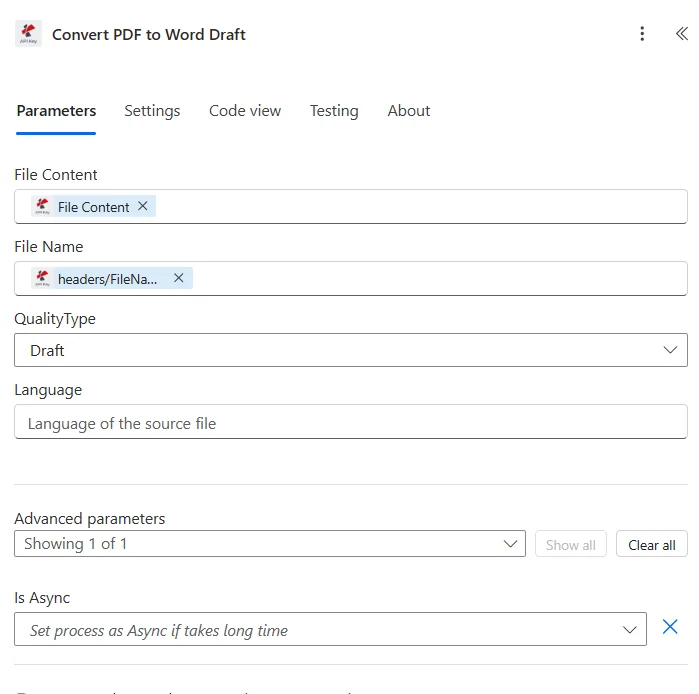
前の手順でマップしたファイルの内容とファイル名を選択し、品質タイプ(ネイティブの場合はドラフト)を選択します。 PDFs(スキャンされた高)を実行し、編集可能な DOCX 出力に返されます。
パラメータ
必須: ファイルの内容、ファイル名、および品質タイプはすべて指定する必要があります。バイナリソースがないと、このアクションは変換できません。 PDF そして、質の高い品揃え。
| パラメータ | 必須 | その機能 | 例 |
|---|---|---|---|
| File Content | Required | Content of the PDF to convert. Map it from the file content returned by a previous action, such as SharePoint or OneDrive Get file content. | @{body('Get_file_content')?['$content']} |
| File Name | Required | Name of the PDF to convert, including its extension (for example `invoice.pdf`). Map it from the file name returned by a previous action. | invoice.pdf |
| QualityType | Required | Conversion quality. Each option is charged differently. Options: Draft, High. Defaults to `Draft`. | Draft |
| Language | Optional | Language of the text in the document, as a language code (for example `en`, `de`, `fr`). Used when OCR is needed for scanned pages. | en |
| Is Async | Optional | Set to Yes for large files that take a long time to convert, so that PDF4me processes the request as a background job. Defaults to `No`. | No |
品質タイプオプション
下書きデフォルト、高速、1 API ファイルごとの呼び出しデジタルネイティブ世代に最適 PDFs 選択可能なテキスト、Wordへのエクスポート、Googleドキュメントに対応 PDFsブラウザの印刷先PDFInDesign出力、会計およびBIツール PDFs使用可能なものを返します DOCX 数秒で完了。大規模運用時、高モードに比べて5~10倍のコスト効率を実現。
高い正確、2 API ページあたりの呼び出し回数 OCRスキャンに必要 PDFs写真に写ったページ、複数段組の学術レイアウト、またはその他 PDF Draftではテキストの配置がずれてしまう。AIを適用 OCR + レイアウト再構築。英語、ドイツ語、フランス語、スペイン語、イタリア語、ポルトガル語、オランダ語、ポーランド語に対応。 OCR。
出力フィールド
| 分野 | タイプ | 内容物 |
|---|---|---|
File Content | File content | Content of the resulting Word document. Map it into the next action, for example the File Content field of SharePoint or OneDrive Create file. |
File Name | Text | File name of the resulting Word document, as returned by PDF4me. Use it as the file name when saving the file. |
Page Count | Text | Page count reported by PDF4me for the processed document. Returned as text; wrap it in int() to use it as a number. |
クイックセットアップ
- あなたの Power Automate フロー、クリック + 新しいステップ そして検索する PDF4me。
- 選択してください 変換する PDF ワード 行動 PDF4me コネクタを接続します。
- 選択してください PDF4me 接続またはクリック 新しい接続を追加する あなたの API 鍵。
- 地図 ファイルの内容 前のアクションのバイナリ出力に対して:通常
Get file content(SharePoint)Get file content using path(OneDrive) Outlook メール添付ファイル、またはHTTPレスポンス本文。 - セット ファイル名 前のステップから動的に(含める必要がある)
.pdf拡張機能):例:triggerOutputs()?['body/Name']。 - 選ぶ 品質タイプ:
- 下書き ネイティブ向け PDFs (Wordのエクスポート、ブラウザでの印刷、BIレポート):高速かつコスト効率に優れています。
- 高い スキャンされたもの PDFs撮影されたページ、または複数列のレイアウトには、 OCR + AIによる再構築。
- フローを保存してサンプルでテストする PDF。
- 出力を接続する ファイルの内容 次のアクションへ: SharePoint ファイルの作成、OneDrive ファイルの作成、 Outlook メールに添付したり、Teamsに添付ファイル付きで投稿したり、Word Onlineでインライン編集したりできます。
ワークフローの例
ワークフローの例Common Power Automate flow patterns using Convert PDF to Word.
相手方契約書PDF → 編集可能なWord → 法的修正箇所の特定
- 1 Outlook 既知の相手方ドメインからメールが届いたときにトリガーが作動します。 PDF 契約書添付書類。
- 変換する PDF Word は品質タイプ = ドラフトで実行されます (相手方契約は通常ネイティブです) PDFs)
- 結果として DOCX にアップロードされます SharePoint 元のファイル名パターンを使用した「Contracts In Review」ライブラリ。
- Microsoft Teamsのアダプティブカードは、編集可能なWordファイルへのリンクを添えて法務チームに通知し、法務チームは変更履歴機能を有効にしたWord Onlineで直接修正指示を書き込むことができます。
- Dataverseの行には、契約ライフサイクルダッシュボード用の契約メタデータ(相手方、受領日、担当者)が格納されます。
スキャンされた法律文書 → OCR Word → 検索可能なSharePoint
- A SharePoint 新しいスキャンが行われた際にトリガーが作動する PDF 「デジタル化すべき既存文書」ライブラリに収蔵される。
- 変換する PDF Word は品質タイプ = 高 (スキャンされたソース、 OCR 必須)。
- の OCR抽出された DOCX スキャンされた画像から再構築された、完全に選択可能で検索可能なテキスト、段落、表、見出しが含まれています。
- の DOCX 「デジタル化アーカイブ」にアップロードされます SharePoint 図書館では SharePointに組み込まれたインデックス機能により、組織全体を対象とした全文検索が可能になります。
- 記録管理チームには、デジタル化が成功したことを知らせるメール通知が、元のスキャンファイル名と変換タイムスタンプとともに送信されます。
大量 PDF レポートライブラリ → DOCX テンプレート → メールマージ対応
- スケジュールされたフローが毎晩「ソースPDF」に対して実行されます SharePoint サードパーティ製ツールからのテンプレートソースレポートを含むライブラリ。
- 新しいものごとに PDF、 変換する PDF 品質タイプ = 下書きで Word を実行すると、編集可能なファイルが生成されます。 DOCX テンプレート。
- 2 番目のアクションは、検索と置換を実行します。 DOCX 静的プレースホルダーをメールマージフィールドマーカーに置き換える (例:
{{CustomerName}}、{{InvoiceTotal}}) - テンプレート対応 DOCX 「テンプレート」に分類されています SharePoint レポートのカテゴリ別に整理されたライブラリで、Wordの差し込み印刷や文書作成フローにすぐに利用できます。
- Power BIのダッシュボードはテンプレート作成のスループットを追跡し、法務チームと財務チームは四半期ごとにゼロから作り直すことなくテンプレートを再利用できます。
よくある質問
関連アクション
変換する PDF Excel へ
テーブルと表形式データを抽出する PDFs 編集可能な XLSX スプレッドシートに変換して、 PDF コンテンツは物語形式の文章よりも、データ量が多い。
変換する PDF に PowerPoint
変換する PDFs 編集可能 PPTX スライドデッキ、ペアリング PDF Word と連携することで、レポート、提案書、プレゼンテーションなど、Microsoft Office の出力を完全に自動化できます。
変換する PDF 編集可能 PDF 使用 OCR
スキャンした画像に検索可能なテキストレイヤーを追加する PDFs 維持しながら PDF フォーマット、必要な場合の代替パス OCR しかし、 PDF ラッパー。
他のプラットフォームでの同じタスク
変換する PDF ワードへ(Make)
同じ変換 Make モジュール、同じドラフト/高品質モデル、Dropbox、Google Drive、およびメールトリガーを接続するビジュアルシナリオビルダーに最適です。
変換する PDF ワードへ(Zapier)
と同じ操作 Zapier アクションに最適 SaaSGmail、Notion、Asana、その他6,000以上のサービスにおける、Webhookによってトリガーされるコンバージョン Zapier接続されたアプリ。
変換する PDF ワードへ(n8n)
セルフホスティング n8n ワークフロー、開発者向け JSON 同じドラフト/高品質モデルによる表現サポートと OCR 能力。