メインコンテンツへスキップ

変換する PDF 卓越するために Power Automate

このアクションが何をするか

PDF4me 変換する PDF Excel へ 変換する PDF 文書を 完全に編集可能なMicrosoft Excelファイル(.xlsx) スプレッドシートの中に Power Automate フロー。テーブル、明細項目、数値データ、フォームの回答を、フラットな画像ではなく、ネイティブの Excel セルとして自動的に抽出します。 ドラフトモード 高速ネイティブ-PDF 抽出(1) API ファイルごとの呼び出し)または ハイモード AIを搭載 OCR スキャンされた文書や複雑なレイアウトを8言語以上で処理(2) API ページあたりの呼び出し回数)。手動での Smallpdf、iLovePDF、Adobe Acrobat、または Tabula のアップロードを、直接チェーンする単一の自動アクションに置き換えます。 SharePoint、Excel Online、Power BI、Dataverse、 Dynamics 365、そしてどんな Microsoft 365 ワークフロー。

関連ブログ記事(1)

認証 API リクエスト​

毎 PDF4me アクション Power Automate 有効な PDF4me 繋がりあなたと一緒に作成してください API 初回キーと Power Automate すべてにおいて再利用します PDF4me フロー内のアクション。

見逃してはならない重要な事実​

ドラフト対ハイ、モードをあなたの PDF ソース
ドラフトでは1回使用 API ファイルごとに呼び出し、ネイティブに最適 PDFs 会計ソフトウェアから、 ERPsまたは BI ツール (大規模になると 5~10 倍安価)。高頻度使用 2 API ページあたりの呼び出し回数(フル) OCR + テーブルの再構築。スキャンされた請求書、写真に撮られた明細書、および画像ベースのテーブルに必要です。
テーブルのフラットな画像ではなく、ネイティブのExcelセル
テーブルヘッダーはExcelヘッダーになり、数値列は数値として入力され、日付列は日付として解析されます。セルは並べ替え、フィルタリングが可能で、数式、ピボットテーブル、Power BIへの取り込みに対応しています。スクリーンショット形式とは異なります。 PDFExcelへの変換ツール。
出力形式は.xlsx(Office Open XML)であり、従来の.xls形式ではありません。
モダンな .xlsx MIMEタイプでフォーマット application/vnd.openxmlformats-officedocument.spreadsheetml.sheetExcel 2007以降、Excel Online、Excel for Macと互換性があります。 Microsoft 365Power BI、Google Sheets、LibreOffice Calc。
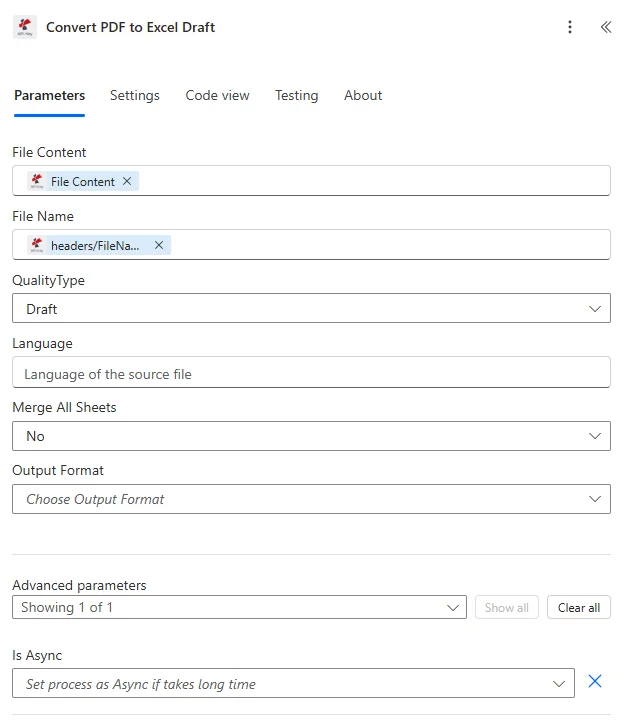
Power Automate PDF4meの「PDFをExcelに変換」アクションでは、前の「ファイルコンテンツの取得」ステップからマッピングされたファイルコンテンツ、拡張子が.pdfのファイル名、ネイティブPDFの場合は「下書き」、スキャンされたドキュメントの場合は「高」に設定された品質タイプが表示されます。

前の手順でマップしたファイルの内容とファイル名を選択し、品質タイプ(ネイティブの場合はドラフト)を選択します。 PDFs(スキャンの場合は高)を実行し、編集可能な XLSX が出力として返されます。

パラメータ​

必須: ファイルの内容、ファイル名、および品質タイプはすべて指定する必要があります。バイナリソースがないと、このアクションは変換できません。 PDF そして、質の高い品揃え。

パラメータ必須その機能例
File ContentRequiredContent of the PDF to convert. Map it from the file content returned by a previous action, such as SharePoint or OneDrive Get file content.@{body('Get_file_content')?['$content']}
File NameRequiredName of the PDF to convert, including its extension (for example `invoice.pdf`). Map it from the file name returned by a previous action.invoice.pdf
QualityTypeRequiredConversion quality. Each option is charged differently. Options: Draft, High. Defaults to `Draft`.Draft
LanguageOptionalLanguage of the text in the document, as a language code (for example `en`, `de`, `fr`). Used when OCR is needed for scanned pages.en
Merge All SheetsOptionalIf Yes, all worksheets produced by the conversion are merged into a single worksheet. Defaults to `No`.No
Output FormatOptionalFormat of the result - an Excel workbook or a CSV file. Leave blank to use the default. Options: , Excel, CSV.
Is AsyncOptionalSet to Yes for large files that take a long time to convert, so that PDF4me processes the request as a background job. Defaults to `No`.No

品質タイプオプション​

下書きデフォルト、高速、1 API ファイルごとの呼び出し
デジタルネイティブ世代に最適 PDFs 選択可能なテキスト、QuickBooks/SAP/Xero/NetSuite からの請求書のエクスポート、BI ツール レポート、ブラウザの印刷PDF 財務諸表、 ERP生成されたドキュメント。数秒で使用可能なXLSXファイルを返します。大規模環境では、高モードよりも5~10倍コスト効率に優れています。
高い正確、2 API ページあたりの呼び出し回数 OCR
スキャンした請求書、撮影した銀行取引明細書、画像ベースの表、または複雑な複数列の財務レイアウトに必要です。AIを適用します。 OCR + テーブル再構築。英語、ドイツ語、フランス語、スペイン語、イタリア語、ポルトガル語、オランダ語、ポーランド語に対応。 OCR。

出力フィールド​

分野タイプ内容物
File ContentFile contentContent of the resulting Excel workbook or CSV file. Map it into the next action, for example the File Content field of SharePoint or OneDrive Create file.
File NameTextFile name of the resulting Excel workbook or CSV file, as returned by PDF4me. Use it as the file name when saving the file.
Page CountTextPage count reported by PDF4me for the processed document. Returned as text; wrap it in int() to use it as a number.

クイックセットアップ​

  1. あなたの Power Automate フロー、クリック + 新しいステップ そして検索する PDF4me。
  2. 選択してください 変換する PDF Excel へ 行動 PDF4me コネクタを接続します。
  3. 選択してください PDF4me 接続またはクリック 新しい接続を追加する あなたの API 鍵。
  4. 地図 ファイルの内容 前のアクションのバイナリ出力に対して:通常 Get file content (SharePoint) Get file content using path (OneDrive) Outlook メール添付ファイル、またはHTTPレスポンス本文。
  5. セット ファイル名 前のステップから動的に(含める必要がある) .pdf 拡張機能):例: triggerOutputs()?['body/Name']。
  6. 選ぶ 品質タイプ:
  • 下書き ネイティブ向け PDFs (請求書のエクスポート、BI レポート、 ERP 出力:高速かつ費用対効果が高い。
  • 高い スキャンされたもの PDFs撮影された銀行取引明細書、または複雑な複数列の表には、 OCR + テーブル再構築。
  1. フローを保存してサンプルでテストする PDF 表を含む。
  2. 出力を接続する ファイルの内容 次のアクションへ: SharePoint ファイルの作成、Excel Online 行の追加、Power BI データセットの更新、 Dynamics 365レコードの添付ファイル、または Outlook メールに添付してください。

ワークフローの例​

ワークフローの例Common Power Automate flow patterns using Convert PDF to Excel.
仕入先請求書メール → Excel明細項目 → 会計システムへのインポート
  1. 1 Outlook 既知のベンダーのドメインからメールが届いたときにトリガーが作動します。 PDF 請求書添付書類。
  2. 変換する PDF Excel は品質タイプ = ドラフトで実行されます (ベンダー請求書は通常ネイティブです) PDFs (会計システムから)。
  3. 生成されるXLSXファイルには、Excelのネイティブな行として、項目(説明、数量、単価、合計)が含まれます。
  4. Excel Online アクションは行を読み取り、それぞれをレコードとして投稿します。 Dynamics 365 Finance、Business Central、またはAPシステムを介して HTTP。
  5. オリジナル PDF 抽出されたXLSXファイルは SharePoint 監査追跡のためのメタデータ(仕入先、金額、請求書番号)を含む。
月次財務 PDF レポート → Excel → Power BI ダッシュボードの更新
  1. 毎月1日に「月次レポート」に基づいて定期的な処理が実行されます。 SharePoint ライブラリを含む PDF 監査人および財務チームからの財務報告書。
  2. 新しいものごとに PDF、 変換する PDF Excel を品質タイプ = ドラフトで実行すると、すべてのデータ テーブルが抽出された編集可能な XLSX ファイルが生成されます。
  3. Excel Online アクションは、データをマスター「統合財務」ワークブックに追加します。 SharePointレポートのカテゴリと報告期間ごとに分類されています。
  4. 統合ワークブックでPower BIデータセットの更新がトリガーされると、エグゼクティブダッシュボードには数分以内に最新の数値が反映されます。 PDF 到着。
  5. Microsoft Teamsのアダプティブカードは、月次決算データのレビュー準備が整ったことをCFOに通知します。
スキャンした銀行取引明細書 → OCR Excel → 自動照合
  1. A SharePoint 会計担当者がスキャンした銀行取引明細書をアップロードすると、トリガーが作動する PDFs 「和解のための声明」ライブラリへ。
  2. 変換する PDF Excel は品質タイプ = 高 (スキャンされたソース、 OCR (テーブルの再構築が必要)。
  3. の OCR抽出されたXLSXファイルには、すべての取引行(日付、説明、金額、残高)が編集可能で並べ替え可能なExcelセルとして含まれています。
  4. A Power Automate 各ループに適用すると、各トランザクションが Dataverse のレコードに一致します。 ERP一致した行には「調整済み」のフラグが付けられ、一致しなかった行は、経理担当者が調査するためにMicrosoft Teamsの承認チャネルに送られます。
  5. 調整済みのXLSXファイルは「調整済み明細書」にアーカイブされます。 SharePoint 監査用のメタデータ(アカウント、期間、マッチ率)を含むライブラリ。

よくある質問​

What's the difference between Draft and High quality in Convert PDF to Excel?+
Draft mode is the fast path: one API call per file, designed for native born-digital PDFs with selectable text such as invoice exports from QuickBooks, Xero, SAP, NetSuite, browser print-to-PDF financial statements, accounting software output, and BI tool reports. It returns a usable XLSX in seconds and is the right choice for most modern PDFs. High mode uses two API calls per page and applies AI-powered OCR plus table reconstruction, designed for scanned PDFs, photographed pages, image-based PDFs, or PDFs with complex multi-column financial layouts. Use High when source files came from a scanner or when Draft output has missing rows, misaligned tables, or character recognition errors.
How does Convert PDF to Excel extract tables from a PDF document?+
The action automatically detects table boundaries in the source PDF, reconstructs row and column structure, and outputs the data as native Excel cells: not flat images of cells. Table headers become Excel headers; numeric columns are typed as numbers (not strings) so SUM, AVERAGE, and other formulas work immediately; date columns are parsed as dates where possible. For PDFs with multiple tables on one page or tables spanning multiple pages, the action handles each table as a separate region while preserving row-level relationships. Use High quality mode for scanned tables, multi-column layouts, or PDFs where row alignment is critical (such as bank statements or multi-page invoices).
Can I convert scanned or image-based PDFs to editable Excel spreadsheets?+
Yes. Set Quality Type to High to apply AI-powered OCR over each page. The action extracts text and numeric values from scanned tables, reconstructs row and column structure, and produces an XLSX where the formerly image-based data is now fully editable, sortable, filterable, and ready for Excel formulas and Power BI ingestion. OCR supports English, German, French, Spanish, Italian, Portuguese, Dutch, Polish, and other major business languages without extra configuration. Ideal for digitizing legacy paper invoices, scanned bank statements, photographed receipts, historical accounting records, and any paper-origin financial content that needs to flow into modern Microsoft 365 analysis workflows.
What output format does the action produce: .xlsx or legacy .xls?+
The output is always the modern Microsoft Excel .xlsx format (Office Open XML standard, ECMA-376 / ISO 29500). This is fully compatible with Microsoft Excel 2007 and later, Excel Online (Microsoft 365), Excel for Mac, Power BI Desktop (direct import), Google Sheets (with conversion), LibreOffice Calc, Apple Numbers, and all major spreadsheet applications. The legacy binary .xls format is not produced. The XLSX file ships with proper MIME type application/vnd.openxmlformats-officedocument.spreadsheetml.sheet for correct handling by SharePoint, Outlook, Microsoft Teams, OneDrive, and Power BI dataset connections. The XLSX format also enables features that .xls does not support: million-row tables, conditional formatting, and modern pivot table engines.
How does this compare to manual Smallpdf, iLovePDF, Adobe Acrobat, or Tabula conversion?+
Online tools like Smallpdf, iLovePDF, Adobe Acrobat online, Nitro PDF, Soda PDF, and the open-source Tabula desktop application require manual file upload one PDF at a time with daily free-tier limits (typically 2-3 conversions per day on free tier) or paid subscriptions ($9-20/month per user). The PDF4me Power Automate action automates the same table extraction at scale: triggered by SharePoint file uploads, Outlook email attachments containing invoices or statements, Microsoft Forms responses, Dataverse record updates, OneDrive folder changes, or scheduled batch flows, and chains directly into downstream Microsoft 365 actions including Excel Online Add a row, Power BI dataset refresh, Dynamics 365 Finance record creation, Business Central, SharePoint metadata updates, and any accounting system via HTTP. Use this when you process dozens to thousands of PDFs per month consistently across the Microsoft 365 ecosystem rather than one-off ad-hoc conversions.

関連アクション​

他のプラットフォームでの同じタスク​

ヘルプが必要な場合​