変換する Visio で Power Automate
PDF4me 変換する Visio アクションはプロフェッショナルな図の変換を提供します Power Automate マイクロソフトの自動変換 Visio ファイル PDF、 PNG、 SVG、およびその他の汎用フォーマット。この包括的な変換サービスにより、シームレスな図の共有、Web 公開、クロスプラットフォーム互換性が可能になり、 Visio-依存ワークフローをアクセス可能なドキュメント自動化に Microsoft 365 生態系。
認証 API リクエスト
アクセスするには PDF4me ウェブ API を通して Power Automateすべてのリクエストには適切な認証情報を含める必要があります。認証により安全な通信が保証され、承認されたユーザーとしての身元が検証され、シームレスな統合が可能になります。 Power Automate 流れと PDF4meの強力な文書処理サービス。
主な機能
- 複数の出力フォーマット: 変換する Visio に PDF、 PNG、 SVG、 JPG、その他の形式
- Visio 互換性.vsd、.vsdx、.vsdm形式に対応 Visio ファイル形式
- 品質維持変換中も図の品質とレイアウトを維持する
- 自動処理: 変換する Visio ワークフロー内で図を自動的に作成する
- フロー統合: 変換されたファイルを後続の処理に使用します Power Automate アクション
パラメータ
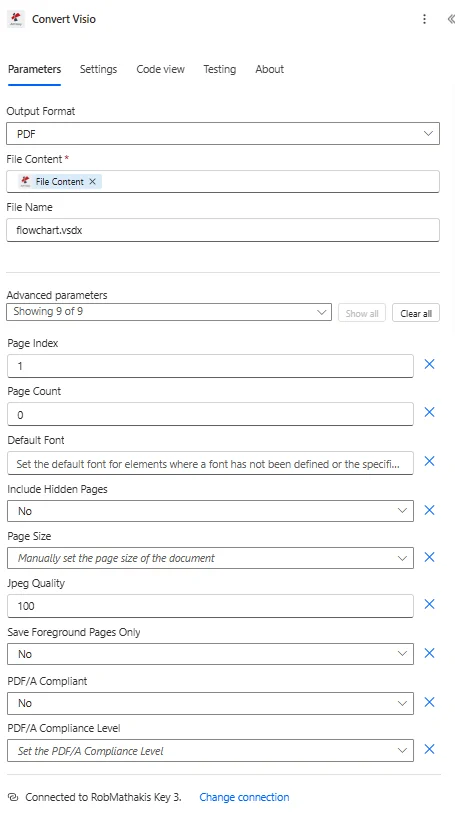
Convertのパラメータ一覧 Visio アクション。これらのパラメータを設定して、図の変換を制御します。
| パラメータ | 必須 | その機能 | 例 |
|---|---|---|---|
| Output Format | Optional | Format to convert the Visio file to. After you choose it, the fields for that format are loaded into the action card. Options: PDF, BMP, GIF, PNG, JPG, SVG, TIFF, HTML, VSDX. Defaults to `PDF`. | PDF |
| Page Index | Conditional | Page of the drawing to start converting from. Defaults to `1`. Shown when Output Format is BMP or Output Format is GIF or Output Format is HTML or Output Format is JPG or Output Format is PDF or Output Format is PNG or Output Format is SVG or Output Format is TIFF. | 1 |
| Page Count | Conditional | Set the number of pages to convert. Defaults to `0`. Shown when Output Format is HTML or Output Format is PDF or Output Format is TIFF. | 0 |
| Default Font | Optional | Set the default font for elements where a font has not been defined or the specified font is unavailable. | your value |
| Include Hidden Pages | Conditional | Set whether hidden pages should be converted, false by default. Defaults to `No`. Shown when Output Format is HTML or Output Format is PDF or Output Format is TIFF. | No |
| Page Size | Conditional | Manually set the page size of the document. Options: Inherit, A1, A2, A3, A4, A5, B4, B5, Envelope, Executive, Legal, Letter, Tabloid. Shown when Output Format is BMP or Output Format is GIF or Output Format is HTML or Output Format is JPG or Output Format is PDF or Output Format is PNG or Output Format is SVG or Output Format is TIFF. | Inherit |
| Jpeg Quality | Conditional | Quality of JPEG images in the result, from 0 (lowest) to 100 (highest). Defaults to `100`. Shown when Output Format is JPG or Output Format is PDF. | 100 |
| Save Foreground Pages Only | Conditional | If Yes, only the foreground pages are converted; background pages are left out. Defaults to `No`. Shown when Output Format is HTML or Output Format is PDF or Output Format is TIFF. | No |
| PDF/A Compliant | Conditional | Set whether the PDF document should be PDF/A compliant. Defaults to `No`. Shown when Output Format is PDF. | No |
| PDF/A Compliance Level | Conditional | PDF/A conformance level to use when PDF/A Compliant is Yes. Options: Pdf15, PdfA1a, PdfA1b. Shown when Output Format is PDF. | Pdf15 |
| File Content | Required | Content of the Visio file to convert. Map it from the file content returned by a previous action, such as SharePoint or OneDrive Get file content. | @{body('Get_file_content')?['$content']} |
| File Name | Optional | Name of the Visio file to convert, including its extension (for example `diagram.vsdx`). Map it from the file name returned by a previous action. | diagram.vsdx |
| Brightness | Conditional | Set image brightness. Shown when Output Format is BMP or Output Format is GIF or Output Format is JPG or Output Format is PNG or Output Format is TIFF. | 0 |
| Contrast | Conditional | Set image contrast. Shown when Output Format is BMP or Output Format is GIF or Output Format is JPG or Output Format is PNG or Output Format is TIFF. | 0 |
| Color Mode | Conditional | Set image colour mode. Options: None, Grayscale, BlackAndWhite. Defaults to `None`. Shown when Output Format is BMP or Output Format is GIF or Output Format is JPG or Output Format is PNG or Output Format is TIFF. | None |
| Compositing Quality | Conditional | Specify the quality level to use during compositing. Options: Invalid, Default, HighSpeed, HighQuality, GammaCorrected, AssumeLinear. Defaults to `Default`. Shown when Output Format is BMP or Output Format is GIF or Output Format is JPG or Output Format is PNG or Output Format is TIFF. | Default |
| Interpolation Mode | Conditional | Specify the algorithm that is used when images are scaled or rotated. Options: Invalid, Default, Low, High, Bilinear, Bicubic, NearestNeighbor, HighQualityBilinear, HighQualityBicubic. Defaults to `Default`. Shown when Output Format is BMP or Output Format is GIF or Output Format is JPG or Output Format is PNG or Output Format is TIFF. | Default |
| Pixel Offset Mode | Conditional | Set a value specifying how pixels are offset during conversion. Options: Invalid, Default, HighSpeed, HighQuality, None, Half. Defaults to `Default`. Shown when Output Format is BMP or Output Format is GIF or Output Format is JPG or Output Format is PNG or Output Format is TIFF. | Default |
| Resolution | Conditional | Set image resolution in dots per inch. The default value is 96. Defaults to `96`. Shown when Output Format is BMP or Output Format is GIF or Output Format is JPG or Output Format is PNG or Output Format is TIFF. | 96 |
| Scale | Conditional | Set image zoom factor. Defaults to `1.0`. Shown when Output Format is BMP or Output Format is GIF or Output Format is JPG or Output Format is PNG or Output Format is TIFF. | 1.0 |
| Smoothing Mode | Conditional | Specify whether smoothing (antialiasing) is applied to lines, curves and the edges of filled areas. Options: Invalid, Default, HighSpeed, HighQuality, None, AntiAlias. Defaults to `Default`. Shown when Output Format is BMP or Output Format is GIF or Output Format is JPG or Output Format is PNG or Output Format is TIFF. | Default |
| Compression | Conditional | Set the compression type. Options: None, Rle, Ccitt3, Ccitt4, Lzw. Defaults to `None`. Shown when Output Format is TIFF. | None |
| Save Toolbar | Conditional | Set whether to include the toolbar, default value is false. Defaults to `No`. Shown when Output Format is HTML. | No |
| Auto Fit | Conditional | If Yes, the diagram is fitted to the width of the page. Defaults to `No`. Shown when Output Format is VSDX. | No |
出力
の PDF4me 変換する Visio アクションは、シームレスな包括的な出力データを返します Power Automate フロー統合:
- Table
- JSON
- Flow Integration
テーブルビュー
構造化された表形式の応答データ:
| 分野 | タイプ | 内容物 |
|---|---|---|
| File Content | File content | Content of the converted file, in the chosen output format. Map it into the next action, for example the File Content field of SharePoint or OneDrive Create file. |
| File Name | Text | File name of the converted file, as returned by PDF4me. Use it as the file name when saving the file. |
| Page Count | Text | Page count reported by PDF4me for the processed document. Returned as text; wrap it in int() to use it as a number. |
JSONレスポンスフォーマット
アクションが返すフィールドは、動的コンテンツに表示されるとおりです。
{
"File Content": "[Binary File Data]",
"File Name": "flowchart.pdf"
}
Power Automate フロー使用状況
変換されたものを使用する Visio 後続のアクションにおけるファイル:
- メール配信変換した図を添付します Outlook メール
- SharePoint 出版: アップロード PDF 図書館を文書化するための図
- チームコラボレーション変換した図をTeamsチャネルで共有する
- ウェブ出版: 使用 PNG/SVG ウェブサイトやポータル上の図
- ドキュメントの埋め込み: Wordに図を挿入する/PowerPoint 文書
- アーカイブストレージ変換した図をOneDriveまたはAzureに保存する
ワークフローの例
の PDF4me 変換する Visio アクション Power Automate 実際のビジネスシナリオに合わせて設計された包括的なワークフローテンプレートを提供します。
- Process Documentation
- Web Publishing
- Client Deliverables
- Compliance Archival
自動化されたプロセス図のPDF変換ワークフロー
自動化されたツールでプロセス文書を変革しましょう Visio に PDF 利害関係者への配布のための変換:
ワークフローの手順を完了する:
- トリガー更新されたプロセス図が保存されました SharePoint Visio 図書館
- 得る Visio: 最新の情報を取得する Visio ドキュメントライブラリからのフローチャート
- PDFに変換: 変身 Visio ユニバーサルへの図 PDF フォーマット
- メタデータを追加するバージョン番号と承認ステータスを適用します PDF
- PDFを保存: ストアが変換されました PDF プロセスドキュメントライブラリ内
- メールチーム: 送信 PDF 関係者への図 Outlook
- 更新登録: ログ PDF バージョンはプロセス文書登録簿に記載されています
- アーカイブ: 前へ移動 PDF バージョンをアーカイブフォルダに保存
ビジネス上のメリット:
- 毎月100件以上のプロセス文書の図表配布を自動化します。
- 利害関係者のアクセスを可能にする Visio ライセンス要件
- 自動変換により図の共有時間を90%短縮
- 自動化されたバージョン管理機能でバージョン管理を維持します PDF アーカイブ
自動化された図表のWeb公開ワークフロー
自動化されたツールでイントラネットを効率化 Visio に SVG ウェブ公開のための変換:
ワークフローの手順を完了する:
- トリガー新しい組織図がアップロードされました Visio 図書館
- 得る Visio組織図を取得する Visio ファイルから SharePoint
- SVGに変換ウェブ用のスケーラブルなベクターグラフィックに変換
- 最適化する: 圧縮 SVG ウェブの読み込み速度を速くするために
- アップロード: 公開 SVG イントラネットWebサーバーまたはAzure Blobへ
- ページを更新新しい図のリンクでイントラネットページを更新します
- 通知: 組織図の更新についてコミュニケーションチームに通知する
- 追跡: コンテンツ管理システムでの公開アクティビティをログに記録する
ビジネス上のメリット:
- 毎月50以上の図をイントラネットに自動的に公開します
- すべてのデバイスでレスポンシブな図の表示を可能にします SVG
- 自動化によりウェブ公開作業の手間を85%削減
- 手動更新なしで最新の組織図を維持する
自動化されたクライアント図配信ワークフロー
自動化されたツールでクライアントへの配信を最適化 Visio に PDF プロフェッショナルなプレゼンテーションのための変換:
ワークフローの手順を完了する:
- トリガープロジェクト図が完成し、プロジェクトフォルダ内で承認されました。
- 得る Visio承認済みの技術図面を取得する SharePoint
- PDFに変換: 変身 Visio 顧客フレンドリー PDF フォーマット
- ブランディングを追加する: 会社の透かしとフッターを適用します PDF
- 圧縮: 最適化する PDF メール配信用のサイズ
- メールクライアント: プロフェッショナルを送る PDF クライアントへの図
- コピーを保存店舗配送 PDF クライアント成果物フォルダ内
- CRMを更新する: ログ図の配信 Dynamics 365プロジェクト記録
ビジネス上のメリット:
- 毎月200以上の技術図面を顧客に自動的に配信します。
- 排除する Visio クライアントビューイングのソフトウェア要件
- ブランドロゴ入りのプロフェッショナルなプレゼンテーションがさらに向上します PDF 出力
- 完全な配送監査証跡を保持します CRM システム
自動化された図表準拠アーカイブワークフロー
自動化されたツールでコンプライアンス業務を強化しましょう Visio に PDF 長期保存のための変換:
ワークフローの手順を完了する:
- トリガーコンプライアンス図の月次アーカイブを予定しています。
- 得る Visio ファイル: すべてのコンプライアンスを取得します Visio 図書館の図表
- ループ変換: 各 Visio ファイル、変換 PDF/Aフォーマット
- メタデータを追加する:保持ポリシーとコンプライアンスタグを適用する
- アーカイブ: 店 PDFコンプライアンスアーカイブライブラリ内の図
- 索引アーカイブされた図の検索可能なインデックスを作成する
- レポートを生成するアーカイブ完了レポートを作成する
- 通知: コンプライアンスチームにアーカイブ成功を通知する
ビジネス上のメリット:
- 年間500件以上のコンプライアンス図を自動的にアーカイブします
- 長期にわたる図の保存を保証します PDF/Aフォーマット
- 自動化されたコンプライアンスアーカイブにより規制要件を満たします
- 検索可能な図表インデックスによる監査データの取得を可能にする
業界におけるユースケースとアプリケーション
- IT & Technology
- Project Management
- Business Process
- Engineering & Design
ITおよびテクノロジーの活用事例
- システムアーキテクチャIT図面をPDFに変換してドキュメント化する
- ネットワーク図ネットワークトポロジーを汎用フォーマットで共有する
- プロセスフロー: ワークフロー図をイントラネットに公開する
- 技術仕様顧客に技術図面を提供する
プロジェクト管理のユースケース
- プロジェクト計画プロジェクト図を共有可能なPDFに変換する
- ガントチャートVisioのタイムラインを汎用フォーマットに変換する
- リソースマップリソース割り当て図を共有する
- マイルストーン追跡プロジェクトのステータス図を公開する
ビジネスプロセスにおけるユースケース
- プロセス・マッピングステークホルダーレビュー用にBPM図を変換する
- ワークフロー文書化プロセスフローをPDFとして共有する
- コンプライアンス図: 規制プロセス図をアーカイブする
- トレーニング資料図解ベースのトレーニング資料を作成する
エンジニアリングおよび設計におけるユースケース
- CAD図面技術図面をPDFに変換する
- 間取り図: 建築図面を普遍的に共有する
- 電気回路図配線図をPDFファイルとして配布する
- P&ID図: ドキュメント作成のためにプロセス図を変換する