変換する Json 卓越するために Power Automate
PDF4me 変換する Json 卓越するために アクションはインテリジェントなデータ変換を提供します Power Automate 自動変換により JSON データ構造をプロフェッショナルな形式の Excel スプレッドシートに変換します。この包括的な変換サービスは、 API 応答、データベースのエクスポート、構造化 JSON データをカスタマイズ可能な書式設定、数値変換、日付処理、ワークシート構成を備えた Excel ファイルに変換し、シームレスなデータ レポートと分析を実現します。 Microsoft 365 ワークフロー。
認証 API リクエスト
アクセスするには PDF4me ウェブ API を通して Power Automateすべてのリクエストには適切な認証情報を含める必要があります。認証により安全な通信が保証され、承認されたユーザーとしての身元が検証され、シームレスな統合が可能になります。 Power Automate 流れと PDF4meの強力な文書処理サービス。
主な機能
- JSON Excelへの変換: 構造化を変換する JSON データをExcelスプレッドシートに取り込む
- カスタムフォーマット日付形式、数値形式、タイトルスタイルを設定します。
- データ配置データ配置の開始行と列を制御します。
- ワークシートの命名規則: 整理された Excel ファイルのワークシート名をカスタマイズします
- ヌル値の処理: クリーンなデータ出力のためのヌル値の動作を設定します
- 自動変換数値と日付を自動的に検出して変換します
パラメータ
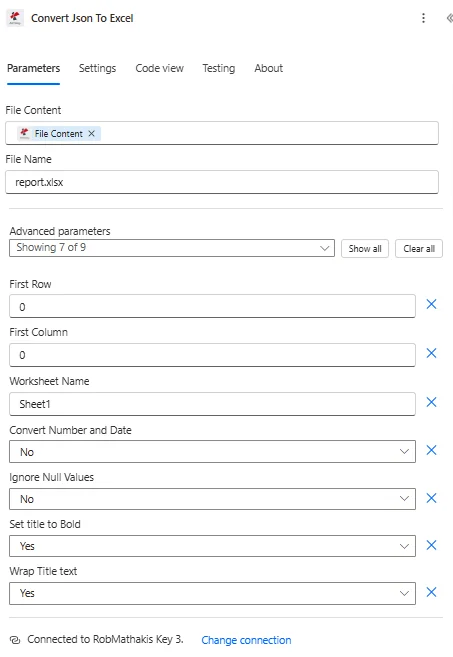
Convertのパラメータ一覧 Json Excelアクションを実行するには、これらのパラメーターを設定して、データ変換とExcelの書式設定を制御します。
ソースデータパラメータ
| パラメータ | 必須 | その機能 | 例 |
|---|---|---|---|
| File Content | Required | Content of the JSON file to convert. Map it from the file content returned by a previous action, such as SharePoint or OneDrive Get file content. | [JSON Data] |
| File Name | Required | Name of the JSON file, including its extension (for example `data.json`). | report.xlsx |
| First Row | Optional | Row position from where it should start. Defaults to `0`. | 2 |
| First Column | Optional | Column position from where it should start. Defaults to `0`. | 1 |
| Worksheet Name | Optional | Name of the new worksheet in excel. If empty, it will be set as Sheet1. Defaults to `Sheet1`. | Sales Data |
| Convert Number and Date | Optional | If Yes, text values that look like numbers or dates are converted to Excel numbers and dates. Use Date Format and Number Format to control how they are shown. Defaults to `No`. | No |
| Date Format | Optional | Format for date and time string. check for formats here - https://learn.microsoft.com/en-us/dotnet/standard/base-types/custom-date-and-time-format-strings. | yyyy-MM-dd |
| Number Format | Optional | Format for numbers. check for formats here - https://learn.microsoft.com/en-us/dotnet/standard/base-types/standard-numeric-format-strings. | N2 |
| Ignore Null Values | Optional | Ignore Null Values in json property values. Defaults to `No`. | True |
| Set title to Bold | Optional | If Yes, the title row (the JSON property names) is shown in bold. Defaults to `Yes`. | Yes |
| Wrap Title text | Optional | If Yes, long text in the title row wraps onto several lines instead of being cut off. Defaults to `Yes`. | Yes |
データ変換パラメータ
| パラメータ | 必須 | その機能 | 例 |
|---|---|---|---|
| File Content | Required | Content of the JSON file to convert. Map it from the file content returned by a previous action, such as SharePoint or OneDrive Get file content. | @{body('Get_file_content')?['$content']} |
| File Name | Required | Name of the JSON file, including its extension (for example `data.json`). | data.json |
| First Row | Optional | Row position from where it should start. Defaults to `0`. | 0 |
| First Column | Optional | Column position from where it should start. Defaults to `0`. | 0 |
| Worksheet Name | Optional | Name of the new worksheet in excel. If empty, it will be set as Sheet1. Defaults to `Sheet1`. | Sheet1 |
| Convert Number and Date | Optional | If Yes, text values that look like numbers or dates are converted to Excel numbers and dates. Use Date Format and Number Format to control how they are shown. Defaults to `No`. | No |
| Date Format | Optional | Format for date and time string. check for formats here - https://learn.microsoft.com/en-us/dotnet/standard/base-types/custom-date-and-time-format-strings. | yyyy-MM-dd |
| Number Format | Optional | Format for numbers. check for formats here - https://learn.microsoft.com/en-us/dotnet/standard/base-types/standard-numeric-format-strings. | N2 |
| Ignore Null Values | Optional | Ignore Null Values in json property values. Defaults to `No`. | True |
| Set title to Bold | Optional | If Yes, the title row (the JSON property names) is shown in bold. Defaults to `Yes`. | Yes |
| Wrap Title text | Optional | If Yes, long text in the title row wraps onto several lines instead of being cut off. Defaults to `Yes`. | Yes |
書式設定と表示パラメータ
| パラメータ | タイプ | 説明 | 例 |
|---|---|---|---|
| null値を無視する | はい/いいえ | ヌル値の処理 • 真実 - 出力でnull値をスキップする • 間違い - null の場合は空のセルを表示する • データの見やすい表示を可能にする ・不要な空のエントリを削除します | True |
| タイトルを太字に設定 | はい/いいえ | 太字のヘッダー行 • 真実 列ヘッダーを太字にする • 間違い - 標準重量ヘッダー ・視覚的な階層構造を改善する ・スプレッドシートの読みやすさを向上させる | True |
| タイトルテキストをラップします | Boolean | ヘッダーテキストの折り返し • 真実 - 長い列ヘッダーを折り返す • 間違い - 単一行ヘッダー ・ヘッダーの切り捨てを防止します ・列幅効率を維持する | True |
出力
の PDF4me 変換する Json 卓越するために アクションは、シームレスな包括的な出力データを返します Power Automate フロー統合:
- Table
- JSON
- Flow Integration
テーブルビュー
構造化された表形式の応答データ:
| 分野 | タイプ | 内容物 |
|---|---|---|
| File Content | File content | Content of the resulting Excel workbook. Map it into the next action, for example the File Content field of SharePoint or OneDrive Create file. |
| File Name | Text | File name of the resulting Excel workbook, as returned by PDF4me. Use it as the file name when saving the file. |
| Page Count | Text | Page count reported by PDF4me for the processed document. Returned as text; wrap it in int() to use it as a number. |
JSON 回答形式
アクションが返すフィールドは、動的コンテンツに表示されるとおりです。
{
"File Content": "[Binary Excel Data]"
}
Power Automate フロー使用状況
変換されたExcelファイルを後続の操作で使用する:
- メール配信Excelレポートを添付する Outlook メール
- SharePoint ストレージExcelファイルをドキュメントライブラリに保存する
- OneDriveアーカイブExcelレポートは整理されたフォルダに保存してください。
- チーム共有ExcelデータレポートをTeamsチャネルで共有する
- Power BIExcelデータをインポートして視覚化と分析を行う
- データベースのインポートデータインポートの中間フォーマットとしてExcelを使用する
ワークフローの例
の PDF4me 変換する Json 卓越するために アクション Power Automate 実際のビジネスシナリオに合わせて設計された包括的なワークフローテンプレートを提供します。
- API Data Reporting
- Database Export
- Analytics Dashboard Export
- Inventory Reporting
自動化 API Excelレポートワークフローへの対応
あなたの API 自動化されたデータ JSON ステークホルダー向けレポート作成のためのExcelへの変換:
ワークフローの手順を完了する:
- トリガー: 毎朝午前8時に朝の報告会が予定されています
- 電話 API: 販売データを取得する CRM API 終点
- 解析 JSON: 抽出する JSON からの応答 API 電話
- Excelに変換: 変身 JSON 売上データをExcelスプレッドシートに
- 形式太字の見出し、数値書式(小数点以下2桁)を適用する
- グラフを追加する: 必要に応じて、Graph を使用して Excel グラフを作成します。 API
- メールレポートExcelレポートを営業チームに送信する Outlook
- アーカイブExcelレポートを保存する SharePoint レポートライブラリ
ビジネス上のメリット:
- 50名以上のチームメンバーの毎日の売上報告を自動化します。
- 手動操作を不要にする JSON Excelへの変換により、毎日2時間の時間を節約できます。
- 自動変換により、レポートのフォーマットの一貫性を確保します。
- 適切な型付けのExcelデータを使用してデータ分析を可能にします
自動化データベース JSON Excelへのエクスポートワークフロー
自動化されたデータエクスポートで効率化 SQL Excelへの変換 JSON:
ワークフローの手順を完了する:
- トリガー顧客データのエクスポート依頼を受信しました
- クエリデータベース: 実行する SQL 顧客記録を取得するためのクエリ
- 得る JSON: 抽出する JSON 出力 SQL クエリ結果
- Excelに変換顧客を変革する JSON フォーマットされたExcelへ
- 書式設定を適用する日付形式(MM/dd/yyyy)を設定し、タイトルを太字にする
- カスタマイズシートワークシート名「顧客輸出 [日付]」
- 安全な機密データにはパスワード保護を適用してください。
- 届けるExcelデータをリクエスト元のユーザーに安全にメールで送信します。
ビジネス上のメリット:
- 毎月200件以上のデータベースエクスポート要求を自動的に処理します。
- 輸出準備時間を30分から2分に短縮します。
- 自動変換によるデータフォーマットの一貫性を確保します
- パスワード保護オプションでデータセキュリティを維持します
自動分析 JSON Excelへのエクスポートワークフロー
ダッシュボードデータのExcelへの自動エクスポートで、分析データの配信を最適化しましょう。
ワークフローの手順を完了する:
- トリガーユーザーがPower Appsで「Excelにエクスポート」ボタンをクリックする
- 分析データを取得する: 取得 JSON Azureからの分析データ SQL
- データの準備: フィルタリングと集計 JSON 報告用
- Excelに変換分析を変革する JSON Excel形式に変換
- 複数枚指標カテゴリごとに個別のワークシートを作成する
- 数値の書式設定通貨とパーセンテージの形式を適用する
- 概要を追加最初のワークシートに要約統計を含める
- ダウンロードPower AppsユーザーにExcelのダウンロードリンクを提供する
ビジネス上のメリット:
- 100人以上のユーザー向けにオンデマンド分析データのエクスポートを可能にします。
- Excel変換機能によりオフラインでのデータアクセスを提供します。
- 整形された分析データにより意思決定を改善します
- セルフサービスエクスポートによりITサポートのリクエストを削減
自動在庫管理 JSON Excelレポートワークフロー
自動化された方法で在庫管理を強化しましょう JSON Excelの在庫レポートを作成する:
ワークフローの手順を完了する:
- トリガー: 毎週の在庫レポート生成をスケジュールします
- 在庫を取得する在庫を取得する JSON WMSより API
- パースプロダクト製品、数量、場所のデータを抽出します。
- Excelに変換: 在庫を変換する JSON Excelスプレッドシートへ
- フォーマットデータ数値書式を適用し、見出しを折り返し、タイトルを太字にする
- フィルターを追加データフィルタリングのためにExcelのオートフィルターを有効にする
- 合計を計算する合計数量を含む集計行を追加する
- 配布する: Excel在庫レポートを倉庫チームにメールで送信
ビジネス上のメリット:
- 5つの倉庫拠点の週次在庫報告を自動化します。
- 毎週4時間の手作業による報告書作成作業を削減
- フィルタリングされたExcelデータを使用して、即座に在庫分析を行うことができます。
- 自動レポート機能により在庫状況の可視性を維持
業界におけるユースケースとアプリケーション
- Data Analytics & BI
- E-commerce & Retail
- Finance & Accounting
- IT & Development
データ分析とBIのユースケース
- APIレポートAPIのJSONレスポンスをExcelレポートに変換する
- ダッシュボードのエクスポート分析ダッシュボードをExcelにエクスポートする
- データ抽出データベースのJSONをExcelファイルに変換する
- KPIレポートJSONデータからExcel KPIレポートを生成する
Eコマースおよび小売業における活用事例
- 売上レポート: 売上JSONデータをExcelレポートに変換します
- 在庫輸出在庫JSONをExcelに変換する
- 注文データ注文JSONをExcelスプレッドシートにエクスポートする
- 製品カタログ: 製品JSONをExcelカタログに変換する
財務・会計におけるユースケース
- 取引レポートトランザクションJSONをExcelに変換する
- 財務諸表GL JSONをExcelレポートに変換する
- 和解: 調整JSONをExcelにエクスポートする
- 監査データ監査JSONをExcel形式に変換する
ITおよび開発におけるユースケース
- ログ分析: ログJSONを分析用にExcelに変換します。
- システムレポートシステムJSONをExcelレポートに変換する
- エラー追跡エラーJSONをExcelスプレッドシートにエクスポートする
- パフォーマンスデータ: メトリクスJSONをExcel形式に変換します