バーコードを追加する PDF で Power Automate
PDF4me バーコードを追加する PDF アクションは、エンタープライズグレードのバーコード統合を提供します。 Power Automate インテリジェントな配置により QR codes、 Code128、 DataMatrix、 Aztec、 Hanxin、 そして PDF417 バーコードを直接 PDF サイズ、配置、透明度をカスタマイズして、ドキュメントを正確な位置に配置します。この包括的なバーコード強化サービスは、追跡番号、製品コード、 URLsまたは、ミリメートル単位の精度で指定されたページ位置にカスタムデータを配置し、自動出荷ラベル生成、請求書バーコードスタンプ、在庫文書の強化、追跡機能の有効化を実現します。 PDF 創造 Microsoft 365 ワークフロー。
認証 API リクエスト
アクセスするには PDF4me ウェブ API を通して Power Automateすべてのリクエストには適切な認証情報を含める必要があります。認証により安全な通信が保証され、承認されたユーザーとしての身元が検証され、シームレスな統合が可能になります。 Power Automate 流れと PDF4meの強力な文書処理サービス。
主な機能
- 150種類以上のバーコード: サポート QR Code、 Code128、 DataMatrix、 Aztec、 Hanxin、 PDF417、および150以上の業界標準フォーマット
- 精密位置決め水平/垂直方向の位置合わせ制御によるミリメートル単位の正確な位置決め
- カスタムサイズ: 完璧なスケーリングのために、バーコードの寸法をミリメートルまたはポイントで設定します。
- 柔軟な不透明度透かし風表示または目立つ表示にするために、透明度を0~100%の間で調整してください。
- 複数ページ対応特定のページ、ページ範囲、またはすべてのページに同時にバーコードを追加します。
- 動的データ統合フロー変数、追跡番号、またはデータベース値をバーコードに埋め込む
パラメータ
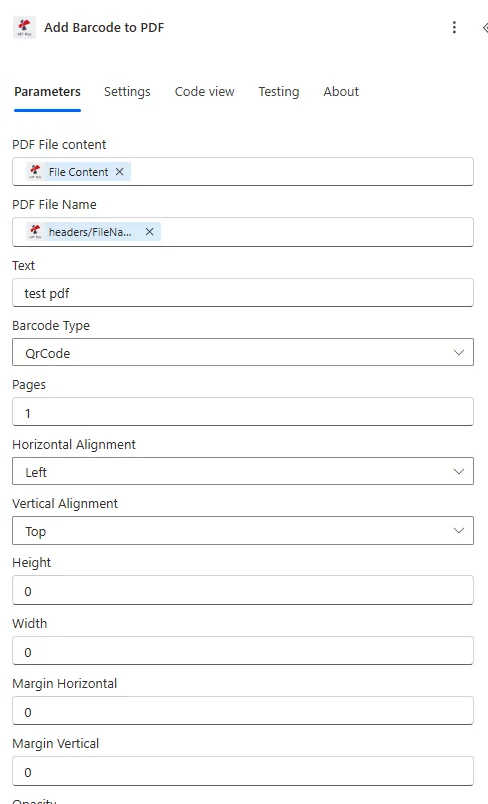
バーコードを追加する際のパラメータの完全なリスト PDF アクション。これらのパラメータを設定して、バーコードの配置と外観を制御します。
ドキュメントソースパラメータ
| パラメータ | 必須 | その機能 | 例 |
|---|---|---|---|
| PDF File content | Required | Content of the PDF to add the barcode to. Map it from the file content returned by a previous action, such as SharePoint or OneDrive Get file content. | @{body('Get_file_content')?['$content']} |
| PDF File Name | Required | Name of the PDF, including its extension (for example `invoice.pdf`). Map it from the file name returned by a previous action. | invoice.pdf |
| Text | Required | Text to encode in the barcode or QR code, for example a URL, reference number or ID. | ORDER-12345 |
| Barcode Type | Required | Type of barcode to add. Options: QrCode, Datamatrix, Code128, Aztec, Pdf417, Hanxin. Defaults to `QrCode`. | QR Code |
| Pages | Required | Page numbers to add the barcode to, separated by commas, for example `1,2`. Defaults to `1`. | all |
| Horizontal Alignment | Required | Horizontal position of the barcode on the page. Options: Left, Center, Right. Defaults to `Left`. | Left |
| Vertical Alignment | Required | Vertical position of the barcode on the page. Options: Top, Middle, Bottom. Defaults to `Top`. | Top |
| Height | Required | Height of the barcode in Millimeter. 0 for auto. Defaults to `0`. | 0 |
| Width | Required | Width of the barcode in Millimeter. 0 for auto. Defaults to `0`. | 0 |
| Margin Horizontal | Required | Margin from vertical edge to the barcode in Millimeter. Defaults to `0`. | 0 |
| Margin Vertical | Required | Margin from horizontal edge to the barcode in Millimeter. Defaults to `0`. | 0 |
| Opacity | Required | Opacity of the barcode, from 0 (completely transparent) to 100 (completely opaque). Defaults to `100`. | 100 |
| Display Text | Optional | Text to show next to the barcode. | your value |
| Is Text Above | Optional | If Yes, Display Text is shown above the barcode. Defaults to `No`. | No |
バーコード位置決めパラメータ
| パラメータ | 必須 | その機能 | 例 |
|---|---|---|---|
| PDF File content | Required | Content of the PDF to add the barcode to. Map it from the file content returned by a previous action, such as SharePoint or OneDrive Get file content. | @{body('Get_file_content')?['$content']} |
| PDF File Name | Required | Name of the PDF, including its extension (for example `invoice.pdf`). Map it from the file name returned by a previous action. | invoice.pdf |
| Text | Required | Text to encode in the barcode or QR code, for example a URL, reference number or ID. | your value |
| Barcode Type | Required | Type of barcode to add. Options: QrCode, Datamatrix, Code128, Aztec, Pdf417, Hanxin. Defaults to `QrCode`. | QrCode |
| Pages | Required | Page numbers to add the barcode to, separated by commas, for example `1,2`. Defaults to `1`. | 1,2 |
| Horizontal Alignment | Required | Horizontal position of the barcode on the page. Options: Left, Center, Right. Defaults to `Left`. | Left |
| Vertical Alignment | Required | Vertical position of the barcode on the page. Options: Top, Middle, Bottom. Defaults to `Top`. | Top |
| Height | Required | Height of the barcode in Millimeter. 0 for auto. Defaults to `0`. | 0 |
| Width | Required | Width of the barcode in Millimeter. 0 for auto. Defaults to `0`. | 0 |
| Margin Horizontal | Required | Margin from vertical edge to the barcode in Millimeter. Defaults to `0`. | 0 |
| Margin Vertical | Required | Margin from horizontal edge to the barcode in Millimeter. Defaults to `0`. | 0 |
| Opacity | Required | Opacity of the barcode, from 0 (completely transparent) to 100 (completely opaque). Defaults to `100`. | 100 |
| Display Text | Optional | Text to show next to the barcode. | your value |
| Is Text Above | Optional | If Yes, Display Text is shown above the barcode. Defaults to `No`. | No |
バーコードのサイズと外観に関するパラメータ
| パラメータ | タイプ | 説明 | 例 |
|---|---|---|---|
| 高さ(mm)*** | String | バーコードの高さ寸法(ミリメートル) ・明示的な高さ制御のための数値 ・高さの自動計算には「0」を使用してください • モバイルスキャンを安定して行うには、最低30mmを推奨します。 ・寸法が大きいほどスキャンの信頼性が向上する | 40 |
| 幅(mm)*** | String | バーコードの幅寸法(ミリメートル) ・明示的な幅制御のための数値 • 適切なアスペクト比で幅を自動的に調整するには「0」を使用してください • 最小幅は変動します: 30mm (QR Code)、50mm(Code128) ・自動サイズ調整により、読みやすさと法令遵守が確保されます。 | 40 |
| 不透明度*** | Integer | 透明度レベル(0~100) • 0 = 完全に透明(見えない) • 100 = 完全に不透明(ソリッドバーコード) • 30-50 = 透かし風の半透明 ・標準:スキャン用100、透かし用30~50 | 100 |
出力
の PDF4me バーコードを追加する PDF アクションは、シームレスな包括的な出力データを返します Power Automate フロー統合:
- Table
- JSON
- Flow Integration
テーブルビュー
構造化された表形式の応答データ:
| 分野 | タイプ | 内容物 |
|---|---|---|
| File Content | File content | Content of the resulting PDF with the barcode. Map it into the next action, for example the File Content field of SharePoint or OneDrive Create file. |
| File Name | Text | File name of the resulting PDF, as returned by PDF4me. Use it as the file name when saving the file. |
| Page Count | Text | Page count reported by PDF4me for the processed document. Returned as text; wrap it in int() to use it as a number. |
JSON 回答形式
アクションが返すフィールドは、動的コンテンツに表示されるとおりです。
{
"File Content": "[Binary PDF Data]",
"File Name": "invoice.pdf"
}
Power Automate フロー使用状況
バーコード強化 PDF 出力により、Microsoft エコシステム全体で強力な自動化が可能になります。
- SharePoint 統合バーコードを保存 PDFs メタデータを使用してライブラリを文書化する
- メール配信バーコード付きドキュメントを添付する Outlook メールを自動的に
- OneDriveストレージ: 保存バーコード PDFs 整理されたフォルダ構造
- チームコラボレーションチームメンバーがアクセスできるよう、Teamsチャネルでバーコード付きドキュメントを共有します。
- Dynamics 365リンクバーコード PDFs に CRM 記録または販売注文
- Azure Storage: コンプライアンスのためにバーコード文書をBlob Storageにアーカイブする
- Power BIバーコード文書生成の指標と分析を追跡する
ワークフローの例
の PDF4me バーコードを追加する PDF アクション Power Automate 実際のビジネスシナリオに合わせて設計された包括的なワークフローテンプレートを提供します。
- Automated Invoice Barcoding
- Shipping Label Generation
- Product Catalog QR Codes
- Warehouse Documentation
請求書バーコード自動追加ワークフロー
請求書にインテリジェントなバーコードを印字することで、経理業務を効率化し、追跡と支払処理を改善しましょう。
ワークフローの手順を完了する:
- トリガー新しい請求書 PDF 作成日 Dynamics 365または ERP システム
- ファイルを取得請求書を取得する PDF から SharePoint ドキュメントライブラリ
- データ抽出請求書記録から請求書番号と支払参照番号を取得する
- バーコードを追加: スタンプ Code128 右上隅に請求書番号が記載されたバーコード
- アップデートバーコード付き請求書を保存する SharePoint バージョン管理付き
- メール: バーコード付き請求書を買掛金チームに送信する Outlook
- 追跡: ログバーコードの追加 SQL 監査証跡用データベース
- アーカイブ処理済みの請求書を「支払い準備完了」フォルダに移動します。
ビジネス上のメリット:
- 毎月1000件以上の請求書へのバーコード押印を自動化します。
- 経理部門でバーコードスキャンによる請求書の即時検索を可能にする
- バーコード自動化により請求書処理時間を60%短縮
- バーコード付き文書の完全な監査証跡を保持します。
自動出荷ラベルバーコードワークフロー
配送ラベルへのインテリジェントなバーコード統合により、フルフィルメント業務を効率化しましょう。
ワークフローの手順を完了する:
- トリガー: 新規注文品の発送準備が整いました Dynamics 365または注文システム
- 生成する配送ラベルを作成する PDF 注文データと顧客の住所から
- 追跡情報を取得配送業者から追跡番号を取得する API
- バーコードを追加: 埋め込み QR 配送ラベルに追跡番号が記載されたコード
- 位置バーコードは標準位置(右上、余白20mm)に配置してください。
- 印刷バーコードラベルをプリンターキューまたはラベル印刷サービスに送信します。
- メール: 顧客への出荷通知にバーコード追跡ラベルを添付する
- アップデート: バーコードラベル参照で注文を発送済みとしてマークする
ビジネス上のメリット:
- 日々の注文量に応じて配送ラベルのバーコード作成を自動化する
- スキャン可能なQRコードによる顧客セルフサービス追跡を可能にする
- 自動バーコード生成により、出荷エラーを75%削減
- 配送追跡の精度と顧客満足度を向上させます。
自動化された製品カタログQRコード強化ワークフロー
製品ドキュメントを最適化し、QRコードを効果的に配置することで、製品情報への即時アクセスを実現します。
ワークフローの手順を完了する:
- トリガー: 製品カタログを更新しました PDF アップロード先 SharePoint
- 解析カタログメタデータから製品IDとページ番号を抽出する
- URLを生成する商品詳細ページを作成する URLs 各製品について
- QRコードを追加する: ユニークな場所 QR 各商品ページに商品ページへのリンクコードがあります
- 位置: 中心 QR codes 各商品ページの一貫した場所に
- 最適化する: バーコード付きカタログを圧縮してウェブ配信する
- 公開: 拡張カタログを公開にアップロード SharePoint フォルダまたはウェブサイト
- 通知: 公開されたカタログのマーケティングチームに通知します QR codes
ビジネス上のメリット:
- モバイルスキャンによる製品情報の即時アクセスが可能
- スキャン可能なカタログQRコードにより、デジタルエンゲージメントが85%向上します。
- 印刷カタログのコストを削減しつつ、物理的な存在感を維持する。
- 商品への関心度分析のためにQRコードのスキャンを追跡します。
自動化された倉庫文書バーコードワークフロー
ピッキングリストや梱包伝票にインテリジェントなバーコード印字を施すことで、倉庫業務を効率化しましょう。
ワークフローの手順を完了する:
- トリガー倉庫システムから生成されたピッキングリストまたは梱包明細書
- ドキュメントを取得する: 取得 PDF 文書生成サービスより
- 抽出する注文番号、保管場所、および商品SKUを取得します。
- バーコードを追加する: スタンプ DataMatrix ピッキングリストの各アイテムのバーコード
- 位置: 商品のバーコードを商品の説明の横に配置して、簡単にスキャンできるようにします
- ヘッダーバーコード: 注文追跡バーコードを文書ヘッダーに追加します
- 印刷バーコード付きドキュメントを倉庫のプリンターに自動的に送信する
- アーカイブ: バーコードピッキングリストを保存する SharePoint 記録のために
ビジネス上のメリット:
- 倉庫業務全般におけるバーコード文書作成を自動化します。
- モバイルデバイスによるスキャンを可能にし、ピッキング精度の検証を可能にする。
- スキャン可能な商品バーコードにより、ピッキングミスを80%削減します。
- 倉庫の効率と注文処理速度を向上させます
業界におけるユースケースとアプリケーション
- E-commerce & Retail
- Logistics & Supply Chain
- Manufacturing & Industrial
- Healthcare & Medical
Eコマースおよび小売業における活用事例
- 注文追跡注文確認書と請求書に追跡バーコードを追加する
- 配送ラベル: 自動配送ラベルに運送業者のバーコードを埋め込む
- 製品ドキュメントデジタルカタログに製品のQRコードを掲載する
- レシート機能の強化デジタルレシートにスキャン可能なバーコードを追加する
物流・サプライチェーンにおけるユースケース
- 荷物追跡配送書類に追跡バーコードをスタンプする
- 梱包明細書: 梱包明細書のPDFに注文バーコードを追加する
- 船荷証券: 船荷証券(BOL)に出荷バーコードを埋め込む
- 倉庫ラベルピッキングリストのバーコードを自動的に生成する
製造業および産業分野における活用事例
- 作業指示書作業指示書PDFに作業追跡バーコードを追加する
- 品質文書品質管理レポートに検査バーコードをスタンプする
- アセットタグ機器識別バーコードを生成する
- 在庫書類: 在庫レポートに製品バーコードを追加する
ヘルスケアおよび医療分野における活用事例
- 患者記録医療文書に患者IDバーコードを追加する
- 実験レポート検査報告書のPDFに検体バーコードをスタンプする
- 処方箋ラベル: 薬剤追跡バーコードを生成する
- 機器追跡: 機器ログに資産バーコードを追加する