安全な Word ドキュメント n8n
安全な Word 書類 は PDF4me ノードアクション n8n それはロックします .docx パスワード、編集制限、またはその両方を設定したファイルを作成できます。機密性の高いレポートを送信する前に保護したり、署名済みのテンプレートが改ざんされないようにしたり、レビュー担当者が契約書の本文を変更せずにコメントできるようにしたりする場合などに使用できます。
このノードの機能
PDF4me Word: 安全な Word 書類 適用する 2種類の独立した保護。 開くと安全 プラス パスワードを開く ファイルを開くかどうかを決定します。 保護タイプ プラス 保護パスワード 公開後に変更できる内容を決定します。完全に読み取り専用にするか、コメント、フォームフィールド、または変更履歴のみに変更できるようにするかを選択できます。どちらか一方、または両方を組み合わせて使用できます。
関連ブログ記事
この機能に関するブログ記事はまだありません。近日公開予定です。
その間、PDF4me ブログを閲覧して、あらゆるプラットフォームのチュートリアルやワークフローをご覧ください。
ブログをご覧ください →
認証 API リクエスト
毎 PDF4me ノード n8n 有効な 接続するための認証情報. 作成または選択して、 PDF4me API ワークフローが文書セキュリティ要求を認証できるようにするためのキー。
見逃してはならない重要な事実
2つのパスワード、2つの異なる仕事
ファイルを開くためのパスワードはファイルへのアクセスを制限し、保護するためのパスワードは編集を制限する。これらを同じ値に設定すると、編集者は両方の権限を持つことができてしまい、制限の意味がなくなってしまう。
ノードにパスワードを入力しないでください
直接入力された内容はすべて保存済みワークフローに反映されます JSONこれはエクスポートされ、多くの場合gitにコミットされます。認証情報または環境変数を読み取る式を使用してください。
保護が適用され、回復不可能
この措置により保護が強化されます。パスワードが紛失した場合、このノードを経由して復旧する手段がないため、ワークフローを大規模に実行する前に両方の値を保存してください。
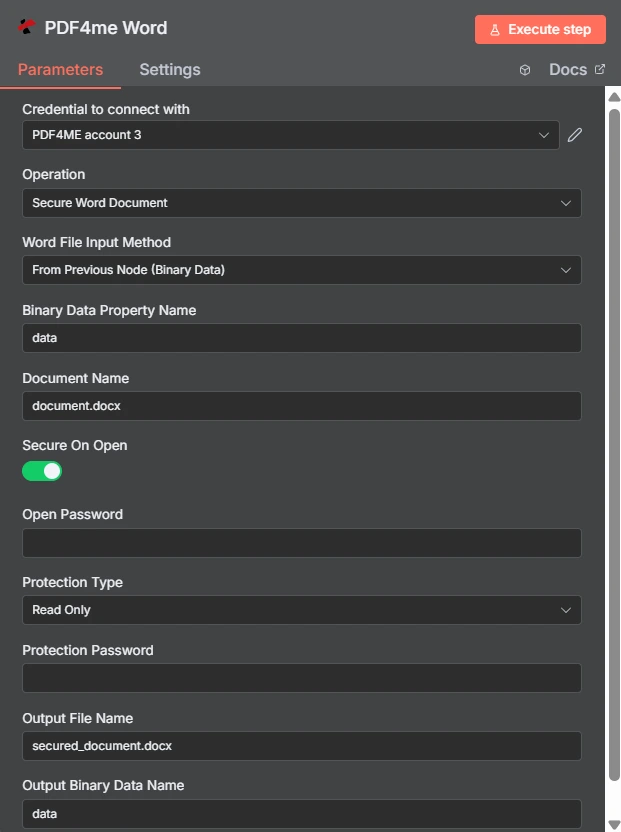
「開く時にセキュリティ保護」はトグルスイッチで、「保護タイプ」は別のドロップダウンメニューで、ここでは「読み取り専用」に設定されています。その下にある2つのパスワード入力欄はそれぞれ独立しています。
パスワード公開と編集制限の比較
| 質問 | パスワードを開く | 編集制限 |
|---|---|---|
| Which fields set it | Secure On Open and Open Password | Protection Type and Protection Password |
| What it blocks | Opening the document at all | Changing the document once open |
| Can the recipient read it | Only with the password | Yes, reading is always allowed |
| Typical recipient | A named person receiving something confidential | A reviewer or a form filler |
| Use it when | The content must not be seen by others | The content may be seen but not altered |
Secure が保護するパラメータは何ですか Word 書類が必要ですか?
| パラメータ | 必須 | その機能 | 例 |
|---|---|---|---|
| Credential to connect with | Required | The PDF4me account credential the node authenticates with. | PDF4ME account |
| Operation | Required | The action this node performs. Select Secure Word Document. | Secure Word Document |
| Word File Input Method | Required | How the .docx reaches the node: from the previous node as binary data, as a Base64 string, or from a URL. | From Previous Node (Binary Data) |
| Binary Data Property Name | Conditional | Name of the binary property holding the document. Appears when the file comes from the previous node. | data |
| Document Name | Required | Filename of the input document including the extension. Drives format detection. | document.docx |
| Secure On Open | Optional | Toggle that requires a password before the document will open. Leave off if you only want an editing restriction. | enabled |
| Open Password | Conditional | The password needed to open the file. Required once Secure On Open is enabled. Supply it through an expression, not as literal text. | {{ $env.DOC_OPEN_PW }} |
| Protection Type | Optional | Editing restriction applied to the document: Read Only, Allow Comments, Allow Form Fields, or Allow Revisions. | Read Only |
| Protection Password | Conditional | The password that lifts the editing restriction. Required once a Protection Type is chosen, and should differ from Open Password. | {{ $env.DOC_EDIT_PW }} |
| Output File Name | Optional | Filename of the returned secured document. Keep the .docx extension. | secured_document.docx |
| Output Binary Data Name | Optional | Binary property the secured document is written to. Leave as data unless a later node expects another name. | data |
保護タイプのオプション
| オプション | 受取人ができること |
|---|---|
Read Only | View the document only. No edits of any kind are accepted. |
Allow Comments | Add and edit comments, but not change the document text itself. |
Allow Form Fields | Fill in form fields while the surrounding content stays locked. |
Allow Revisions | Edit, but only with tracked changes recorded so every alteration is visible. |
出力
| 分野 | タイプ | 内容物 |
|---|---|---|
| fileName | String | Name of the returned secured document. |
| fileSize | Number | Size of the secured document in bytes. |
| success | Boolean | Whether protection was applied. Branch on this so failures surface as alerts. |
| originalFileName | String | Name of the input document as supplied in Document Name. |
| secureOnOpen | Boolean | Whether an open password was applied, echoed back for verification. |
| protectionType | String | The editing restriction applied, such as ReadOnly, or empty when none was set. |
| message | String | Human-readable status text describing the result of the operation. |
チェック中 protectionType レスポンスを確認することが、意図した制限が実際に適用されたことを確認する最も安価な方法です。
セキュリティ設定の方法 Word ドキュメント n8n?
- 追加する PDF4me Word ノードをワークフローに追加して設定します 手術 に 安全な Word 書類。
- 選択してください PDF4me 認証情報を入力するか、作成して貼り付けてください。 API 鍵。
- 選ぶ Word ファイル入力方法 そして供給する
.docxその下の畑を通して。 - セット 文書名 正しい拡張子で。
- ゲートを開けるには、 開くと安全 そして設定する パスワードを開く 認証情報または環境変数から取得します。
- ゲート編集を行うには、 保護タイプ そして異なるものを提供する 保護パスワード。
- セット 出力ファイル名 で終わる
.docx。 - ノードを実行し、確認します。
secureOnOpenそしてprotectionType応答の中で、保護されたファイルを転送します。
典型的な構成
ワークフローの例Common n8n workflow patterns using Secure Word Document.
機密報告書を送信する
- 報告手順では、機密性の高い数値を含む文書が作成されます。
- Secure On Openは、環境変数に格納されているパスワードを適用します。
- ファイルはメールで送信され、パスワードは別のチャネルで共有されます。
契約書を回覧して意見を募る
- 保護タイプは「コメントを許可する」に設定されています。
- レビュー担当者は、条項のテキストを一切変更せずに注釈を付ける。
- フィードバックは、後で調整する必要のある差分なしに届きます。
記入可能なフォームを配布する
- 「フォームフィールドを許可する」を有効にすると、周囲のテキストが固定されます。
- 受取人は、自分宛ての欄のみを記入してください。
- 返されるフォームは、自動的に解析できるほど一貫性がある。
承認済みのテンプレートをロックする
- テンプレートが承認され、共有ドライブに公開されます。
- 読み取り専用保護により、ローカルでのサイレント編集が防止されます。
- 全員が同じ権威ある文言に基づいて作業する。
実践的なヒント
Keep passwords out of the workflow
An expression reading a credential or environment variable keeps the secret out of exported workflow JSON and out of version control.
Use different values for the two passwords
Reusing one value means anyone who can open the file can also unlock editing, which removes the distinction you set up.
Pick the least restrictive type that works
Allow Comments or Allow Revisions often serves a review better than Read Only, because reviewers can still express changes.
Verify protectionType in the response
The echoed value confirms the restriction landed as intended, which is faster than opening a sample in Word every run.
Secure last in the chain
Watermarking, merging, and header updates all need an editable file. Apply protection after those steps, not before.
Record the passwords before scaling up
This action applies protection and offers no recovery. Store both values in your secret manager before running it across a batch.
チートシート
| 分野 | 価値 |
|---|---|
| Operation | Secure Word Document |
| Word File Input Method | From Previous Node (Binary Data) |
| Binary Data Property Name | data |
| Document Name | document.docx |
| Secure On Open | enabled |
| Open Password | {{ $env.DOC_OPEN_PW }} |
| Protection Type | Read Only |
| Protection Password | {{ $env.DOC_EDIT_PW }} |
| Output File Name | secured_document.docx |
| Output Binary Data Name | data |
よくある質問
関連アクション
安全な Excel
同じワークフローで送られてくるスプレッドシートに対しても、同様の保護対策を講じる。
ドキュメントを保護する
パスワード保護を適用する PDF むしろ Word ファイル。
画像透かしを追加する Word 書類
文書をロックする前に、ブランド名やマークを付けてください。
変更の追跡を無効にする Word
改訂記録をオフにする。これは「改訂を許可する」制限とは別の設定項目です。
他のプラットフォームでの同じタスク
安全なドキュメント Make
同じ保護エンジンは Make モジュール内部 Make シナリオ。
安全なドキュメント Zapier
トリガー Word 数千ものSaaSアプリとWebhookからの保護。
安全なドキュメント Power Automate
Microsoft 365 流れ SharePoint、 Outlook、およびTeamsとの連携。
安全な文書 REST API
生 PDF4me エンドポイント。カスタムバックエンドコードやPostmanテスト用。