行を追加 Excel ワークシート n8n
行を追加する は PDF4me ノードアクション n8n それはこう書いている JSON 記録を Excel ワークシート。これを使って押し出す API 結果をレポートに書き込む、Webhook ペイロードを共有ワークブックにログ記録する、または追加する CRM 追跡シートへの輸出、実際の到着日と数字 Excel テキストではなく、値。
このノードの機能
PDF4me Excel行を追加する 既存の .xlsx ワークブックと JSON 配列 JSON 行データ、オブジェクトごとに1行を書き込みます。 2つの配置モードテーブル名を ターゲット Excel テーブル キーはヘッダーに一致します。または空白のままにして 行から挿入 プラス 列から挿入 開始セルを正確に指定します。新規にワークブックを作成するのではなく、指定したワークブックを編集します。
関連ブログ記事
この機能に関するブログ記事はまだありません。近日公開予定です。
その間、PDF4me ブログを閲覧して、あらゆるプラットフォームのチュートリアルやワークフローをご覧ください。
ブログをご覧ください →
認証 API リクエスト
毎 PDF4me ノード n8n 有効な 接続するための認証情報. 作成または選択して、 PDF4me API ワークフローがスプレッドシートのリクエストを安全に認証できるようにするためのキー。
見逃してはならない重要な事実
ターゲット Excel テーブルがモードを決定します
入力すると、ノードはヘッダーと一致するように設定されます。空白のままにすると、座標配置に切り替わります。行の配置に関するその他のすべての設定は、この1つのフィールドに基づいて行われます。
の JSON 平らでなければならない
各オブジェクトは行となり、各キーは列となります。ネストされたオブジェクトまたは配列は、占有する単一のセルを持たないため、このノードに到達する前にペイロードをフラット化してください。
座標モードは上書きできます
「行から挿入」と「列から挿入」はどちらもデフォルトで1(左上のセル)に設定されています。既に存在する内容を置き換える場合を除き、空の領域を指定してください。
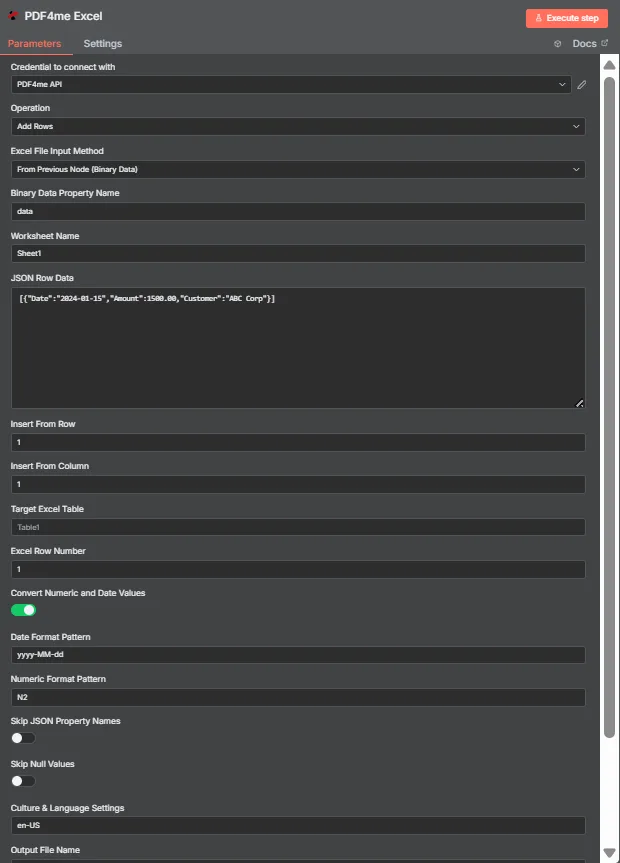
JSON 行データには JSON 平らな物体の配列。ターゲット Excel テーブルはここでは空なので、「行から挿入」と「列から挿入」によってデータがセルA1に挿入されます。
テーブルモードと座標モードの比較
| 質問 | テーブルモード | 座標モード |
|---|---|---|
| How you switch to it | Name a table in Target Excel Table | Leave Target Excel Table blank |
| How columns are matched | JSON keys matched against table headers | Values written in key order from the start cell |
| Does column order matter | No, headers drive placement | Yes, position drives placement |
| Which fields control it | Target Excel Table and Excel Row Number | Insert From Row and Insert From Column |
| Best for | Structured sheets that already have a table | Blank sheets or a fixed reporting layout |
| Overwrite risk | Lower, rows follow the table structure | Higher, the start cell is written to directly |
行を追加するにはどのようなパラメータが必要ですか?
| パラメータ | 必須 | その機能 | 例 |
|---|---|---|---|
| Credential to connect with | Required | The PDF4me API credential the node authenticates with. | PDF4me API |
| Operation | Required | The action this node performs. Select Add Rows. | Add Rows |
| Excel File Input Method | Required | How the workbook reaches the node: from the previous node as binary data, as a Base64 string, or from a URL. | From Previous Node (Binary Data) |
| Binary Data Property Name | Conditional | Name of the binary property holding the .xlsx. Appears when the workbook comes from the previous node. | data |
| Worksheet Name | Required | Sheet the rows are written to. Match the sheet tab name exactly. | Sheet1 |
| JSON Row Data | Required | JSON array of flat objects. Each object becomes one row and each key maps to a column. | [{"Date":"2024-01-15","Amount":1500.00}] |
| Insert From Row | Conditional | Row number the data starts at, counting from 1. Used in coordinate mode when no table is named. | 1 |
| Insert From Column | Conditional | Column number the data starts at, counting from 1 for column A. Used in coordinate mode. | 1 |
| Target Excel Table | Optional | Name of an existing table to write into. Filling this in switches the node to header matching instead of coordinates. | Table1 |
| Excel Row Number | Conditional | Row index inside the named table where insertion begins. Used in table mode. | 1 |
| Convert Numeric and Date Values | Optional | Toggle that turns numeric and date strings into real Excel values rather than text. Ships enabled. | enabled |
| Date Format Pattern | Optional | Pattern applied to converted dates. Match it to the shape of the dates in your JSON. | yyyy-MM-dd |
| Numeric Format Pattern | Optional | Format applied to converted numbers, such as two decimal places. | N2 |
| Skip JSON Property Names | Optional | Toggle that omits the JSON keys, writing only values. Ships disabled so headers are included. | disabled |
| Skip Null Values | Optional | Toggle that leaves cells untouched where a JSON value is null instead of clearing them. Ships disabled. | disabled |
| Culture and Language Settings | Optional | Culture code used when parsing numbers and dates, which decides separator handling. | en-US |
| Output File Name | Optional | Filename of the returned workbook. Keep a valid Excel extension. | excel_with_rows.xlsx |
出力
| 分野 | タイプ | 内容物 |
|---|---|---|
| fileName | String | Name of the returned workbook after the rows were written. |
| fileSize | Number | Size of the returned workbook in bytes. |
| success | Boolean | Whether the insertion completed. Branch on this so failures surface as alerts. |
| originalFileName | String | Name of the input workbook as supplied to the node. |
| worksheetName | String | The worksheet the rows were written to. |
| rowsAdded | Number | How many rows were inserted. The most useful verification signal the node returns. |
| insertFromRow | Number | Starting row used, echoed back when running in coordinate mode. |
| insertFromColumn | Number | Starting column used, echoed back when running in coordinate mode. |
| tableName | String | The table written into, or null when coordinate mode was used. |
| excelRowNumber | Number | Row index inside the table where insertion began, in table mode. |
| convertNumericAndDate | Boolean | Whether numeric and date conversion was applied. |
| dateFormat | String | The date pattern applied during conversion. |
| numericFormat | String | The numeric format applied during conversion. |
| cultureName | String | The culture code used to parse numbers and dates. |
| message | String | Human-readable summary, including the row count and worksheet name. |
更新されたワークブック自体はバイナリデータとして返され、ストレージへの書き込み、メールへの添付、または次の処理への受け渡しに使用できます。 Excel ステップ。
行を追加するにはどうすればいいですか n8n?
- 追加する PDF4me Excel ノードをワークフローに追加して設定します 手術 に 行を追加する。
- 選択してください PDF4me 認証情報を入力するか、作成して貼り付けてください。 API 鍵。
- 選択してください Excel ファイル入力方法 そして、その下に表示される入力欄からワークブックを入力してください。
- セット ワークシート名 書き込み先の正確なシートタブに。
- 置く JSON 平らな物体の配列に JSON 行データ1行につき1つのオブジェクト。
- テーブルモードを使用するには、テーブル名を次のように入力します。 ターゲット Excel テーブル そして設定する Excel 行 Number座標を使用するには、テーブルを空白のままにして、 行から挿入 そして 列から挿入。
- 離れる 数値と日付の値を変換する 有効にしてから設定します 日付形式パターン、 数値フォーマットパターン、 そして 文化と言語環境 お客様のデータと照合します。
- セット 出力ファイル名ノードを実行し、確認します。
rowsAddedワークブックを転送する前の応答において。
典型的な構成
ワークフローの例Common n8n workflow patterns using Add Rows.
ウェブフックのペイロードをワークブックにログ記録する
- ウェブフックはフォーム送信を次のように受信します JSON。
- 「行の追加」機能は、共有ワークブック内の指定されたテーブルにその行を追加します。
- チームは、誰もデータを再入力することなく、シートを読みます。
押す API 結果をレポートにまとめる
- 予定されている HTTP リクエストは内部からレコードを取得します API。
- Codeノードは、レスポンスを単純な配列に変換します。
- 「行の追加」機能は、それを固定座標にレポートテンプレートに書き込みます。
毎晩追加 CRM 輸出
- 夜間の仕事は新たな機会をもたらし、 JSON。
- テーブルモードでは、キーが既存のヘッダーと一致します。
- ソースの列順序の変更はシートを破損させません。
配布前に書き込みを検証する
- Add Rows 関数は、ワークブックの横に rowsAdded オブジェクトを返します。
- IFノードは、入力配列の長さと比較します。
- 不一致が発生した場合は、短いレポートを送信する代わりにアラートが発せられます。
実践的なヒント
Flatten the JSON first
A Set or Code node that removes nesting is cheaper than debugging why a column arrived empty or full of object text.
Prefer table mode when a table exists
Header matching survives column reordering in the source system, which fixed coordinates cannot.
Check rowsAdded, not just success
A run can succeed while inserting fewer rows than you sent. Comparing the count to your array length catches silent shortfalls.
Match culture to the data, not the reader
Culture drives how decimal and thousands separators are parsed. Set it to the format the JSON arrives in.
Point coordinates at empty cells
Insert From Row and Insert From Column both default to 1, so an unchanged run writes over the top-left of the sheet.
Keep a template workbook
This action edits an existing file. Storing a clean template that the workflow copies each run avoids gradual drift.
チートシート
| 分野 | 価値 |
|---|---|
| Operation | Add Rows |
| Excel File Input Method | From Previous Node (Binary Data) |
| Binary Data Property Name | data |
| Worksheet Name | Sheet1 |
| JSON Row Data | [{"Date":"2024-01-15","Amount":1500.00}] |
| Insert From Row / Column | 1 / 1 |
| Target Excel Table | Table1 |
| Excel Row Number | 1 |
| Convert Numeric and Date Values | enabled |
| Date Format Pattern | yyyy-MM-dd |
| Numeric Format Pattern | N2 |
| Culture and Language Settings | en-US |
| Output File Name | excel_with_rows.xlsx |
よくある質問
関連アクション
行を更新する
新規に書き込むのではなく、既に存在する行の値を変更する。
行を抽出する
ワークシートから行を読み込み、ワークフローの残りの部分で使用するデータとして利用する。
行を削除する
新しいデータをインポートする前に、古いレコードを削除して、シートにデータが蓄積されないようにしてください。
解析 CSV
ターン CSV 構造化データに変換した後、行の追加に使用できます。
他のプラットフォームでの同じタスク
行を追加する Make
同じ行挿入エンジン Make モジュール内部 Make シナリオ。
行を追加する Zapier
数千ものSaaSアプリとWebhookからスプレッドシートの行を書き込みます。
行を追加する Power Automate
Microsoft 365 流れ SharePoint、 Outlook、およびTeamsとの連携。
行を追加する REST API
生 PDF4me エンドポイント。カスタムバックエンドコードやPostmanテスト用。