画像を回転 n8n
画像の回転 は n8n モジュール PDF4me 画像を1つのワークフローステップで正確な角度だけ回転させます。画像をバイナリデータとして送信します。 Base64または URL回転角度を0度から360度の間で設定し、背景の塗りつぶし色を選択すると、回転されたファイルを受け取ることができます。
このノードの機能
PDF4me: 画像を回転 回転する JPG、 PNG1つの画像で任意の角度からGIFまたはBMP画像 n8n ステップ。設定 回転角度 度数で、 背景色 回転によって露出した領域を埋め、 比例的なサイズ変更 アスペクト比を維持するため。バイナリデータによる入力を受け付けます。 Base64 String、 または URL方向補正、写真の標準化、コンテンツ準備のワークフローに最適です。
関連ブログ記事
この機能に関するブログ記事はまだありません。近日公開予定です。
その間、PDF4me ブログを閲覧して、あらゆるプラットフォームのチュートリアルやワークフローをご覧ください。
ブログをご覧ください →
認証 API リクエスト
毎 PDF4me ノード n8n 有効な 接続するための認証情報. 作成または選択して、 PDF4me API ワークフローが画像回転リクエストを安全に認証できるようにするためのキー。
見逃してはならない重要な事実
90度のプリセットだけでなく、あらゆる角度に対応
回転角度は0度から360度までの任意の値を受け入れるため、1/4回転に限定されません。正の値は時計回りに回転します。
背景色が露出した角を埋める
90度の倍数ではない角度で回転させると、元の画像の外側に空白のコーナー領域が現れます。背景色(デフォルトでは白)は、選択した16進数カラーでその領域を塗りつぶします。
比例サイズ変更は出力寸法を制御します
デフォルト設定の「オン」では、縦横比を維持し歪みを防ぐように寸法が調整されます。「オフ」では元のキャンバスサイズが維持されますが、90度以外の回転ではコンテンツが切り取られる可能性があります。
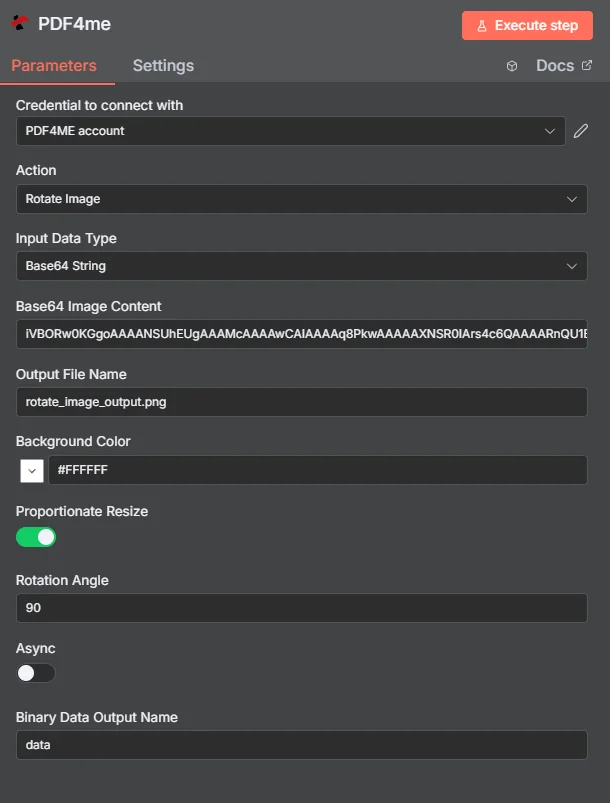
フルノードパネル:画像提供元: Base64 String白い背景で90度回転
パラメータ
必須 n8n UI: 入力データタイプと回転角度。出力ファイル名(デフォルト) rotate_image_output.png)、背景色(デフォルト) #FFFFFF)、比例サイズ変更、 Asyncバイナリデータ出力名(デフォルト) データ) はオプションです。条件付きソースフィールド (入力バイナリフィールド、 Base64 画像コンテンツ、画像 URL)は、対応する入力データ型が選択された場合にのみ表示されます。
| パラメータ | 必須 | その機能 | 例 |
|---|---|---|---|
| Input Data Type | Required | Choose how to provide the image file to rotate. Options: Binary Data, Base64 String, URL. Default is `Binary Data`. | Binary Data |
| Input Binary Field | Conditional | Name of the binary property that contains the image file. Shown when Input Data Type is Binary Data. Default is `data`. | data |
| Base64 Image Content | Conditional | Base64 encoded image content. Shown when Input Data Type is Base64 String. | /9j/4AAQSkZJRgAB... |
| Image URL | Conditional | URL to the image file to rotate. Shown when Input Data Type is URL. | https://abc.com/photo.jpg |
| Output File Name | Optional | Name for the output rotated image file. Default is `rotate_image_output.png`. | rotate_image_output.png |
| Background Color | Optional | Background color for rotation (hex string). Default is `#FFFFFF`. | #FFFFFF |
| Proportionate Resize | Optional | Whether to maintain proportions during rotation. Default is `Yes`. | Yes |
| Rotation Angle | Optional | Rotation angle in degrees. Default is `90`. | 90 |
| Async | Optional | Not used: the node always sends the request to PDF4me as asynchronous (IsAsync true), whatever this is set to. Default is `Yes`. | Yes |
| Binary Data Output Name | Optional | Custom name for the binary data in n8n output. Default is `data`. | data |
出力にはどのようなフィールドが含まれますか?
| 分野 | タイプ | 内容物 |
|---|---|---|
success | Boolean | True when the operation succeeded. |
message | String | Status message, `Image rotated successfully`. |
fileName | String | File name of the resulting file. |
mimeType | String | Always `image/png`, whatever the format of the input image. |
fileSize | Number | Size of the resulting file in bytes. |
rotationAngle | String | Rotation Angle that was used, in degrees. |
data | Binary | The rotated image. |
画像の回転をどのように設定すればよいですか n8n?
- 追加 PDF4me あなたの n8n ワークフローと設定 アクション に 画像の回転。
- で 接続するための認証情報選択してください PDF4me 認証情報またはクリック 新しい認証情報を作成する そしてあなたの API 鍵。
- セット 入力データタイプ に バイナリデータ (デフォルト)、 Base64 String、 または URL そして、該当する欄に記入してください。
- 入力 回転角度 度数で表され、0度から360度までです。
- オプションで設定可能 背景色 回転によって露出した領域の塗りつぶしを制御し、切り替えます 比例的なサイズ変更 アスペクト比を維持するため。
- 任意で変更 出力ファイル名 デフォルトから
rotate_image_output.pngそして バイナリデータ出力名 デフォルトからdata。 - ノードを実行し、回転した画像をバイナリファイルへの書き込み、電子メール、またはクラウドストレージにルーティングします。
典型的な構成
ワークフローの例Common n8n workflow patterns using Rotate Image.
モバイルアップロードの向きの修正
- ウェブフックはモバイルデバイスからアップロードされた写真(バイナリデータ、プロパティ)を受信します
データ) - PDF4me 画像回転処理は、検出された向きの問題に基づいて回転角度を設定して実行されます。
- 修正された画像は、共有フォトギャラリーフォルダに保存されます。
スキャンした文書の歪み補正 OCR
- 「バイナリファイル読み込み」ノードは、ネットワークフォルダからスキャンされたドキュメント画像のバッチを読み込みます。
- PDF4me 画像回転は、小さな補正角度と背景色を白に設定して、各スキャンを正確に準備します。 OCR。
- 修正された画像は下流に渡される OCR またはテキスト抽出ステップ。
製品カタログの一貫した表示
- 1 HTTP リクエストノードはサプライヤー製品イメージをダウンロードします URL。
- PDF4me 画像の回転は入力データタイプで実行されます URL また、商品写真の歪みをなくし、向きを標準化するために、比例調整をオンにします。
- 標準化された画像は、カタログの画像保存バケットにアップロードされます。
実践的なヒント
Set Background Color to match your destination
For product photos or documents going onto a white page, keep the default #FFFFFF. For dark-themed use cases, set a matching hex color so exposed corners blend in.
Non-90-degree angles expose corners
Only rotations at exactly 0, 90, 180, or 270 degrees avoid exposing background-filled corners. Any other angle will show the Background Color in the newly exposed areas.
Keep Proportionate Resize on to avoid distortion
Turning it off keeps the original canvas dimensions, which can crop parts of the image on non-90-degree rotations. Leave it on unless you specifically need a fixed output size.
If you already know the EXIF orientation, use the EXIF variant
When photos already carry EXIF orientation metadata, Rotate Image By EXIF Data can auto-correct them without you specifying a manual angle.
Enable Async for large batches
Turning Async on lets larger images or higher-volume rotation jobs process in the background instead of blocking the workflow synchronously.
rotationAngle in the output confirms what was applied
Log this field alongside your processing records, especially in batch jobs, to confirm each image received the intended rotation.
チートシート
| 分野 | 価値 |
|---|---|
| Action | Rotate Image |
| Input Data Type | Base64 String |
| Base64 Image Content | /9j/4AAQSkZJRgAB... |
| Output File Name | rotate_image_output.png |
| Background Color | #FFFFFF |
| Proportionate Resize | On |
| Rotation Angle | 90 |
| Async | Off |
| Binary Data Output Name | data |
| Credentials | PDF4me API credential |
よくある質問
関連アクション
EXIFデータに基づいて画像を回転させる
手動で角度を指定する代わりに、写真自体のEXIFメタデータを使用して向きを自動補正します。
画像の切り抜き
画像を特定の領域にトリミングします。これは、回転処理の後によく行われる次のステップで、背景で塗りつぶされた角の部分も削除する必要がある場合によく用いられます。
画像を反転
画像を水平方向または垂直方向に反転させる。これは、回転だけでは実現できない、関連する向きの修正方法である。
他のプラットフォームでの同じタスク
画像を回転 Make
回転ロジックは同じ Make モジュール、クラウドストレージをトリガーとするビジュアルシナリオ。
画像を回転 Zapier
6,000以上のSaaSアプリとWebhookから画像回転をトリガーします Zapier。
画像の回転 REST API
生 REST エンドポイント。カスタムバックエンドコードやPostmanテスト用。
ユースケース
写真撮影と画像方向補正
- モバイルデバイスやデジタルカメラで撮影された画像が誤った向きで撮影された場合、自動的に向きの問題を修正します。
- フォトギャラリーやポートフォリオ全体で一貫した向きを確保するために、ユーザー生成コンテンツの一括アップロードを処理する。
- プロの写真撮影ワークフローとクライアントへの納品物における画像方向の標準化
文書処理とデジタル資産管理
- スキャンした文書や画像を適切な読み方向へ回転させます。 OCR 処理およびアーカイブシステム
- 大量文書処理ワークフローにおける画像の向きのずれを自動的に補正し、可読性を向上させる。
- コンテンツ管理システムとデジタルアセットライブラリにおける画像の向きを標準化し、一貫性のある表示を実現する。
ウェブコンテンツとソーシャルメディアの最適化
- さまざまなプラットフォームやデバイスの向きに合わせて、画像を自動的に最適な向きに調整します。
- 特定の向きの要件があるソーシャルメディアプラットフォーム向けに、ユーザーがアップロードした画像を処理する
- レスポンシブWebデザインとモバイルアプリケーションインターフェース向けに、標準化された画像方向を作成する