画像スタンプを追加する PDF 使用 n8n アクション
PDF4me 画像スタンプを追加する PDF カスタム画像スタンプと透かしを追加します PDF 文書を通じて n8n 自動化ワークフロー。プロセス PDF離れて n8n トリガー、バイナリデータ、base64文字列、または公開 URL画像(ロゴ、署名、印鑑、透かし)を正確な位置決め、カスタマイズ可能なサイズ、透明度制御、回転角度、ページ固有のターゲティング、柔軟な配置オプションで挿入できます。このソリューションは、文書のブランディング、機密文書のマーキング、透かし、ロゴの配置、セキュリティスタンプ、および正確なレンダリングとシームレスな統合によるプロフェッショナルな画像統合を必要とする自動文書強化ワークフローに最適です。
関連ブログ記事
この機能に関するブログ記事はまだありません。近日公開予定です。
その間、PDF4me ブログを閲覧して、あらゆるプラットフォームのチュートリアルやワークフローをご覧ください。
ブログをご覧ください →
設定
追加する PDF4me 「画像スタンプを追加」 PDF「ノードをあなたの n8n ワークフローを実行し、必要なパラメータを設定します。初期設定手順については、こちらをご覧ください。 n8n 統合ガイド。
前提条件:
- PDF4me API 資格
- n8n ワークフローへのアクセス
構成:
- 追加 PDF4me ノードからワークフローへ
- 「画像スタンプを追加」を選択してください PDF" アクション
- 入力パラメータを設定します(下記参照)。
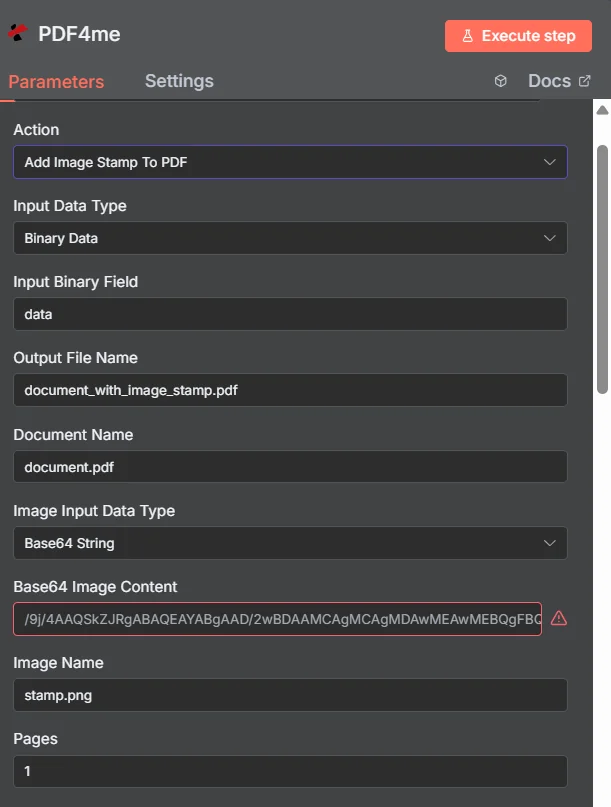
パラメータ
画像スタンプの追加に関するパラメータの完全なリスト PDF アクション。これらのパラメータを設定して、画像スタンプの追加を制御します。
重要: アスタリスク(***)が付いているパラメータは必須であり、アクションが正しく機能するためには必ず指定する必要があります。
| パラメータ | 必須 | その機能 | 例 |
|---|---|---|---|
| Input Data Type | Required | Choose how to provide the PDF file to add image stamp to. Options: Binary Data, Base64 String, URL. Default is `Binary Data`. | Binary Data |
| Input Binary Field | Conditional | Name of the binary property that contains the PDF file. Shown when Input Data Type is Binary Data. Default is `data`. | data |
| Base64 PDF Content | Conditional | Base64 encoded PDF document content. Shown when Input Data Type is Base64 String. | UEsDBBQABgAI... |
| PDF URL | Conditional | URL to the PDF file to add image stamp to. Shown when Input Data Type is URL. | |
| Output File Name | Optional | Name for the output PDF file with image stamp. Default is `document_with_image_stamp.pdf`. | document_with_image_stamp.pdf |
| Document Name | Optional | Name of the source PDF file for reference. Default is `document.pdf`. | document.pdf |
| Image Input Data Type | Required | Choose how to provide the image file for stamp. Options: Base64 String, Binary Data, URL. Default is `Base64 String`. | Base64 String |
| Base64 Image Content | Conditional | Base64 encoded image content for stamp. Shown when Image Input Data Type is Base64 String. | UEsDBBQABgAI... |
| Image Binary Field | Conditional | Name of the binary property that contains the image file. Shown when Image Input Data Type is Binary Data. Default is `data`. | data |
| Image URL | Conditional | URL to the image file for stamp. Shown when Image Input Data Type is URL. | |
| Image Name | Optional | The image file name with proper extension - .png or .jpeg. Default is `stamp.png`. | stamp.png |
| Pages | Optional | Specify page indices as comma-separated values or ranges to process (e.g. "0, 1, 2-" or "1, 2, 3-7"). If not specified, the default configuration processes all pages. The input must be in string format. Default is `all`. | all |
| Horizontal Alignment | Optional | Horizontal alignment of image. The allowed values are: Left - left edge of the page, Center - equal distance from left and right edge of the page, Right - right edge of the page. Options: Left, Center, Right. Default is `Center`. | Center |
| Vertical Alignment | Optional | Vertical alignment of image. The allowed values are: Top - top edge of the page, Middle - equal distance from top and bottom edge of the page, Bottom - bottom edge of the page. Options: Top, Middle, Bottom. Default is `Middle`. | Middle |
| Height (Mm) | Optional | Image height in millimeters (mm). If 0, default height or aspect ratio sized height will be taken. Default is `30`. | 30 |
| Width (Mm) | Optional | Image width in millimeters (mm). If 0, default width or aspect ratio sized width will be taken. Default is `30`. | 30 |
| Height (Px) | Optional | Height of the image stamp in pixels. Default is `85`. | 85 |
| Width (Px) | Optional | Width of the image stamp in pixels. Default is `85`. | 85 |
| Horizontal Margin (Mm) | Optional | Horizontal margin in millimeters (mm). If horizontal alignment is Left, it is the gap from the left edge of the page; if Right, from the right edge. Ignored when alignment is Center. Default is `10`. | 10 |
| Vertical Margin (Mm) | Optional | Vertical margin in millimeters (mm). If vertical alignment is Top, it is the gap from the top edge of the page; if Bottom, from the bottom edge. Ignored when alignment is Middle. Default is `10`. | 10 |
| Horizontal Margin (Px) | Optional | Horizontal margin of the image stamp in pixels. Default is `28`. | 28 |
| Vertical Margin (Px) | Optional | Vertical margin of the image stamp in pixels. Default is `28`. | 28 |
| Opacity | Optional | Values between 0 and 100: 0 is entirely transparent, 100 is full opacity. Default is `50`. | 50 |
| Background Stamp | Optional | Whether to use the image as a background stamp. Default: false. Default is `No`. | No |
| Show Only in Print | Optional | Whether to show the stamp only in print. Default: false. Default is `No`. | No |
| Advanced Options | Optional | Optional settings, collapsed behind Add Option. | Add Option |
| Custom Profiles | Optional | Use "JSON" to adjust custom properties. Review Profiles at https://dev.pdf4me.com/apiv2/documentation/ to set extra options for API calls. | |
| Binary Data Output Name | Optional | Custom name for the binary data in n8n output. Default is `data`. | data |
出力
出力パラメータ
| 分野 | タイプ | 内容物 |
|---|---|---|
fileName | String | Output File Name; `.pdf` is set as extension when it does not end in .pdf. |
mimeType | String | MIME type of the resulting file, for example `application/pdf`. |
fileSize | Number | Size of the resulting file in bytes. |
success | Boolean | True when the operation succeeded. |
message | String | Status message, `Image stamp added successfully`. |
data | Binary | The PDF with the image stamp. |
N8N 行動対応
の PDF4me 画像スタンプを追加する PDF API 複数の形式で表示可能なレスポンスを返します。ニーズに最適な表示形式を選択してください。
- JSON
- Table
- Schema
- Binary
JSON 回答形式
生 JSON からの応答 API:
[
  {
    "success": true,
    "message": "Image stamp added to PDF successfully",
    "fileName": "document_with_image_stamp.pdf",
    "mimeType": "application/pdf",
    "fileSize": 125430
  }
]
テーブルビュー
構造化された表形式の応答データ:
| パラメータ | 価値 |
|---|---|
| success | true |
| message | Image stamp added to PDF successfully |
| fileName | document_with_image_stamp.pdf |
| mimeType | application/pdf |
| fileSize | 125430 |
スキーマビュー
レスポンスのデータ構造と型:
1 item
success: ☑ true
message: AB Image stamp added to PDF successfully
fileName: AB document_with_image_stamp.pdf
mimeType: AB application/pdf
fileSize: # 125430
タイプ指標:
AB= String#= 番号☑= Boolean
バイナリデータビュー
実際 PDF ファイルデータとメタデータ:
data
─────────────────────────────
File Name: document_with_image_stamp.pdf
File Extension: pdf
Mime Type: application/pdf
File Size: 122.5 KB
バイナリデータアクセス:
- n8n バイナリオブジェクト:
$binary.data.data - Base64 コンテンツ直接使用可能
- ファイル操作ダウンロード、メール送信、または保存の準備ができました
ユースケース
ドキュメントのブランディングとコーポレートアイデンティティ
- 会社のロゴ、透かし、ブランディング要素を追加して PDF 企業アイデンティティ、ブランドの一貫性、プロフェッショナルな外観に関する文書
- ビジネス文書、レポート、プレゼンテーションを処理する際に、ブランドスタンプを追加することで、一貫した企業アイデンティティとプロフェッショナルなプレゼンテーションを実現します。
- 顧客向け文書、提案書、マーケティング資料に企業ロゴやブランディング要素を追加することで、ブランド認知度と専門的信頼性を高めます。
文書のセキュリティと認証
- セキュリティスタンプ、認証マーク、検証ロゴを追加する PDF 文書のセキュリティ、真正性の確認、および不正防止のための文書
- 法的文書、契約書、公的記録を処理する際に、文書の完全性を確保し、不正な改ざんを防止するためにセキュリティスタンプを付加する。
- 機密文書、機密報告書、機密資料にセキュリティスタンプを追加することで、アクセス制御と文書保護を実現し、文書を安全に保ちます。
文書ステータスとワークフロー管理
- ステータススタンプ、承認マーク、ワークフローインジケーターを追加する PDF プロセス追跡、承認ワークフロー、および文書管理のための文書
- 請求書、発注書、ビジネス文書を処理する際に、処理段階、承認状況、ワークフローの進捗状況を示すステータススタンプを追加します。
- プロジェクト管理、進捗状況の追跡、ステークホルダーとのコミュニケーションのために、プロジェクトのドキュメント、レポート、成果物にステータススタンプを追加して、それらを変革します。