変換する PDF に PowerPoint で n8n
このノードの機能
PDF4me 変換する PDF に PowerPoint 変換する PDF 文書を 完全に編集可能なマイクロソフト PowerPoint (PPTXプレゼンテーション あなたの n8n ワークフロー。各 PDF ページはレイアウト、画像、フォント、配置、色が保持されたスライドになります。 下書き 高速ネイティブ PDF 変換または 高い 正確な OCR 8 つ以上の言語のスキャンされたドキュメントに対して。手動での SmallPDF、iLovePDF、または Adobe Acrobat のアップロードを、電子メールに連鎖する単一の自動化されたノードに置き換えます。 SharePointGoogleドライブ、 CRMまたは、下流のシステム。
関連ブログ記事
この機能に関するブログ記事はまだありません。近日公開予定です。
その間、PDF4me ブログを閲覧して、あらゆるプラットフォームのチュートリアルやワークフローをご覧ください。
ブログをご覧ください →
認証 API リクエスト
毎 PDF4me ノード n8n 有効な 接続するための認証情報. 作成または選択して、 PDF4me API ワークフローが認証できるようにするためのキー PDF-に-PowerPoint 変換リクエストを安全に処理します。
見逃してはならない重要な事実
ドラフト版と高画質版、コストと精度に合わせて最適なモードを選択
ドラフトでは1回使用 API ファイルごとに呼び出し、ネイティブデジタルコンテンツに最適 PDF選択可能なテキスト付き(規模によっては5~10倍安価)。高使用量2 API ページあたりの呼び出し回数(フル) OCR スキャンされたレイアウトの再構築に必要な PDF複数列レイアウト、または画像が多い文書。
出力は真の編集可能なものです PPTX平面画像のスライドではない
テキストは選択および編集可能になり、画像はサイズ変更可能な形状になり、配置と色は保持されます。スクリーンショットとは異なります。 PDF-に-PPT コンバーター、結果としてネイティブ PowerPoint チームメンバーが編集、アニメーション化、スタイル変更できるファイル。
8歳以上 OCR 正確なスキャンのための言語PDF 変換
OCR 対応言語は、英語、ドイツ語、フランス語、スペイン語、イタリア語、ポルトガル語、オランダ語、ポーランド語などです。最適なテキスト認識のために、ソース言語に合わせて設定してください。AIは言語ヒントを使用して、アクセント記号、ウムラウト、および言語固有の文字を正しく処理します。
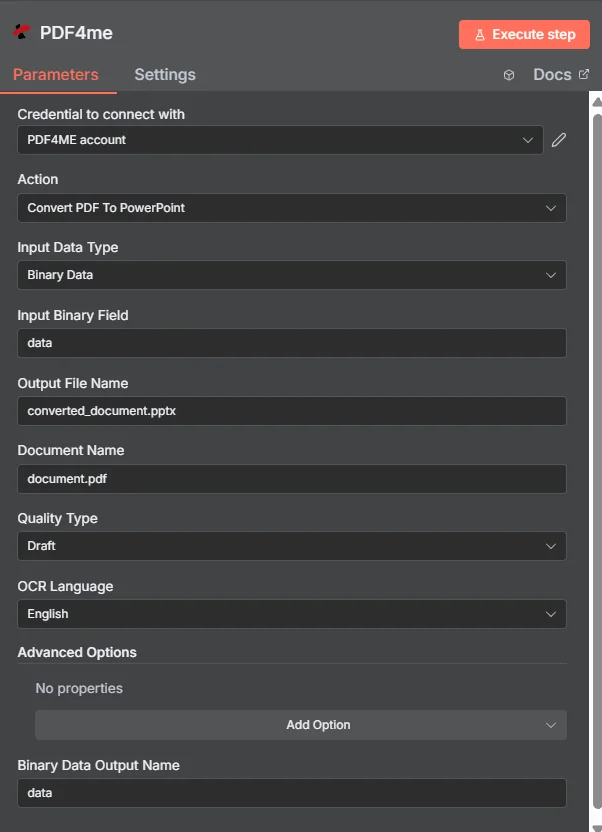
入力データタイプを設定し、品質タイプを選択します(ネイティブの場合はドラフト)。 PDFs、スキャンされた高値)、設定 OCR 言語、そして走る。
パラメータ
必須: 接続に使用する認証情報、入力データタイプ、品質タイプ、 OCR 言語、ドキュメント名、出力ファイル名、バイナリデータ出力名はすべて指定する必要があります。対応する入力フィールド(入力バイナリフィールド、Base64ドキュメントコンテンツ、またはファイル) URL) は、選択した入力データタイプに基づいて必要です。
| パラメータ | 必須 | その機能 | 例 |
|---|---|---|---|
| Input Data Type | Required | Choose how to provide the PDF file to convert. Options: Binary Data, Base64 String, URL. Default is `Binary Data`. | Binary Data |
| Binary Property | Conditional | Name of the binary property containing the file to convert. Shown when Input Data Type is Binary Data. Default is `data`. | data |
| Input File Name | Conditional | Name of the input file (including extension). If not provided, will use the filename from binary data. Shown when Input Data Type is Binary Data. | converted_document.pptx |
| Base64 Content | Conditional | Base64 encoded content of the file to convert. Shown when Input Data Type is Base64 String. | JVBERi0xLjQK... |
| Input File Name | Conditional | Name of the input file (including extension). Shown when Input Data Type is Base64 String. | converted_document.pptx |
| File URL | Conditional | URL of the file to convert. Shown when Input Data Type is URL. | https://example.com/report.pdf |
| Input File Name | Conditional | Name of the input file (including extension). Shown when Input Data Type is URL. | converted_document.pptx |
| Output File Name | Optional | Name for the output PowerPoint document file. Default is `converted_document.pptx`. | converted_document.pptx |
| Document Name | Optional | Name of the source PDF file for reference. Default is `document.pdf`. | document.pdf |
| Quality Type | Optional | Conversion quality setting. Options: Draft, High. Default is `Draft`. | Draft |
| OCR Language | Optional | OCR language for text recognition in images/scanned PDFs. Options: Arabic, Chinese (Simplified), Chinese (Traditional), Danish, Dutch, English, Finnish, French, German, Italian, Japanese, Korean, Norwegian, Portuguese, Russian, Spanish, Swedish. Default is `English`. | English |
| Advanced Options | Optional | Optional settings, collapsed behind Add Option. | Add Option |
| Custom Profiles | Optional | Use "JSON" to adjust custom properties. Review Profiles at https://dev.pdf4me.com/apiv2/documentation/ to set extra options for API calls. | |
| Max Retries | Optional | Maximum number of polling attempts for async processing (increased for complex PDFs). Default is `30`. | 30 |
| Merge All Sheets | Optional | Whether to combine multiple pages into single document flow. Default is `Yes`. | Yes |
| Preserve Output Format | Optional | Whether to preserve original formatting when possible. Default is `Yes`. | Yes |
| Retry Delay (Seconds) | Optional | Base seconds to wait between polling attempts (actual delay increases exponentially). Default is `15`. | 15 |
| Binary Data Output Name | Optional | Custom name for the binary data in n8n output. Default is `data`. | data |
カスタムプロファイルJSON-高度な変換調整のためのフォーマットオプション(出力フォーマット、フォーマット保持スイッチ)。
最大再試行回数非同期処理におけるポーリング試行の最大回数。デフォルト値は30です。
すべてのシートを結合するBoolean複数のページを1つのドキュメントフローに結合するかどうか。デフォルトは「はい」。
出力形式を保持するBooleantrue は視覚的な忠実性を維持します (デフォルト)。false は基本的な書式設定のみを使用したシンプルなプレゼンテーションを作成します。
再試行遅延時間(秒)ポーリング試行間の待機時間(秒単位)。実際の遅延時間は指数関数的に増加します。デフォルト値は15秒です。
品質タイプオプション
下書きデフォルト、高速、1 API ファイルごとの呼び出しネイティブに最適 PDF選択可能なテキスト付き (デジタルネイティブ) PDFWord、Google Docs、ブラウザ印刷、InDesign からの s を返します。使用可能な PPTX 数秒で完了。大規模生産の場合、ハイモードよりも5~10倍安価。
高い正確、2 API ページあたりの呼び出し回数スキャンに必要 PDF写真付きページ、複数段組の学術レイアウト、または PDFs ドラフトでテキストの配置がずれる場合。適用 OCR + AIによるレイアウト再構築で、高品質な出力を実現。
出力
ノードが返すフィールド。
| 分野 | タイプ | 内容物 |
|---|---|---|
fileName | String | File name of the resulting file. |
mimeType | String | MIME type of the resulting file, for example `application/pdf`. |
fileSize | Number | Size of the resulting file in bytes. |
success | Boolean | True when the operation succeeded. |
inputDataType | String | Input Data Type that was used (how the file was provided). |
sourceFileName | String | Name of the input file. |
originalFileName | String | Name of the input file. |
qualityType | String | Quality Type that was used for the conversion. |
language | String | OCR language that was used. |
data | Binary | The resulting PowerPoint presentation. |
クイックセットアップ
- 追加 PDF4me あなたの n8n ワークフローを選択して選択する 変換する PDF に PowerPoint 行動として。
- で 接続するための認証情報選択してください PDF4me 認証情報を使用するか、またはあなたの API 鍵。
- セット 入力データタイプ に バイナリデータ (最も一般的なのは、前のノードからの読み取りです。)
- 地図 入力バイナリフィールド ソースノードのバイナリ出力 (例: Google Drive Download、Dropbox、 HTTP リクエスト)。
- セット 文書名 へ PDF ファイル名(例:
report.pdf追跡のため。 - 選ぶ 品質タイプ: 下書き ネイティブ向け PDFs(速くて安い)または 高い スキャンされたもの PDFs.
- セット OCR言語 ソースに一致する PDF (英語、ドイツ語、フランス語、スペイン語など)
- セット 出力ファイル名 に
converted_document.pptxそして バイナリデータ出力名 にdata。 - 出力を次のノードに接続します: メール送信者、 SharePoint アップロード、OneDrive、またはプレゼンテーションレビューのワークフロー。
- ワークフローを実行します。出力バンドルには編集可能なファイルが含まれています。 PPTX 下流工程の自動化に対応可能。
ワークフローの例
ワークフローの例Common n8n workflow patterns using Convert PDF to PowerPoint.
売上レポート PDF → 編集可能 PowerPoint → 経営陣へのメール
- スケジュールトリガーは毎週月曜日の午前9時に起動し、前週の売上レポートを処理します。 PDF BIシステムによって自動生成されました。
- 1 SFTP 読み取りノードは、 PDF BIエクスポートフォルダから。
- PDF4me 変換する PDF に PowerPoint 変換します。品質タイプはドラフト(ネイティブ)です PDF BIツールから)、 OCR 言語は英語、出力ファイル名は
weekly_sales_{{ $today.weekNumber }}.pptx。 - Gmailノードは編集可能な PPTX 営業リーダーシップチームへ。リーダーシップチームはスライドを直接編集し、独自の分析を追加し、手動で再構築することなく役員に転送できます。 PDF。
- マイクロソフト SharePoint アーカイブをアップロードします PPTX コンプライアンス関連の週次報告書フォルダに保存してください。
スキャンされた研究論文 → OCR PPTX → トレーニング資料
- Dropboxの監視ファイル機能は、研究者がスキャンした学術論文を共有フォルダにアップロードした際に、アラートを発動させる。
- PDF4me 変換する PDF に PowerPoint 品質タイプを「高」(スキャンされたソース)に設定して実行し、 OCR 論文の内容に合った言語(ヨーロッパの研究の場合は英語またはドイツ語が多い)。
- 出力 PPTX 編集可能で選択可能なテキストが含まれています。 OCR そして、スライドごとにレイアウトされた。研究者は、図表、段落、研究結果を研修資料として再利用できるようになった。
- Googleドライブにアップロードすると、 PPTX 共有トレーニング資料フォルダ内。
- Slack通知により、トレーニングチームに新しい編集可能な資料が利用可能になったことが通知され、手動で再入力する場合と比較して、論文1件あたり4時間以上節約できます。 PDF。
顧客提案 PDF → ブランド化された PPTX → CRM 添付ファイル
- 1 HTTP 提案生成システムからのウェブフックにより、最終版が配信されます PDF 営業担当者が価格を確定した時。
- PDF4me 変換する PDF に PowerPoint 変換する PDF 編集可能な PPTX品質タイプはドラフト(ネイティブ)です PDF) OCR 言語は英語です。
- 営業担当者は、 PPTX顧客への納品前に、会社のブランディングを追加したり、表紙のスライドをカスタマイズしたり、セクションの順序を変更したりすることができ、プレゼンテーション資料を最初から作り直す必要はありません。
- Salesforce のレコード更新ステップは編集可能な PPTX 機会記録と並んでオリジナル PDF。
- SlackのDMで、編集可能なデッキの準備ができたことを営業担当者に通知し、ワンクリックで直接開くことができるリンクが提供されます。 PowerPoint オンライン。
よくある質問
関連アクション
変換する PDF ワード
変換する PDF編集可能 DOCXと組み合わせる PDF に PowerPoint レポートや提案書など、Microsoft Officeの出力を完全に自動化します。
変換する PDF Excel へ
表形式のデータを抽出する PDFs を XLSX使用する際は PDF スライドよりもスプレッドシートに適した財務諸表や統計表が含まれている。
変換する HTML に PDF
逆の経路で生成 PDFs から HTML テンプレートを作成します。上流を使用して作成します。 PDFそれらはその後変換されます PPTX プレゼンテーション編集用。