パスワードを削除 PDF で Make
パスワードを削除 PDF は Make モジュール PDF4me パスワードで保護されたファイルを永久に復号化する PDF 正しいパスワードが与えられます。このパスワードを使用して、コンテンツの編集、結合、または抽出を行う前にファイルのロックを解除し、パスワードによるアクセス制限とアクセス権限によるロックの両方を自動的に解除します。
このモジュールの機能
PDF4meパスワードを削除 PDF パスワードで保護されたファイルを永久に復号化およびロック解除します PDFs あなたの Make シナリオ。 PDF バッファと正しいパスワードを入力すると、モジュールは制限のない PDF 準備完了 編集、結合、分割、またはコンテンツ抽出 シナリオの次のモジュールで動作します。ユーザーパスワード(オープン保護)と所有者パスワード(アクセス制限)の両方に対応しているため、1つのモジュールですべてのアクセス制限を一度に解除できます。
関連ブログ記事
この機能に関するブログ記事はまだありません。近日公開予定です。
その間、PDF4me ブログを閲覧して、あらゆるプラットフォームのチュートリアルやワークフローをご覧ください。
ブログをご覧ください →
認証方法 Make シナリオ?
毎 PDF4me モジュール Make 有効な 繋がり. 作成または選択して、 PDF4me API シナリオが認証できるようにするためのキー PDF ロック解除リクエストを安全に処理します。
見逃してはならない重要な事実
パスワードは完全に一致する必要があります。モジュールは推測しません。
このモジュールは、パスワードフィールドに正しいパスワードを入力する必要があります。パスワードが間違っている場合、モジュールはエラーを返し、シナリオは停止します。パスワードは安全に保管してください。 Make's データ ストア、環境変数、または接続されたシークレット マネージャーでは、プレーン テキストで表示されるシナリオ構成にそれらをハードコーディングしないでください。
出力は、ロックされていないプレーンです PDF バッファ、追加の手順は不要
このモジュールは、Document (ロック解除済み) を返します。 PDF バッファ)と名前(ファイル名)をマッピングします。ドキュメントの出力を直接下流にマッピングします。 PDF4me モジュール、Wordへの変換、透かしの追加、結合 PDFs追加の変換手順なしでページを抽出します。出力 PDF すべての制限が完全に解除され、すぐに使用可能です。
イテレータを使用して複数のオブジェクトを一括ロック解除する PDFs
複数のパスワードで保護されたロックを解除するには PDFs 1 つのシナリオ実行では、このモジュールの前に Repeater または Iterator を使用してください。各イテレーションは 1 つの値を渡します。 PDF そしてそのパスワード。ロック解除された出力はクラウドストレージ(Dropbox、Google Drive、 SharePoint)または同じシナリオ内の別の処理モジュールを使用することで、一括ロック解除を完全に自動化できます。
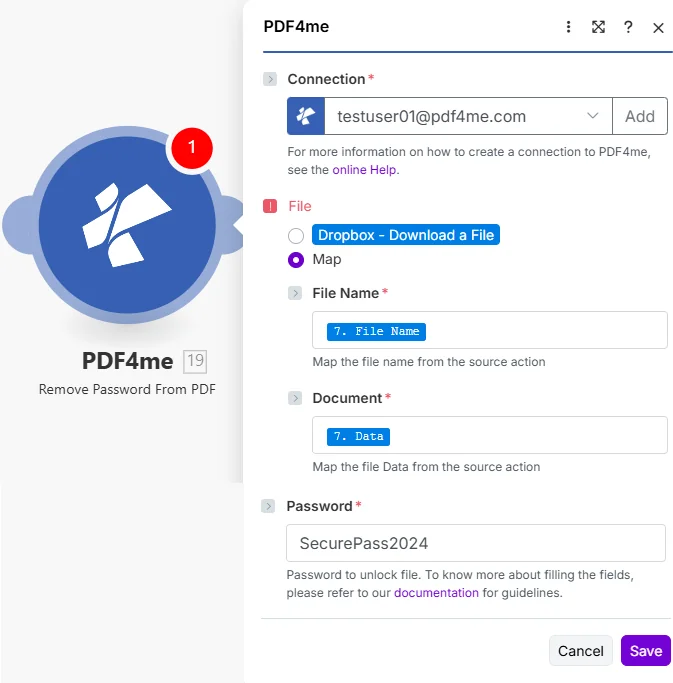
ファイルをマップに設定し、前のダウンロード手順からファイル名とドキュメントをワイヤリングしてから、パスワードを入力します。ドキュメント出力は完全にロック解除されています PDF あらゆる下流モジュールに対応可能。
パスワードを削除するパラメータは何ですか PDF 必要?
必須: 接続、ファイル名、ドキュメント、パスワードはすべて指定する必要があります。モジュールは復号化できません。 PDF 正しいパスワードがないと。
| パラメータ | 必須 | その機能 | 例 |
|---|---|---|---|
| Connection | Required | PDF4me API connection. Click Add and paste your API key if connecting for the first time. Reused automatically across all PDF4me modules in your scenarios. | My PDF4me connection |
| File | Required | How the protected PDF is supplied. Choose Map to wire File Name and Document from a prior module. Choose Dropbox, Download a File to pull directly from Dropbox without a separate download step. | Map |
| File Name | Required | Filename of the password-protected PDF including .pdf extension. Map from the filename output of your source module: e.g. the Name field of a Dropbox or Google Drive download step. | protected_document.pdf |
| Document | Required | Binary content of the password-protected PDF. Must be raw file bytes from a download or upload module: the Data field in Dropbox, Google Drive, or OneDrive. Do not pass a URL string or filename here. | 1. Data |
| Password | Required | The exact password needed to unlock the PDF. Accepts both user passwords (open protection) and owner passwords (permission lock). Retrieve from a Make Data Store or environment variable rather than hardcoding. | SecurePass2024 |
出力フィールド
| 分野 | タイプ | 内容物 |
|---|---|---|
Name | File name | Output filename with password removed. Map into an upload module as the destination filename. |
Document | File (binary data) | Unlocked PDF document as a binary buffer with all password restrictions permanently removed. Map directly into any downstream PDF4me module or cloud storage upload step. |
パスワードを削除するにはどうすればいいですか? PDF で Make?
- 追加 PDF4me → パスワードを削除 PDF あなたの Make シナリオ。
- 選択 繋がり (またはクリック) 追加 あなたと一緒に作成する PDF4me API 鍵)。
- 下 ファイル、 選ぶ 地図 ファイル名とドキュメントのフィールドを表示します。
- 地図 ファイル名 ソースステップの出力ファイル名に(以下を含む)
.pdf拡大)。 - 地図 書類 同じステップのバイナリデータフィールドへ: 通常は次のように命名されます データ Dropbox、Google Drive、またはOneDriveモジュールに保存されます。
- 入力 パスワードセキュリティのため、 Make データストアの検索手順をここにハードコーディングするのではなく、別の方法で処理します。
- クリック 保存 そしてシナリオを実行します。 書類 次のモジュールへの出力: ロック解除されたファイルをアップロード、マージ、変換、またはアーカイブします PDF。
典型的な構成
ワークフローの例Common Make scenario patterns using Remove Password from PDF.
保護されたアーカイブバッチ → ロック解除 → 変換 PDF/A → ストア
- ウォッチフォルダーのトリガーは、新しい保護フォルダーが出現したときに発火します。 PDFs Dropboxのアーカイブ受信トレイに届きます。
- データストア検索ステップでは、ファイル名に基づいてドキュメントの正しいパスワードを取得します。
- パスワードを削除 PDF 取得したパスワードを使用して、ロックされたファイルを復号します。
- A PDF4me 作成する PDF/A モジュールはロック解除された PDF アーカイブへ PDF/A 記録システムで必要とされるフォーマット。
- 準拠 PDF/A 長期アーカイブフォルダにアップロードします SharePointファイル名と処理日を含むインデックスレコードがGoogleスプレッドシートに追加されます。
保護された請求書メール → ロック解除 → データ抽出 → 会計に転記
- Gmail は、既知のベンダー アドレスから新しいメールが届いたときにトリガーされます。 PDF 請求書添付書類。
- データストアの検索では、送信者のメールアドレスに基づいてベンダーの請求書パスワードを取得します。
- パスワードを削除 PDF 暗号化された請求書のロックを解除します。
- A PDF4me テキストを抽出するか、 AI-請求書解析モジュールは、ロック解除された請求書から請求書番号、金額、支払期日を読み取ります。 PDF。
- 1 HTTP このモジュールは、会計システムに請求書レコードを作成します。 PDF 監査参照のために、Dropboxの「処理済み請求書」フォルダにアップロードします。
混合文書パッケージ → 各文書のロックを解除 → 結合 → ページ番号を付与 → 配信
- フォーム送信によってドキュメントパッケージアセンブリが要求されると、Webhookが起動します。
- Googleドライブにはすべてがリストされています PDF プロジェクトフォルダ内のファイル。一部は保護されており、一部は保護されていない。
- イテレータは各ファイルをループします。ルーターはファイルが保護されているかどうかを確認し、保護されている場合はパスワードを削除します。 PDF データストアからプロジェクトパスワードを使用してロックを解除します。
- PDF4me マージ PDFs ロック解除されたすべてのファイルを1つのパッケージ文書にまとめます。
- ページ番号の追加機能は、結合された文書にページ番号を付与します。Gmailは、確認メッセージとともに最終パッケージをリクエスト元に送信します。
実践的なヒント
Wrong password fails the whole step, not partially
There is no partial-unlock or password-guessing behavior. If the Password field does not match exactly, the module errors and the scenario stops at that step, so validate passwords upstream when processing a batch.
Never hardcode the password in the module
Anyone who can view the scenario configuration can see a hardcoded password field in plain text. Retrieve it at runtime from a Data Store, environment variable, or secrets manager instead.
Document must be raw binary, not a URL or filename
The Document field expects actual file bytes, typically the Data field from a Dropbox, Google Drive, or OneDrive download step. Passing a URL string or bare filename here will fail.
This clears both user and owner passwords in one pass
You do not need to run separate operations for open-password removal versus permission-restriction removal. A single correct password clears whichever restriction type protects the file.
The source file in storage is never touched
PDF4me processes a copy and returns the unlocked result in Document. Your original protected file in Dropbox, SharePoint, or Google Drive stays exactly as it was unless you explicitly overwrite it downstream.
Different passwords per file need a lookup step
When a batch of PDFs each has a different password, add a Data Store Search keyed by filename or document ID before this module so each iteration supplies the correct password automatically.
チートシート
| 分野 | 価値 |
|---|---|
| Module | Remove Password from PDF |
| Connection | PDF4me API key |
| File (from previous step) | Map |
| File (direct from Dropbox) | Dropbox, Download a File |
| File Name format | filename.pdf |
| Document | Binary content from a previous module |
| Password source (recommended) | Make Data Store or environment variable |
| Output fields | Name, Document |
よくある質問
関連アクション
パスワードを追加 PDF
逆の操作として、ユーザーまたは所有者のパスワード保護を PDF 処理後、配布またはアーカイブする前に。
変換する PDF ワード
ロック解除後の一般的な次のステップは、制限のない PDF 編集可能な DOCX コンテンツの更新または再フォーマットのためのファイル。
複数のものを結合する PDFs
複数のロック解除された PDFs 単一のドキュメントにまとめ、イテレータ内のパスワード削除機能と組み合わせて、複数の保護レベルを持つドキュメントパッケージを作成します。
他のプラットフォームでの同じタスク
n8n: ロック解除 PDF
同じパスワード削除ノード n8n ワークフローを自己ホスト型またはクラウドに接続します n8n インスタンスの代わりに Make。
Power Automate: ロック解除 PDF
Microsoft のパスワード削除アクションも同様 Power Automate 流れ、適合する SharePoint そして、Teamsのドキュメントワークフロー。
Zapier: ロック解除 PDF
同じロック解除手順 Zapierそれを、すでにZapに登録されているGoogleドライブ、Dropbox、またはGmailのトリガーに接続します。
PDF4me API: ロック解除 PDF
同じパスワード削除操作を直接呼び出すには REST API ノーコードプラットフォーム以外のカスタム統合の場合。