AI - Make のドキュメントパーサー
PDF4me AI - ドキュメントパーサー 保存済みのスクリプトを実行することで、あらゆるドキュメントタイプから構造化フィールドを抽出します。 アナライザーテンプレート ファイルに対して。組み込みを選択します デフォルトの請求書抽出 テンプレートを使用するか、カスタムテンプレートを作成します。 PDF4me 領収書、契約書、発注書、検査結果、IDカード、または任意のカスタムフォーム用のダッシュボード。このモジュールは、抽出されたデータを単一のダッシュボードに返します。 ドキュメントテキスト Parseに入力する準備ができた出力 JSON、 Airtable、 Google Sheetsまたは下流の Make モジュール。テンプレートに基づいた1つのアクションで、扱うすべてのドキュメントタイプに対応できます。
認証 API リクエスト
毎 PDF4me モジュール Make 有効な 繋がり. 作成または選択して、 PDF4me API シナリオがAI抽出要求を安全に認証できるようにするための鍵。
まずアナライザーをセットアップしてください
- アナライザーリスト(ステップ 1–2):
https://dev.pdf4me.com/dashboard/#/ai-document-parser/ - 分析装置の詳細(ステップ 3–5):
https://dev.pdf4me.com/ai-document-parser/?id=<analyzer-guid>
見逃してはならない重要な事実
ドキュメントテキスト 出力として JSON 文字列を追加します。 JSON → 解析 JSON 直後のモジュール、ポイント JSON文字列 で ドキュメントテキストそして、各フィールドは下流で個別にマッピング可能なトークンとなる。ベンダー名)を ファイル名 下流のフィールド Dropbox / Google Drive / OneDrive アップロードモジュール。出力ファイルは、抽出された値を使用して自動的に名前が変更されます。これは、最もクリーンなAP自動化パターンです。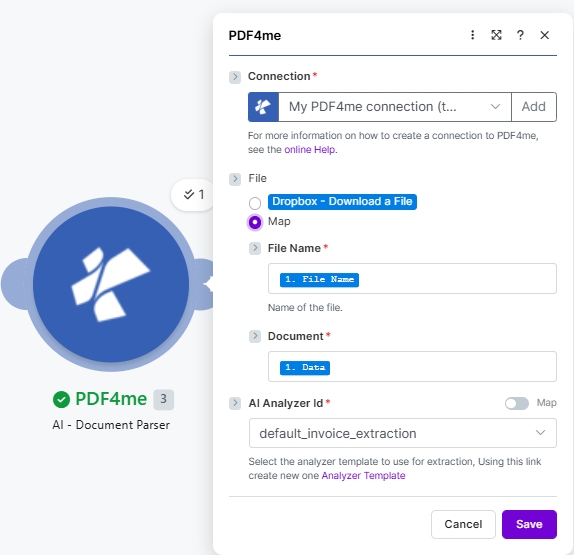
セット ファイル に 地図ワイヤー ファイル名 そして 書類 前のモジュールから、次に AIアナライザーID (ここでは組み込み デフォルトの請求書抽出)。 クリック アナライザーテンプレート カスタムテンプレートを作成するためのヒント。
パラメータ
- アナライザーリスト(ステップ 1–2):
https://dev.pdf4me.com/dashboard/#/ai-document-parser/ - 分析装置の詳細(ステップ 3–5):
https://dev.pdf4me.com/ai-document-parser/?id=<analyzer-guid>
必須: 接続、ドキュメント、およびAIアナライザーIDを設定します。 ファイル に 地図 まず、これによりモジュールパネルにファイル名とドキュメントのフィールドが表示されます。
| パラメータ | 必須 | その機能 | 例 |
|---|---|---|---|
| Connection | Required | PDF4me connection. Click Add and paste your API key the first time, then reuse the connection across every PDF4me module. | My PDF4me connection |
| File | Required | Radio button picking how the source document arrives at the module. Pick a quick storage option (Dropbox - Download a File) or choose Map to bind File Name and Document from any prior module. | Map |
| File Name | Optional | Sub-field of File, shown when Map is selected. Filename of the source document including its extension (.pdf, .png, .jpg, .jpeg). Map from the prior module File Name output. Defaults to invoice.pdf. | 1. File Name |
| Document | Required | Sub-field of File, shown when Map is selected. Binary content of the document to be parsed. Map from the prior module Data / binary output. | 1. Data |
| AI Analyzer Id | Required | Dropdown picking the Analyzer the AI runs against the document. Create Analyzers on the PDF4me dashboard Analyzer list (+ Add), then edit the schema on the Analyzer detail page, both linked above the table. Use default_invoice_extraction for invoices, or a custom Parse or Classify Analyzer. | default_invoice_extraction |
出力
PDF4me リクエストをバックグラウンドジョブとして処理し、 Make 次のモジュールを実行する前に、結果を待ちます。
| 分野 | タイプ | 内容物 |
|---|---|---|
Doc Text | Text | The data extracted from the document using the selected analyzer template, as structured data (JSON). Field names match what the chosen Analyzer Template returns (vendorName, invoiceNumber, totalAmount, lineItems, etc for default_invoice_extraction). Always wire into a JSON Parse JSON module to expose every field as an individually mappable Make token. |
サンプルファイル
実際のベンダー請求書を使用して、アクションを最初から最後まで試してください。これを Dropbox ソースフォルダを開き、シナリオを実行します。
クイックセットアップ
- 追加 PDF4me に AI - ドキュメントパーサー あなたの Make シナリオ。
- 選択 繋がり (またはクリック) 追加 あなたと一緒に作成する API 鍵)。
- セット ファイル に 地図地図 ファイル名 (
1. File Name) そして 書類 (1. Data前のモジュールから。 - 選択してください AIアナライザーID:
default_invoice_extraction請求書用、またはアナライザー アナライザー一覧 そして アナライザーの詳細 ページ (解析 または 分類する セットアップガイド)。 - 保存して実行します。パイプで ドキュメントテキスト 出力先 JSON → 解析 JSON すべてのフィールドを下流でマッピング可能なトークンとして公開するモジュール。
ワークフローの例
一般的なシナリオパターンThree common ways to chain AI - Document Parser into a Make flow.
- Dropbox ファイルをダウンロードする 新しい仕入先請求書を取得します。
- AI - ドキュメントパーサーは
デフォルトの請求書抽出テンプレート。 - JSON 解析 JSON 暴露する
ベンダー名、請求書番号、合計金額項目、明細など - Airtable レコードを作成する 解析されたフィールドをAPレジスタに書き込みます。
- Dropbox ファイルをアップロードする ファイル名を設定した請求書をアーカイブします
{{vendorName}}.pdf整理整頓のために。
- カスタムを作成する 契約条項 アナライザーテンプレート PDF4me ダッシュボード(有効日、解約条項、準拠法、当事者、契約金額)。
- 契約が成立するとトリガーが発火する PDF 着陸する SharePoint。
- AI - ドキュメントパーサーはカスタムテンプレートを実行します。
- 解析 JSON + Google Sheets 「行を追加」機能は、契約概要を法務チームのトラッカーに書き込みます。
- Outlook 新しいメールでトリガーが発火します PDF 添付ファイル。
- AI - ドキュメントパーサーが実行されます
デフォルトの請求書抽出。 - 解析 JSON 合計金額を明らかにします。
- Make フィルター 5,000ドルを超える請求書をルーティング Slack #承認; 残りは直接 Airtable。