デジタルサイネージ PDF で Make
デジタルサイネージ PDF は Make X.509証明書ベースのデジタル署名を埋め込むモジュール PDF シナリオから直接実行できます。ドキュメント、.pfx または .p12 証明書ファイル、およびパスワードを指定すると、モジュールが署名を行い、結果を返します。コードを書くことなく、署名モードの表示/非表示、ページ配置、署名者名、場所、および理由メタデータを設定できます。
このモジュールの機能
PDF4meデジタルサイネージ PDF X.509証明書ベースのデジタル署名を埋め込む PDF 直接 Make シナリオ。 PDF.pfx または .p12 証明書ファイルとパスワードを入力すると、モジュールは文書に署名し、結果を返します。署名モードの表示/非表示、ページ配置、署名者名、場所、理由メタデータを、コードを一行も書かずに設定できます。
認証 API リクエスト
毎 PDF4me モジュール Make 有効な 繋がり. 作成または選択して、 PDF4me API シナリオがデジタル署名サービスを安全に呼び出せるようにするためのキー。
見逃してはならない重要な事実
.pfx ファイルを安全な場所に保存します (Make データストア、アクセス制限付きGoogleドライブ)に保存し、証明書のパスワードを暗号化して保管します。 Make 変数なので、モジュールフィールドにプレーンテキストとして入力しないでください。
可視モードでは、読者が確認できるグラフィカルな署名フィールドが追加されます。不可視モードでは、暗号化証明はファイルメタデータのみに埋め込まれます。どちらのモードも検証可能ですが、選択によって受信者への文書の表示方法が変わります。
デジタル署名は、署名時の文書の正確なバイト状態に紐付きます。メタデータを含め、ファイルが変更された場合、 PDF 閲覧者は署名を無効と判断する可能性があります。署名はワークフローの最後に行ってください。
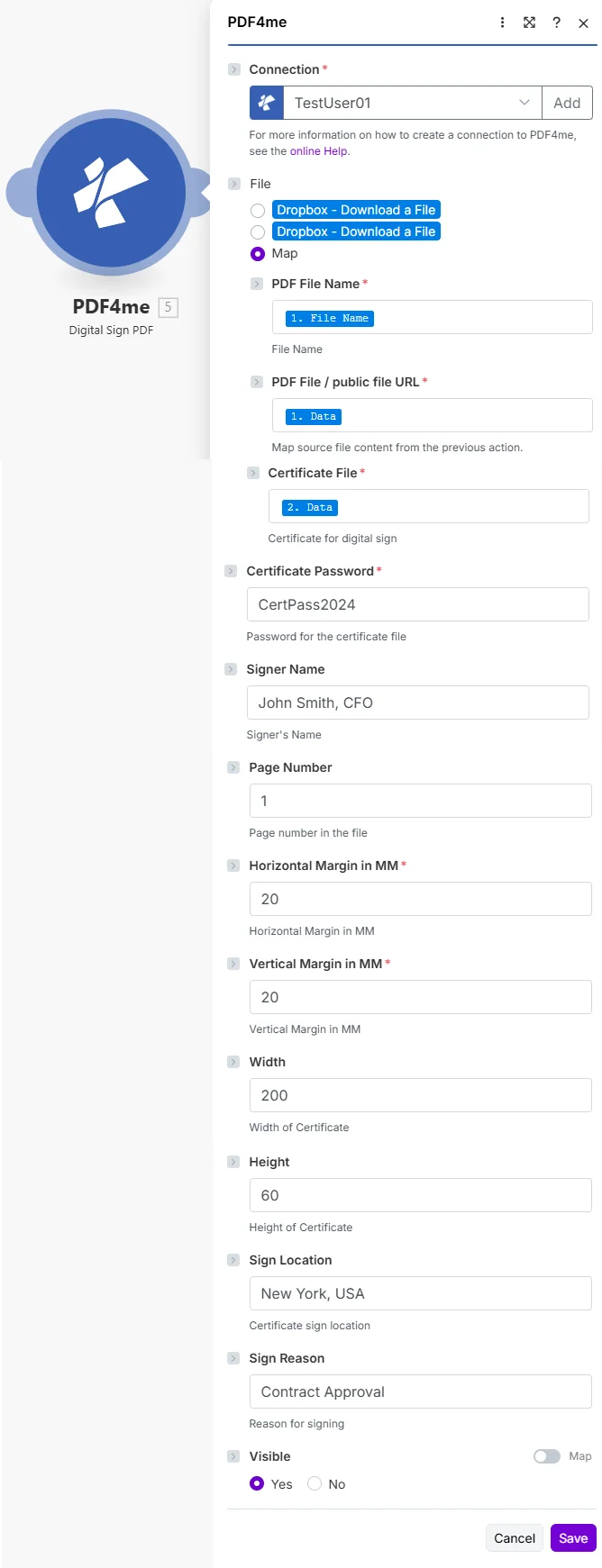
前の手順でPDFと証明書をマッピングし、証明書のパスワードを安全に入力してから、設定します。 見えるページ上の配置、および署名者のメタデータ。
パラメータ
必須: 繋がり、 PDFファイル名、 PDFファイル/公開ファイルURL、 証明書ファイル、 証明書のパスワード、 水平余白(mm)、 垂直マージン(MM)、 そして 見えるその他はすべて任意です。
| パラメータ | 必須 | その機能 | 例 |
|---|---|---|---|
| Connection | Required | PDF4me API connection used by the scenario to authenticate signing requests. | Your PDF4me connection |
| File | Required | Determines how the PDF is supplied. Choose Map to wire filename and binary content from a prior module. | Map |
| PDF File Name | Required | Filename with .pdf extension from the source module. Used to name the signed output file. | 1. File Name |
| PDF File / public file URL | Required | Binary PDF content from the download step that produced the document to sign. | 1. Data |
| Certificate File | Required | Binary content of the .pfx or .p12 certificate file containing the private key and X.509 certificate. | 2. Data |
| Certificate Password | Required | Password that unlocks the private key in the certificate file. Store in an encrypted Make variable. Defaults to ''. | CertPass2024 |
| Signer Name | Optional | Human-readable name of the signer, embedded in the signature properties visible in PDF viewers. Defaults to ''. | John Smith, CFO |
| Page Number | Optional | Page on which to render the visible signature field. Page numbering starts at 1. Defaults to 1. | 1 |
| Horizontal Margin in MM | Required | Distance from the left edge of the page in millimeters. Controls the horizontal position of the signature field. Accepts a whole number of 0 or more. Defaults to 0. | 20 |
| Vertical Margin in MM | Required | Distance from the bottom edge of the page in millimeters. Controls the vertical position of the signature field. Accepts a whole number of 0 or more. Defaults to 0. | 20 |
| Width | Optional | Width of the signature box. Increase for wider signature appearances. Defaults to 0. | 200 |
| Height | Optional | Height of the signature box. Adjust to fit the signature image or text. Defaults to 0. | 60 |
| Sign Location | Optional | Geographic location where the document is being signed. Embedded as metadata in signature properties. Defaults to ''. | New York, USA |
| Sign Reason | Optional | Purpose of the signature (for example, Approval or Authorization). Embedded in signature metadata. Defaults to ''. | Contract Approval |
| Visible | Required | Yes renders a visible signature box at the configured position. No embeds the signature in metadata only with no visual element. Defaults to Yes. | Yes |
デジタルサイネージの設定方法 PDF で Make
- 追加 PDF4me → デジタル署名(PDF) あなたのシナリオに当てはめて。
- 選択 繋がり (またはクリック) 追加 あなたと一緒に作成する API 鍵)。
- 下 ファイル、 選ぶ 地図。
- 地図 PDFファイル名 そして PDFファイル 文書を作成したステップから。
- 地図 証明書ファイル .pfx または .p12 ファイルをダウンロードした手順から (Google ドライブまたは安全な場所に保存してください)。
- 入力 証明書のパスワード: 暗号化された Make 値をプレーンテキストのシナリオログから除外するための変数。
- セット 見える に はい または いいえはいの場合は、記入してください ページ番号、 水平余白、 垂直マージン、 幅、 そして 身長 署名欄の位置を調整する。
- オプションで追加 署名者名、 標識の位置、 そして 署名理由 メタデータ用。 保存 そしてクリック 1回実行 署名を確認する PDF 出力バンドルに表示されます。
出力
このモジュールは、任意の後続ステップにマッピングできる3つのフィールドを返します。 PDF4me リクエストをバックグラウンドジョブとして処理し、 Make 次のモジュールを実行する前に、結果を待ちます。
| 分野 | タイプ | 内容物 |
|---|---|---|
Name | File name | File name of the digitally signed PDF, derived from the PDF File Name you supplied. |
Document | File (binary data) | Content (binary data) of the signed PDF. Map this into an upload, email attachment, or archive module. |
Document Url | Text | Link to the resulting PDF. Returned when PDF4me processes the request as a background job (for large files); otherwise empty. |
可視デジタル署名と不可視デジタル署名の違いは何ですか?
可視デジタル署名(可視=はい)は、グラフィックフィールドを PDF 受信者が文書を開いたときに表示できるページ。非表示の署名(Visible = No)は、暗号化証明をファイルメタデータのみに埋め込み、ページ上に視覚的な要素は表示しません。どちらのモードも、どの環境でも同様に検証可能です。 PDF 視聴者の支援 PDFデジタル署名 そして PKCS#12規格選択の基準は表現方法にある。請求書には目に見えない署名が一般的だが、明確な署名記録が必要な契約書には目に見える署名が適している。
ワークフローの例
ワークフローの例Common Make scenario patterns that use Digital Sign PDF for contract execution, compliance, and credential issuance.
- 承認ステータスの変更 CRM または、Airtableがシナリオをトリガーします。
- 最終契約 PDF Googleドライブからダウンロードされます。
- 会社の.pfx証明書は、制限付きドライブフォルダから取得されます。
- デジタル署名(PDF) 最終ページに署名者の氏名、所在地、および理由を記載した署名を記載する。
- 署名 PDF 締結済み契約書アーカイブにアップロードされ、関係者全員にメールで送信されます。
- 請求モジュールによって新しい請求書が生成されます。
- デジタル署名(PDF) 「Visible」を「いいえ」に設定して実行すると、ページ上にマークは表示されません。
- 署名には、企業識別情報とタイムスタンプがファイルメタデータに埋め込まれます。
- 受取人は、どの方法でも真正性を確認できます PDF 文書が改変されたように見えないように表示するビューア。
- 署名済みの請求書は顧客にメールで送信され、会計データベースに記録されます。
- コース完了イベントが発生すると、LMS連携におけるシナリオがトリガーされます。
- A PDF 証明書には、学生の名前とコース名が記載されます。
- 機関の.pfx証明書は、安全なデータストアから読み込まれます。
- デジタル署名(PDF) 右下部分に、組織の明確なシンボルマークを配置する。
- 署名済みの証明書は卒業生にメールで送信され、記録保管庫に保管されます。