メインコンテンツへスキップ

PDF ハイパーリンクを削除 Make

このモジュールの機能

PDF4me、 PDF - ハイパーリンクを削除 特定のページからクリック可能なハイパーリンク注釈をすべて削除します PDF 表示されているテキストに触れることなく、個々のページ、範囲、またはドキュメント全体を一度に指定できます。UPDF や Adobe Acrobat のようなツールでは手動でファイルごとに編集する必要がありますが、このモジュールはそれを自動的に行います。 Make 通過するすべての文書に対するシナリオ。

関連ブログ記事
この機能に関するブログ記事はまだありません。近日公開予定です。
その間、PDF4me ブログを閲覧して、あらゆるプラットフォームのチュートリアルやワークフローをご覧ください。
ブログをご覧ください →

APIリクエストの認証​

毎 PDF4me モジュール Make 有効な 繋がり. 作成または選択して、 PDF4me API シナリオがハイパーリンク削除サービスを安全に呼び出せるようにするためのキー。

見逃してはならない重要な事実​

テキストはそのまま残り、リンク注釈のみが削除されます。

クリック可能なリンクだったアンカーテキストは、元の位置にそのまま残り、フォントも色も変わりません。読者はそれを読むことはできますが、クリックしても何も起こりません。

対象ページ上のすべてのリンクが一度に削除されます

指定したページのすべてのハイパーリンクは、1回の処理で削除されます。 URL-レベルフィルター。選択的に削除する必要がある場合は、まず「ハイパーリンクの抽出」を実行して、対象とするページを計画してください。

PDF ブックマークと目次リンクは影響を受けません。

内部 PDF ブックマークナビゲーションと目次アンカーは完全に変更されていません。外部のみ URL ハイパーリンクとページ内のhref属性を持つクリック可能な注釈は削除されます。
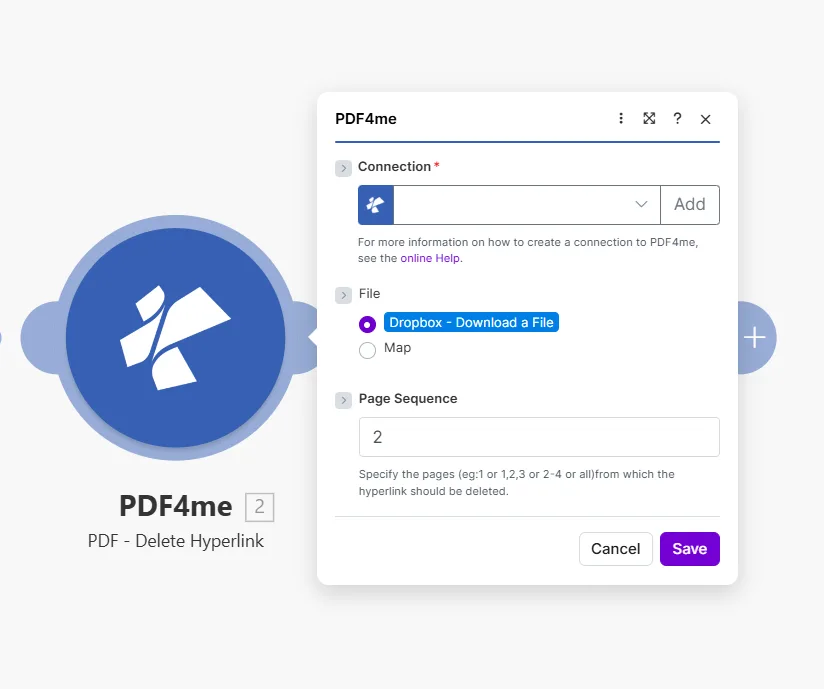
PDF4me PDF ハイパーリンク削除モジュールで、接続フィールドが空で追加ボタンが表示され、ファイルがDropboxに設定され、下にマップオプション付きのファイルをダウンロードし、ページシーケンスフィールドが2に設定され、ヒントとしてハイパーリンクを削除するページ(例:1、1,2,3、2-4、またはすべて)を指定するようにする。

1ページ、カンマ区切りのリスト、範囲、または all 文書全体からすべてのリンクを削除する。

パラメータ​

必須: Connection、 File、 File name、 そして Document。 Page Sequence 任意です。

パラメータ必須その機能例
ConnectionRequiredPDF4me API connection used to authenticate hyperlink deletion requests. Click Add to create one with your API key.Your PDF4me connection
FileRequiredSource PDF. Choose Dropbox - Download a File for a direct Dropbox trigger, or Map to supply the filename and binary content from a prior module.Dropbox - Download a File
File nameRequiredName of the PDF to process, including its extension. Map it from the file name returned by a previous module, such as a cloud storage download.1. File Name
DocumentRequiredContent (binary data) of the PDF to process. Map it from the file data returned by a previous module, such as a cloud storage download.1. Data
Page SequenceOptionalWhich pages to strip of hyperlinks. Accepts a single page, comma-separated list, a range, or all to clean the entire document at once. Page numbering starts at 1. Defaults to 2.2 or 1,2,3 or 2-4 or all

出力​

PDF4me リクエストをバックグラウンドジョブとして処理し、 Make 次のモジュールを実行する前に、結果を待ちます。

分野タイプ内容物
File NameFile nameFile name of the resulting PDF. Map it together with Document into the next module, for example to upload or email the file.
DocumentFile (binary data)Content (binary data) of the resulting PDF with the hyperlinks removed. Map it together with the file name into the next module, for example to upload or email the file.

クイックセットアップ​

  1. 追加 PDF4me → PDF - ハイパーリンクを削除 あなたの Make シナリオ。
  2. 選択 Connection (またはクリック) 追加 あなたと一緒に作成する API 鍵)。
  3. セット File に Dropbox - ファイルをダウンロードする または 地図 前のモジュールから出力される PDF バイナリ。
  4. 掃除するページを入力してください Page Sequence: 使用 all すべてのページからリンクを一度に削除する。
  5. 保存 そしてクリック 1回実行出力には以下が含まれます File Name そして Document: その PDF 指定されたページ上のすべてのハイパーリンクを削除した状態で。

ワークフローの例​

ワークフローの例Common Make scenario patterns that use PDF - Delete Hyperlink to sanitize, prepare, and archive documents.
クライアントに送信する前に文書をサニタイズする
  1. 完成した提案書 PDF Googleドライブの「クライアント向け準備完了」フォルダに配置されます。
  2. PDF - ハイパーリンクを削除 実行 Page Sequence 設定 all。
  3. 返されたリンクフリー PDF Gmailメッセージに添付され、クライアントに送信されます。
  4. ソースフォルダ内の元の作業コピーは、すべての内部リンクをそのまま保持しています。
印刷可能なバージョンを自動作成する
  1. Typeformからの送信によって契約が承認されたとみなされ、シナリオが開始されます。
  2. PDF - ハイパーリンクを削除 すべてのページからすべてのリンクを削除します。
  3. リンクなし PDF Dropboxの「印刷キュー」フォルダにアップロードされます。
  4. Gmailは、新しい印刷ジョブの準備ができたことを印刷チームに通知します。
ライブリンクのない月次アーカイブスナップショット
  1. スケジュールされたシナリオは、毎月1日に実行されます。
  2. Googleドライブは現在アクティブなドキュメントをダウンロードします。
  3. PDF - ハイパーリンクを削除 すべてのページからすべてのリンクを削除します。
  4. 静的スナップショットは「アーカイブ / [月]」フォルダにアップロードされ、リンク切れや古いリダイレクトは発生しません。

よくある質問​

Does removing a hyperlink also delete the visible text?+
No. The module removes only the URI annotation: the invisible clickable layer, while leaving all visible text completely intact. The anchor text stays in its original position with the same font, size, colour, and formatting. Readers can still read the text; it just no longer responds to clicks or open a URL. This makes the module safe for sanitizing documents before print or client distribution, since the content itself is not altered. If you also need to remove or replace the visible text, add a Find and Replace module before or after Delete Hyperlink.
Can I target just one specific link and keep others on the same page?+
The module removes all hyperlinks from the pages you specify: there is no URL-level or text-level filter within a single Page Sequence value. If a page contains five links and you want to remove only one, this is straightforward only when the link you want to keep is on a different page. For more granular control, run Extract Hyperlinks first to get a full list of links and which pages they appear on, then decide which pages to pass to Delete Hyperlink. If links you want to keep share a page with those you want to remove, use Create Hyperlinks afterward to re-add the ones you want to preserve.
What page formats does Page Sequence accept?+
Page Sequence accepts four formats: a single page number like 1, a comma-separated list like 1,2,5, a hyphenated range like 3-7, or the word all to process every page in the document at once. For a 40-page report where you want to strip links from the cover and the appendix only, enter 1,35-40. Using all is the safest default when you want a fully link-free PDF in one step, since it covers every page regardless of total page count. The module returns an error if you specify a page that does not exist in the document, so use Get Document Information first when the total page count is unknown.
Does it affect internal bookmark links or the table of contents?+
No. The module only removes URI annotation objects: the clickable external URL links embedded in the PDF. Internal PDF bookmarks in the outline navigation panel, named destination anchors, and table-of-contents click-through links that jump to another page within the same document are stored as different annotation or action types and are completely unaffected. Readers can still navigate long documents using the table of contents after external links are sanitized. Cross-reference links pointing to headings within the document also remain intact.
Is my original source file changed in any way?+
No. PDF4me processes a server-side copy and streams the result back to Make as a new binary document in the Document output field. Your source file: whether in Dropbox, Google Drive, OneDrive, SharePoint, or passed as an email attachment binary, is never written to or modified. The original remains exactly as it was before the scenario ran. If you want to replace the source file with the sanitized version, add an upload module after Delete Hyperlink and explicitly overwrite the original path, that is a deliberate action your scenario takes, not something the PDF4me module does on its own.

関連モジュール​

ヘルプが必要な場合​