ハイパーリンクを作成する PDF と Make
PDF4me PDF - ハイパーリンクの作成は Make 特定のテキスト文字列を変換するモジュール PDF 座標や PDF エディター機能を使えば、商品名をショップページに、引用を情報源に、ポリシーのフレーズをFAQページにリンクさせることができます。さらに、モジュールを連結することで、1つのドキュメントに複数の異なるリンクを追加することも可能です。
このモジュールの機能
PDF4me、 PDF - ハイパーリンクを作成する テキスト文字列を PDF クリック可能なリンクの中に Make シナリオ。検索するテキスト、指し示す場所、検索するページを指定するだけで、モジュールが残りの処理を行います。座標も、手動注釈も、 PDF デスクトップ上でエディタを開く。
APIリクエストの認証
毎 PDF4me モジュール Make 有効な 繋がり. 作成または選択して、 PDF4me API シナリオがハイパーリンクサービスを安全に呼び出せるようにするためのキー。
見逃してはならない重要な事実
ほとんど PDF リンク APIs 正確なx/y座標を指定する必要はありません。このモジュールはテキストを自動的に検索し、クリック可能にしたい単語またはフレーズを入力するだけで、位置決めを自動的に処理します。
離れる New Text 空欄のままで、元の検索テキストがリンクラベルとして表示されます。入力して読者に表示される内容を置き換えてください。生のテキストを変換するのに便利です。 URL または、製品コードを読みやすいアンカーテキストに変換する。
1 つのモジュールは 1 つのテキストをURL ペア。同じドキュメントに複数の異なるリンクを追加するには、複数の「ハイパーリンクの作成」モジュールを順番に接続します。各モジュールは前のモジュールの出力を受け取ります。
このモジュールは標準を書き込む PDF リンク注釈は、 PDF 32000-1:2008 仕様 (セクション 12.5.6.5、リンク注釈)に記載されている注釈タイプと同じ PDF 協会の仕様インデックスそのため、生成されたリンクはAcrobat、ブラウザ、モバイルで正しく開きます。 PDF カスタムプラグインを一切使用しないビューア。
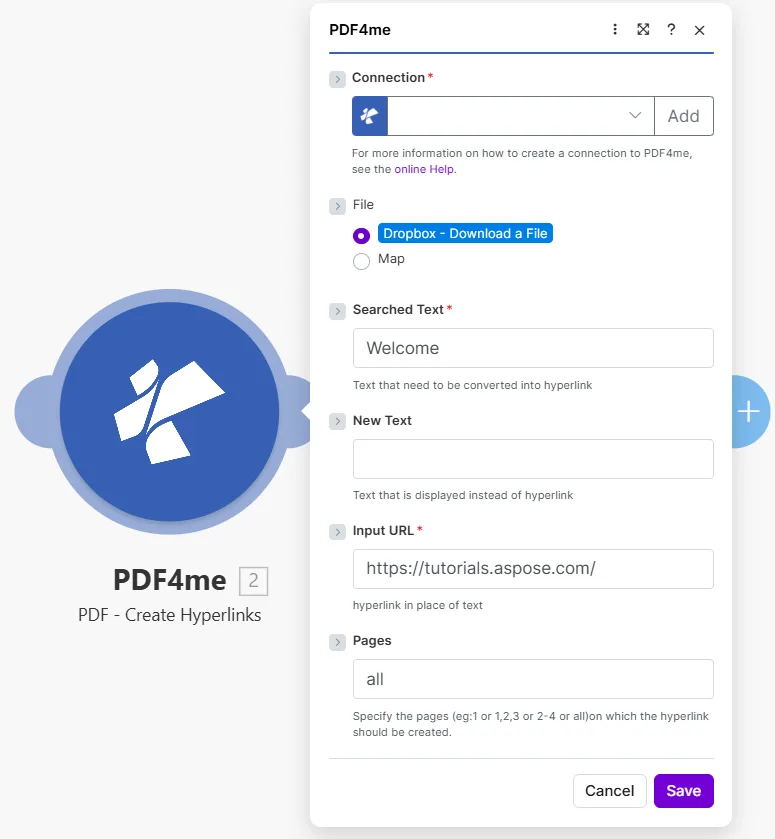
検索する正確なテキストを入力してください Searched Text目的地は Input URL、どのページを検索するか Pages。
パラメータ
必須: Connection、 File name、 Document、 Searched Text、 そして Input URL。 New Text そして Pages 任意です。
| パラメータ | 必須 | その機能 | 例 |
|---|---|---|---|
| Connection | Required | PDF4me API connection used to authenticate hyperlink creation requests. | Your PDF4me connection |
| File | Required | Source PDF. Choose Dropbox - Download a File for a direct Dropbox trigger, or Map to wire filename and binary data from a prior module. | Dropbox - Download a File |
| File name | Required | Name of the PDF to process, including its extension. Map it from the file name returned by a previous module, such as a cloud storage download. | 1. File Name |
| Document | Required | Content (binary data) of the PDF to process. Map it from the file data returned by a previous module, such as a cloud storage download. | 1. Data |
| Searched Text | Required | The exact text string in the PDF that will become a clickable hyperlink. The module searches the specified pages for this text and wraps every occurrence in a link annotation. | Welcome |
| New Text | Optional | Optional label that replaces what the reader sees over the link. Leave empty to keep the original searched text as the visible link label. | Visit our site |
| Input URL | Required | The destination URL the hyperlink points to. Readers are taken to this address when they click the linked text. | https://tutorials.aspose.com/ |
| Pages | Optional | Pages to search for the text. Accepts a single number, a comma-separated list (1,3,5), a range (2-4), or the word all. Page numbering starts at 1. Defaults to all. | all |
ハイパーリンクを追加するにはどうすればよいですか PDF で Make?
- 追加 PDF4me → PDF - ハイパーリンクを作成する あなたのシナリオに当てはめて。
- 選択 Connection (またはクリック) 追加 あなたと一緒に作成する API 鍵)。
- セット File に Dropbox - ファイルをダウンロードする または 地図 前のモジュールから。
- で Searched Textクリック可能にしたいテキストを正確に入力します(例:
Welcomeまたは商品名)。 - 任意で入力 New Text 表示されるラベルを検索テキストとは異なるテキストにしたい場合。
- 宛先住所を貼り付けてください Input URL。
- セット Pages: タイプ
allすべてのページに対して、または次のような特定のページを対象とする1,3または2-4。 - 保存 そしてクリック 1回実行出力には以下が含まれます File Name そして Document: その PDF ハイパーリンクが適用されています。
出力
PDF4me リクエストをバックグラウンドジョブとして処理し、 Make 次のモジュールを実行する前に、結果を待ちます。
| 分野 | タイプ | 内容物 |
|---|---|---|
File Name | File name | File name of the output PDF with hyperlinks applied. |
Document | File (binary data) | Content (binary data) of the PDF with link annotations added. Map this into an upload, email, or further processing module. |
ハイパーリンクの作成はいつ使用すべきですか?
典型的な構成Common Make scenario patterns that use PDF - Create Hyperlinks to enrich documents automatically.
- スケジュールされたシナリオは、データベースから最新の製品リストを取得し、カタログを生成します。 PDF。
- イテレータは、リストから各製品名を順番に処理します。
- ハイパーリンクを作成する 製品ごとに1回実行され、 Searched Text = 製品名、 Input URL = 商品ページ URL。
- ループ処理後、カタログ内のすべての商品名は、それぞれのショップページへの有効なリンクになります。
- 完成したインタラクティブカタログはGoogleドライブにアップロードされ、営業チームにメールで送信されます。
- 月次報告書 PDF Googleドキュメントのテンプレートから生成されます。
- データストアには引用ラベルとその対応関係のリストが格納されています。 URLs。
- ハイパーリンクを作成する 引用ごとに一度実行され、各ラベルをクリック可能なソースリンクに変換します。
- 読者は、 PDF ブラウザで元のソースを開く。
- 強化されたレポートは以下に保存されます SharePoint そして関係者に配布された。
- 人事部が新しいポリシーをアップロードしました PDF 監視対象のDropboxフォルダへ。
- ハイパーリンクを作成する すべてのページで「詳細情報」というフレーズを検索します。
- あらゆる出来事が人事部とのつながりとなる FAQ 社内イントラネット上のページ。
- 2つ目の連鎖モジュールは、「リクエストを送信する」というフレーズをチケットシステムへのリンクに変換します。
- 完成した PDF 人事文書ライブラリに保存され、全従業員にメールで送信されます。
よくある質問
実践的なヒント
チートシート
| 分野 | 価値 |
|---|---|
| Searched Text | Exact text to make clickable |
| New Text | Optional replacement label |
| Input URL | Destination address |
| Pages | all, a number, 1,3, or 2-4 |
| Output | File Name + Document |