画像 - 回転 EXIF データ - 自動方向設定 Make
回転 EXIF データ は Make モジュール PDF4me それは EXIF 方向タグ JPG 画像を自動的に正しい垂直位置に回転させます。ギャラリーや印刷ジョブに送られる前に、横向きのスマートフォン写真を修正するために使用します。 PDF手動で角度を回転させる必要はありません。
このモジュールの機能
PDF4me 回転 EXIF データ 自動画像回転機能を提供します EXIF 方向メタデータ内 Make シナリオ。 EXIF 画像から方向タグを取得し(スマートフォンやカメラで撮影した写真によく見られる)、正しい回転を適用することで、適切な写真表示、印刷準備、ウェブ公開、および自動方向補正ワークフローを実現します。
関連ブログ記事
この機能に関するブログ記事はまだありません。近日公開予定です。
その間、PDF4me ブログを閲覧して、あらゆるプラットフォームのチュートリアルやワークフローをご覧ください。
ブログをご覧ください →
認証方法 Make シナリオ?
アクセスするには PDF4me ウェブ API を通して Makeすべてのリクエストには有効な 繋がり あなたの PDF4me API キー。これにより、お客様の間で安全で認証された通信が可能になります。 Make シナリオと PDF4me画像回転サービス。
見逃してはならない重要な事実
回転角度は不要です
モジュールは EXIF 方向タグ 直接調整されるため、手動回転モジュールのように固定の角度値を設定する必要がなく、画像ごとに自動的に調整されます。
入力は2つだけで、フォーマットセレクタはありません。
このモジュールはファイル名とドキュメントのみを受け取ります。画像タイプのドロップダウンはありません。 JPG 保存されている向きを使用して画像 EXIF データ。
EXIFデータのない画像は変更されずにそのまま通過します。
スクリーンショット、スキャンされた文書、またはメタデータが既に削除された画像には、読み取るべき方向タグがないため、モジュールはそれらの方向をそのままにしておきます。
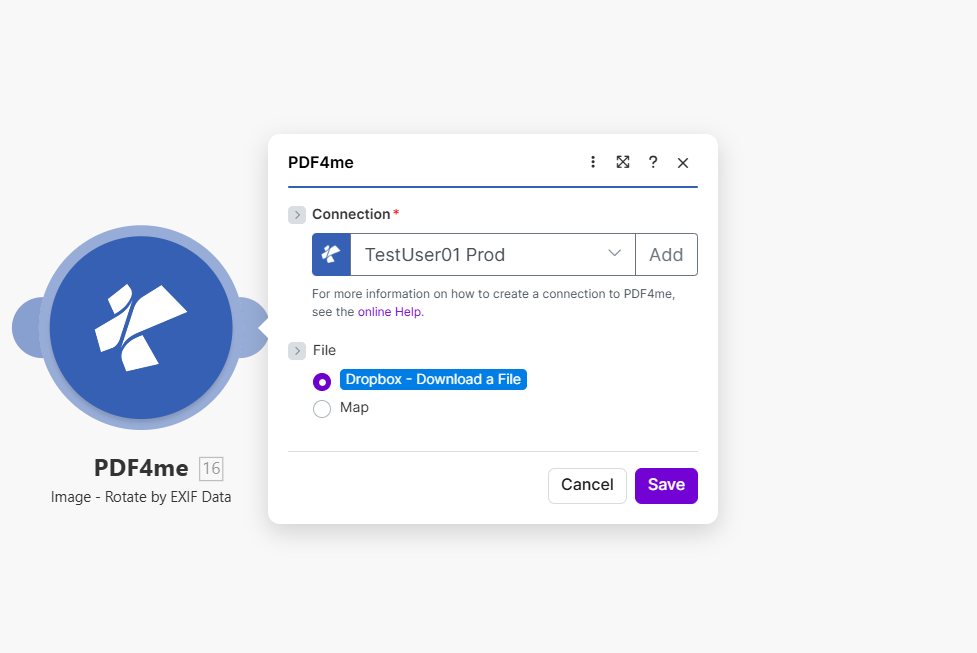
ソースイメージをマッピングし、ファイル名を設定します。モジュールは、 EXIF 方向タグが付いており、画像を自動的に回転させます。
回転はどのようなパラメータで行われますか? EXIF データが必要ですか?
必須: 接続情報、ファイル名、およびドキュメントのすべてを指定する必要があります。
| パラメータ | 必須 | その機能 | 例 |
|---|---|---|---|
| Connection | Required | PDF4me API connection. Click Add and paste your API key the first time. Reused automatically across all PDF4me modules in your scenarios. | My PDF4me connection |
| File | Required | How the source image reaches the module. The radio lists your connected storage actions (for example Dropbox - Download a File) and Map. Choose Map to wire the fields below from earlier modules: File Name and Document only appear once Map is selected. | Map |
| File Name | Required | Name of the image to process, including its extension. Map it from the file name returned by a previous module, such as a cloud storage download. | photo.jpg |
| Document | Required | Content (binary data) of the image to process. Map it from the file data returned by Dropbox, Google Drive, HTTP, or any previous module. | 1. Data |
出力
PDF4me リクエストをバックグラウンドジョブとして処理し、 Make 次のモジュールを実行する前に、結果を待ちます。
| 分野 | タイプ | 内容物 |
|---|---|---|
Name | File name | File name of the resulting image. Map it together with Document into the next module, for example to upload or email the file. |
Document | File (binary data) | Content (binary data) of the resulting image, with EXIF-based rotation already applied. Map it together with the file name into the next module, for example to upload or email the file. |
典型的な構成
ワークフローの例Common Make scenario patterns using Rotate by EXIF Data.
Dropboxに新規アップロード → 自動修正された写真ライブラリ
- Dropboxのファイル監視トリガーは、アップロードフォルダに新しい写真がアップロードされたときに作動します。
- アップロードがバッチ処理の場合、イテレータは新しい画像ごとに処理を行います。
- EXIFデータによる回転機能は、画像自体のEXIFタグを使用して向きを補正します。
- Dropboxへのアップロード手順では、修正された画像がメインの写真ライブラリフォルダに保存されます。
- カタログ索引の更新手順では、修正されたファイルを使用してライブラリ一覧を更新します。
商品写真のアップロード → 向きの修正 → CDNへの公開
- ストアフロントに新しい商品写真がアップロードされると、トリガーが作動します。
- EXIFデータによる回転機能は、後続の処理でサイズ変更や圧縮が行われる前に、向きを補正します。
- オプションの「画像圧縮」ステップを使用すると、ファイルサイズが縮小され、ページの読み込み速度が向上します。
- CDNへのアップロード手順では、修正され最適化された画像が公開されます。
- 商品レコードの更新手順では、修正された画像のURLを商品リストにリンクします。
スキャンした検査写真 → 正しい向き → PDFレポート
- モバイル検査アプリは、現場で撮影した写真を共有フォルダにアップロードします。
- EXIFデータによる回転機能は、サイト内を移動中に撮影された横向きや上下逆の写真を補正します。
- 修正された画像は、文書生成モジュールを使用してPDFレポートに埋め込まれます。
- 完成した報告書は、共有の検査アーカイブにアップロードされます。
- レポートの準備ができたことを、レビュー担当マネージャーにメールで通知します。
実践的なヒント
Map the File Name and the Document from the same file
The module has no format selector, so the file you map is what it processes. Pairing a File Name from one image with the Document of another produces a mislabeled output.
Run this before resizing or compressing
Apply EXIF rotation first in your scenario, then resize or compress. Correcting orientation after a resize can compound cropping issues on non-square images.
Re-saved images may have lost EXIF data
If a photo has already passed through another editor or platform that strips metadata, there may be no Orientation tag left to read, and the image will pass through unrotated.
Different phone models write different orientation values
The EXIF Orientation tag can be any value from 1 to 8, not just "rotated 90 degrees." The module handles all standard EXIF orientation values, including mirrored orientations.
This does not read GPS or camera-model EXIF fields
Rotate by EXIF Data uses only the Orientation tag. Use Image - Extract Metadata if your workflow also needs GPS coordinates, camera model, or capture timestamp.
Screenshots typically have no orientation tag
Screenshots and many desktop-generated images never carry an EXIF Orientation tag, so this module has nothing to correct on them and will pass them through unchanged.
チートシート
| 分野 | 価値 |
|---|---|
| Module | Rotate by EXIF Data |
| Connection | PDF4me API key |
| Document | Binary image content from a previous module |
| File Name | filename.jpg |
| Image type selector | None, the module works on JPG images |
| Rotation angle input | None needed, read from EXIF tag automatically |
| Output fields | Name, Document |
よくある質問
業界におけるユースケースとアプリケーション
- Photography & Media
- E-Commerce & Retail
- Real Estate & Property
- Document Processing
- 写真ライブラリ写真コレクションの正しい向き
- ストックフォト:ストックライブラリ用の画像を準備する
- イベント写真イベント写真バッチの向きを修正
- 肖像補正: 正しい縦向きの向きを確認してください
- 商品写真: 製品画像の正しい向き
- カタログ画像カタログ用の画像を準備する
- 掲載写真マーケットプレイス出品の向きを修正
- ギャラリー画像ギャラリーでの表示が正しく行われていることを確認してください。
- 物件写真: 正しい出品写真の向き
- バーチャルツアーツアー画像の向きを修正
- 検査写真検査画像を準備する
- マーケティング資料: マーケティング写真の正しい向き
- PDF 創造: 修正前の画像 PDF 埋め込み
- レポート画像レポートグラフィックの向きを修正
- プレゼンテーション用グラフィックプレゼンテーション用の画像を準備する
- 文書: ドキュメント内の写真の向きを正しくする
関連アクション
画像 - 回転
選択した固定回転角度を適用します。これは次のような場合に便利です。 EXIF データが欠落しているか、向きのメタデータに関係なく特定の角度が必要です。
取り除く EXIF 画像からのタグ
ストリップ EXIF プライバシー保護のため、回転後のメタデータは保持されます。これは、写真が公開される際に、位置情報やデバイスデータが漏洩しないようにする場合に役立ちます。
画像 - メタデータの抽出
読む GPSカメラモデル、および同じカメラからの撮影タイムスタンプ EXIF このモジュールが方向付けに使用するデータ。
他のプラットフォームでの同じタスク
n8n: 画像を回転させる EXIF データ
同じ EXIF-ベースの自動回転ノード n8n ワークフローを自己ホスト型またはクラウドに接続します n8n インスタンスの代わりに Make。
PDF4me API: 画像を回転 EXIF データ
同じことを呼ぶ EXIF 回転操作を直接 REST API ノーコードプラットフォーム以外のカスタム統合の場合。
API テスター: 画像を回転 EXIF データ
試してみてください EXIF ブラウザで回転エンドポイントを直接使用 API 実際にシナリオに組み込む前にテストしてください。