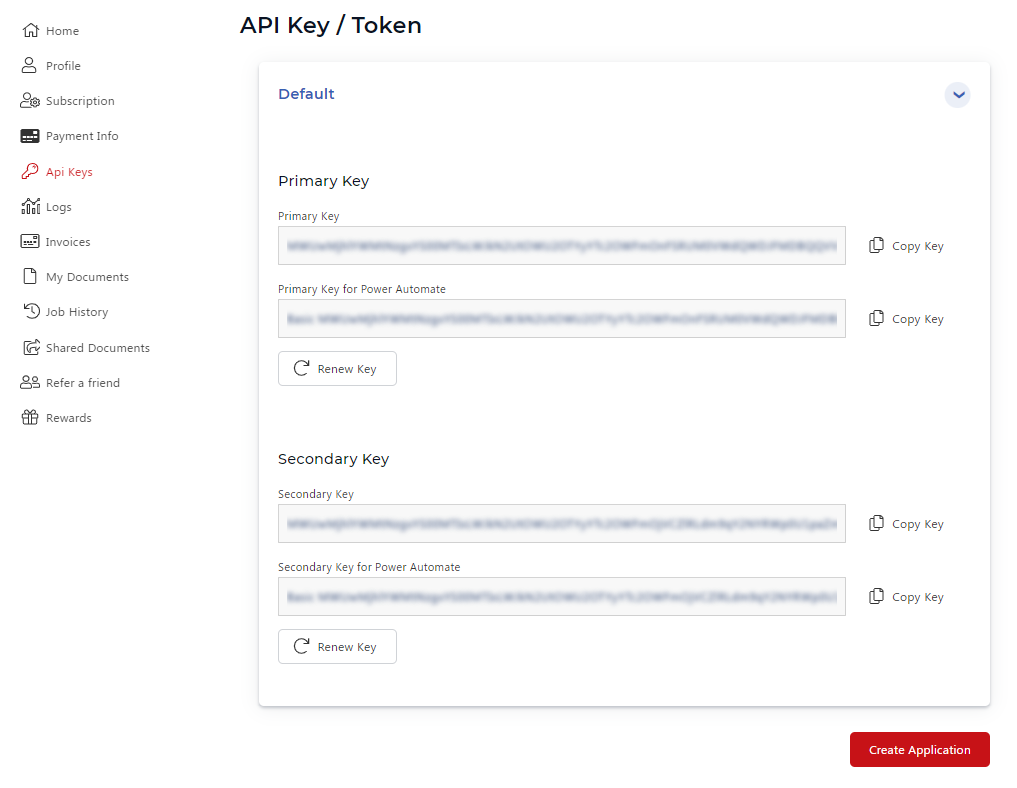
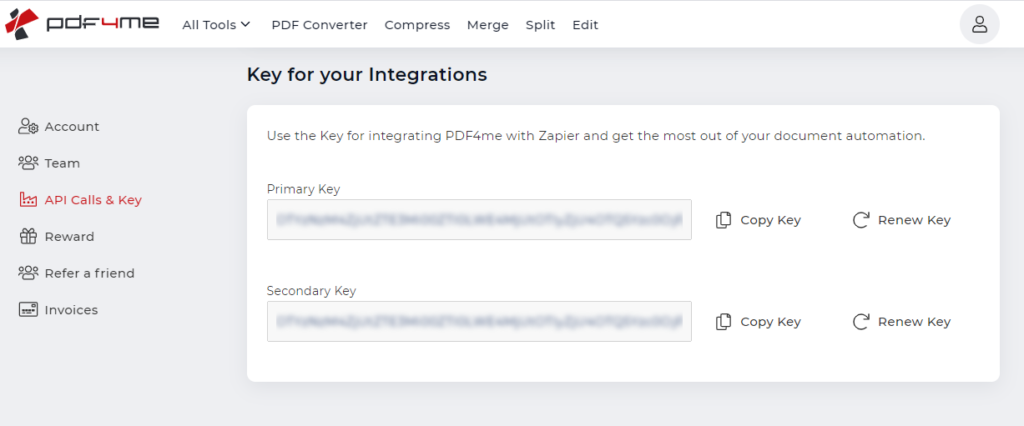
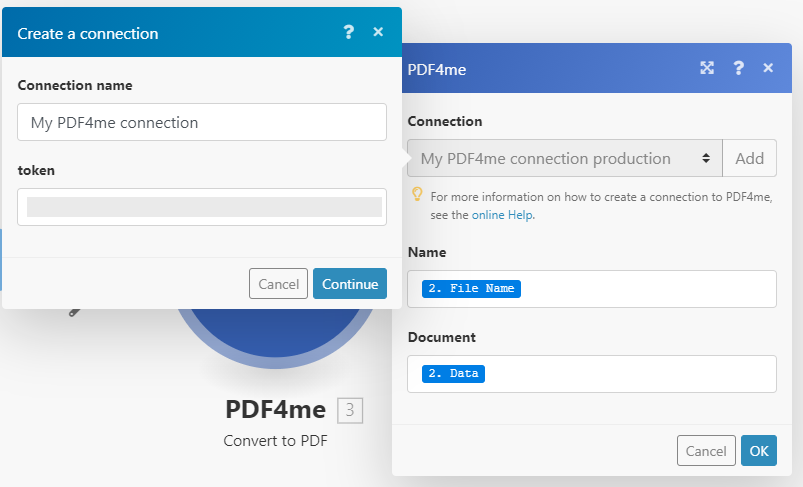
Yes. Make is the visual workflow platform and PDF4me is the document processing service - both require their own accounts. Make offers a free plan with limited monthly operations; PDF4me provides free trial credits so you can test any module before committing to a paid plan. Once you have both accounts, you link them inside Make using your PDF4me API key in the Connection dialog. The two accounts are independent and billing is managed separately on each platform.
Which API key should I use - developer portal or consumer portal?+
The developer portal at pdf4me.com is recommended for automation use cases. It offers monthly subscription plans, automatic credit renewal, and a usage dashboard with per-call tracking. The consumer portal at pdf4me.com is a one-time purchase model better suited to lower-volume or infrequent needs. The API key format is identical in both cases - paste it into the Make connection dialog the same way regardless of which portal issued it.
Can I chain multiple PDF4me modules in one Make scenario?+
Yes, and this is the recommended pattern for multi-step document workflows. The Document Data output of one PDF4me module is a binary buffer that maps directly into the File input of the next - no intermediate upload step is needed. For example, you can Convert to PDF, then Compress PDF, then Add Text Watermark, all in a single scenario run. Each module consumes separate PDF4me credits, so factor that into your monthly usage estimate when planning complex scenarios.
What file sources can I use to supply documents to PDF4me modules?+
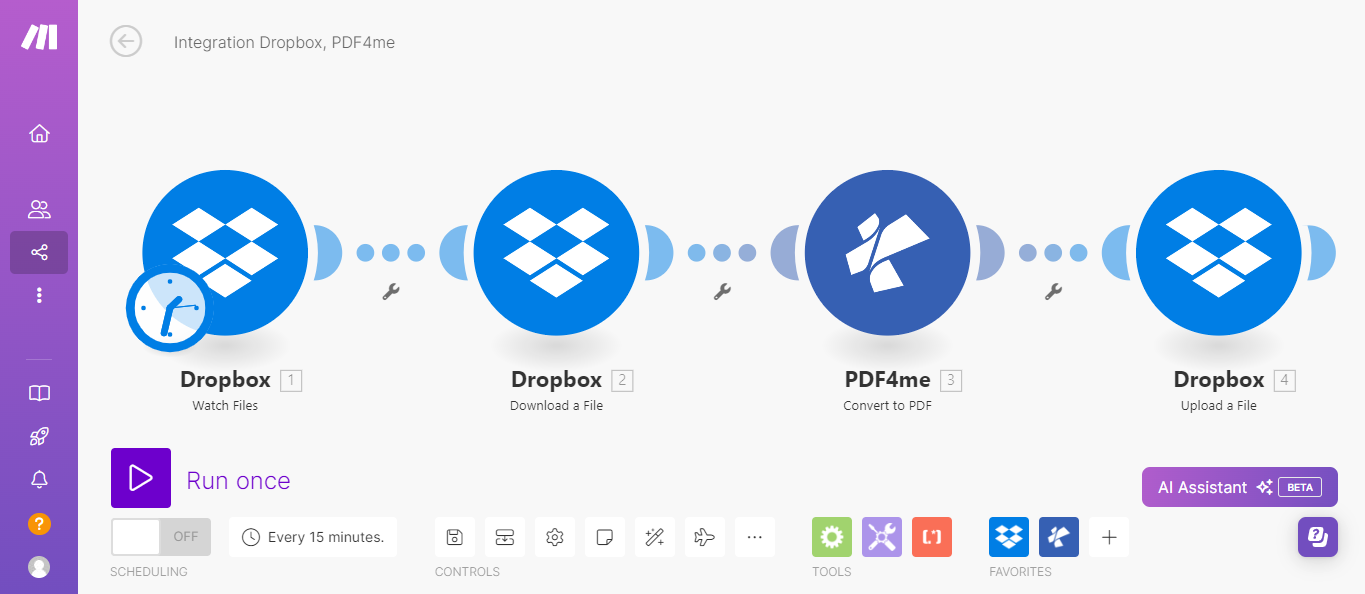
Any Make module that outputs a binary file works as a file source: Dropbox - Download a File, Google Drive - Download a File, Microsoft OneDrive - Download a File, Gmail - Get Attachment, Outlook - Get Attachment, HTTP - Get a File for public URLs, and Box - Download a File are all common sources. You can also use Make's Map toggle to wire filename and binary data directly from a webhook payload or any prior module. To read metadata like page count before processing, run Get Document Information first. For structured data extraction from existing PDFs, use Parse Document with a custom template before routing to downstream modules.
How do I handle errors when a PDF4me module fails in Make?+
Right-click the PDF4me module in the scenario builder and select Add error handler. The Resume route lets the scenario continue with a fallback; the Rollback route stops and reverts reversible operations. For transient failures such as temporary API unavailability, a Retry error handler with back-off is effective. Inspect the error bundle for the HTTP status code - 401 means the API key is invalid or expired, 429 means the rate limit was hit (wait and retry), and 400 typically indicates a missing or incorrectly formatted parameter. To pre-validate a file before a complex multi-step chain, add Get Document Information at the start - if it returns an error, the file is not a valid PDF and you can skip the rest of the scenario.