PDF OCR で Make
このモジュールの機能
PDF4me、 PDF OCR スキャン画像または画像ベースの画像を変換します PDFs 内部で完全に検索可能なテキスト文書に変換 Make シナリオを選択してください。 標準 デジタルネイティブの品質 PDFs または 専門家 スキャン、撮影、または低解像度のドキュメントの場合、デフォルト設定の品質が有効になります。 OCR 必要な時のみ 検索可能なテキストが既に存在するページをスキップし、 非同期 長時間実行されるジョブの場合は「はい」を選択します。出力は検索可能なものです。 PDF テキスト抽出、アーカイブ、全文インデックス作成、または AI 処理中。
関連ブログ記事(1)
認証 API リクエスト
毎 PDF4me モジュール Make 有効な 繋がり. 作成または選択して、 PDF4me API シナリオが認証できるようにするためのキー OCR リクエストを安全に処理しています。
見逃してはならない重要な事実
エキスパート品質と標準品質の比較
品質タイプのデフォルトは 専門家スキャンまたは撮影した文書に適しています。 標準 デジタルネイティブ向け PDFs どこ OCR は依然として必要です。 API 通話料金は品質によって異なります。
OCR 必要な時だけ使うことで時間を節約できます
デフォルトは「いいえ」です。「はい」に設定すると、 OCR 検索可能なテキストが既に含まれているページではスキップされるため、処理時間が節約されます。これは、入力内容が PDF ネイティブページとスキャンページを混在させています。
長時間実行されるジョブには Is Async を使用してください。
セット 非同期 リクエストが、大規模な複数ページのスキャンなど、実行時間の長いジョブである場合は「はい」を選択してください。 PDF4me その後、リクエストをバックグラウンドジョブとして処理し、 Make 次のモジュールを実行する前に、結果を待ちます。
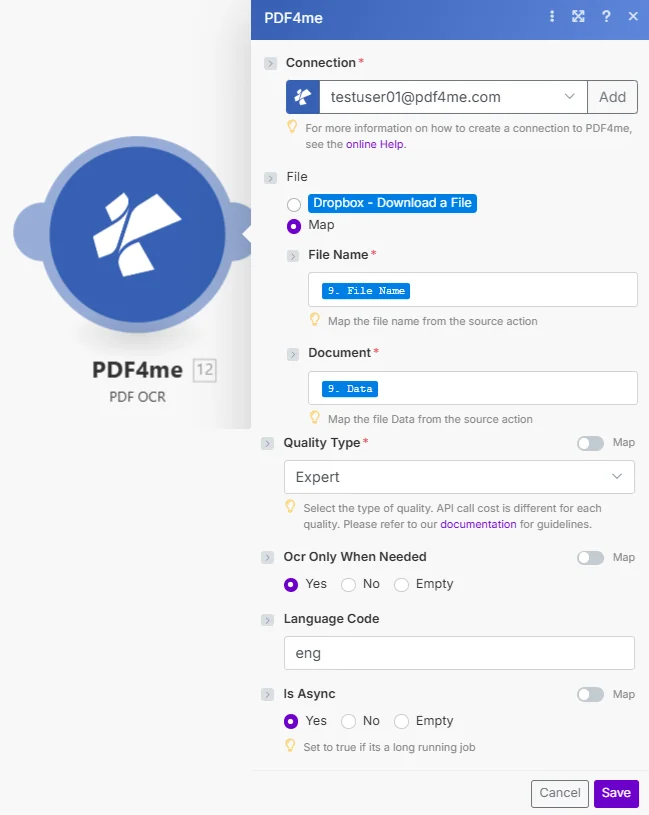
ファイル名、ドキュメント名、および品質タイプは必須です。 OCR 「必要な時のみ」、「言語コード」、「非同期」はオプションですが、混合コンテンツや大規模なコンテンツには推奨されます。 PDFs。
パラメータ
必須: 接続情報、ファイル名、ドキュメント名、品質タイプはすべて指定する必要があります。 OCR 「必要な場合のみ」、「言語コード」、「非同期かどうか」はオプションです。
| パラメータ | 必須 | その機能 | 例 |
|---|---|---|---|
| Connection | Required | PDF4me API connection. Click Add and paste your API key if connecting for the first time. | Your PDF4me connection |
| File | Required | How the scanned PDF reaches the module. The radio lists your connected storage actions (for example Dropbox - Download a File) and Map. Choose Map to wire the fields below from earlier modules: File Name and Document only appear once Map is selected. | Map |
| File Name | Required | Name of the PDF to process, including its extension. Map it from the file name returned by a preceding module. | scanned_searchable.pdf |
| Document | Required | Binary content of the PDF mapped from a preceding module: scanned, photographed, or image-based PDFs. | 1. Data |
| Quality Type | Required | Select the type of quality. Defaults to Expert, which suits scanned or image-based documents; Standard suits born-digital PDFs. API call cost is different for each quality. | Expert |
| OCR Only When Needed | Optional | When set to Yes, OCR is skipped for pages that already contain searchable text, which saves processing time. Defaults to No. | Yes |
| Language Code | Optional | Language of the text in the document, as a language code such as en, de or fr. Setting the right language improves recognition accuracy. | en |
| Is Async | Optional | Set to Yes if it is a long running job, such as a large multi-page scan. | Yes |
出力
このモジュールは検索可能なものを返します PDF。 PDF4me リクエストをバックグラウンドジョブとして処理し、 Make 次のモジュールを実行する前に、結果を待ちます。
| 分野 | タイプ | 内容物 |
|---|---|---|
| Name | Text | File name of the resulting PDF. Map it together with Document into the next module, for example to upload or email the file. |
| Document | File (binary data) | Content (binary data) of the resulting searchable PDF. Map it together with the file name into the next module, for example to upload or email the file. |
クイックセットアップ
- 追加 PDF4me → PDF OCR あなたの Make シナリオ。
- 選択 繋がり (またはクリック) 追加 あなたと一緒に作成する API 鍵)。
- 地図 書類 前のダウンロード モジュールのバイナリ出力 (例: Dropbox → ファイルをダウンロード →
Data) - 入力 ファイル名例:
scanned_searchable.pdf。 - 離れる 品質タイプ の上
Expertスキャンした文書の場合、または切り替えてStandardデジタルネイティブ向け PDFs。 - オプションで有効化 OCR 必要な時のみ そして 非同期 (長時間実行されるジョブの場合)次にクリックします 保存 そして実行します。出力は
Document検索可能な PDF。
ワークフローの例
ワークフローの例Common Make scenario patterns using PDF OCR.
スキャンした請求書 OCR データ抽出
- Gmail スキャンされた請求書が添付された新しいメールが届くと、監視が作動します。
- PDF OCR 品質タイプをエキスパートに設定して実行し、 OCR 必要な時のみ有効。
- リソース抽出機能は、ドキュメント出力から検索可能なテキストを抽出します。
- 抽出されたテキストは請求書の項目ごとに解析され、自動的に会計システムに登録されます。
旧文書のデジタル化バッチ
- Dropbox 受信フォルダに新しいスキャンデータが届いたときに、監視機能が作動します。
- PDF OCR 大規模バッチ処理の場合、エキスパート品質でファイルを処理し、「非同期処理」を「はい」に設定します。
- 検索可能な PDF アップロードされます SharePoint アーカイブフォルダ。
- Slack 各文書がデジタル化され、インデックスが作成された際に、チームに通知します。
署名済みの契約書 OCR アーカイブ Airtable ログ
- OneDrive 署名済みの紙契約書のスキャン画像が契約書フォルダにアップロードされたときに、監視機能が作動します。
- PDF OCR スキャンした契約書を検索可能な形式に変換します PDF 専門家レベルの品質。
- Google Drive 検索可能なものを保存します PDF 契約書アーカイブフォルダへ。
- Airtable 契約名、日付、検索可能なリンクを含む新しいレコードを作成します PDF コンプライアンス追跡のため。
よくある質問
関連モジュール
リソースを抽出する
検索可能なテキストを抽出します OCR処理済み PDF さらなる解析、保存、または AI 分析。
作成する PDF/A
検索可能なものを変換する PDF に PDF/A アーカイブ形式後 OCR 長期的な文書コンプライアンスのために。
文書を分類する
自動的に分類する OCR-請求書、契約書、領収書など、種類別に文書を処理し、インテリジェントなルーティングを行います。