文書を分類する Make
このモジュールの機能
PDF4me文書を分類する 読む PDF そして返します クラス名 文書の種類(請求書、契約書、領収書、または定義した任意のカスタムクラス)を識別します。分類ルール(正規表現または JavaScript 式は一度設定すれば PDF4me pdf4me.com のアカウント。 PDF モジュールを通過する Makeそれらのルールと照合され、勝ったクラスラベルが返されます。そのラベルを Make ルーターは、ドキュメントを適切なフォルダーに送信したり、正しい解析テンプレートを選択したり、タイプ固有のダウンストリームアクションをトリガーしたりします。これらすべてを、手動でのソートなしで行います。
関連ブログ記事(1)
認証 API リクエスト
毎 PDF4me モジュール Make 有効な 繋がり. 作成または選択して、 PDF4me API シナリオが分類要求を安全に認証できるようにするためのキー。
見逃してはならない重要な事実
クラスはMakeではなく、アカウント内で最初に定義してください。
分類ルールはあなたの PDF4me ダッシュボード pdf4me.com → 文書を分類する. クラス名を追加します (例:
pdf4me_請求書) と正規表現または JavaScript 表現(例: 請求書(。*))、次に「変更を保存」をクリックします。 Make このモジュールにはルールを定義するためのフィールドはなく、アカウントに保存したルールのみが適用されます。このモジュールはクラス名のみを返し、 PDF
ドキュメントを分類すると、1 つのフィールドが出力されます。 クラス名一致したラベル。返したり変更したりしません。 PDF ファイルを渡さなければならない場合は、 PDF 下流モジュールにアップロード、解析、またはメール送信し、ドキュメント出力をマッピングします。 前 ダウンロードまたはトリガー手順は、このモジュールから実行しないでください。
分類実行ごとに1クレジット消費されます。
Classify Document モジュールの各実行では、1 つの PDF4me クレジットは、クラスの一致が見つかったかどうかに関係なく付与されます。大量のドキュメント(数百または数千)を処理するシナリオの場合 PDFs 毎日)クレジット配分を計画する PDF4me 大規模展開する前にダッシュボードを確認してください。一致しないドキュメント用にルーターのフォールバックブランチを追加して、サイレントエラーを回避します。
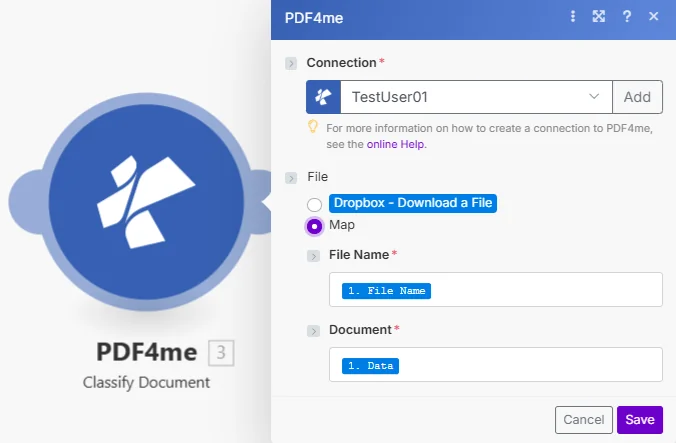
このモジュールは、前のダウンロード手順で取得したファイル名とドキュメントのみを必要とします。分類ルールは、 PDF4me アカウントは自動的に作成され、内部にルール設定はありません。 Make。
パラメータ
前提条件: 少なくとも 1 つのドキュメント クラスを作成します。 pdf4me.com → 文書を分類する このモジュールを使用する前に、以下を参照してください。 分類文書の設定 完全攻略ガイドはこちら。
| パラメータ | 必須 | その機能 | 例 |
|---|---|---|---|
| Connection | Required | PDF4me API connection. Click Add and paste your API key if connecting for the first time. | My PDF4me connection |
| File | Required | How the source document reaches the module. The radio lists your connected storage actions (for example Dropbox - Download a File) and Map. Choose Map to wire the fields below from earlier modules: File Name and Document only appear once Map is selected. | Map |
| File Name | Required | Filename of the PDF to classify including .pdf extension. Map from the prior module's file name output. | document.pdf |
| Document | Required | Binary content of the PDF to classify. Map from the prior module's data output: Dropbox, Google Drive, HTTP, or email attachment. | 1. Data |
出力
このモジュールは、シナリオ内の後続のモジュールでマッピングに使用できるフィールドを1つ返します。
| 分野 | タイプ | 内容物 |
|---|---|---|
| Class Name | Text | Name of the category the document was classified as. |
クイックセットアップ
- 行く pdf4me.com → 文書を分類する、 クリック 編集クラス名を追加します(例:
pdf4me_invoice) 正規表現 (例:invoice(.*))、クリック 変更を保存。 - あなたの Make シナリオを追加 PDF4me → 文書を分類する ファイルダウンロード手順の後。
- 選択 繋がり (またはクリック) 追加 あなたと一緒に作成する PDF4me API 鍵)。
- 地図 ファイル名 そして 書類 以前のダウンロードまたはトリガーモジュールから。
- クリック 保存 そしてシナリオを実行します。 クラス名 出力には一致したドキュメントタイプが含まれます。 ルーター 種類別に分岐したり、種類固有のフォルダに保存するためのアップロードモジュールを使用したり、ファイル名にクラスをプレフィックスとして追加するための名前変更ステップを実行したりできます。
ワークフローの例
ワークフローの例Common Make scenario patterns using Classify Document.
請求書、契約書、領収書はそれぞれ別のフォルダに振り分ける
- Dropbox ウォッチ フォルダーは、新しい PDF 「受信」フォルダに届きます。
- Dropbox ファイルのダウンロードは、 PDF バイナリ。
- Classify Document はクラス名を返します。例:
pdf4me_請求書、pdf4me_契約書、 またはpdf4me_領収書。 - ルーターはクラス名: invoice で分岐します →
/会計/請求書/契約 →/法律/契約/領収書 →/財務/領収書/。 - 各支店は PDF (ダウンロード手順から、分類手順からではなく)ターゲットフォルダに移動します。Slackが関係チームに通知します。
分類してから適切なテンプレートで解析する
- メールウォッチは、 PDF 添付ファイルがアカウントの受信トレイに届きます。
- 文書分類機能は、それが請求書、発注書、または納品書のいずれであるかを識別します。
- ルーターはクラス名に基づいて分岐し、対応するドキュメント解析モジュール、請求書の場合は請求書テンプレート、発注書の場合は発注書テンプレートを実行します。
- 抽出されたデータ(合計、ベンダー、日付)は、ドキュメントの種類ごとにGoogleスプレッドシートの行に書き込まれます。
- 1つのシナリオであらゆる文書タイプに対応でき、処理前に手動で分類する必要はありません。
到着時に文書の種類に応じてファイル名を自動変更する
- Google Drive Watch Files は、新しいファイルが存在するときにトリガーされます。 PDF 共有の「ドキュメント」フォルダにアップロードされます。
- Googleドライブの「ファイルを取得」機能を使うと、バイナリファイルがダウンロードされます。
- Classify Document はクラス名を返します。例:
pdf4me_契約書。 - Google Drive ファイルのアップロードは、 PDF ファイル名にプレフィックスを付けます: クラス名 + アンダースコア + 元の名前 (例:
pdf4me_contract_NDA_2025.pdf) - 元の名前のないファイルは、参照用にアーカイブサブフォルダに移動されます。
よくある質問
関連モジュール
リソースを抽出する
埋め込み画像、フォント、添付ファイルを抽出します PDFこれは、文書の種類を分類した後の自然な次のステップです。
バーコードを読み取る PDF
バーコードデータを抽出する PDFs ルーティングにおいて、文書の種類を識別するためにテキストコンテンツの代わりにバーコードを使用する場合の代替識別方法。
バーコードを追加する PDF
スタンプ QR Code または分類されたバーコード PDF 提出前に、物理的な文書追跡のために、クラス名をスキャン可能なバーコードとして埋め込んでください。