安全な Excel で Make
安全な Excel は Make 多段階パスワード保護を適用するモジュール Excel シナリオ内でファイルを自動的に保護します。ファイル暗号化、ワークブック構造保護、ワークシートコンテンツ保護という3つの独立した保護レベルをサポートしており、それぞれに独自のパスワードまたは共通のフォールバックを設定できます。これにより、機密レポートの配布、テンプレートの保護、コンプライアンスワークフローにおける手動のセキュリティ手順が不要になります。
主な パスワード フィールドは、ワークブックとワークシートの保護のフォールバックとしても機能します。 ワークブックのパスワードを保護する または ワークシート保護パスワード 空欄の場合、モジュールはそれらのレベルのメインパスワードを自動的に使用するため、1つのパスワードで3つのレベルすべてを保護できます。
インデックスで特定のワークシートを指定する場合は、0 から始まる番号付けを使用します。最初のシートはインデックス 0、2 番目のシートはインデックス 1 です。 ワークシート名 そして ワークシート索引 柔軟なターゲティングのために、このモジュールは両方のリストの和集合を保護します。すべてのワークシートを保護するには、両方のリストを空のままにしてください。
ワークシート保護タイプはデフォルトで 全てコンテンツ(セル値と数式)、オブジェクト(グラフと画像)、シナリオ(仮説分析)の保護を同時に適用します。ワークシートのパスワードを知らない受信者は、要素を表示することはできますが、変更することはできません。部分的な編集が必要な場合は、特定のタイプ(例:コンテンツのみ)に設定してください。
認証 API リクエスト
アクセスするには PDF4me ウェブ API を通して Makeすべてのリクエストには適切な認証情報を含める必要があります。認証により、お客様とお客様の間の安全な通信が保証されます。 Make シナリオと PDF4meの Excel セキュリティサービス。
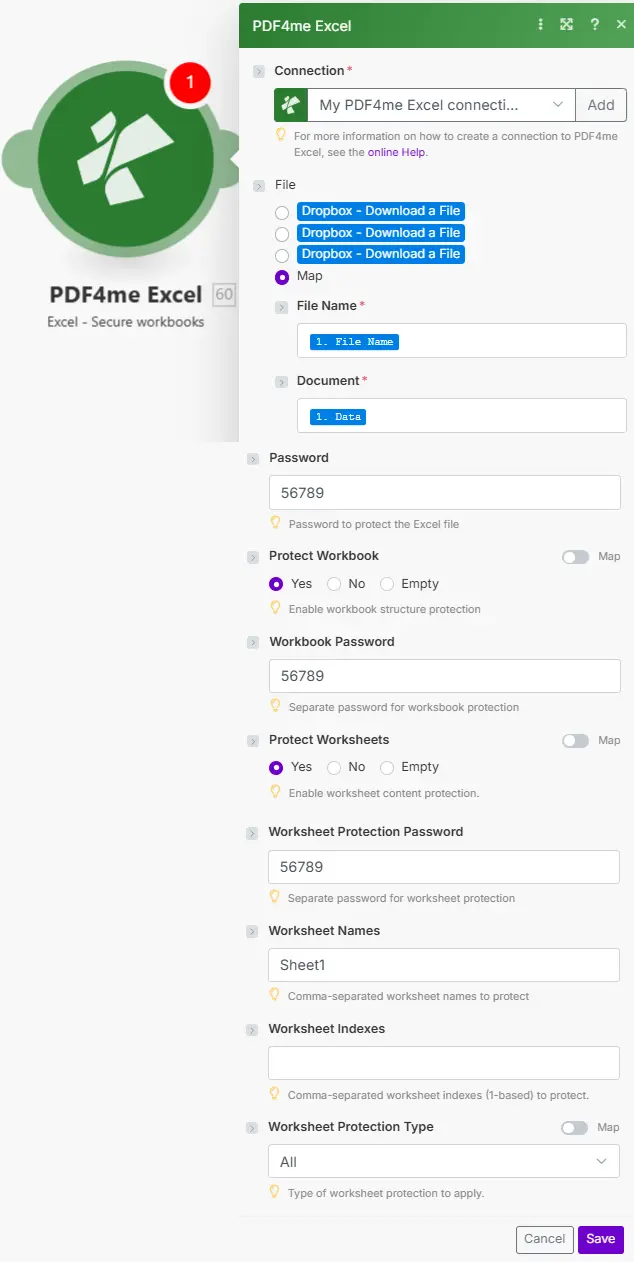
地図 ファイル名 そして 書類 前のダウンロード手順から、パスワードと保護レベルの設定を構成します。
パスワードで保護する方法 Excel ファイル Make
- 追加 PDF4me > 安全な Excel あなたの Make シナリオ。
- 選択してください 繋がり またはクリック 追加 あなたと一緒に作成する API 鍵。
- 地図 ファイル名 (例えば。
report.xlsx) そして 書類 (バイナリバッファ) Google Drive、 Dropboxまたは、OneDrive のダウンロード手順。 - 入力 パスワード ファイルを暗号化する(レベル1) - 受信者はファイルを開くためにこれを入力する必要があります。
- 有効にする ワークブックを保護する (レベル2)シート構造の変更を防ぐ。 ワークブックのパスワードを保護する メインパスワードを再利用する場合は空欄のままにしてください。
- 有効にする ワークシートを保護する (レベル3) ワークシート保護の種類 (デフォルト:すべて読み取り専用)。すべてのシートを保護するには、ワークシートセレクターを空のままにしてください。
- 保存 そして 1回実行 - 地図 文書日付 アップロード、メール送信、またはアーカイブモジュールに出力します。
パラメータ
必須: ファイル名 そして 書類すべての保護パラメータはオプションですが、有効になっている保護レベルごとに少なくとも1つのパスワードを指定する必要があります(指定しない場合は、メインパスワードがフォールバックとして使用されます)。
| パラメータ | 必須 | その機能 | 例 |
|---|---|---|---|
| File Name | Required | Filename of the Excel document including .xlsx or .xls extension. Map from the previous module's file name output or enter a static name. Used for processing and output file identification. | data.xlsx |
| Document | Required | Binary Excel file content. Map from a Google Drive, Dropbox, or OneDrive download step. Must be a valid Excel format; data and formatting are preserved during protection. | [Buffer] |
| Password | Conditional | File encryption password (Level 1). Encrypts the entire workbook so recipients must enter this password to open the file. Also used as a fallback for workbook and worksheet protection if their specific passwords are empty. | Open123! |
| Protect Workbook | Conditional | Enable workbook structure protection (Level 2). True prevents adding, deleting, renaming, moving, or hiding sheets. Requires a password (Protect Workbook Password or Password fallback). Default: false. | true |
| Protect Workbook Password | Conditional | Password for workbook structure protection (Level 2). Falls back to the main Password field if empty. Required if Protect Workbook is true and Password is also empty. | Struct456 |
| Protect Worksheets | Conditional | Enable worksheet content protection (Level 3). True prevents data modifications on targeted worksheets. Requires a password (Worksheet Protection Password or Password fallback). Default: false. | true |
| Worksheet Protection Type | Conditional | Type of worksheet protection: Contents (cell values and formulas), Objects (charts and images), Scenarios (what-if analysis), or All (full protection, default). Read-only access is applied when All is selected. | All |
| Worksheet Protection Password | Conditional | Password for worksheet content protection (Level 3). Falls back to the main Password field if empty. Required if Protect Worksheets is true and Password is also empty. | Edit789 |
| Worksheet Names | Conditional | Comma-separated list of worksheet names to protect. Empty = protect all worksheets. Case-sensitive. Combined as a union with Worksheet Indexes. | Sheet1,Summary |
| Worksheet Indexes | Conditional | Comma-separated 0-based worksheet indexes to protect. 0 = first sheet, 1 = second. Empty = protect all worksheets. Combined as a union with Worksheet Names. | 0,2 |
出力
| 分野 | タイプ | 内容物 |
|---|---|---|
Name | String | Output Excel filename - map into the file name field of your storage upload or email step. |
Doc Data | Buffer | Password-protected Excel document. Wire directly into a Google Drive, Dropbox, OneDrive upload action or an email attachment field. |
Secureはどのような保護レベルを備えていますか? Excel サポート?
PDF4me 安全な Excel 3つの独立したサポート Excel 保護レベルは マイクロソフト Excel ワークブック保護モデル: レベル1 ファイル暗号化(OOXML標準で強制される、ファイルを開くためのパスワード) レベル2 ワークブック構造の保護(シートレベルの変更を防止) レベル3 ワークシートの内容保護(セル、オブジェクト、またはシナリオをロックします)。各レベルに独自のパスワードを設定することも、組み込みのフォールバックメカニズムを介してメインパスワードを共有することもできます。
ワークフローの例
- Confidential Reports
- Template Distribution
- Read-Only Distribution
月次財務報告書に対する自動多段階保護
- トリガー月次財務報告書が完成し、配布準備が整いました。
- 財務報告書を入手する: 完了したレポートを取得する Google Drive
- 安全な Excel: パスワードをファイル暗号化に設定します。ブックの保護とワークシートの保護を有効にします。ワークシートの保護タイプを「すべて」に設定します。すべてのシートを保護するには、ワークシートセレクターを空のままにします。
- 安全なレポートをアップロード: 制限付きで保存 Google Drive エグゼクティブフォルダー
- 最高財務責任者(CFO)にメールを送る: パスワード付きの保護されたレポートを別の安全なチャネル経由で送信します。
ビジネス上のメリット: 手動による保護は不要です。12か月分の月次レポートは、3層暗号化によって自動的に保護されます。
データ入力シートを許可しつつ、数式シートを保護する。
- トリガー: 企業向け配布用に承認されたテンプレート
- マスターテンプレートを取得するライブラリから数式を含むテンプレートを取得します。
- 安全な Excelブックの保護を有効にする。ワークシート名を「計算、参照、数式」に設定する。ワークシートの保護タイプを「すべて」に設定する。データ入力シートは非表示にする。
- 保護されたテンプレートをアップロード共有テンプレートフォルダに保存
- メールユーザー: 承認された変更を行うための編集パスワード付きテンプレートを送信します
ビジネス上のメリット: 数式破損の発生件数が減少 - 入力シートは編集可能なまま、計算シートはロックされます。
週次パフォーマンスレポートは読み取り専用で配布されます
- トリガー週次パフォーマンスレポートの作成が完了しました
- パフォーマンスレポートを取得するレポートを取得する Dropbox
- 安全な Excel: パスワードを単一ビューパスワードに設定します。ワークシートの保護を有効にします。ワークシート保護パスワードは空のままにします(パスワードにフォールバックします)。タイプを「すべて」に設定します。
- 保護されたレポートをアップロード共有に保存 Dropbox フォルダ
- メールチーム: 単一のビューパスワードを使用して、レポートをチーム全体に送信します。
ビジネス上のメリット: 年間52件の週次レポートが、単一の共有パスワードで閲覧専用として配布される。