テキストを置換 Excel で Make
テキストを置換 Excel これは、すべてのワークシートのすべてのセルを検索する一括検索置換操作です。 Excel ワークブック上で、リテラルまたは正規表現パターンを使用して一致するテキストを置換し、必要に応じて置換されたコンテンツにフォント書式を適用します。 PDF4me すべてのワークシートを一度に処理します API 呼び出し、複数の置換フレーズを順次サポートし、データ標準化、リブランディング、および自動コンテンツ更新に適しています。 Excel詳細については Excel テキスト関数と検索置換動作については、以下を参照してください。 マイクロソフト Excel 置換関数 そして Open XML SDK のテキスト処理。
このモジュールの機能
PDF4me Excelテキストを置換 すべてのワークシートにわたってテキストを検索して置換します Excel ワークブック Make シナリオ。1つ以上のPhrases配列項目を追加します。各項目は、SearchTextパターン、ReplacementText値、および正規表現、大文字小文字の区別、セル全体の一致のためのオプションのフラグを指定します。置換されたコンテンツにフォント書式を適用することもできます。すべての置換は単一の処理で順番に実行されます。 API 呼び出しを行うと、更新されたワークブックが返され、アップロードまたは下流工程に渡す準備が整います。
認証 API リクエスト
毎 PDF4me モジュール Make 有効な 繋がり. 作成または選択して、 PDF4me API シナリオがテキスト置換要求を安全に認証できるようにするためのキー。
見逃してはならない重要な事実
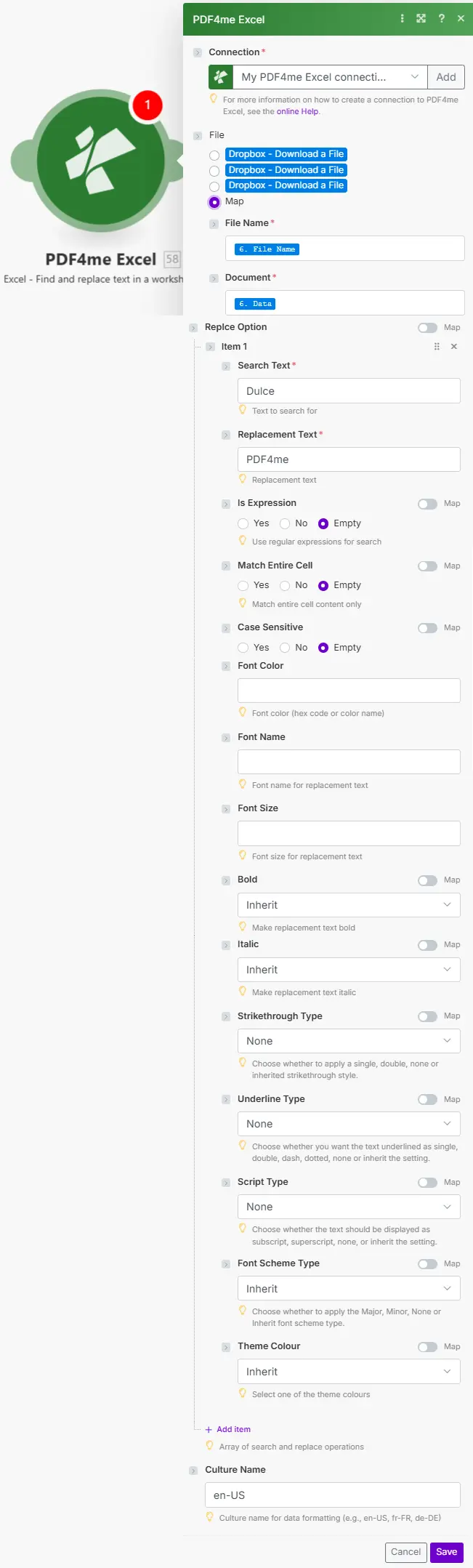
ファイル名とドキュメントは、前のモジュールからマッピングされます。フレーズ配列は、複数の検索置換操作を受け入れ、それらは順番に処理されます。
パラメータ
必須: 接続情報、ファイル名、ドキュメント、およびPhrases配列内の少なくとも1つの項目(検索テキストと置換テキストを含む)を指定する必要があります。その他のPhrasesプロパティと書式設定はすべてオプションです。
| パラメータ | 必須 | その機能 | 例 |
|---|---|---|---|
| Connection | Required | PDF4me API connection. Click Add and paste your API key if connecting for the first time. | Your PDF4me connection |
| File Name | Required | Excel filename with extension. Map from the prior module's file name output. | data.xlsx |
| Document | Required | Binary Excel buffer from a cloud storage download (Google Drive, Dropbox, SharePoint), email attachment, or HTTP response. | 1. Data |
| Phrases: SearchText | Required | Text or regex pattern to search for. Use with IsExpression true for regex. Processed across all worksheets. | OldCorp Inc. |
| Phrases: ReplacementText | Required | Text to substitute for each SearchText match. Set to empty string to delete the matched text without inserting anything. | NewCorp LLC |
| Phrases: IsExpression | Conditional | Set true to treat SearchText as a regex pattern. Supports capture groups ($1, $2) in ReplacementText. Default is false (literal match). | false |
| Phrases: CaseSensitive | Conditional | Set true for case-sensitive matching. Default is false: "oldcorp" matches "OldCorp". Set true when exact casing matters. | false |
| Phrases: MatchEntireCell | Conditional | Set true to match only cells where the entire content equals SearchText. False (default) matches partial text within cells. | false |
| Phrases: Formatting | Conditional | Optional object applying font changes to replaced text only: FontName, FontColor (hex), FontSize, Bold/Italic/Underline (Apply, Remove, or Inherit), StrikethroughType, ScriptType. | {"Bold":"Apply","FontColor":"#003366"} |
出力
| 分野 | タイプ | 内容物 |
|---|---|---|
| Name | String | Output Excel filename with extension. |
| Doc Data | Buffer | The updated Excel workbook as a binary buffer with all replacements applied across every worksheet. Pipe directly into a cloud storage upload, email attachment, or any downstream module. |
テキストの置換方法 Excel で Make
- 追加 PDF4me Excel → テキストを置換 あなたの Make シナリオ。
- 選択 繋がり (またはクリック) 追加 あなたと一緒に作成する API 鍵)。
- 地図 ファイル名 そして 書類 以前のクラウドストレージからのダウンロード、またはHTTPモジュールから。
- クリック アイテムを追加 下 フレーズ。 入力 検索テキスト (検索するテキスト) 代替テキスト (置換する内容、または削除する場合は空欄のままにしてください。)
- オプションのフラグを設定します: IsExpression 正規表現の場合、 大文字と小文字を区別 正確なケーシングのために、 セル全体をマッチする 全細胞マッチング用。
- 必要に応じて展開 書式設定 置換後のテキストのみにフォントの色、太字、その他のスタイルを適用する。
- 追加の置換を行うには、フレーズ項目を追加してください(処理順)。 保存 そして走る。地図 文書日付 出力先をアップロードモジュールまたはメールモジュールに転送します。
テキスト置換はいつ使用すべきですか? Excel?
Excelで「テキスト置換」機能はいつ使用すべきですか?Common Make scenario patterns using Replace Text.
- 毎週金曜日の午後6時に、スケジュールされたトリガーが実行されます。
- Google Drive マスターデータワークブックをダウンロードします。
- テキストを複数のフレーズに置換します。「California」を「CA」、「Widget Type A」を「Widget-A」に置換します。柔軟なマッチングのために、すべて大文字小文字を区別しない設定(CaseSensitive false)にしています。
- 標準化されたワークブックは、 Google Drive そしてデータチームに完了メールが届く。
- A Dropbox ファイルがリブランディングキューに追加されたときに、ウォッチフォルダーがトリガーされます。
- テキスト置換は、検索テキスト「OldCorp Inc.」、置換テキスト「NewCorp LLC」、大文字小文字を区別する設定、および新しいブランドカラー(#003366)と太字を適用する書式設定で実行されます。
- すべてのワークシートは一度の呼び出しで処理されるため、非表示のタブに参照が残ることはありません。
- ブランド変更後のワークブックは出力フォルダに保存され、ブランド変更ログが更新されます。
- スケジュールされたトリガーは、顧客データファイルを以下から取得します。 SharePoint。
- Replace Text は IsExpression true で実行され、SearchText は一般的な電話形式に一致する正規表現に設定され、ReplacementText はキャプチャ グループ ($1、$2、$3) を使用して "(555) 123-4567" 形式を出力します。
- 2つ目のフレーズ項目では、より単純な文字ルールを使用して、残っている外れ値を修正します。
- 正規化されたワークブックがアップロードされます CRM データがインポートされ、概要がデータチームに送信されます。