透かしを削除 Excel で Make
透かしを削除 Excel は、特定の名前付きシェイプを対象とするシェイプ削除操作です。 Excel ワークブックを開いたり、選択したワークシートからすべての図形を削除したりして、配布準備が整ったクリーンなワークブックを返します。 PDF4me シェイプIDによる完全一致削除を実行するため、透かし名を正確に指定した場合、チャート、画像、その他のコンテンツが保持されます。背景については、 Excel 図形と選択ウィンドウについては、 マイクロソフト Excel 選択ペインのドキュメント そして Open XML SDK シェイプリファレンス。
このモジュールの機能
PDF4me Excel透かしを削除 透かしの形状を削除します Excel ワークブックが自動的に内部に挿入されます Make シナリオ。正確な形状名を以下から指定してください。 Excel 選択ウィンドウを使用して、チャート、画像、図面はそのまま残しつつ、特定の透かしのみを削除します。透かしIDを空欄にすると、対象のワークシートからすべての図形が削除されます。名前またはインデックスで特定のタブを選択するか、ワークブック全体を処理できます。クリーンアップされたワークブックはすぐに返されます。手動操作は不要です。 Excel 編集が必要です。
認証 API リクエスト
毎 PDF4me モジュール Make 有効な 繋がり. 作成または選択して、 PDF4me API シナリオが透かし削除要求を安全に認証できるようにするためのキー。
見逃してはならない重要な事実
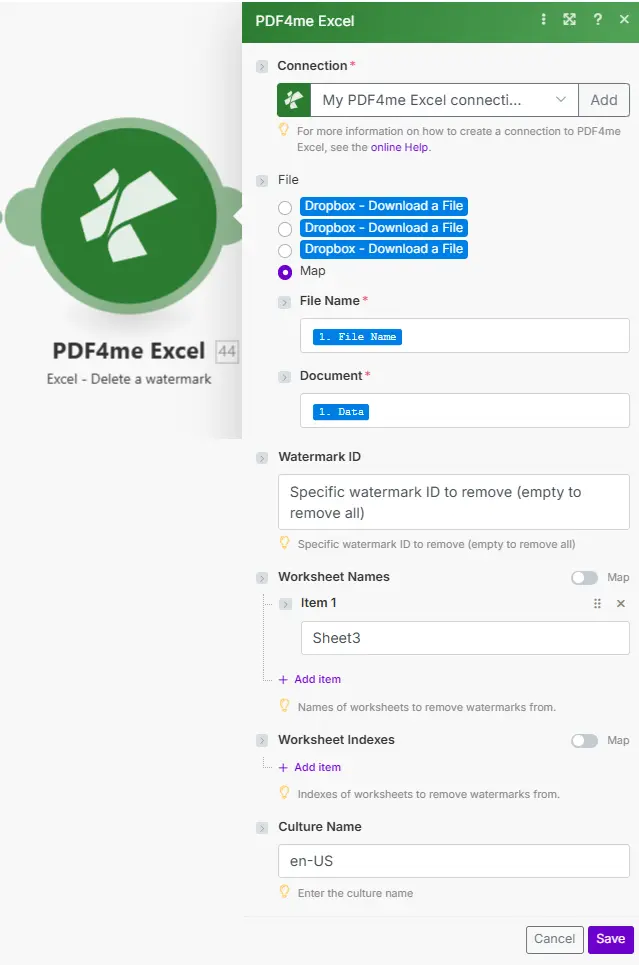
ファイル名とドキュメントは、以前のダウンロード モジュールからマッピングされます。透かし ID は、正確な形状名を受け入れます。 Excel 選択ウィンドウ。
パラメータ
必須: 接続情報、ファイル名、およびドキュメントは必須です。透かしID、ワークシート名、ワークシートインデックス、およびカルチャ名はオプションです。すべての図形を削除する場合のみ、透かしIDを空欄にしてください。
| パラメータ | 必須 | その機能 | 例 |
|---|---|---|---|
| Connection | Required | PDF4me API connection. Click Add and paste your API key if connecting for the first time. | Your PDF4me connection |
| File Name | Required | Excel filename with extension (.xlsx or .xls). Map from the prior download module output. | report.xlsx |
| Document | Required | Binary Excel buffer from a cloud storage download (Google Drive, Dropbox, SharePoint), email attachment, or HTTP response. | 1. Data |
| Watermark ID | Conditional | Exact shape name to delete (case-sensitive, matches the Name property in the Excel Selection Pane). Leave empty to remove ALL shapes from targeted worksheets - use with caution. | CONFIDENTIAL_WM |
| Worksheet Names | Conditional | Array of exact worksheet tab names to target (case-sensitive). Combined with Worksheet Indexes as a union. Leave both empty to process all worksheets. | ["Sheet1","Summary"] |
| Worksheet Indexes | Conditional | Array of 1-based worksheet tab indexes to target. Index 1 is the first tab. Combined with Worksheet Names as a union. Leave both empty to process all worksheets. | [1,3] |
| Culture Name | Conditional | Locale code for text rendering during processing. Defaults to empty (system default). Set to match the source file locale if regional characters are present. | en-US |
出力
| 分野 | タイプ | 内容物 |
|---|---|---|
| Name | String | Output Excel filename with extension. |
| Doc Data | Buffer | The cleaned Excel workbook as a binary buffer with the targeted watermark shapes removed. Pipe directly into a Google Drive upload, SharePoint save, email attachment, or any module that accepts a file buffer. |
ウォーターマークを削除する方法 Excel で Make
- 追加 PDF4me Excel → 透かしを削除 あなたの Make シナリオ。
- 選択 繋がり (またはクリック) 追加 あなたと一緒に作成する API 鍵)。
- 地図 ファイル名 そして 書類 以前のクラウドストレージからのダウンロード、またはHTTPモジュールから。
- 入力 透かしID: 開く Excel ファイルを開き、「ホーム」→「検索と選択」→「選択ウィンドウ」に進み、図形の名前を正確にコピーします。それをここに貼り付けてください。
- オプションでリストする ワークシート名 または ワークシート索引 削除対象を特定のタブに限定するには、この設定を使用します。すべてのワークシートを処理するには、両方のタブを空欄のままにします。
- クリック 保存 そして走る。 文書日付 出力はクリーンアップされたワークブックです。これをアップロードモジュールまたはメール送信モジュールに渡してください。
いつ透かしを削除すればいいですか Excel?
Excelの透かしを削除する機能は、どのような場合に使用すべきですか?Common Make scenario patterns using Remove Watermark.
- 承認ウェブフックは、ワークフローシステムでドキュメントが「承認済み」とマークされたときにトリガーされます。
- Google Drive ダウンロード Excel DRAFT透かし形状を含むワークブック。
- ウォーターマーク削除処理は、ウォーターマークIDを正確な図形名(例:「DRAFT_Watermark」)に設定して実行されます。この場合、削除されるのはその図形のみです。
- 修正済みのワークブックは最終配布フォルダにアップロードされ、関係者にはメールで通知されます。
- 納品物がクライアントへの納品準備完了とマークされたときに、スケジュールされたトリガーまたはWebhookが起動します。
- SharePoint ワークブックをダウンロードします。内部透かしのみを削除するには、透かしIDを「INTERNAL_ONLY_WM」に設定します。
- ワークシートインデックスは、クライアントから見えるシート(例:[1, 2])のみを対象とし、内部アーカイブタブの透かしを保持します。
- 修正済みのワークブックはクライアントポータルにアップロードされ、配信トラッカーに記録されます。
- 年間テンプレート更新シナリオは、 Excel テンプレートから Dropbox。
- ウォーターマーク ID を空欄にし、ワークシート名を ["Cover", "Summary"] に設定して「ウォーターマークを削除」を実行すると、これら 2 つのタブ上のすべての図形がクリアされます。
- 「透かしを追加」モジュールは、更新されたブランドの透かしを同じシートに追加します。
- 更新されたテンプレートは保存されます Dropbox そして、テンプレートライブラリのインデックスが更新されます。