マージ Excel ファイル Make
マージ Excel ファイル 複数の操作を組み合わせた自動化された操作です Excel 複数のワークブックのワークシートを一定の順序で結合し、すべてのソースファイルからの数式、書式設定、データを保持することで、単一の統合ファイルにまとめます。 PDF4me 重複するシート名の解決を自動的に処理し、XLSX、XLS、 PDF、 そして CSV 単一の出力 Make モジュール呼び出し。参照については、以下を参照してください。 Excel Microsoft Learn でサポートされているファイル形式 そして Open XML SDK のドキュメント。
このモジュールの機能
PDF4me Excelファイルの結合 複数のものを自動的に組み合わせる Excel ワークブックを単一の統合ファイルに Make Power Query、VBA、手動コピー&ペーストを使わずに、シナリオを完結できます。各ソースファイルをファイル配列に追加し、出力ワークブックのタブ順序を制御するために並べ替え位置を割り当て、各ファイルから含めるワークシートを選択し、出力形式を選択します。重複するワークシート名は自動的に解決されます。結合されたワークブックは、アップロード、メール送信、または後続のモジュールへの転送が可能な状態で返されます。
認証 API リクエスト
毎 PDF4me モジュール Make 有効な 繋がり. 作成または選択して、 PDF4me API シナリオがワークブックのマージ要求を安全に認証できるようにするためのキー。
見逃してはならない重要な事実
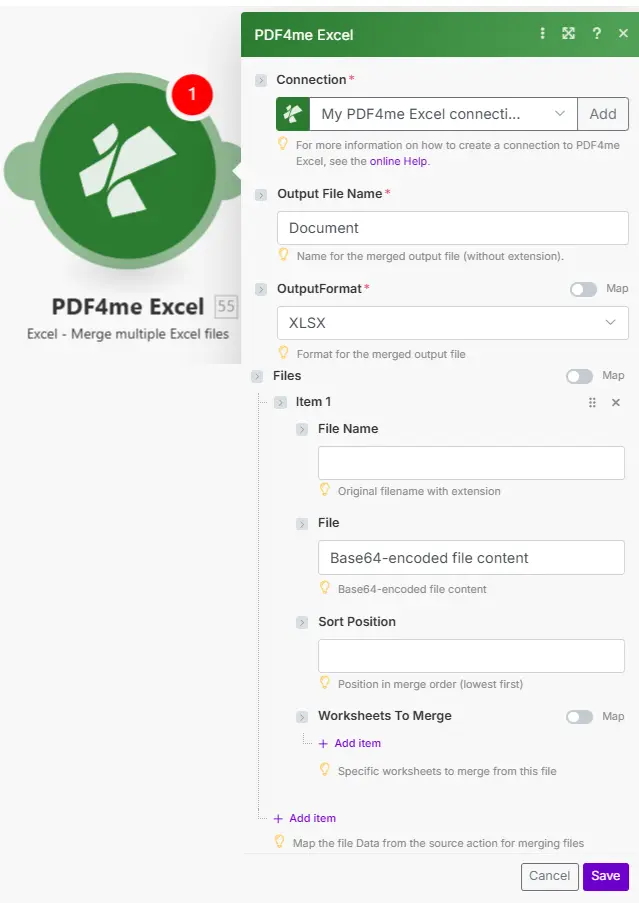
出力ファイル名と出力形式は、先頭で設定します。Files配列の各項目は、ソート位置とオプションのワークシートフィルターを指定したソースワークブックを1つ提供します。
パラメータ
必須: モジュールを実行するには、接続情報、出力ファイル名、出力形式、およびファイル名とファイル内容を含むFiles配列内の少なくとも1つの項目を指定する必要があります。
| パラメータ | 必須 | その機能 | 例 |
|---|---|---|---|
| Connection | Yes | PDF4me API connection. Click Add and paste your API key if connecting for the first time. | Your PDF4me connection |
| Output File Name | Yes | Name for the merged output file without any extension. The correct extension is added automatically based on the OutputFormat you select. | Q1_Consolidated |
| OutputFormat | Yes | Format for the merged output. XLSX works with all modern Excel versions. XLS supports legacy systems. PDF creates a read-only archive. CSV exports the first worksheet only as plain comma-separated text. | XLSX |
| Files: File Name | Yes | Original filename including extension for each source workbook item in the Files array. | january_sales.xlsx |
| Files: File | Yes | Base64-encoded content of the source Excel file. Map from a Google Drive, Dropbox, or SharePoint download module, or from an HTTP request that returns the file. | Base64-encoded file content |
| Files: Sort Position | No | Merge order for this file: lower numbers are placed first in the output. Assign 1 to January, 2 to February, and so on. | 1 |
| Files: Worksheets To Merge | No | List of specific worksheet names to include from this file. Leave empty to include all sheets. Naming specific tabs reduces output file size. | Summary, Data |
出力
| 分野 | タイプ | 内容物 |
|---|---|---|
| document | String (Base64) | The merged workbook encoded in Base64. Decode and pipe into a Google Drive upload, SharePoint save, email attachment, or any downstream module that accepts a file buffer. |
マージする方法 Excel ファイル Make
- 追加 PDF4me Excel → ファイルの結合 あなたの Make シナリオ。
- 選択 繋がり (またはクリック) 追加 あなたと一緒に作成する API 鍵)。
- 入力 出力ファイル名 (拡張子なし)を選択し、 出力形式。
- クリック アイテムを追加 下 ファイル各ソースワークブックについて、 ファイル名 そして ファイル 以前のダウンロードモジュールからの内容を設定し、 ソート位置、オプションでリスト 結合するワークシート。
- クリック 保存 そして走る。 書類 出力には、マージされたワークブックが含まれています。 Base64: アップロードモジュールにパイプして保存します Google Drive、 Dropbox、 または SharePoint。
Mergeはいつ使用すべきですか? Excel ファイル?
Excelファイルの結合はどのような場合に使用すべきですか?Common Make scenario patterns using Merge Excel Files.
- 毎月1日の午前8時に、スケジュールされたトリガーが実行されます。
- Google Drive 各部門の月次ダウンロード Excel レポート。各ファイルは、部門ごとの順序を統一するために、ソート位置1~10のFiles配列内の項目としてマッピングされます。
- ファイル結合機能は、すべてのレポートを1つの統合ワークブックにまとめ、ワークシートのタブとして部門名を使用します。
- 統合されたXLSXファイルは、経営陣にアップロードされます。 Google Drive フォルダに保存し、経営陣にメールで送信しました。
- 四半期末の翌日に、予定されたトリガーが作動します。
- SharePoint 1月、2月、3月のダウンロード数 Excel ファイル。ソート位置1、2、3は時系列タブ順を強制します。
- マージファイルは、出力形式が次のように設定されている状態で実行されます。 PDF結合されたワークブックは、編集不可能な四半期ごとのスナップショットとしてアーカイブされます。
- の PDF コンプライアンスストレージに保存され、コンプライアンスインデックスシートにエントリが記録されます。
- 週次トリガーにより、地域別売上レポートが取得されます。 Dropbox5つの地域につき5つのファイル。
- 各ファイル項目は、結合するワークシートを「概要」と「データ」のみに設定し、生の計算タブを除外することで、出力をコンパクトに保ちます。
- ソート位置は、一貫した地域順序(北=1、南=2、東=3、西=4、中央=5)を割り当てます。
- 統合されたXLSXファイルは、毎週月曜日の朝に営業担当副社長にメールで送信されます。