人口 Excel で Make
人口 Excel は PDF4me モジュール Make 満たす Excel ライブ JSON データを自動的に処理し、配列を行ごとに拡張し、単一の操作で数式を再計算します。これを使用して、入力済みの請求書テンプレート、動的なレポート、またはデータ駆動型レポートを生成します。 Excel あらゆる出力 JSON 手動データ入力なしで、シナリオにおける情報源を確保できます。
このモジュールの機能
PDF4me Excel人口を増やす 受け入れる Excel スマートマーカープレースホルダーと JSON データペイロード、そして完全にデータが入力されたデータを返します。 Excel ワークブック内 Make シナリオ。配列は JSON 行に自動的に展開され、挿入後に数式が再計算され、インデックスで特定のワークシートを対象とすることができます。結果として、すぐに配布できるデータが得られます。 Excel このレポートは、お客様のシナリオにおけるデータのみに基づいて生成され、手動入力は一切行われません。
認証 API リクエスト
毎 PDF4me モジュール Make 有効な 繋がり. 作成または選択して、 PDF4me API シナリオが認証できるようにするためのキー Excel 人口要求を安全に処理します。
見逃してはならない重要な事実
&=Items.ItemName 必要とする JSON 名前付き配列 商品 オブジェクトを含む 商品名 プロパティ。一致しない場合、出力でプレースホルダーが置換されません。シナリオを実行する前に、必ずキー名を確認してください。「55」 テキストとして挿入されます Excel下流のSUM関数やその他の数式で数値として扱う必要がある場合は、Strictに設定します。 JSON 文字列を数値に変換するモジュールは、引用符で囲まれた数値文字列を数値に変換します。 Excel 集団形成前の細胞値。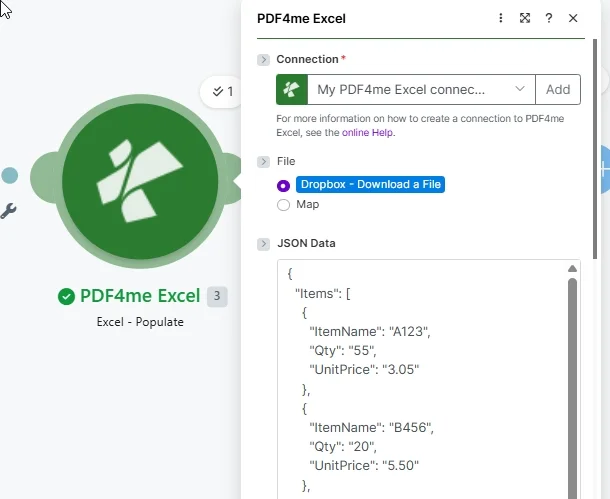
地図 繋がり、 セット ファイル に Dropbox またはマップ、そして JSON キーがスマートマーカーフィールド名と一致するペイロード Excel テンプレート。
パラメータ
必須: 接続、ファイル(ソース)、 JSON データは必須です。その他のフィールドはすべてオプションです。スマートマーカー構文リファレンスについては、以下を参照してください。 Aspose Cells WorkbookDesigner のドキュメント文化コードについては、以下を参照してください。 Microsoft BCP 47 カルチャ名リファレンス。
| パラメータ | 必須 | その機能 | 例 |
|---|---|---|---|
| Connection | Required | PDF4me Excel API connection. Click Add and paste your API key if connecting for the first time. | My PDF4me Excel connection |
| File | Required | File source mode. Map supplies the Excel template binary from a prior module output. Dropbox - Download a File pulls directly from Dropbox, reducing the number of modules needed. | Map |
| File Name | Optional | Excel template filename including extension (.xlsx). Map from the prior module file name output or enter a static value. Used to identify the template and name the output file. | invoice-template.xlsx |
| Document | Required | Binary content of the Excel template workbook. Map from a Google Drive download, SharePoint file, email attachment, or HTTP response. Must be the raw file buffer. | 1. Data |
| JSON Data | Required | JSON string whose keys match the Smart Marker placeholders in the Excel template. Arrays expand row by row. Scalar values fill single cells. Pass as a mapped string from a prior module or a static JSON literal. | {"Items":[{"ItemName":"A123","Qty":"55","UnitPrice":"3.05"}]} |
| Strict JSON Strings | No | Yes (default): inserts quoted string values as text in Excel. No: coerces quoted numeric strings to numeric cell values so formulas can operate on them. Empty behaves like Yes. | Yes |
| Culture & Language Settings | No | BCP 47 locale code controlling date and number formatting in the output. Defaults to en-US (MM/DD/YYYY, period decimal). Change to match your data source locale: de-DE, fr-FR, and so on. | en-US |
| Calculate Formulas | No | Yes (default): recalculates all workbook formulas after JSON data is inserted. No: skips recalculation. Enable when the template contains SUM, VLOOKUP, or other formulas that depend on the populated values. | Yes |
| Worksheet Indexes | No | Comma-separated 1-based indexes of worksheets to populate. Enter 1 for the first sheet only, 1,3 for first and third. Leave empty to populate all worksheets in the workbook. | 1 |
| Quote Prefix To Style | No | Yes: converts Excel quote-prefix formatting to visible cell style. No: removes it. Empty (default): preserves existing quote-prefix behavior without conversion. Use Empty unless your template specifically requires style conversion. | Empty |
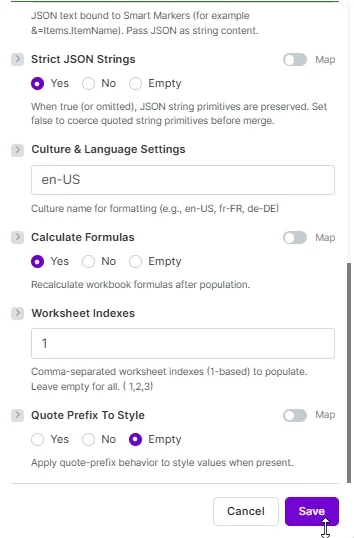
オプション設定: 厳しい JSON 弦楽器、 文化と言語環境、 計算式、 ワークシート索引、 そして 引用符のスタイル接頭辞。 セット 計算式:はい そのため、ワークブックの数式は入力されたデータを反映します。
出力
| 分野 | タイプ | 内容物 |
|---|---|---|
| document | Base64 String | The fully populated Excel workbook encoded as Base64. Decode it with a Make Tools module, then pass the binary to a Google Drive upload, email attachment, Dropbox create-file, or HTTP POST to distribute the report. |
| FileName | String | Output filename for the populated workbook, derived from the input template name. Use this as the target filename when saving to cloud storage to preserve the original naming convention. |
| Success | Boolean | True if the template was populated without errors. Add a Make filter on this field before routing the output to avoid processing incomplete results from failed runs. |
簡単なサンプル(3分でお試しください)
すぐに実行できる組み合わせが 2 つあり、上記のスクリーンショットと一致します。各ペアをダウンロードし、XLSX をマッピングします。 書類 (または使用する) Dropbox ファイルモード)に貼り付ける JSON の中へ JSON データそして、そのシナリオを一度実行します。
用途 テンプレート.xlsx と ワークシート索引 = 2 (シート2には、パラメーターのスクリーンショットで使用されているシンプルなアイテムマーカーが含まれています。)対応するフラットアイテムとペアにしてください。 JSON。
テンプレート.xlsx(書類)sheet23-data.json(JSON データ)- セット ワークシート索引 に
2
請求書シートを使用します テンプレート.xlsx ネストされた &=RootData.Items.* マーカー、構造化参照式 シンプルインボイス 表、小計 + 税金 + 合計の計算。
テンプレート.xlsx(書類)sheet1-data.json(JSON データ)- セット ワークシート索引 に
1請求書シート用
各シートに異なるデータソースを示す3シートのテンプレート。ファイル内のシートの順序は次のとおりです。 アイテム、従業員、製品。
テンプレート-3-sheets.xlsx- アイテム/従業員/製品の配列を1つにまとめる JSON オブジェクト(参照) 複数枚構成のセクション)
- 離れる ワークシート索引 3つすべてを埋めるために空にする
入力方法 Excel テンプレート Make
- 開いてください Excel テンプレートを使用して、データが表示されるセルにスマートマーカープレースホルダーを配置します。
&=ObjectName.FieldNameスカラー値の場合、&=ArrayName.FieldName行ごとに拡張される配列の場合。 - 追加 PDF4me Excel あなたの Make シナリオを選択して選択する Excel - 人口を増やす。
- 選択または作成 繋がり あなたの PDF4me API 鍵。
- セット ファイル に 地図 そして接続する ファイル名 そして 書類 から Google Drive、 SharePoint、 または Dropbox モジュールをダウンロードします。または、ファイルを設定して Dropbox ファイルをダウンロードする テンプレートを直接取得する。
- 地図 JSON データ 以前のモジュールから生成され JSON 文字列、または静的な文字列を貼り付ける JSON リテラル。すべてのキーがテンプレート内の対応するスマートマーカーフィールド名と一致していることを確認してください。
- セット 計算式 に はい テンプレートに入力値に依存する数式が含まれている場合。 ワークシート索引 特定のシートのみを対象とするか、すべてのシートを空欄のままにするかを選択できます。
- クリック 保存 そして実行します。 書類 出力してクラウドストレージへのアップロード、メール、または API 必要に応じて。
Populateはいつ使用すべきですか? Excel で Make?
Makeの「Excelへのデータ入力」機能はいつ使用すべきですか?Common Make automation patterns using the Populate Excel module.
- ウェブフックは、顧客の詳細と明細項目を含む新しい注文ペイロードを受け取ります。 JSON 配列。
- このシナリオでは、ブランド化された請求書テンプレートを以下からダウンロードします。 Google Drive。
- 人口 Excel 順序をマッピングする JSON テンプレート内のスマートマーカーに移動し、各行項目ごとに1行ずつ展開して、合計計算式を再計算します。
- 入力済みの請求書は顧客にメールで送信され、クライアントフォルダにアップロードされます。 SharePoint。
- 毎週スケジュールされたトリガーが発火し、 REST API 最新のKPI指標を取得するために JSON。
- このシナリオでは、KPI レポート テンプレートを以下から取得します。 Dropbox 内蔵の Dropbox ファイルモード。
- 人口 Excel テンプレートセルにメトリック値を挿入し、トレンド計算式を再計算します。
- 完成したレポートはSlackチャンネルに投稿され、日付付きアーカイブフォルダに保存されます。 Google Drive。
- A CRM 取引が完了(落札)とマークされたときにウェブフックが発火し、クライアントと取引データを提供します。 JSON。
- このシナリオでは、取引概要テンプレートを以下からダウンロードします。 SharePoint ワークシートインデックス1のみを対象とします。
- 人口 Excel 顧客名、取引金額、および製品ライン項目をテンプレートに入力します。
- 入力済みのサマリーはクライアントフォルダにアップロードされ、アカウントチーム向けにプロジェクト管理ツールにタスクが作成されます。