変換する Word に PDF フォーム Make
このモジュールの機能
PDF4me、 変換する Word に PDF 形状 変換する Word コンテンツコントロールを含むドキュメントをインタラクティブな入力可能な形式に変換 PDF 内部を形成する Make シナリオ。テキスト コントロールはテキスト入力フィールドになり、チェックボックスはチェックボックスのままで、ドロップダウン リスト コントロールは PDF コンボボックス。結果として PDF このフォームは普遍的に互換性があり、受信者はどの言語でも記入できます。 PDF 視聴者なし Microsoft Word必要なパラメータは、ファイル名とドキュメントのバイナリファイルの2つだけです。
関連ブログ記事
この機能に関するブログ記事はまだありません。近日公開予定です。
その間、PDF4me ブログを閲覧して、あらゆるプラットフォームのチュートリアルやワークフローをご覧ください。
ブログをご覧ください →
認証 API リクエスト
毎 PDF4me モジュール Make 有効な 繋がり. 作成または選択して、 PDF4me API シナリオがフォーム変換リクエストを安全に認証できるようにするためのキー。
見逃してはならない重要な事実
コンテンツコントロールは Word ファイル
の Word ドキュメントには、開発者タブから挿入された正式なコンテンツコントロール(テキストコントロール、チェックボックスコントロール、ドロップダウンリストコントロール)が必要です。下線付きのテキスト、表、テキストボックスはインタラクティブなコンテンツには変換されません。 PDF 分野。
必要なパラメータは2つだけです
ファイル名とドキュメントバイナリが必須入力です。追加の設定は不要で、コンテンツコントロールは PDF 変換時にフォームフィールドを自動的に入力する。
出力 PDF どのビューアでも動作します
出力は標準です PDF Adobe Acrobat Reader (無料)、Chrome で動作するフォーム、 Microsoft Edge、および macOS プレビュー。受信者は Microsoft Word または、フォームへの入力と返送を行うための有料ソフトウェア。
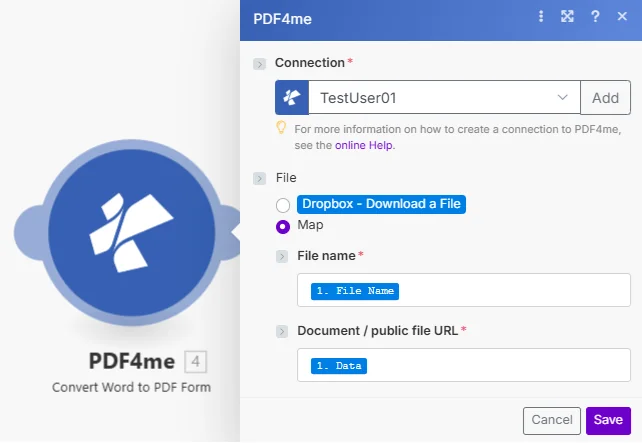
ファイル名とドキュメントバイナリは必須入力であり、コンテンツコントロールは Word ファイルは自動的にインタラクティブにマッピングされます PDF フォームフィールド。
パラメータ
必須: 接続情報、ファイル名、およびドキュメントの3つすべてを指定する必要があります。このモジュールにはオプションのパラメータはありません。
| パラメータ | 必須 | その機能 | 例 |
|---|---|---|---|
| Connection | Required | PDF4me API connection. Click Add and paste your API key if connecting for the first time. | Your PDF4me connection |
| File | Required | How the source Word document reaches the module. The radio lists your connected storage actions (for example Dropbox - Download a File) and Map. Choose Map to wire the fields below from earlier modules: File Name and Document / public file URL only appear once Map is selected. | Map |
| File Name | Required | Filename of the Word document including .docx or .doc extension. Used to identify the file format for correct conversion. | intake_form.docx |
| Document / public file URL | Required | Binary content of the Word document containing content controls. Map from a preceding module such as Dropbox Download a File. | 1. Data |
出力
このモジュールは3つのフィールドを返します。これらのフィールドはすべて、シナリオ内の後続のモジュールでマッピングに使用できます。 PDF4me リクエストをバックグラウンドジョブとして処理し、 Make 次のモジュールを実行する前に、結果を待ちます。
| 分野 | タイプ | 内容物 |
|---|---|---|
| Name | File name | File name of the resulting PDF form. Map it together with Document into the next module, for example to upload or email the file. |
| Document | File (binary data) | Content (binary data) of the resulting PDF form, with the Word content controls converted to fillable fields. |
| Document Url | Text | Link to the resulting PDF form. Returned when PDF4me processes the request as a background job. |
クイックセットアップ
- 追加 PDF4me → 変換する Word に PDF 形状 あなたの Make シナリオ。
- 選択 繋がり (またはクリック) 追加 あなたと一緒に作成する API 鍵)。
- 地図 ファイル名 前のモジュールから:
.docx拡大。 - 地図 書類 前のダウンロードまたはファイルモジュールのバイナリ出力に渡されます。
- クリック 保存 そしてシナリオを実行します。出力
Documentインタラクティブな入力可能な PDF フォーム:クラウドストレージ、メール、またはPDFフォーム入力モジュールにルーティングします。
ワークフローの例
ワークフローの例Common Make scenario patterns using Convert Word to PDF Form.
クライアント受付フォームの配布
- 新しいクライアントレコードが作成されます CRMシナリオがトリガーされる。
- Dropboxはダウンロードします Word 共有テンプレートフォルダにある受付フォームのテンプレート。
- 変換する Word に PDF フォームはそれをインタラクティブな入力可能な形式に変換します PDF 自動的にフォームを作成します。
- Gmailのメールは入力可能です PDF 新規顧客に添付ファイルとして送付し、記入後返送してもらう。
人事オンボーディングパックの作成
- BambooHRに新しい従業員レコードが追加され、シナリオがトリガーされます。
- イテレータはオンボーディングのセットをループします Word Googleドライブに保存されているテンプレート。
- 変換する Word に PDF フォームは各テンプレートを入力可能な形式に変換します PDF。
- Google ドライブは入力可能なすべてのデータを保存します PDF フォームは新入社員専用フォルダに送られ、Gmailはフォルダへのリンクを従業員に送信します。
事前入力済みのイベント登録フォーム
- Eventbriteで新しいイベントが作成され、シナリオがトリガーされます。
- Googleドライブが登録情報をダウンロードします Word イベントの詳細と参加者情報の入力欄を含む、コンテンツコントロールを備えたテンプレート。
- 変換する Word に PDF フォームはインタラクティブな PDF 形状。
- PDFフォームへの入力機能は、イベント名と日付の欄をあらかじめ入力し、Gmailは入力済みのフォームを招待者に送信して、残りの欄を入力させます。
よくある質問
関連モジュール
埋める PDF 形状
変換済みデータを事前入力 PDF フォームフィールドには、あなたのデータが含まれています。 Make 受信者に配布する前のシナリオ。
デジタルサイネージ PDF
完了した証明書にデジタル署名を適用する PDF 受取人から返送された用紙。
PDF OCR
OCR 受領者から返送された紙のフォームをスキャンし、提出されたデータを検索可能なテキストとして抽出する。